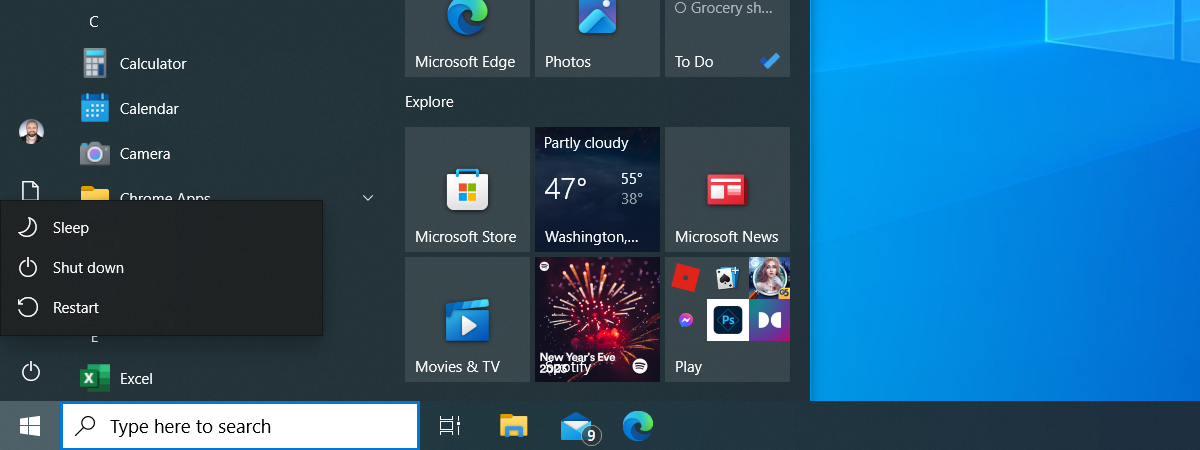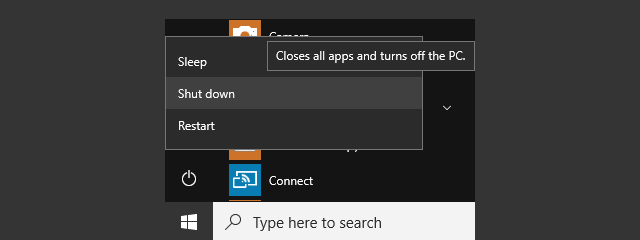
When you first use Windows 8 or Windows 8.1, you will have a hard time figuring out how to shut down or restart your computer. Only Windows 8.1 Update improves the situation and offers an intuitive and "in your face" menu for shutting down your device. In this guide I will share all the methods you can use for shutting down a Windows 8. PC or device. You'll discover several new ways of doing this, so read on.
1. Shut Down Using the Settings Charm - Windows 8 & 8.1
The "traditional" way of shutting down the computer in Windows 8 & 8.1 is via the Settings charm. Press Windows + I on your keyboard and then click or tap Power.
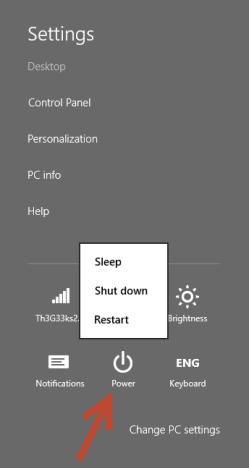
If you are using touch, flick from the right side of the screen, tap Settings and then the Power button.
To learn more about Charms and how to use them, read this tutorial: What are the Charms?.
2. Shut Down from the Logon Screen - Windows 8 & 8.1
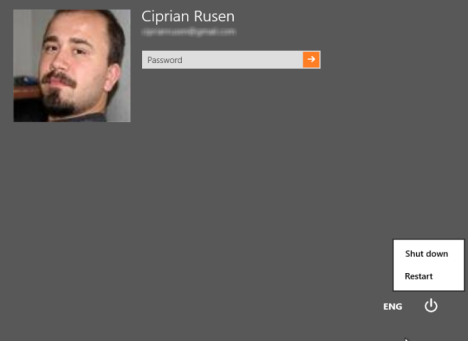
If you find yourself at the logon screen, press the Power button on the bottom right. A menu shows up that includes the Shut Down and Restart options.
3. Shut Down Using Shortcuts - Windows 8 & 8.1
An alternative is to use the Shut Down and Restart shortcuts we bundled in our huge library of shortcuts for Windows.
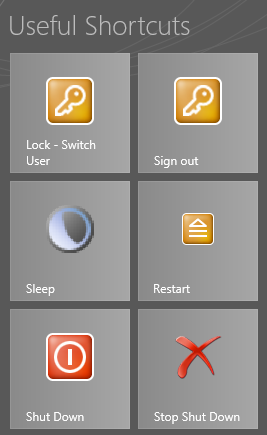
You can find them here: Download The Biggest Library of Windows 7 & Windows 8 Shortcuts.
4. Shut Down Using the "Shut Down" Menu - Windows 8 & 8.1
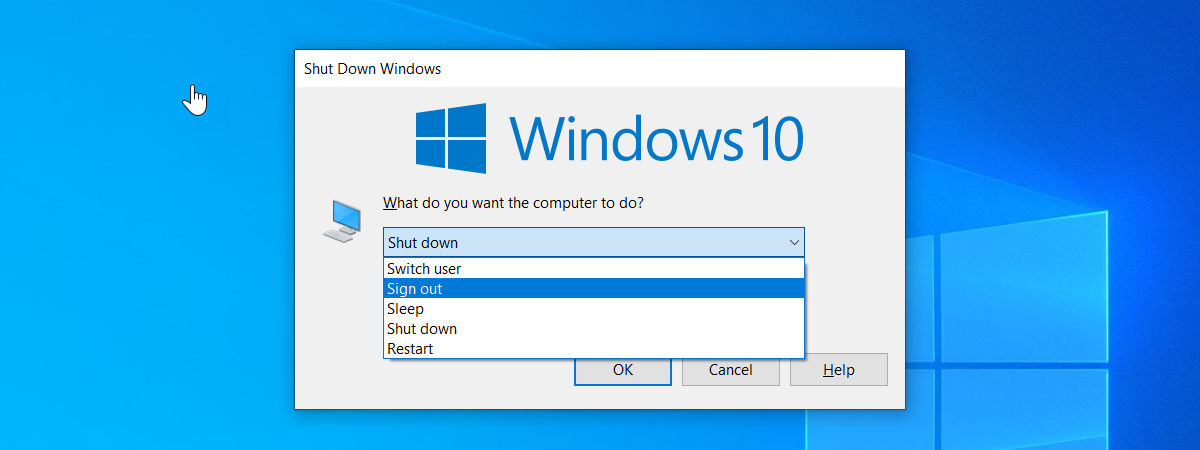
If you find yourself on the Desktop and there are no active windows being displayed, you can press Alt+F4 on your keyboard, to bring up the Shut Down menu.
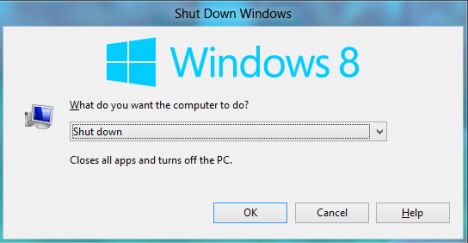
Alternatively, you can use the custom shortcut we created for this menu. You can place it on the Desktop or the Start screen.
The shortcut can be downloaded from here: Download the Shortcut for the "Shut Down Windows" Menu.
5. Shut Down from the Command Line - Windows 8 & 8.1
If you are a Command Line geek, you can use the shutdown /s command.
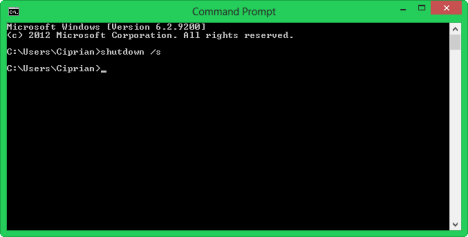
To learn about all the available parameters for this command simply type shutdown in the Command Prompt.
6. Use the WinX Menu - Windows 8.1 only
In Windows 8.1 Microsoft has added new entries in their hidden Windows + X. To display it, press the keys Windows + X on your keyboard or right-click the Start button.
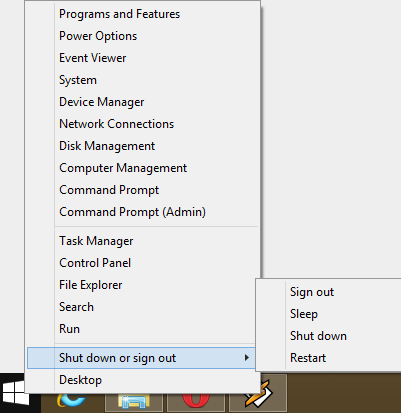
If you are using touch, press and hold on the Start button to display this menu.
7. Use the Shut Down Menu on the Start Screen - Windows 8.1 Update only
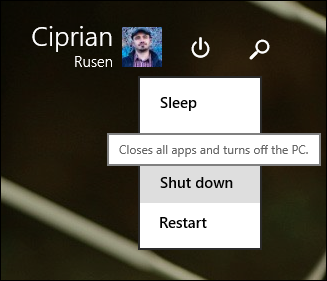
With Windows 8.1 Update, Microsoft has finally implemented a simple Shut Down menu that can be found directly on the Start screen. You will find it in the upper-right corner of the Start screen.
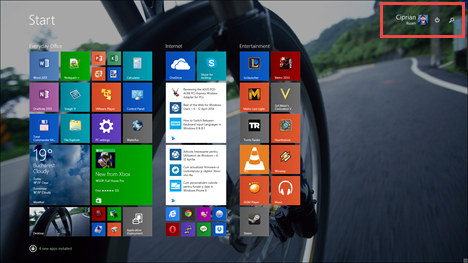
Click or tap the Shut Down button and the menu is displayed with all the relevant options, including Shut down.
Conclusion
At first, figuring out how to shut down or restart Windows 8 & Windows 8.1 might be a pain. However, this guide will help you find your way and use the methods that work best for you. If you know other ways to shut down or restart Windows 8 or Windows 8.1, don't hesitate to share them using the comments form below.