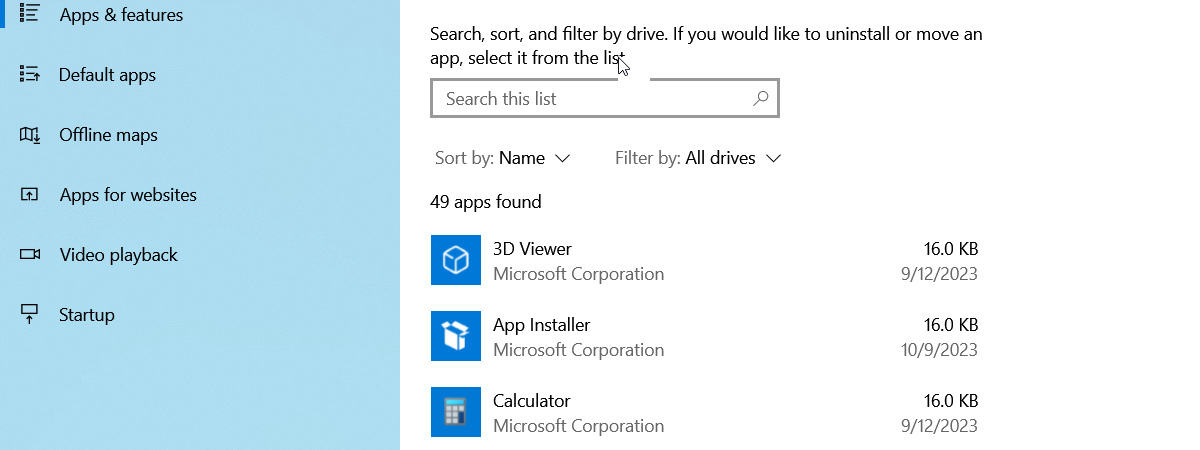
When we analyzed the searches that people make on our website, we learned that some of you want to know ways of finding the specific version of an application you are using. Since we did not have a tutorial to meet this need and help our readers, we decided to create one. Here are eight ways you can learn the exact version of any application you are using, be it an application bundled with Windows, a third-party application you installed or a modern app from the Windows Store.
NOTE: This guide applies to all modern versions of Windows: Windows 7, Windows 8.1 and Windows 10.
1. Use the Help menu
Many programs store their version information in their Help menu, found in the main window of the application. Examples of popular applications showing their version information this way are Skype, Winamp or 7-Zip.
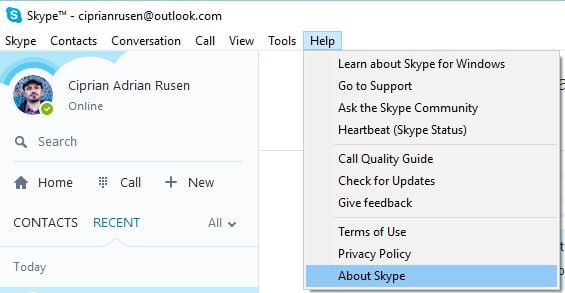
Click or tap Help and then About.
2. Find hidden Help menus
There are applications which have a Help menu that is not visible in the main user interface. A good example of such an application is Windows Media Player. In order to find this menu, right click on its top or bottom toolbar. In the right-click menu you will find Help and then About Windows Media Player.
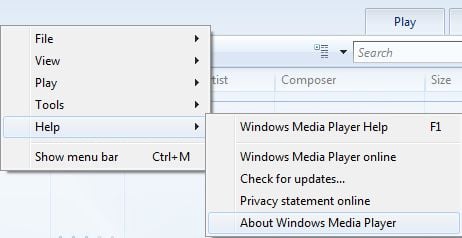
This works for many minimalistic applications with few or no menus at all.
3. Learn the version of applications using the ribbon
Since Microsoft started using the ribbon interface in its Microsoft Office suite, many other software developers started using ribbon-based interfaces. If that's the case for the application you are using, the version information is always found in the File menu. There you will either find a Help -> About section, or the About link directly in the File menu. For example, in Microsoft Office 2007 or 2010 you need to go to " File -> Help -> About" while in Paint you need to go to " File -> About Paint".
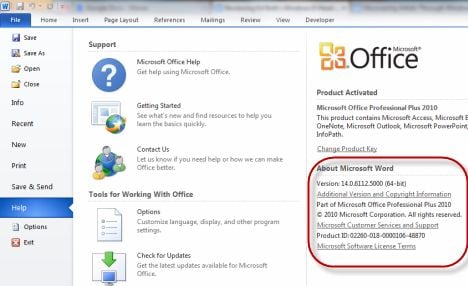
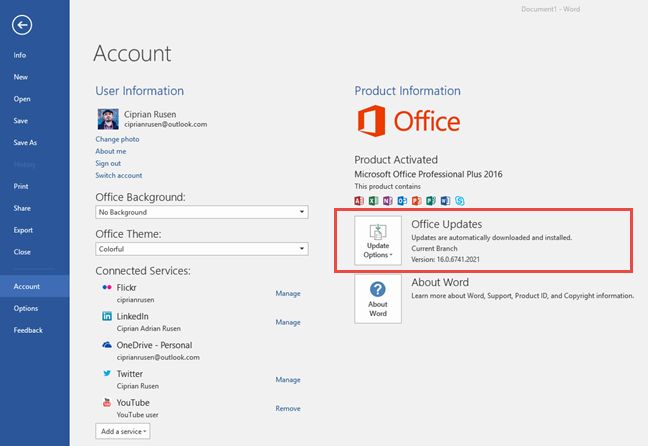
Microsoft Office 2013, Microsoft Office 2016 and the Office 365 service are an exception to this rule. In these versions you need to open the File menu and go to Account. There you will find a section named Product Information , showing the exact version of the product you are using.
4. Find version information using the notification area icon
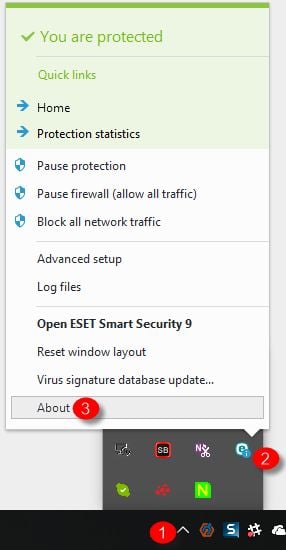
There are applications which have no Help or File menus with an About entry included. If these applications are running in the background and they have an icon in the notification area, you can use that icon to get the information you need.
Examples of such applications are the Kaspersky and ESET security products and the World Community Grid. To find their exact version, right click on their icon in the notification area and then click on About.
5. Access the properties of the main executable
If other methods have failed, there's one that will work almost every time, with any desktop application for Windows:
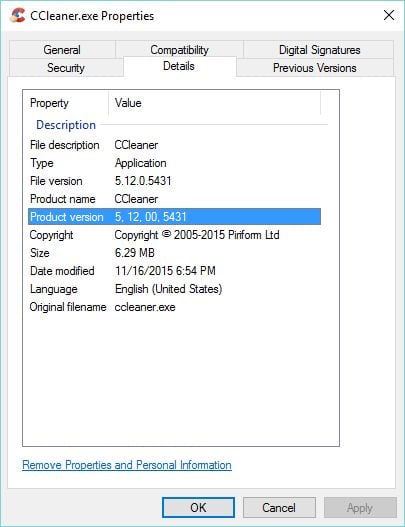
Open Windows Explorer in Windows 7 or File Explorer in Windows 8.1 and Windows 10. Then, navigate to the location where the application is installed. Locate the main executable (a file with the extension ".exe"). It generally has the same name with the application itself. For example, Oracle Java has the java.exe file, CCleaner has ccleaner.exe and so on. Right click on it and then select Properties. In the Properties window, go to the Details tab. There you will find information about the product name, the product version and so on.
6. Learn the version for Windows 8.1 modern apps
All the methods shared above work for desktop applications and all versions of Windows. But what about modern Windows apps, available only through the Windows Store , in Windows 8 or Windows 8.1?
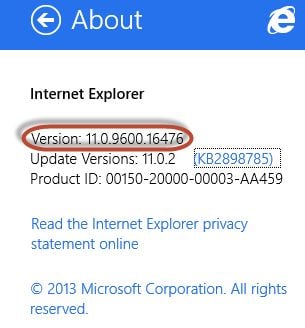
Some modern apps share their version information while others do not. For those Windows Store apps that share their version, you need to open them and then bring up the charms. If you don't know how, read this guide: What are the Charms & How to Use them.
Then, click or tap Settings. Many apps will have an entry named About. Click or tap on it.
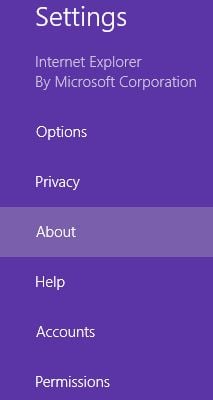
In the About menu, you will see a Version field, displaying the information you need.
7. Learn the version for Windows 10 modern apps
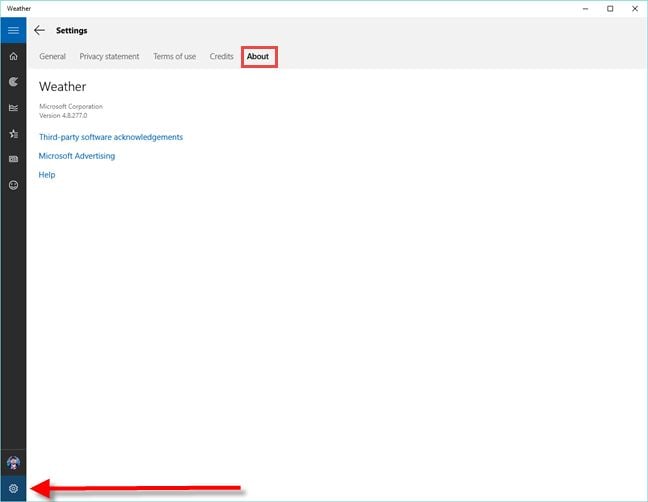
In Windows 10, things are easier than in Windows 8.1 when it comes to learning the version of modern apps. Open the app that you are interested in and then look for the Settings button. It should be somewhere in the user interface. Click or tap on it and then look for the About section. Click or tap About and there you will find the version of the application that you are using.
8. Other ways to find the exact version of an application
There are a few applications that post their exact version in the title of their main window, after the product name. A good example of this is Paint.NET.
Others, which have support features built-in, have Support menu available in the main interface. If you access it, they should list somewhere the exact version, as this information is generally needed during the support process. A good example of such applications are antivirus products and security suites.
Conclusion
We hope that we managed to cover all the important ways in which you can find the exact version of any modern app or desktop application for Windows. If you know other methods that work for certain applications, don't hesitate to share them using the comments form below.