Both Windows 7 and Windows 8 give you the ability to set, in detail, the format used for displaying dates, times, your local currency and the measurements system used by the operating system. If you would like to know how to change all these settings and more, don't hesitate to read this step by step guide.
Where to Find the Dates, Times & Currency Settings in Windows 8
Let's start by showing where to find these settings in Windows 8: open the Control Panel and go to "Clock, Language, and Region". There, look for Region. Beneath it, you will find a link that says "Change the date, time, or number formats". Click or tap on it.
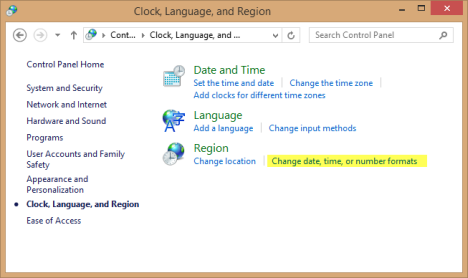
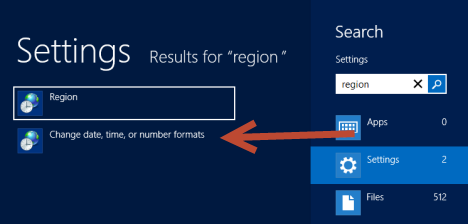
Another way to go about this is to search for region on the Start screen, filter by Settings and click or tap "Change date, time, or number formats".
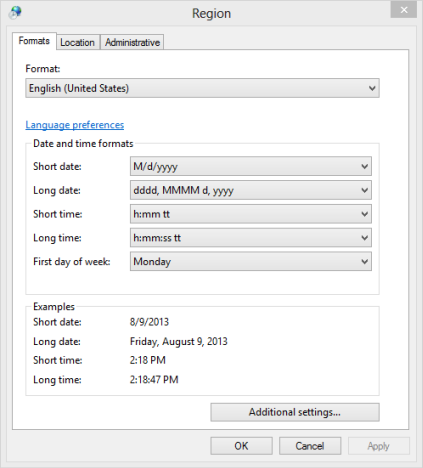
The Region window opens and looks similar to screenshot below.
Where to Find the Dates, Times & Currency Settings in Windows 7
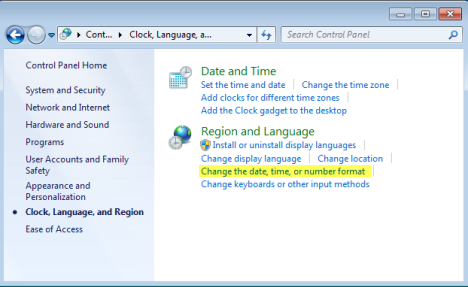
In Windows 7, the procedure is similar: open the Control Panel and go to "Clock, Language, and Region". There, look for Region and Language. Beneath it, you will find a link that says "Change the date, time, or number format". Click on it.
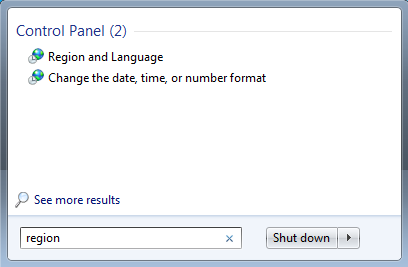
Another method is to search for region on the Start Menu and click the "Change date, time, or number format" search result.
The Region and Language window opens and looks similar to screenshot below.
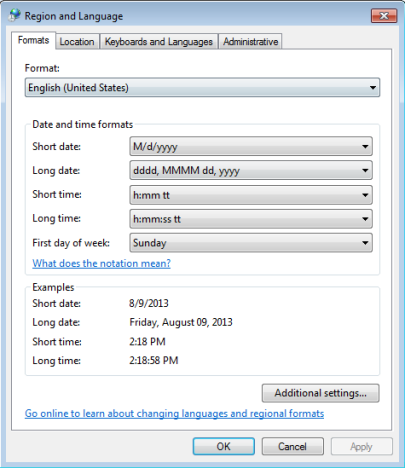
As you can see, windows have slightly different names in Windows 7 and Windows 8. Also, in Windows 7 there is an additional tab named Keyboard and Languages. However, we will be working only in the Formats tab and the instructions show below are the same for both Windows 7 and Windows 8.
How to Change the Format for Dates and Times in Windows 7 & Windows 8
The format for dates and times can be changed from the Formats tab. The easy way to change these settings is to first choose your country in the Format drop-down list.
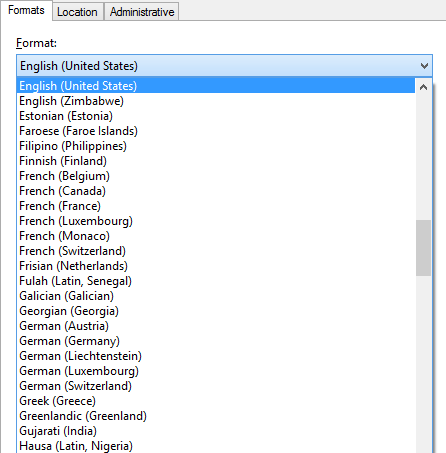
Once done, Windows will automatically populate the date and time fields with the formats specific to your country. If you are not satisfied with the defaults, you can customize each of the date and time fields and pick the formats you desire.
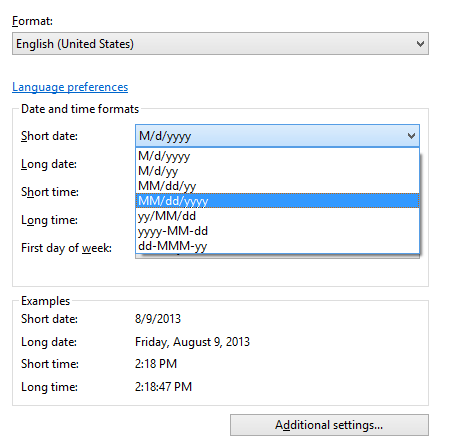
When you make a change, Windows will show how things will look like, with your current settings, in the Examples section, beneath "Date and time formats".
If you are like me, you may want to also change the first day of the week. Why? Well... I generally use the formats valid for the United States but I am from Romania. In Romania, the first day of the week is Monday, not Sunday.

Play with all the available settings until you get it right and, when done, click or tap OK.
How to Change the Format for Numbers & Currency
You can also change the way numbers are displayed and the default currency used for your user account. To have them changed, keep the Format tab open and click or tap the Additional settings button.
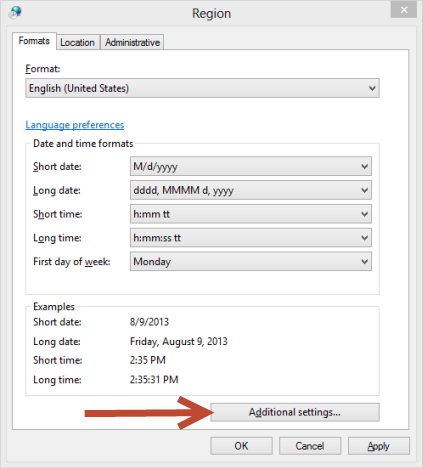
The Customize Format window opens. In the Numbers tab, you can change how numbers are displayed by Windows: from the decimal symbol to the format for negative numbers and the default measurement system (US or Metric). Play around with the settings until you get them right.
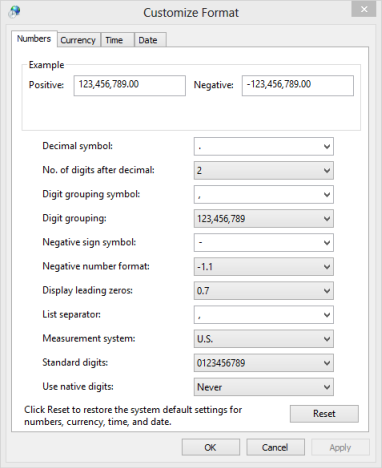
If you don't like the settings you've made, you can always click or tap Reset, on the bottom-right of the window.
In the Currency tab, you access all the settings related to the default currency used by Windows for your user account. The currency is specific to the country and format you've set earlier. You can change the symbol, the format, grouping symbol, etc. Play with the available settings until you achieve the desired effect and, when done, click or tap OK.
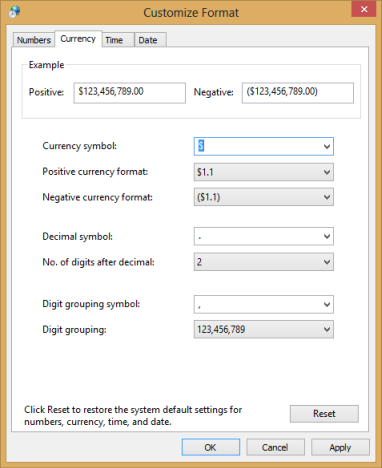
Again, you can use the Reset button if you don't like the changes you've made.
Additional Settings for Time & Date
In the Customize Format window there are also tabs for Time and Date. You can find detailed information about how to change the settings available in these tabs, here:
Conclusion
As you can see from this tutorial, changing the settings related to the display of dates, time, currency and numbers is not very difficult. However, the configuration windows are not that well optimized and some of the settings are redundant, showing up in more than one place, creating a bit of clutter instead of simplification. If you have any questions on this topic, don't hesitate to use the comments form below.