Skip to Content

The Complete Guide to the Windows 7 Start Menu


Start MenuThe Start Menu is one of the elements which remained unchanged for many version of Windows. Windows Vista was the first to introduce some major redesign choices, some more inspired than others. Windows 7 marks another evolution but, this time, changes are more subtle. There are a small number of new features and many fixes for the less inspired changes introduced by Windows Vista. In this article I will start with an overview of the new features, improvements and changes done in the Windows 7 Start Menu. Then I'll show you how to launch the Start Menu settings window, change the default action of the power button, how to enable or disable recent items and programs, how to change the number of recent items and programs shown, how to customize the icons and menus from the Start Menu and how to pin items to the Start Menu and Jump Lists.

New Features, Improvements & Changes

If you don't pay too much attention you won't notice the subtle but important changes done in Windows 7 with regards to the Start Menu. In this chapter I will share what has changed:

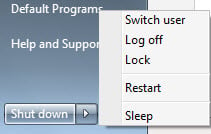
  • Redesigned Shut Down Menu - compared to Windows Vista, Windows 7 has an improved, redesigned shut down menu. To shut down your PC, you just need to click on the Shut down button. To choose a different action, click on the small arrow right next to the Shut down button and select the action you want to perform.
  • Start Menu

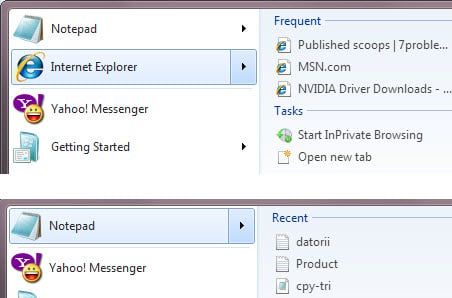
  • Jump Lists - think of a Jump List as a quick menu with tasks that can be performed by an application combined with a list of recently opened files. Jump lists are shown on the left side of the start menu only for the applications which support this feature. You can see them in use with applications like Getting Started, Sticky Notes, Internet Explorer, Notepad, Word and a number of other applications.

    The applications for which this feature works have a small arrow on the right side, attached to their shortcut. Click on the arrow or just leave the mouse over their shortcut for a second. The start menu will expand and show the tasks you can perform with the application or the recent items that you can open.
    Start Menu

  • Improved Instant Search - the results of a search will spread to the entire Start Menu pane and will include items from your libraries, user files, Control Panel, Start Menu shortcuts, e-mail messages and offline files. Not only this, but the results are loaded faster and they seem to have improved in quality compared to Windows Vista.

    There are also a few things that have been removed:

    • The Classic Start Menu is completely gone. Users can use only the new version.
    • The shortcuts for the default internet browser and e-mail client no longer exist.

    If you noticed other changes, don't hesitate to comment.

    How To Launch The Start Menu Settings Window

    In the Start Menu search box type 'start menu'. You will see one result named 'Taskbar and Start Menu Properties'. Click on it and the configuration window will open. Alternatively, you can right-click on the Start Menu and select Properties.
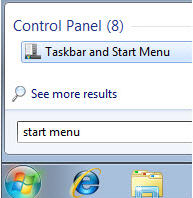
    Start Menu

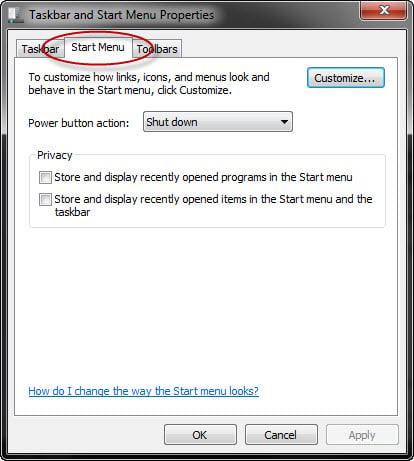
    The second tab of the 'Taskbar and Start Menu Properties' window contains the Start Menu settings. Click on it to access it's settings.

    Start Menu

    In the next sections I will go through all possible configuration options and show what you can do with them.

    Change The Default Power Button Action

    Make sure you are in the Start Menu tab of the 'Taskbar and Start Menu Properties' window. Here you can customize what kind of action you want the Power button to perform: Shut down, Switch user, Sleep, Log off, Lock or Restart.
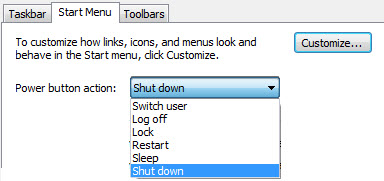
    Start Menu

    Choose the default action you prefer and click on OK.

    Enable/Disable Recent Items & Programs

    You also have the option to enable or disable the display of the recently used files and programs lists in the Start Menu.

    If you check the first option which says 'Store and display recently opened programs in Start Menu, Windows 7 will keep track of the programs you are using and display them on the list from the left side of the Start Menu.
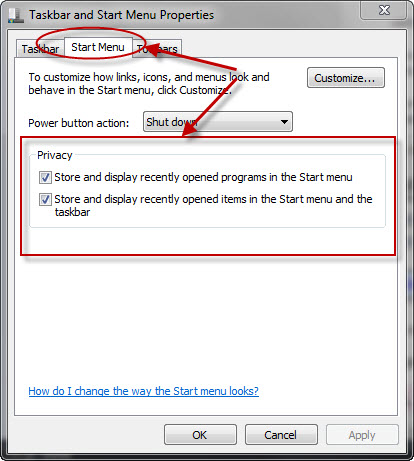
    Start Menu

    This is how the Start Menu will look like when you have this options checked together with several pinned shortcuts.
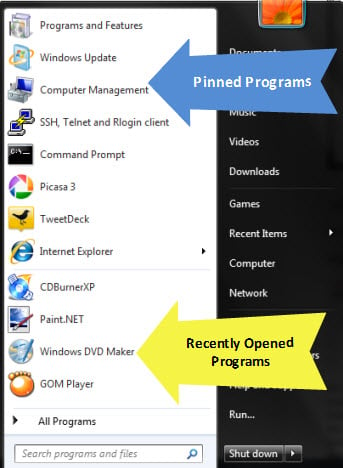
    Start Menu

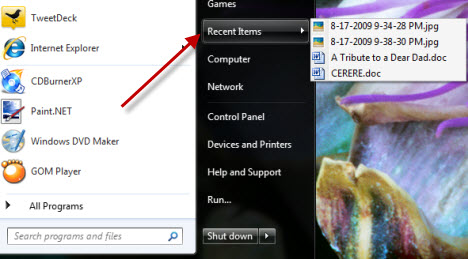
    If you check the first option which says 'Store and display recently opened items in Start Menu and the taskbar', Windows 7 will keep track of the documents you are working with. However, it will display them on the Start Menu only if the Recent Items shortcut is enabled. To learn how to enable it, read the section below. When both this setting and the 'Recent Items' shortcut are enabled, the Start Menu will look like in the screenshot below.
    Start Menu

    Customize The Shortcuts Shown In The Start Menu

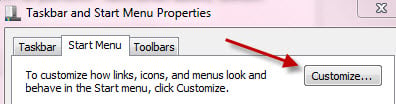
    In order to customize the Start Menu, click on the Customize... button.
    Start Menu

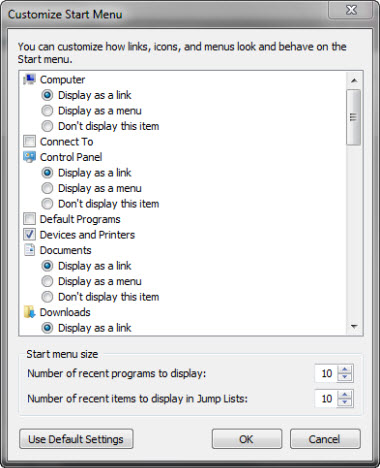
    In the 'Customize Start Menu' window, you can change the look and behavior of links, icons and menus shown in the Start Menu.
    Start Menu

    Scroll down the items list, enable the ones you want to have on the right side pane and disable the ones you don't use.

    In order to optimize the Start Menu, do the following:

    • Keep only the menus, items and shortcuts you are using on a regular basis. If there's a shortcut seldom used you can just search for it in the search box instead of adding it to the Start Menu.
    • Reduce the number of recent programs which are displayed and pin the most used applications. To learn how to do this, read the next section of the article.

    Change The Number Of Recent Items & Programs Shown

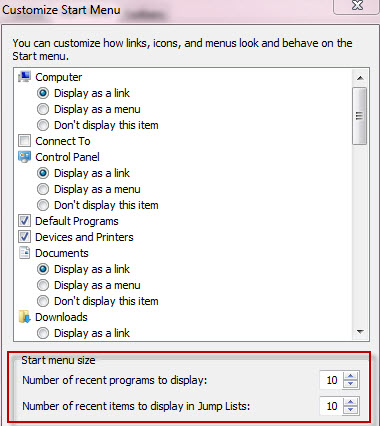
    To change how many recent programs and items are displayed in the Start Menu, go to the bottom of the 'Customize Start Menu' window and set the appropriate fields.
    Start Menu

    After you change the values, click on OK.

    Most Useful Start Menu Shortcuts & Settings

    To help you out, I have some recommendations of useful shortcuts and settings that you might want to enable in your Start Menu:

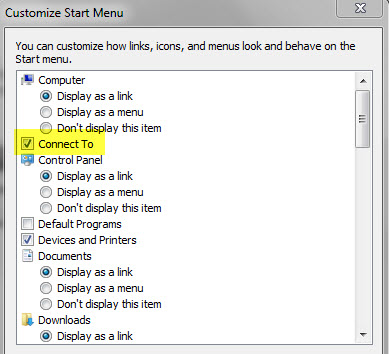
    If you have a laptop and you need to connect to different networks during the week, you might want to enable the Connect To option.
    Start Menu

    Other useful shortcuts that you might want to enable are 'Devices and Printers', the 'Run command' and your libraries of documents, pictures and music.

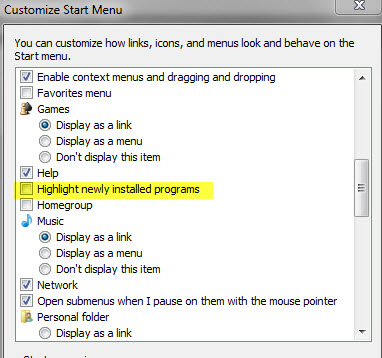
    One of the least useful options is 'Highlight newly installed programs'. You might want to keep this option disabled.
    Start Menu

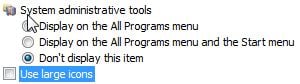
    If the icons from the Start Menu are too big for you, you can disable the 'Use large icons' option and solve this problem.
    Start Menu

    If you have other recommendations, don't hesitate to share them in a comment.

    How To Pin Items To The Start Menu

    Pinned items are shortcuts which appear on the left pane of the Start Menu until they are manually removed. You can pin shortcuts found anywhere on your Desktop, Start Menu or Taskbar and any executable file of any application.

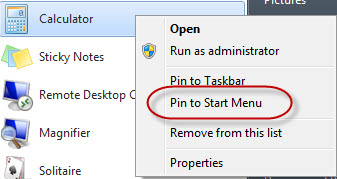
    To pin a shortcut, right click on it and then select 'Pin to Start Menu'. Alternatively, you can drag and drop a shortcut to the Start Menu or on its orb.
    Start Menu

    In case you don't see the 'Pin to Start Menu' option when you right-click on a file, hold down the SHIFT key and right-click again.

    For example, the 'Pin to Start Menu' option appears in the right-click menu only for applications (files with the '.exe' extension). If you want to pin to the Start Menu a text file, you will have to use the SHIFT key and right click.
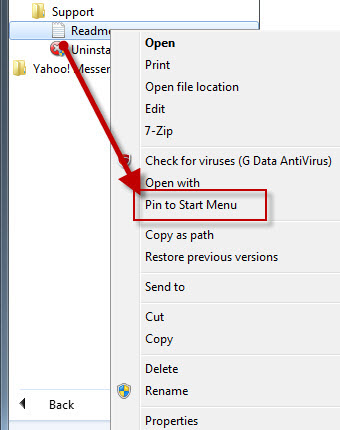
    Start Menu

    To remove a pinned item, simply right click on it and select 'Unpin from Start Menu' or 'Remove from this list'.
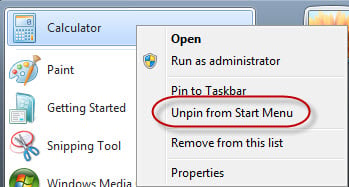
    Start Menu

    How To Pin Or Remove Items From Jump Lists

    As mentioned earlier, applications with support for Jump Lists will show a small arrow on the right of their Start Menu shortcut which gives you access to recently used files and tasks available for that application. The recently used files list is continuously updated as you work with the application while the tasks list remains the same. If you want to, you can pin a recently used file so that it always shows up for that application.

    Let's take Internet Explorer, for example: if you have used it to browse a few web pages, you will see the most frequent web pages and the standard list of tasks.
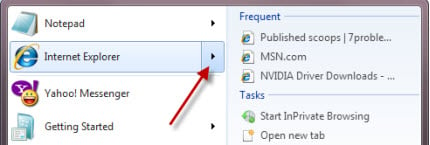
    Start Menu

    Move your mouse on any of the frequently visited web pages and you will see on its right side a small pin. Click on it to pin that page to the Jump List. Alternatively, you can right click on the page that you want to pin and select the 'Pin to this list' option.
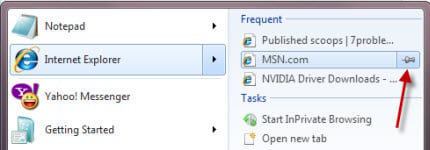
    Start Menu

    To unpin an item, click again on the pin icon or right click on it and select the 'Unpin from this list' option.
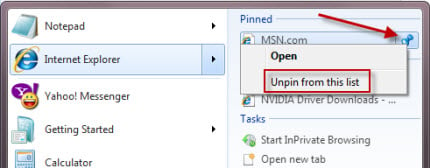
    Start Menu

    As you can see, the process is very simple.

    Conclusion

    The changes done to the Start Menu in Windows 7 improve in subtle ways the way you work with it. The search box & Jump Lists are a major benefit as they allow you to quickly start the applications you need to use, without having to scroll down long lists of installed applications.

    If you have some cool tips on how to improve the Start Menu and the way it is organized, don't hesitate to leave a comment.


    Related articles:

    New Features & Improvements in the Windows 7 Taskbar
    How to Pin Any Folder to the Windows 7 Taskbar
    How to Pin Special Windows Items to the Taskbar
    How to Customize the Notification Area
    The Biggest Library of Windows 7 Shortcuts
    Customize the Date, Time and All Related Settings
    How to Customize your Desktop Background
    How to Customize Windows 7 Themes

  • Share this

    Comments

    Is there a way to get small

    Is there a way to get small program icons on the start menu? So i can have twice the number of shortcuts in the same space.

    I found it! It was hidden all

    I found it! It was hidden all the way at the bottom on the Customize Start Menu list.

    Hello, thanks for a great

    Hello, thanks for a great guide. There are two things that I'd like to do with my Start Menu. The first I know is possible, but I'm not sure about the second.

    1) I'd like to make my Start Menu bigger (increase its height, to be specific). I've seen someone post a screenshot here: http://news.softpedia.com/images/news2/Build-a-Monster-Windows-7-Start-M... Unfortunately, he didn't talk about how to achieve this.

    2) Would it be possible to pin a folder to the Start Menu? For example, after installing Microsoft Office, a new folder is automatically created with applications such as Microsoft Word, Microsoft Excel, and Microsoft Publisher. Would it be possible to pin the Microsoft Office folder, and have the three applications I mentioned in the Jump List?

    Thank you!
    Vic

    1. It's quite easy to setup a

    1. It's quite easy to setup a 'monster Start-Menu' :) This is what you need to do to make the Start Menu bigger:

    Right-click on the Start Menu orb or on the Taskbar and select Properties.
    Click on the Start Menu tab from the 'Start Menu and Taskbar Properties' window.
    Click on the 'Customize' button.
    Now look at the bottom of the new window at the 'Start menu size' and increase the number of recent programs to display. The maximum number is 30.
    You can also increase the number of recent items in the Jump Lists even if this won't have any impact on the size of the Start Menu. The maximum number is 60.
    Then click on 'OK', again on 'OK' and you should have a 'monster Start Menu'.

    2. We will soon write a tutorial about how to pin a custom folder to the Taskbar. :)

    Thank you for replying with

    Thank you for replying with the information, George!

    I'm not trying to be difficult, but I've never really liked the idea of displaying recently opened items. Even on Windows XP, I did not allowed such a feature to be present. Even before I posted here, I actually did see the "Start menu size" options in the "Customize Start Menu" tab of the Taskbar Properties, but kind of ignored it because I had no interest in viewing my recently opened programs (sorry I failed to point this out before).

    Now, with that said, would it still be possible to increase the start menu size? Thank you very much!

    Yes, you can increase the

    Yes, you can increase the Start Menu size, but the process is the same. If you don't want to see the most recently used items in the Start Menu, pin down the items that you want to see.

    The problem I have with the

    The problem I have with the "pin to start menu" option is that I'll pin one too many programs to the start menu and half of them vanish until I remove one of them. My start menu is now totally borked and I have to remove everything and start from scratch. I haven't found any way to increase the allowable number of pinned items, and I *really* dislike the fact that adding one too many makes half the list disappear.

    How do I fix this?

    Don't use large icons. Use

    Don't use large icons. Use small ones and it will be big enough.

    Occulus, I'm sorry but I

    Occulus, I'm sorry but I can't replicate the same behavior of the Start Menu on my system.

    The maximum number of items the Start Menu can display depends on the resolution of your screen.
    By default it should be 15 recent items and 15 pinned items and if you pin more than 15 items, they will decrease the number of recent items.

    However, I made some tests with different resolutions, with and without the 'large icons' option. This is what I noticed:

    - with large icons in the Start Menu, the maximum number of items I could pin on a 1280x1024 resolution screen was 22.
    - without large icons on the same resolution I could pin 39 items on the Start Menu.
    - with large icons in the Start Menu, the maximum number of items I could pin on a 1024x768 resolution screen was 15 and without large icons 27.

    The bottom line is this: the greater the resolution of your screen is, the more items you can pin on your Start Menu. Also, as a rule, with the 'large icons' option disabled you can pin even more items.

    During all these test, nothing vanish from my Start Menu.

    After a lot of tinkering with

    After a lot of tinkering with Windows 7, I was able to find a solution to the requested tweak I posted above last week regarding making the Start Menu bigger.

    I checked at least 15 Web sites on the Internet and couldn't find anyone else with a solution, so I decided to post a tutorial myself to help others, and it can be found here: http://windows7forums.com/tweaks-guides-howtos/18866-tutorial-how-increa...

    Take care,
    Victor Ly

    Ly, YOU DA MAN! Just what I

    Ly,

    YOU DA MAN! Just what I needed to fix this "see all pinned programs" conundrum.

    Thanks for sharing.

    ChowBoy

    I have installed Win 7

    I have installed Win 7 Ultimate and when I click the start icon there is nothing in the white area, and the All Programs doesn't have anything there either.

    I can't figure how to setup the default programs like Vista did.

    Is there a way to have windows explorer show less superfluous data??

    The Win 7 installation is over the Vista OS, and there doesn't seem to be any conflicts.

    Thanx
    William Henry

    So, what you are saying is

    So, what you are saying is that the Start Menu is empty. It has no shortcuts on the left side area, even when you click on All Programs. Let me know if i I understood this correctly or not.

    I know you can choose whether

    I know you can choose whether or not you want large icons in the start menu, but is there a way to keep the pinned programs icons big and make recently opened programs icons small?

    What I miss from the Classic

    What I miss from the Classic Menu most, is the hotkeys. I could just hit the Win key, then the "U" for "shUt down" and bingo, with another hot key I could restart or shut down. All in a split second. How can I do that without the Classic Menu (without wasting a 15 seconds to use the mouse), please? Without that I need a 3rd party software to give me back the Classic Menu. Thank you in advance!

    You can link a folder to the

    You can link a folder to the start menu by creating a shortcut to it and dragging the shortcut to the Start button.

    Is there a way to remove/hide

    Is there a way to remove/hide the 'search programs and files' from the start menu without removing it from Windows Explorer and Control panel? I know that you can disable the 'search' features from the control panel... but that removes all capability of being able to search with Windows Explorer/Control Panel. It would be awesome if during the Windows 7 upgrade that they allowed you to have more control of the worthless 'functionality' that is comes with. Frustrated.

    Anyhow, any help would be greatly appreciated.

    The problem was Windows 7 RC,

    The problem was Windows 7 RC, I have reverted back to Vista and the programs are back, thanks for the feedback.

    Craig, Has anyone posted a

    Craig,

    Has anyone posted a comment / solution to your question? I use the keyboard all the time and with XP, I press the Windows key on the keyboard and press W for Word, E for Excel, etc. It's fast.

    It seems like a nit for most people but if you constantly open and close these programs, it's faster than reaching over to the mouse, aim for the start button, click, aim for the program, click, oooops wrong program. close the program, aim for the start button, aim for the start button, click, aim for the program, click, oooops wrong program again. aim for the start button, click, aim for the program, click, got it!! woohoo! do that a couple times a day, a couple times a week, well you get the message, a waste of time.

    my preference of pressing the windows key on the keyboard, pressing w, bam... I get Word. pressing the windows key on the keyboard, pressing e, bam i get Excel, etc etc...

    also when pressing the windows button, the default for the cursor is in the search programs and files. why??? it's sorta like arriving at your front door, stopping, and pulling out a pair of binoculars and searching for the door knob where it has been for years.... searching for programs and files should be an option, not default because everyone is not searching for programs and files all the time. they want to use their computer.

    Craig1768 (not verified) - 04/02/2010 - 05:57

    Is there a way to remove/hide the 'search programs and files' from the start menu without removing it from Windows Explorer and Control panel? I know that you can disable the 'search' features from the control panel... but that removes all capability of being able to search with Windows Explorer/Control Panel. It would be awesome if during the Windows 7 upgrade that they allowed you to have more control of the worthless 'functionality' that is comes with. Frustrated.

    Anyhow, any help would be greatly appreciated.

    No, there is no solution to

    No, there is no solution to this that I have found yet. I am not quite sure what you are getting at about the hot keys with office products. I understand that you can hot key and avoid the whole menu, but technically I could just short cut everything on the desktop also. I don't think that it possible to do.

    I was just kinda bent that I shut off the 'search features' in the control panel area, which was awesome, it shut it off on the start bar, but now when I have windows explorer open, I can't do a simple 'find'.

    Thanks for your message.

    Craig

    When I shift and right click

    When I shift and right click an excel document that I want to pin to the Start menu, "Pin to Start Menu" is still not an option. I see only 3 options: "Customize Quick Access Toolbar," "Show Quick Access Toolbar Below Ribbon," and "Minimize the Ribbon."

    What have I done wrong? I used to be able to pin Excel docs to the Start menu and used this feature all the time.

    Any help you can offer will be most appreciated! Thank you.

    Try dragging the document to

    Try dragging the document to the start menu with the mouse. When you place the document on top of the start menu orb, it should show you "Pin to the Start Menu" and, if you drop it there, it gets pinned. Hope this works.

    Thank you, Ciprian -- that's

    Thank you, Ciprian -- that's brilliant and it did work! I was hoping to pin the document to "Recent documents" under the Excel program on the Start Menu, but pinning the worksheet to the Start menu will do. Thank you so much! :-)

    In the past using XP or Vista

    In the past using XP or Vista there was always a shortcut on the start menu to Outlook or Windows e-mail. I can't seem to find that on the window 7 start menu. Do I need to find it somewhere else and add it? I'm not quite sure what to do. Does anyone have any suggestions for me?
    Any remarks are appreciated-
    Weelz

    Just pin them to the Start

    Just pin them to the Start Menu as we show in this article and they will be there.

    Thanks for the 411 Ciprian.

    Thanks for the 411 Ciprian. I'll give it a shot. It's the Mom's new toy, so I'll give her the info.

    Weelz

    Guys, I have a problem with

    Guys, I have a problem with the Vista/Win7 "Shut Down" default. How, exactly, do you change that? I've searched the Web many times, but there's no mention of a way to do so. Yet, I know it can be done: I've run across a few Win7 computers that have "Sleep" or "Log off" in place of "Shut Down". This is really annoying at work, as some people will unintentionally shut their computers off when all they meant to do was to log off, then have to wait a good ten minutes or more for their computers to boot back up again. It can't be done from the Taskbar, as that only affects the power button. So ... does anyone know of a way?

    Thanks again for some awesome tips!

    Catreece

    Hi Catreece, I'm sorry but I

    Hi Catreece,

    I'm sorry but I do not understand what exactly you want to do. You want to change the behavior of the shut-down button found on your computer? The physical button I mean.

    Ciprian

    Hi Ciprian, No, but I'll

    Hi Ciprian,

    No, but I'll comment on the Start Menu and physical powerr button in a moment.

    Push the Windows button and bring up the Start Menu. Notice the "Shut Down" button on the lowerr right side. It will, most likely, have a small yellow shield icon with an exlamation mark inside it, on the left. THAT is the default I need to change. And there just doesn't seem to be any way to do so. Yet I know it's possible: I've seen other computers with "Log Off" or "Restart" in place of "Shut Down". So there must be a way to do so.

    Now, as to the physical power button: we're told that all we have to do is to right-click on the taskbar, go to Properties, go to Start Menu, then change the Power Button default (which is always set to "Shut Down"). But I'll tell you something: it makes absolutely no difference what you set it to - when you press the physical power button, it always goes to "Shut Down". ALWAYS! I wasted a good hour the other day going through numerous reboots trying to get it to do anything other than shutting down. No dice. Further, when it comes back up and you bring up the Start Menu again, the "Shut Down" button will now indicate "log off" - for a short time. Then it reverts to "Shut Down" once again. And no, it makes no difference if you seleced "Sleep" or "Restart" or "Lock", it will always show "log off" for a short time before going back to Shut Down.

    Microsoft programmers must be laughing their freakin' heads off at us end users, knowing that we're forced to use the Shut Down side menu to log off (or whatever); no more keyboard-based logoffs for us!

    Anyway, hope this clarifies things a bit.

    Thanks again,

    Catreece

    Post new comment

    The content of this field is kept private and will not be shown publicly.
    • Web page addresses and e-mail addresses turn into links automatically.
    • Allowed HTML tags: <a> <em> <strong> <cite> <code> <ul> <ol> <li> <dl> <dt> <dd>
    • Lines and paragraphs break automatically.

    More information about formatting options