
Once your OneDrive account is set up and in use, you may want to check out your options to make sure everything is configured the way you like it. While the defaults are fine for most, power users may enjoy the ability to change default file formats and tagging permissions. This tutorial will show how to change them.
How To Access the OneDrive Website Options
To access the Options menu, click or tap the gear icon at the top right of your OneDrive account window and select Options.
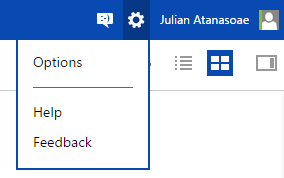
The Options page opens, showing a column with things to configure, on the left.
How to Manage Or Upgrade Your OneDrive Storage Space
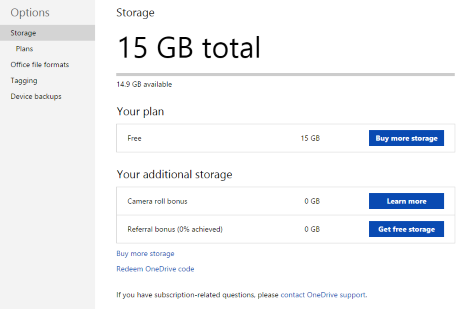
Click or tap Storage from the Options menu for a quick glance at your available storage space. If you have plenty of space available, you don't have to worry about upgrading. If you're cutting it close, you might consider paying for more space.
Click or tap Plans from the Options menu or "Buy more storage" from the Storage page to see your available options for a paid OneDrive account. You'll find that the prices are reasonable, the most expensive option being 200GB for $3.99/month.
Also, if you buy an Office 365 subscription, you get 1 TB of OneDrive storage at no additional cost. We consider this as a very good offer, and we strongly recommend it because you get a lot of value for a very cheap price. You can find a very good deal on Amazon.
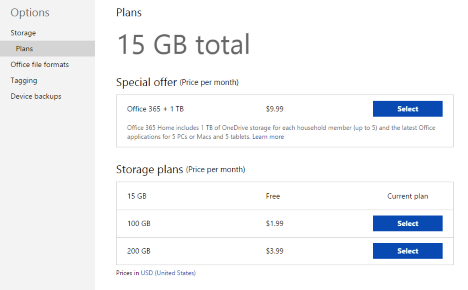
Click Select next to a payment option if you want to upgrade your account.
How to Change the Format Used by Office Online
The "Office File Formats" section gives you the chance to change the default file formats for documents created using Office Online. The default selection is to use Microsoft Office Open XML Format, which will work for most Windows users with Microsoft Office products on their devices. For users with a mixed environment, or those who opt for open-source applications such as LibreOffice or AbiWord, there is a choice of the OpenDocument format.
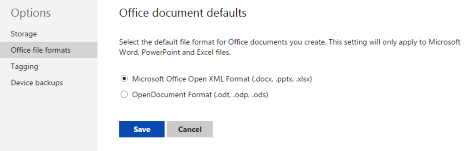
Make your selection and click or tap Save to keep it.
How to Change Who Can Tag You In OneDrive Photos
The last section, called Tagging, lets you choose who can tag you in photos, and who can tag others in your photos. While most will be fine with the default settings in this section, users who don't want crazy party pictures linking back to their profiles may want to limit permissions.
The "Photos of You" section lets you manage who can tag you in any picture that any user uploads. Choose "Just you" if you want to have full control of what pictures link to you.
The "People Tags on your Photos" section manages tags on all the photos that you upload. By default, any user who can view your albums can create tags, change that if you want to keep tagging privileges to yourself.
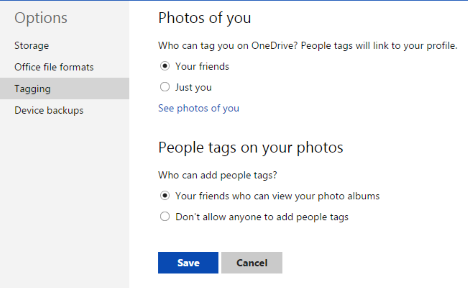
Make your selections and click or tap Save.
Conclusion
You may notice that the OneDrive website has relatively few manageable options. While tweak happy users may lament the loss of full control, we feel that the website is intuitive and it has a smart design that doesn't require much tweaking. This simple options section covers the bases well enough without making a simple tool complicated.
How do you feel Microsoft did with the OneDrive website? Do you wish you could change any major features? We'd love to hear your opinions in the comments below.