Bluetooth connections between computers and other devices are often tricky. The experience varies a lot depending on the Bluetooth chip on your computer, the drivers you installed for it and the device you are connecting via Bluetooth. For example, while most normal phones will connect to you computer as described in a previous tutorial, most modern smartphones will not connect that way. The connection is handled via a panel called Bluetooth Device Control which also ads functionality on top of the usual file transfer capabilities. This tutorial explains all the options found in Bluetooth Device Control, how to exchange files via Bluetooth and shares all the available configuration options
Opening the Bluetooth Device Control
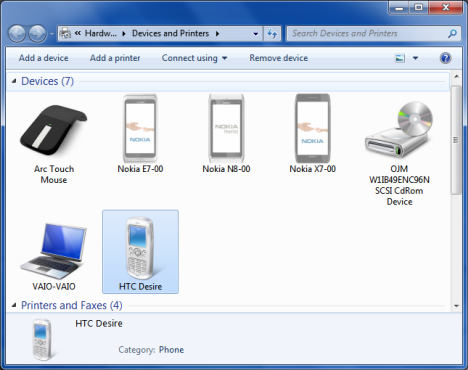
Before you can open the Bluetooth Device Control, you need to have your phone and your computer paired together. To learn how this is done, read this tutorial: Transfer Files via Bluetooth Between Phones & Windows 7 PCs. Once this is done, open the Devices and Printers panel, by clicking on its shortcut on the Start Menu.
Double click on the name of your phone.
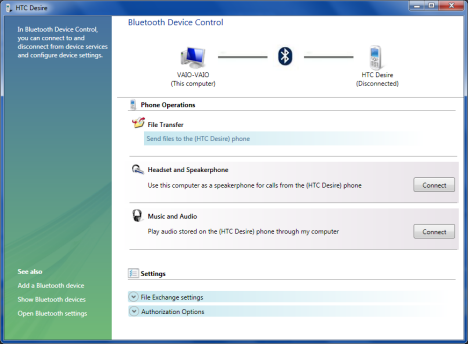
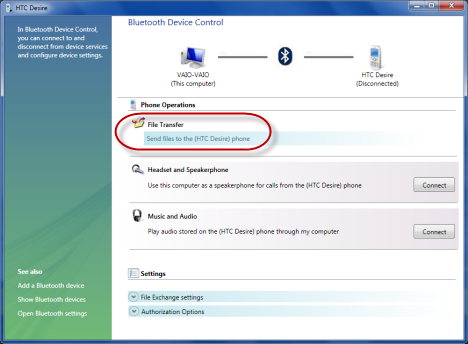
This opens the Bluetooth Device Control panel, which offers some interesting features on top of the usual functionality for transferring files back and forth.
Sending Files to Your Phone from Bluetooth Device Control
To send files to your phone, click on the link which says "Send files to the phone".
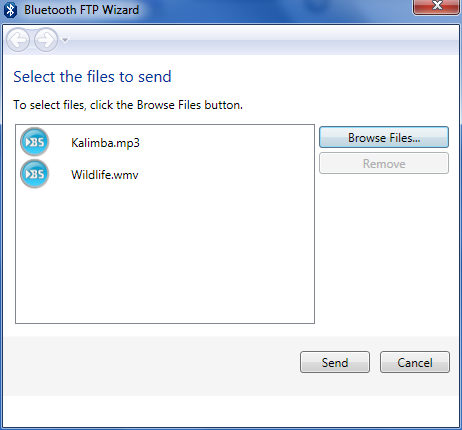
This opens the Bluetooth FTP Wizard. Browse your computer and select the files you want to send. The good news is that you can select any number of files. When done selecting them, click Send.
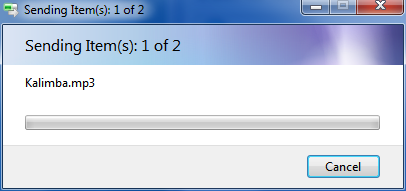
On your phone you are immediately asked to accept the file transfer. Once you do, the transfer starts and you are shown a progress bar on the computer.
When the transfer operation ends, the progress bar disappears, and you are back to the Bluetooth Device Control panel.
Sending Files to Your Computer from Your Mobile Phone
To send a file from your phone, select Send -> Bluetooth or something similar, from the contextual menu available on your phone, for that file. Then, select your computer as the device to send it to. NOTE: Remember that the phone and computer need to be paired first.
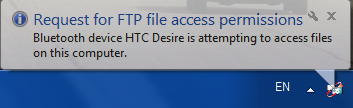
On the computer you receive a notification similar to the one below, titled "Request for FTP file access permissions". Click on it as soon as you can. This notification is gone after a few seconds and, if you don't act swiftly, the transfer will automatically fail.
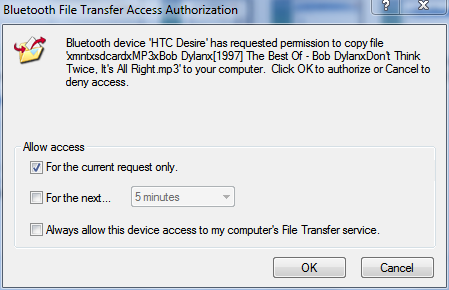
Once you click on the notification, a window called "Bluetooth File Transfer Access Authorization" shows up, giving several options: you can allow access only for the current transfer request (the default choice) or for a certain time period or forever. If you plan to make more than one transfer, it is better to select one of the other two available choices, depending on which fits your needs better.
When done allowing access, click OK.
The transfer starts and you are not shown any progress window on the computer. You can view the progress only on your phone. Once the transfer is done, you will receive on the computer a "File Transfer notification". If you click on it, it will open the folder where the file was saved.
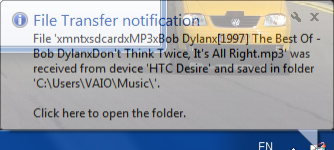
The folder where files are saved is the one set as the default location for Bluetooth based transfers. However, it can happen that some files you transfer are not saved in that folder. For example, on some computers, if Windows detects you are transferring a music file, it might save it directly to your Music library. The same with pictures being saved in the Pictures library or video files being saved in the Videos library. Frustrating isn't it? I wish the experience would be less confusing but unfortunately it isn't.
The Fun Features - Playing Music and Using the Computer as a Speakerphone
Next, you have two fun and useful features:
- You can use the computer as a speakerphone for calls received on your phone. This is enabled by pressing the Connect button under "Headset and Speakers". Be careful though, in order for things to work fine, your computer needs to have both speakers and a working microphone.
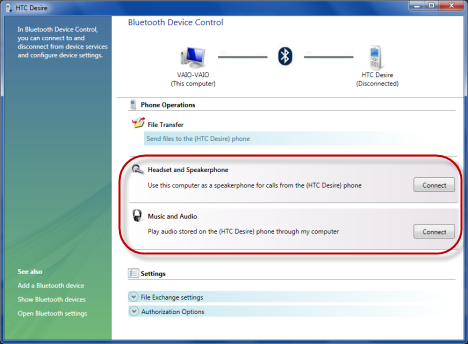
Bluetooth - You can listen to music from your phone, on your computer. This is useful to people who carry a lot of music on their phones and use multiple computers during the day. You simply connect a computer to the phone via Bluetooth and then listen to your music collection. This is enabled by pressing the Connect button under "Music and Audio". After pressing this button, start the music player on your phone and press Play. Then, a small Windows Media Player window shows up on your computer, playing the track you selected.

Bluetooth
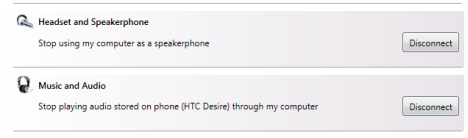
You can disable any of these features at any time by pressing the appropriate Disconnect button.
Finding the Configuration Settings
The Bluetooth Device Control provides access to all the important configuration settings. First, go to the bottom of the window and look at the Settings section.
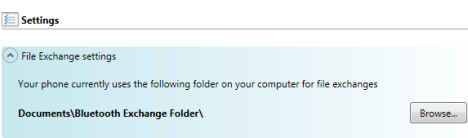
If you expand File Exchange settings, you can set the default folder used for saving files sent via Bluetooth.
Expand Authorization Options to find settings related to confirmations of all operations done to and from the Bluetooth connect phone.
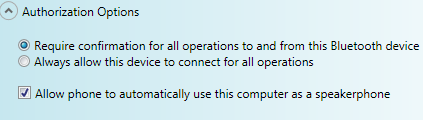
If you want the least annoying pop-ups, you should select "Always allow this device to connect for all operations" and check "Allow phone to automatically use this computer as a speakerphone".
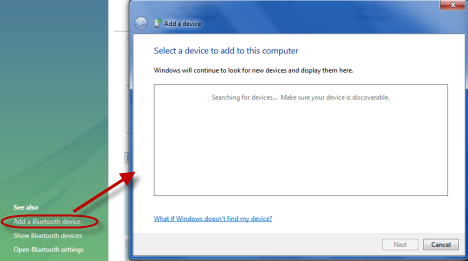
Next, on the bottom left side of the Bluetooth Device Control panel, you can find three links. The first is called "Add a Bluetooth device". If you click on it, it starts the "Add a device wizard, which allows you to connect to other Bluetooth devices (if available).
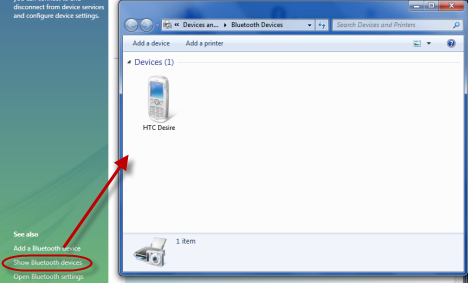
The second link is called "Show Bluetooth devices". As you expect, clicking on it shows a list with all the Bluetooth devices" your computer is connected to.
The third and most important link is called "Open Bluetooth settings". Clicking on it opens the Bluetooth Settings window, where you can configure all aspects of your computer's Bluetooth devices.
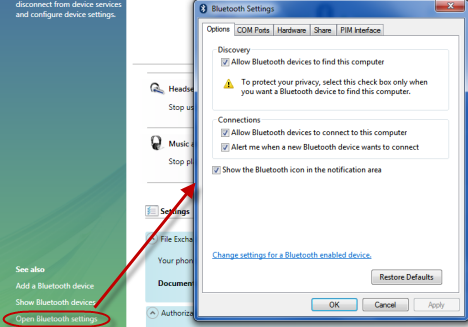
We already covered the important settings in our previous tutorial: Transfer Files via Bluetooth Between Phones & Windows 7 PCs.
Conclusion
As you can see from this tutorial, Bluetooth Device Control offers some cool functionality, that can be both fun and useful. However, it doesn't succeed at eliminating complexity, as the experience you have when transferring files can still be confusing.