
 30.05.2017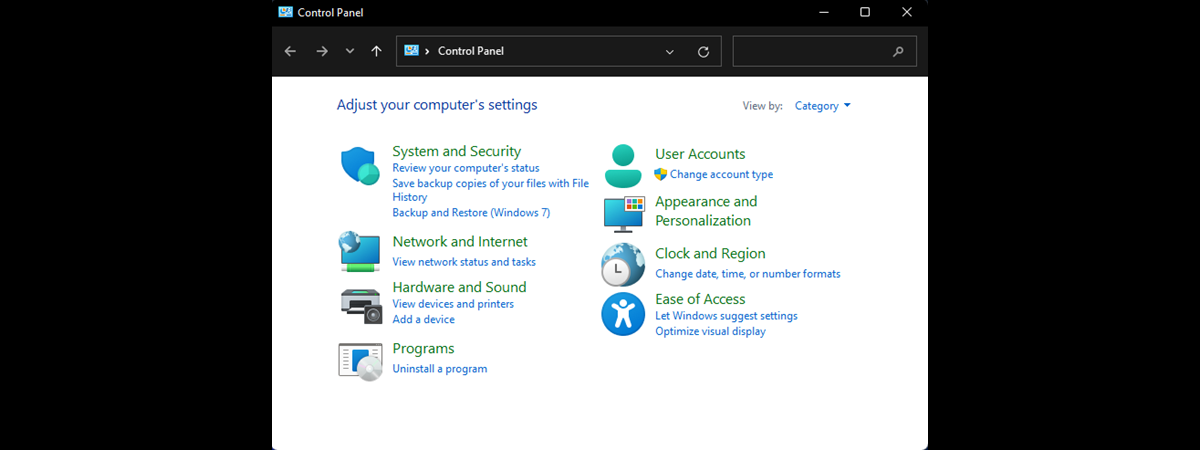
The Control Panel is one the most used features in Windows 7, and it's still a critical tool in Windows 8.1 and even in Windows 10. And that's for a very good reason: it includes many useful tools and configuration items. Although over time, the Control Panel has received many usability improvements, there are still quite a few people who love the "very classic" way of viewing Control Panel items that were used in the old Windows XP. If you are part of this guild of traditional users, here are all the ways to switch between the different Control Panel views available in Windows 10, Windows 7 and Windows 8.1:
The Control Panel in Windows XP versus Windows 7, 8.1 and 10
In Windows XP, the classic view of the Control Panel displays an extensive list of configuration items. Because there's no Search feature present, finding your way means a lot of guessing and clicking around.
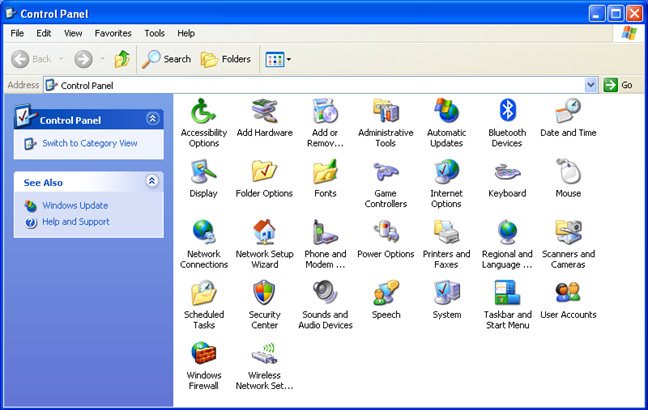
The Category View in Windows XP isn't a lot better either. The lack of a Search function is again a problem. There's simply too much clicking involved.
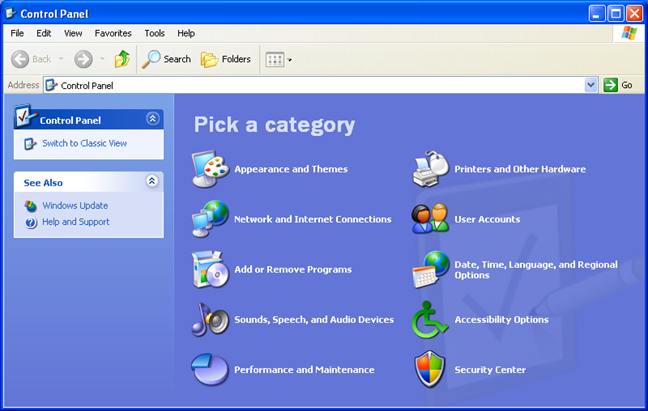
Windows 7 and, later on, Windows 8.1 and Windows 10 have delivered a better Control Panel. First of all, the Category View is improved. For each group of items, you can see several subitems with the most common tasks performed by users.
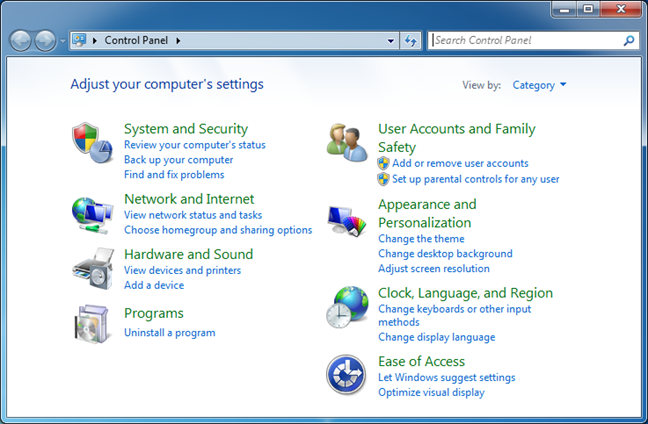
Clicking/tapping on a category opens a list of subcategories and shortcuts to other commonly performed tasks.
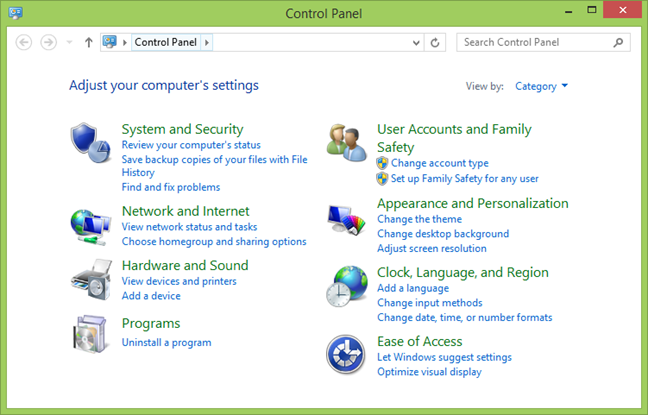
Windows 8.1 and Windows 10 deliver a Control Panel that's similar to the one in Windows 7, but with a few minor improvements that make the experience of using it a bit better. Below, you can see how it looks in Windows 8.1:
And in Windows 10:
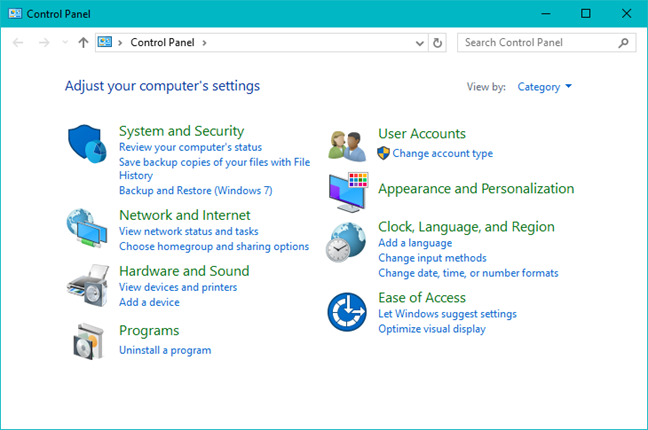
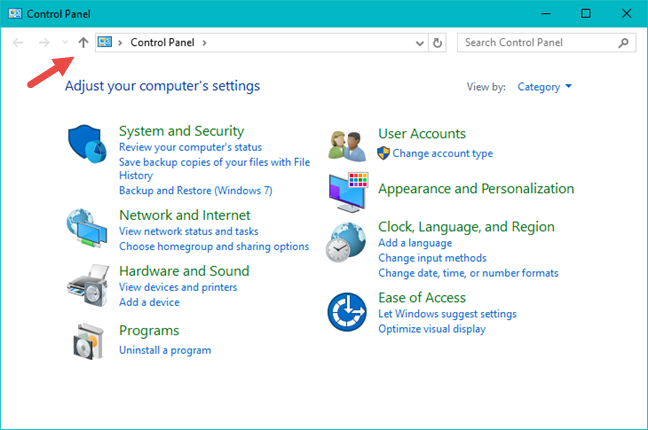
If you pay attention to the top toolbar, you will notice the addition of the Up button, which makes it easier to navigate the Control Panel.
Then, in Windows 7, Windows 8.1 and Windows 10, you have the Search box on the top right. Start typing in it, and the Control Panel automatically displays the relevant shortcuts.
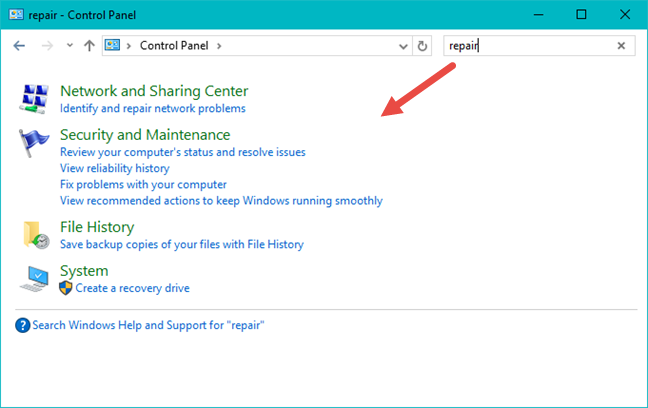
Search tremendously speeds up the process of finding your way through all the tasks, tools and configuration options.
How to switch to the classic Windows XP view in the Control Panel from Windows 7, 8.1 and 10
Even though the Control Panel included in Windows 7, Windows 8.1 and Windows 10 is much better, many users are still used to the classic list view from Windows XP, and they want it back.
Fortunately for them, all modern versions of Windows provide the same quick methods for viewing Control Panel items that way.
Regardless of whether you use Windows 7, Windows 8.1 or Windows 10, on the right side of the Control Panel, there is a "View by" drop-down list with several values available for selection. Click or tap the arrow near it and select how you want to see the Control Panel. Category is the default view in all modern versions of Windows.
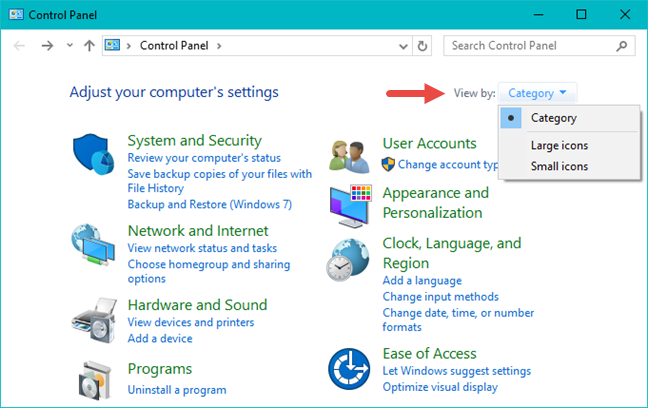
Selecting "Large icons" or "Small icons" is the equivalent of the classic list item view from Windows XP. "Large icons" will use larger icons for all the elements in the Control Panel.
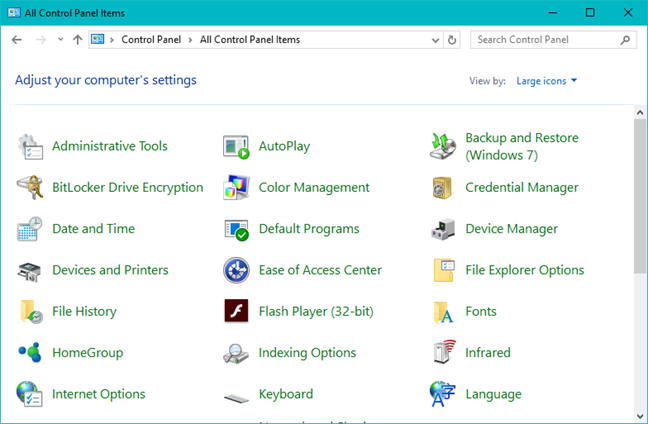
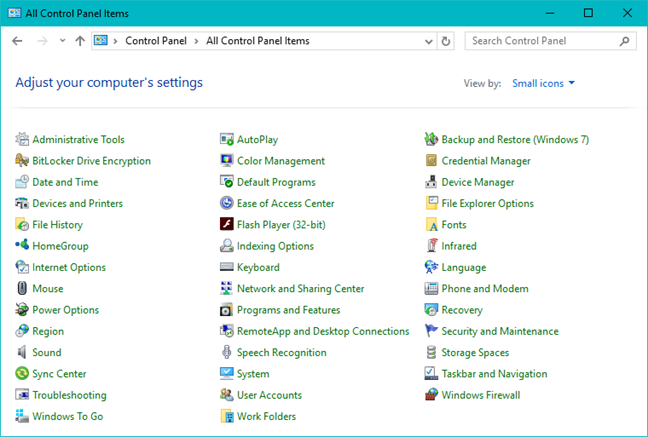
"Small icons" will use smaller icons for all the items. When using small icons, you have to scroll less to browse through everything.
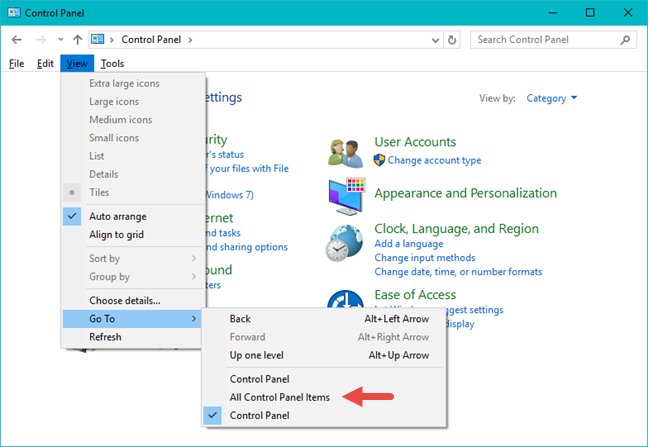
An alternative method for switching between the classic list item view and the default category view is to open the Control Panel and press the ALT key on your keyboard. This opens a hidden menu: in it, open "View -> Go To" and select "All Control Panel Items."
The classic Windows XP list item view is now used by the Control Panel, regardless of whether you use Windows 7, Windows 8.1 or Windows 10. Last but not least, you have the Down arrow on the top, near the Back and Forward buttons. Pressing it reveals the recent locations you accessed.
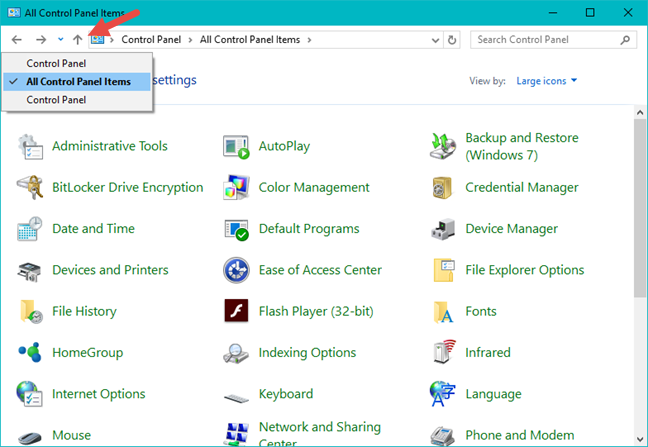
If you recently switched between views, you can use it to quickly access All Control Panel Items and get back to the classic list item view employed in Windows XP.
Conclusion
Personally, we no longer like Windows XP. We consider it extremely dated, insecure and a lot less friendly to use than Windows 7 or Windows 8.1, not to speak of Windows 10. Even though the newer versions of Windows try to replace the Control Panel with more modern apps like PC Settings in Windows 8.1 or Settings in Windows 10, some users still like Control Panel better and still want to stick to the old ways of doing things. Hopefully, they will find this guide useful.