Whether you’re traveling or your PC is displaying the wrong time or date, you might find yourself in a situation where it is useful to know how to change time on Windows 10. You can set the time manually or have Windows 10 do it for you. You can choose a different time zone or completely ignore daylight saving. Furthermore, there are two different tools you can use to make all the required changes. If this sounds interesting, continue reading, because this tutorial illustrates how to change the date, time, and other related settings in Windows 10:
First things first: About time settings and admin rights in Windows 10
In Windows 10, you can easily change the date, the time, and other related settings, such as the time zone, date and time synchronization, and daylight saving. Regardless of what you’re trying to modify, Windows 10 offers you two different tools to do it: the Settings app and the old-school Control Panel.
The first half of this article focuses on changing the date and time settings using the Settings app, and the second illustrates the same changes through the Control Panel. If you have administrative rights on your computer, you can use either of these tools with the same results. The only differences we could find are the additional option of setting the time zone automatically from the Settings app and being able to change the time server used for synchronization from the Control Panel. However, if you’re not using an admin account, most date and time options are either hidden from view or greyed out in the Settings app.
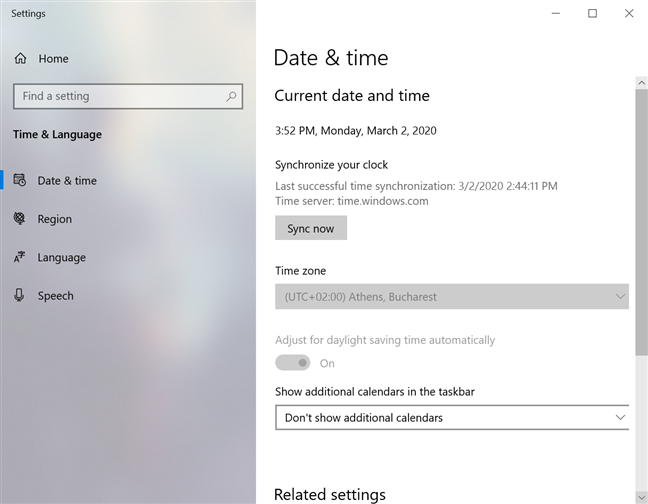
The settings for Date & time are limited and greyed out on a standard user account
Likewise, if you do not have admin rights, the Control Panel doesn’t offer access to most settings, and UAC is triggered if you are trying to Change date and time. However, you can Change time zone and adjust the daylight savings, which might be all you need sometimes.
To conclude, if you are not using an admin account, we recommend you save time and scroll down to the second-to-last part of the tutorial, where you can see how to change time zone and adjust daylight savings using the Control Panel.
How to change time and date on Windows 10 using Settings
The Date & time settings are the most straightforward way of changing the time and date in Windows 10. To access them, right-click or press-and-hold on the time and date displayed on the taskbar, and then click or tap on Adjust date/time.
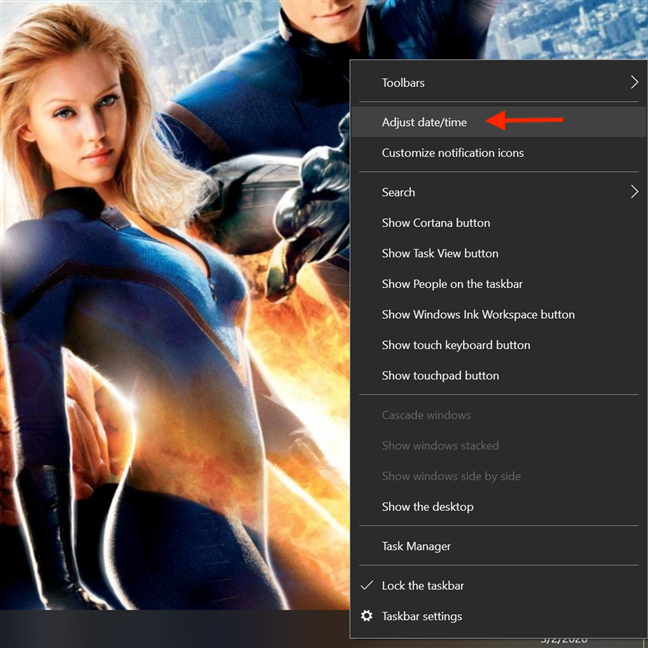
Go to Adjust date/time in the contextual menu
The Settings app opens at the Date & time tab of the “Time & Language” settings. You can see the “Current date and time” displayed on top. You can get to the same place by opening Settings and going to “Time & Language -> Date & time.”
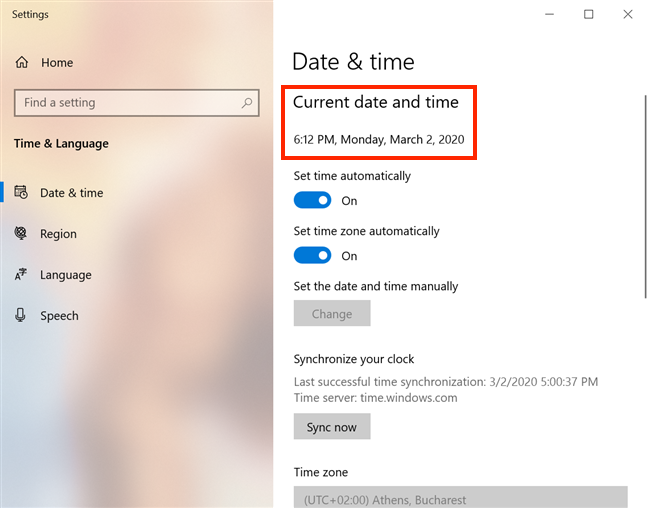
The Date & time settings in Windows 10
The switch underneath is enabled by default. This means that the time used by Windows 10 is set automatically by the operating system by syncing the time with Microsoft's time servers.
To modify the date and time manually, disable the “Set time automatically” switch. When you do that, the Change button in the "Set the date and time manually" section becomes active. Click or tap on it.
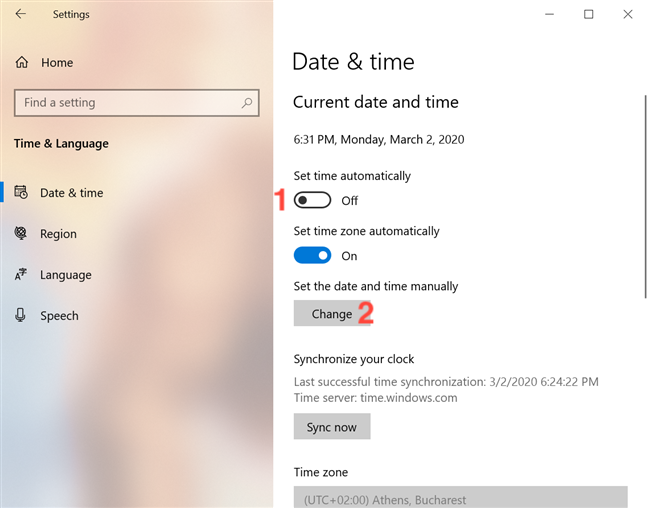
Turn the switch off and press Change
A new window pops up, where you can click or tap each field to set the Date and the Time.
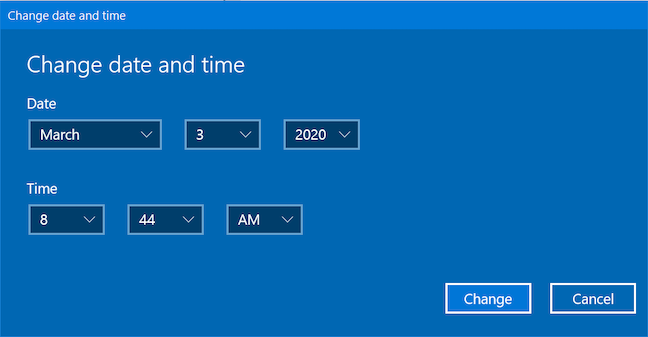
Click or tap on a field to modify it
Scroll through the options and select another Date and Time. When you're done, click or tap on Change to save your settings.
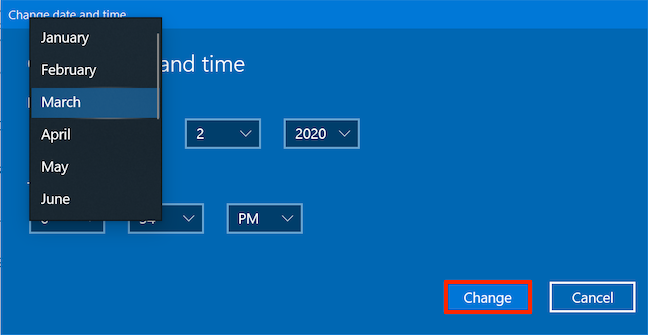
Select the desired Date and Time, then press Change
The time and date of your Windows 10 computer or device are changed instantly.
How to change time zone on Windows 10 using Settings
The second switch on the Date & time tab of the Time & Language settings is also turned on by default, which means that Windows 10 is automatically setting the time zone using the information available about your location.
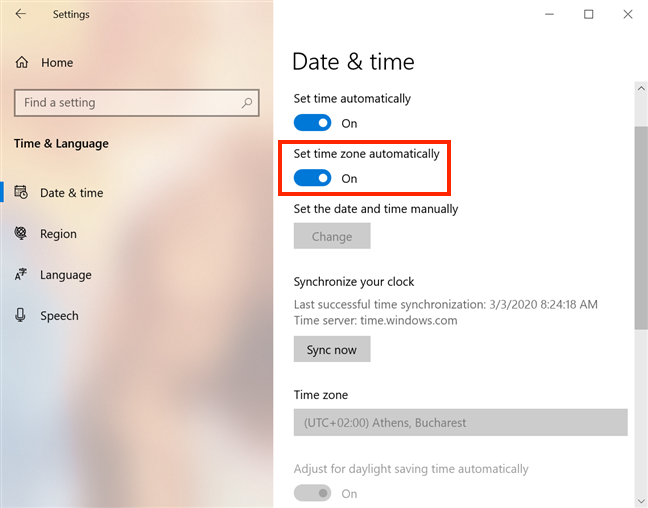
The Set time zone automatically switch is on
To configure the time zone manually, click or tap on the “Save time zone automatically” switch to disable it. Notice the Time zone and the “Adjust for daylight saving time automatically” settings below become active.
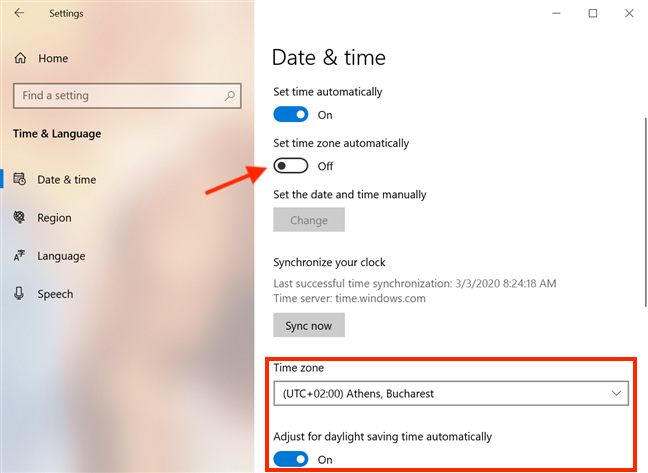
Turn off the switch to configure the time zone settings
Click or tap on the Time zone field and select the option that you want to use from the list.
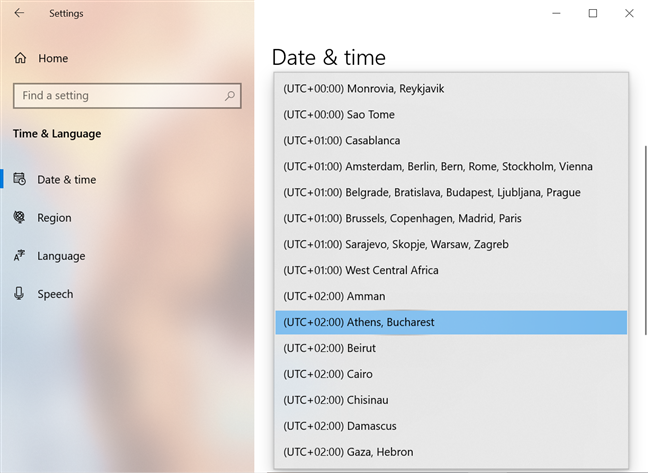
Choose your desired time zone
Don't forget to choose whether you want Windows 10 to "Adjust for daylight saving time automatically" by enabling or disabling the switch.
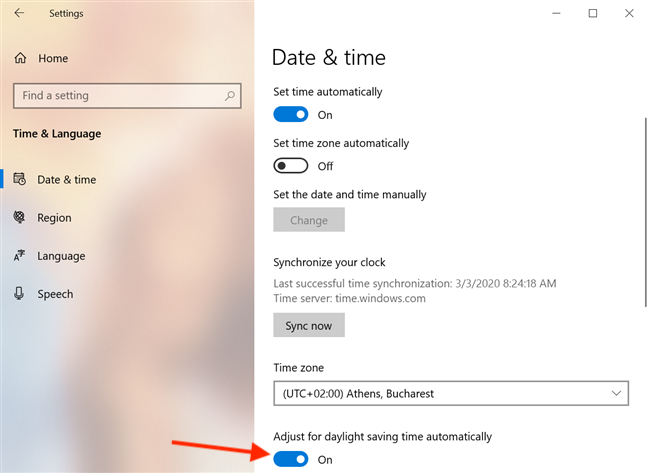
The Adjust for daylight savings automatically switch
How to synchronize time and date in Windows 10 using Settings
Even if you choose to set the time manually, you can always have Windows 10 synchronize with Microsoft’s time servers. The “Synchronize your clock” option is also available on the Date & time tab from the Time & Language section of the Settings app. It displays the last successful time synchronization, as well as the time server used for this action.
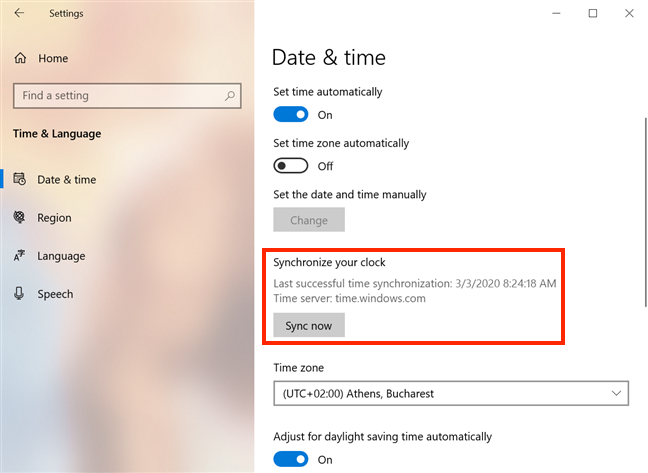
The Synchronize your clock setting
If you want to make sure the time and date shown in Windows 10 are accurate, click or tap on Sync now.
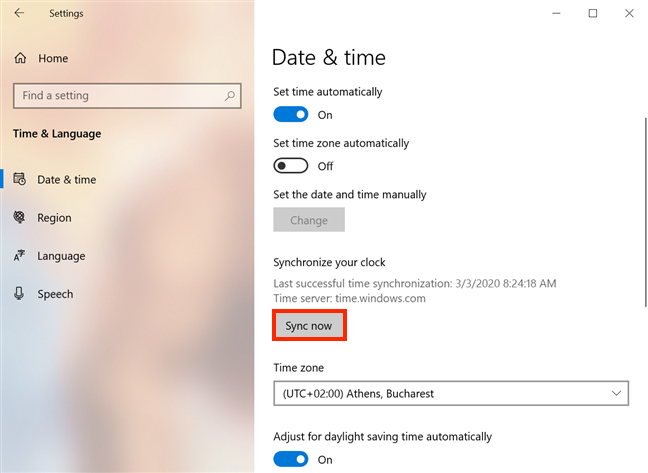
Press Sync now to synchronize your time and date
The time of the last successful synchronization is updated, and a checkmark appears next to the Sync now button to let you know the sync is done.
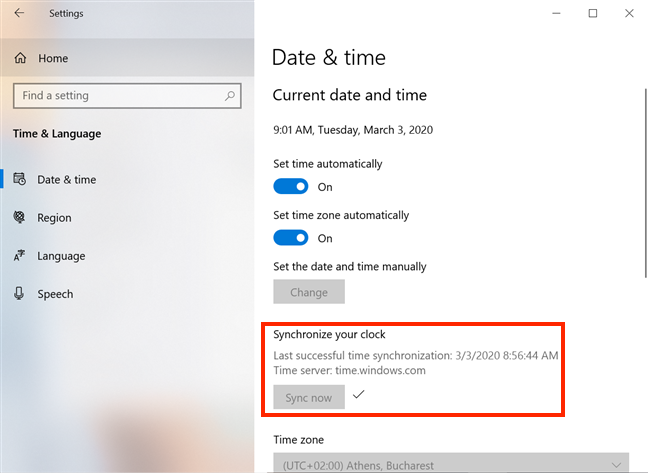
The clock was successfully synced
How to change date and time on Windows 10 using the Control Panel
The Control Panel also lets you modify the date and time settings on your Windows 10 computer or device. Open the Control Panel and click or tap on “Clock and Region.”
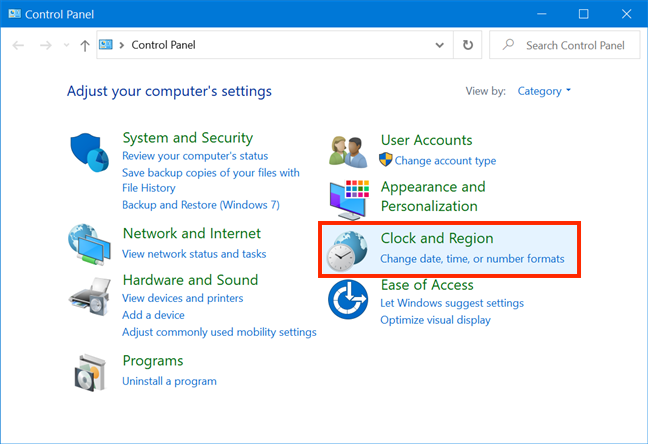
Access Clock and Region
In the next window, click or tap on “Date and Time,” “Set the time and date,” or “Change the time zone.”
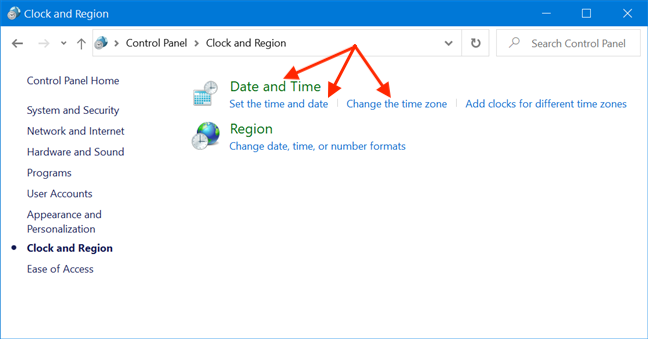
Press any link to open the Date and Time window
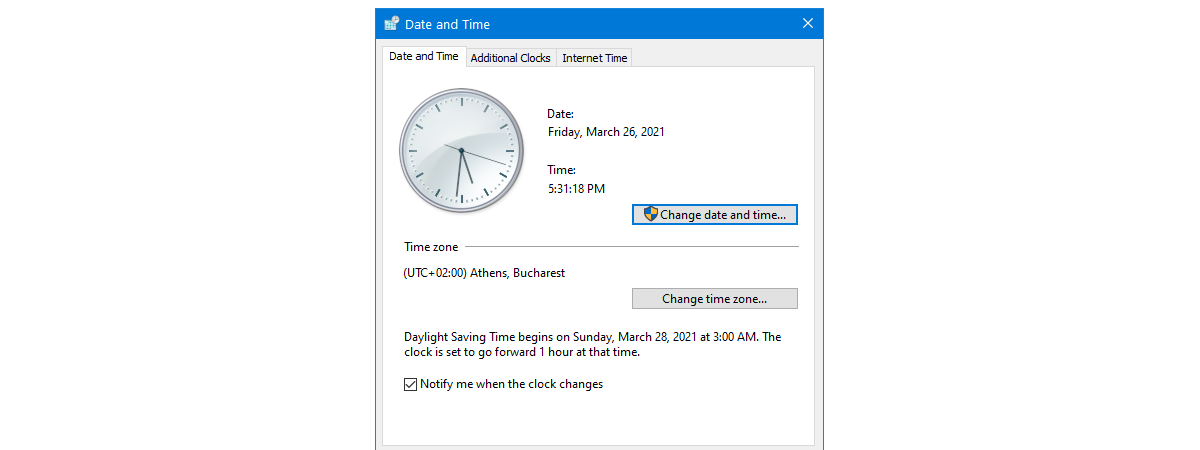
This opens the “Date and Time” tab of a window with the same name. You can see a working clock and the current Date and Time, together with the option to change the settings. Click or tap on the “Change date and time” button.
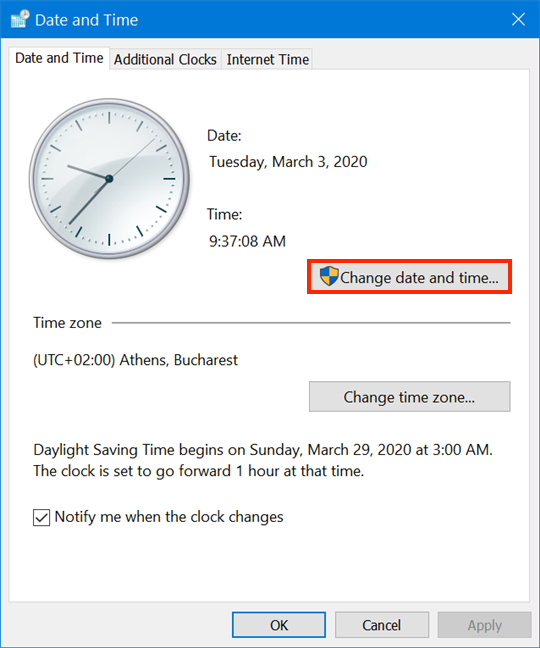
Press Change date and time
In the “Date and Time Settings” window, you can set the appropriate time and date. Click or tap inside the Time field to overwrite the existing values, or select a value and use the arrows to change it. The clock on top reflects the new time as you insert it.
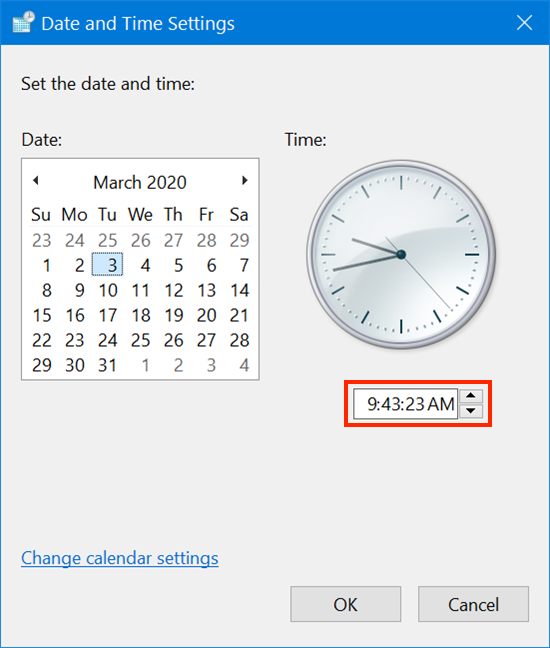
Modify the time in Date and Time Settings
In the calendar, press on a different day of the month to change it. Scroll the mouse wheel or use the arrows on top to select a different month.
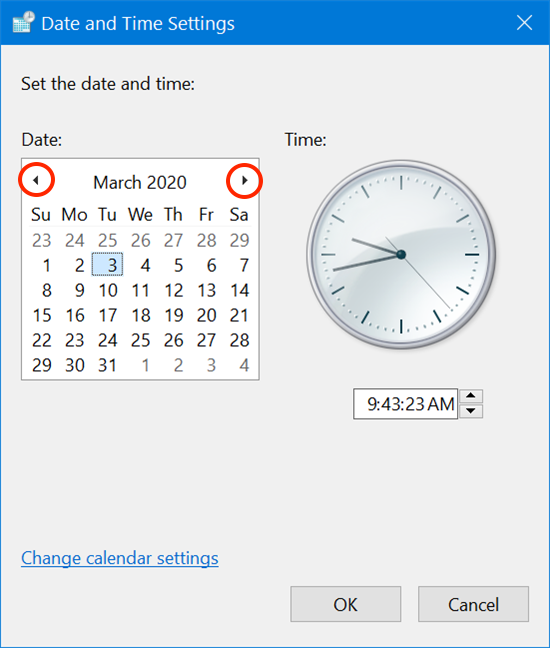
Use the arrows to choose another month
You can either use the Ctrl key on your keyboard and scroll, or click on the name of the month to zoom out and see all the months of the current year.
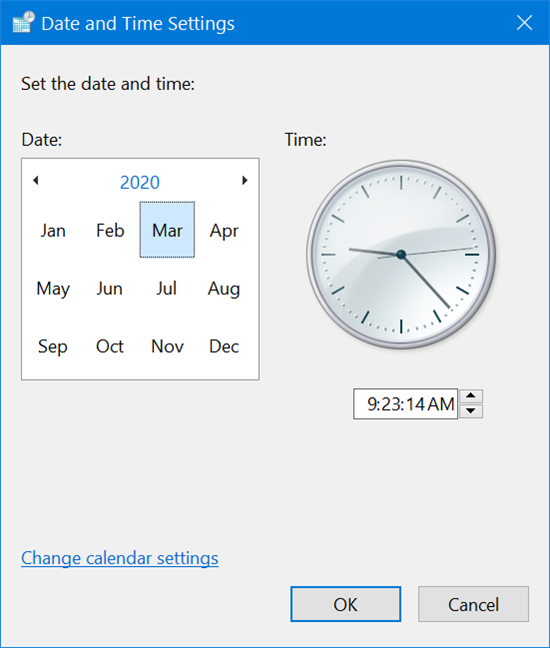
Zoom out to change the date
Continue zooming out by pressing on the year (or Ctrl + scroll) to access all the years of this decade, and, finally, all the decades of this century.
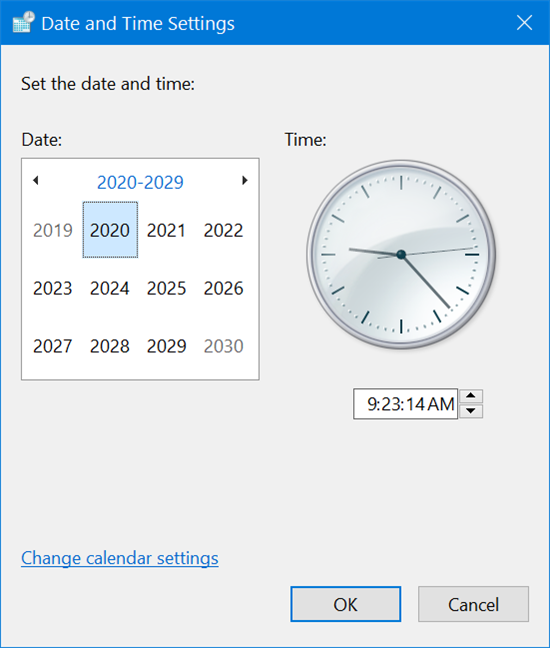
Select a different year of the decade
You can zoom back in by selecting the appropriate decade, year, and month. The small left and right arrows can also be used to move from one century/decade/year to another, when you are zooming. When you are done setting your new Date and Time, press OK to save your changes and have Windows 10 immediately display them.
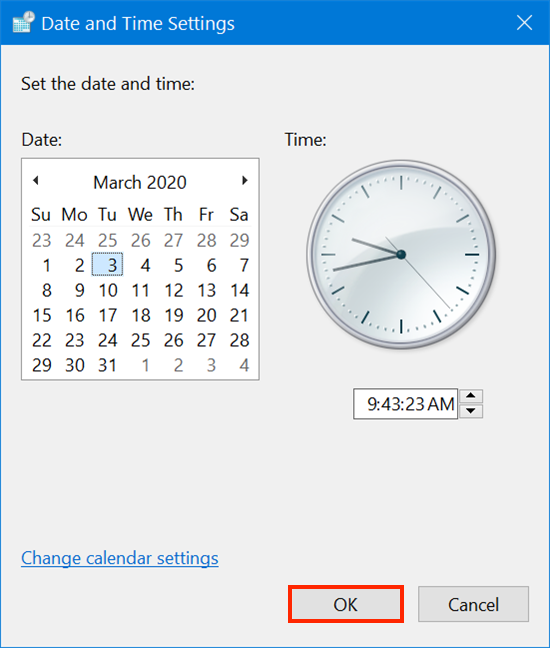
Press OK and the new time and date are saved
How to change time zone on Windows 10 using the Control Panel
The bottom half of the "Date and Time" tab of the window with the same name displays the current Time zone settings and daylight saving. To change them, click or tap on the “Change time zone” button.
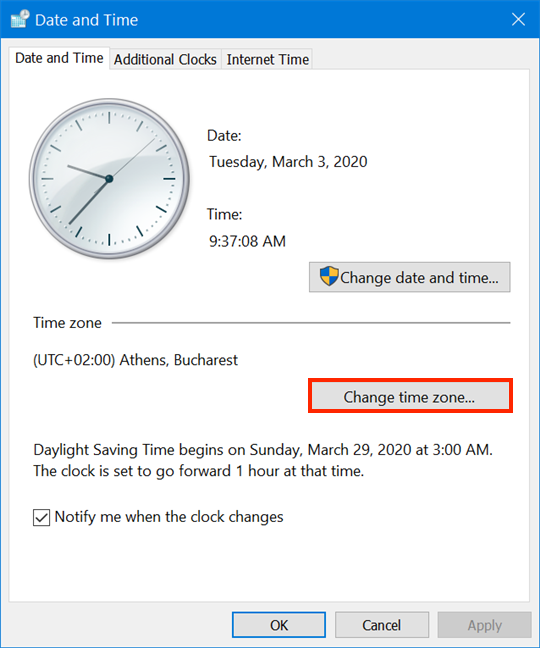
Press Change time zone
In the "Time Zone Settings" window, click or tap on the Time zone field to change the time zone.
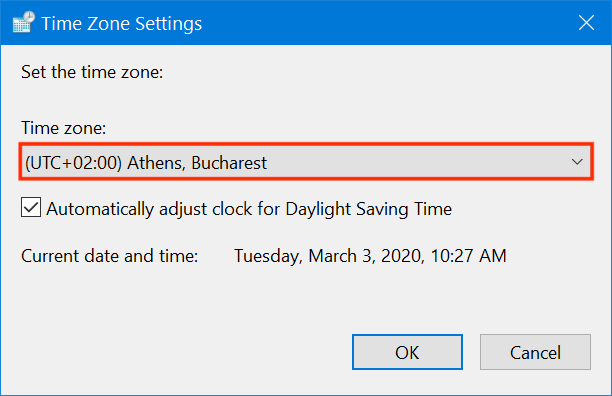
Press on the field to choose another time zone
Select a different time zone from the drop-down list.
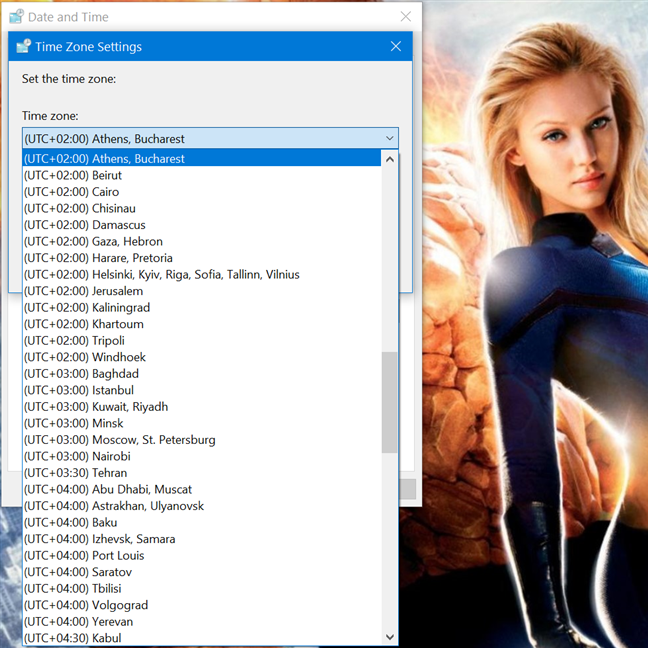
Click or tap on another time zone to select it
Depending on your time zone, the "Automatically adjust clock for Daylight Saving Time" checkbox may be available or not. If your time zone supports daylight saving and you want Windows 10 to take them into account, check the box for this option.
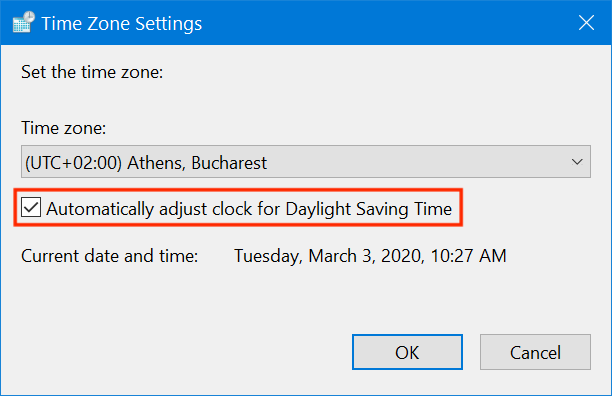
Windows 10 adjusts your clock for Daylight Saving Time
After selecting a new time zone, you can review your changes at the bottom, where you see both the “Current date and time” and the “New date and time.” We changed our time zone to the one in India, as seen below. If you are happy with your changes, press OK.
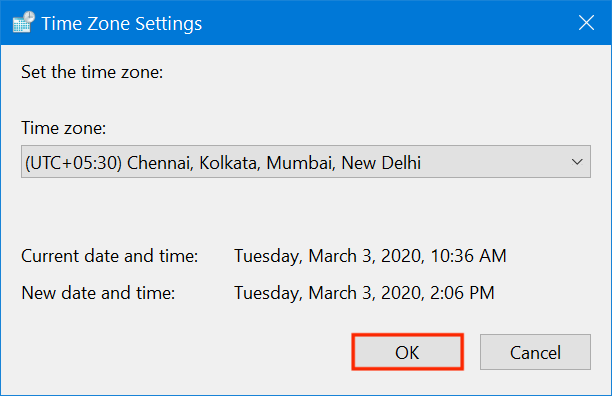
Review the time of your new time zone and click or tap OK
Your time zone is saved automatically in Windows 10, and you are returned to the “Date and Time” window. If Daylight Saving Time is observed by your chosen time zone, you can choose to be informed when it happens, by checking the box next to the “Notify me when the clock changes” setting. Then, press OK to save the change.
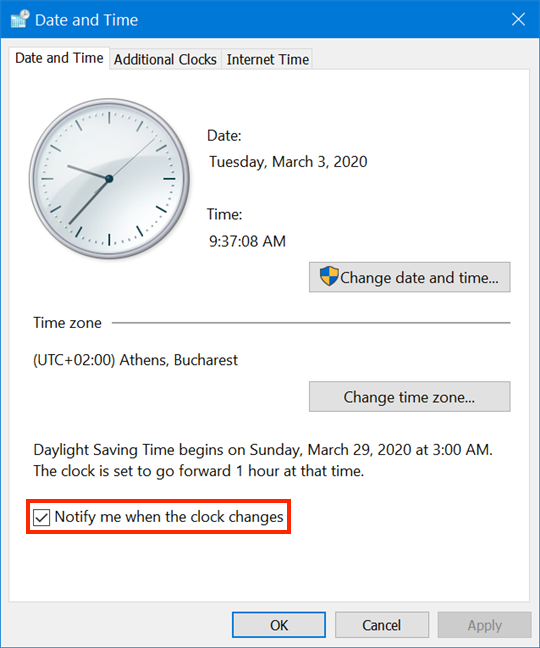
Keep informed on daylight savings
How to synchronize time and date in Windows 10 using the Control Panel
If you want to synchronize your time and date or change the server used by Windows 10 to automatically update time, open the "Date and Time" window and go to the "Internet Time" tab.
The tab displays the current synchronization server, when the next synchronization is scheduled, and the time of the last successful synchronization.
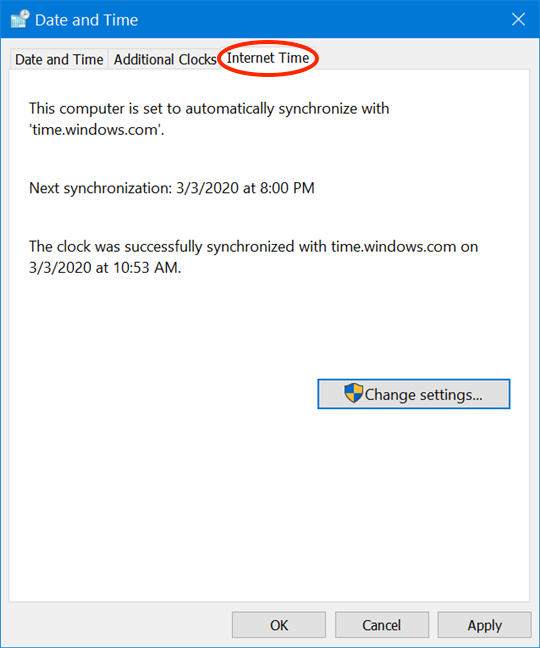
Access Internet Time in the Date and Time window
To sync your clock and change the existing synchronization settings, click or tap on the Change settings button.
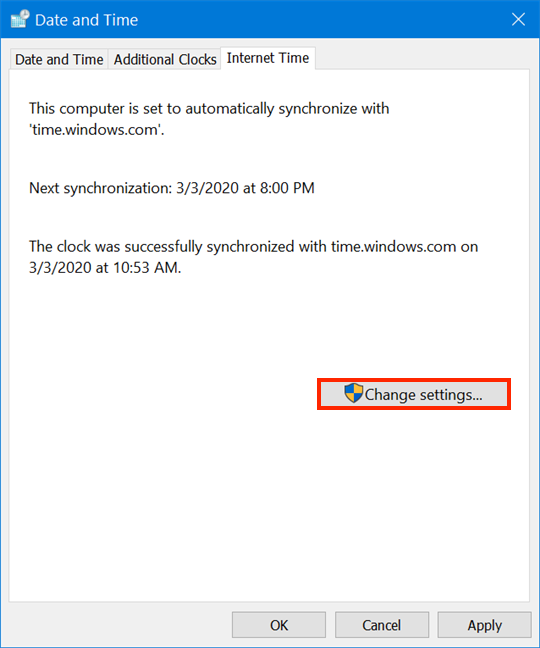
Press Change settings
In the "Internet Time Settings" window that pops up, you can decide whether you want your time and date to be synchronized with an Internet time server by using the "Synchronize with an Internet time server" checkbox. Unchecking the box disables all the other settings here, so it needs to be checked to carry on.
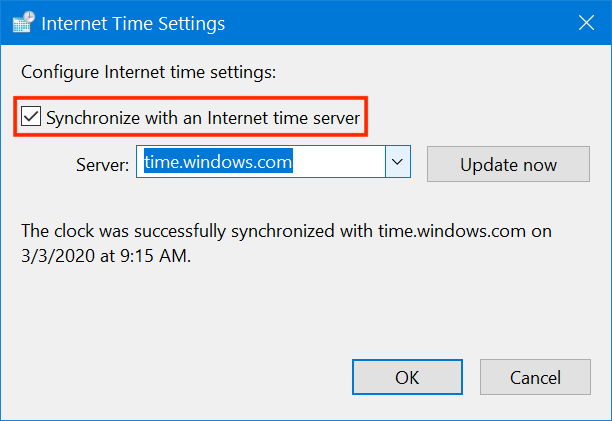
Check the box to sync your time
You can use the arrow next to the Server field to access a drop-down list, and select a different time server to be used by Windows 10 for synchronization. If you prefer to use a time server which is not shown on the list, you can copy and paste its address in the Server field.
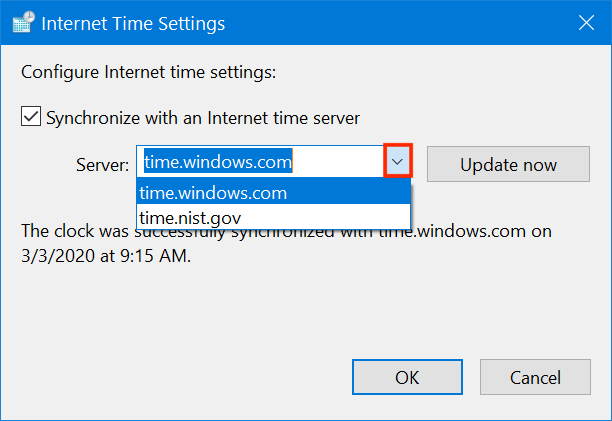
Use the arrow or paste another server in the field
To synchronize the time and date in Windows 10, click or tap the Update now button. Your time and date are instantly synced with the time server.
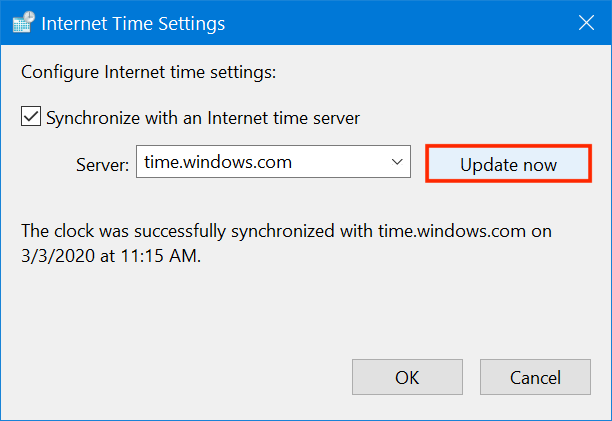
Sync your date and time
Press OK to save your changes, and you are done.
TIP: You can use the third tab of the “Date and Time” window - Additional Clocks - to see two more time zones displayed in Windows 10. To learn more, read How to add clocks to the taskbar's notification area in Windows 10. If you need to keep track of more than three time zones, we recommend How to pin the time for multiple cities on the Windows 10 Start Menu.
How do you change the time on Windows 10?
Windows 10 makes changing your date, time, and other related settings easier than ever because it offers two separate ways to do this. We find it easier to make these changes from the Settings app, whenever we need to, as it’s easier to access. What about you? How do you prefer to adjust your time and date in Windows 10? Let us know in a comment below.