The Devices and Printers panel was first introduced in Windows 7 with the aim of providing a friendly way to interact with external devices connected to your computer. However, in order for the concept to work as intended, hardware manufacturers need to provide support for this feature in their Windows drivers. This article will explain what the Devices and Printers panel is, how to access it in Windows 7, Windows 8.1 and Windows 10, and how to use it to interact with devices. There's quite a bit of ground to cover, so let's get started:
What is the Devices and Printers panel?
Devices and Printers or Device Stage , as called by some, allows you to interact with all the external devices and some of the internal devices connected to your Windows computer or device, all in one place. The configuration and interaction options available in Devices and Printers depend a lot on the drivers & support available for each device that you have connected.
Some devices have full support for this feature while others do not. The devices which provide good support allow you to completely manage them from Devices and Printers. You will be able to: see how well each device is working, view information about it, share it over the network, change its settings, use all the features of the device, access troubleshooting tools, etc.
IMPORTANT: The devices which support this feature show a picture of the device instead of a generic icon. In the screenshot below, you can easily notice the difference in icons between my keyboard (Razer BlackWidow) and mouse (Razer DeathAdder 2013) which don't have good support for this feature and my Canon printer or my Windows Phone smartphone, which support this feature.
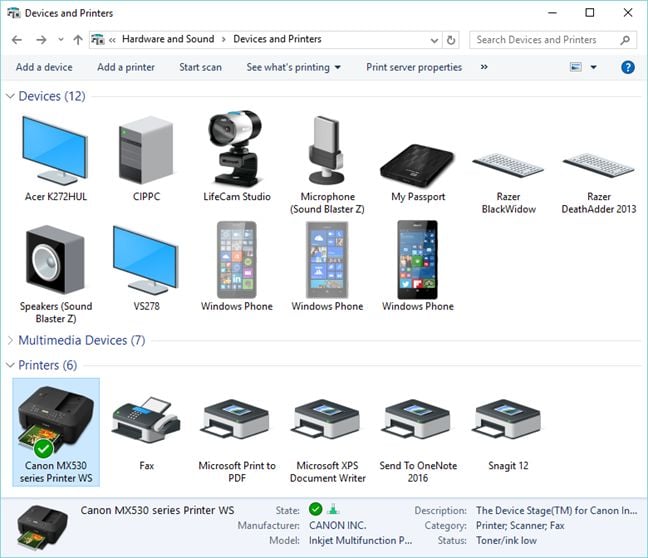
For older devices, which don't take advantage of this feature, Windows allows you to modify a basic set of configuration options & troubleshoot some of the problems you might have with them . It is not much, but it is better than nothing.
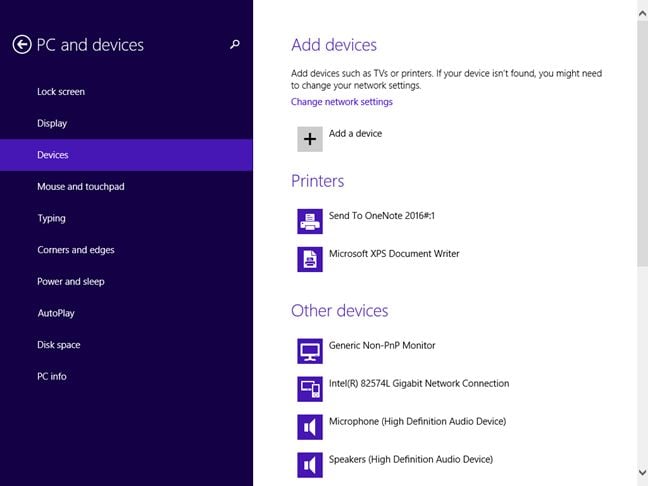
In Windows 8.1 and Windows 10, there is also a touch-friendly version of this panel, named Devices. In Windows 8.1, it can be found by going to PC Settings -> PC and devices -> Devices. It lists your devices, allows you to see some brief information about their status and remove them from your computer.
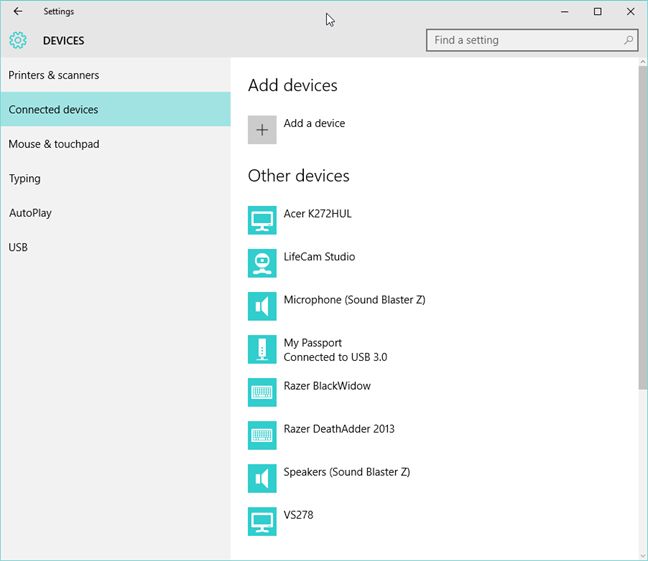
In Windows 10, you will find it by going to Settings -> Devices -> Connected devices.
Where to find the Devices and Printers panel?
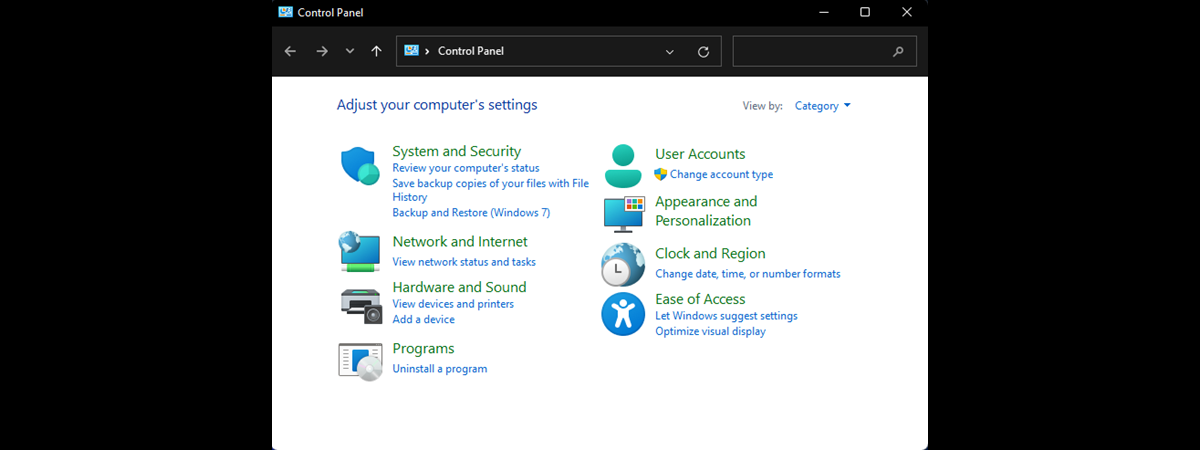
There are many ways to open the Devices and Printers panel. One method that works the same in Windows 7, Windows 8.1 and Windows 10 is to first open the Control Panel. Then, go to Hardware and Sound and click or tap Devices and Printers.
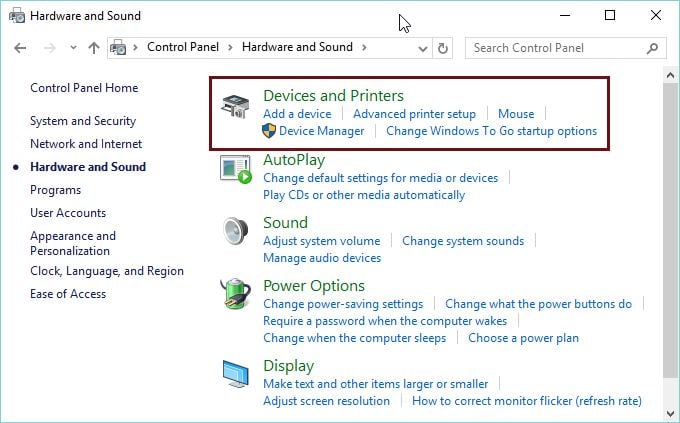
In Windows 10, you can also use search. Inside Cortana's search box from the taskbar, type the word "devices" and then click or tap on the Devices and Printers search result.
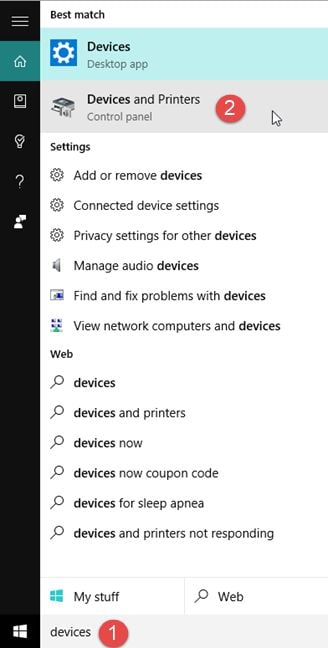
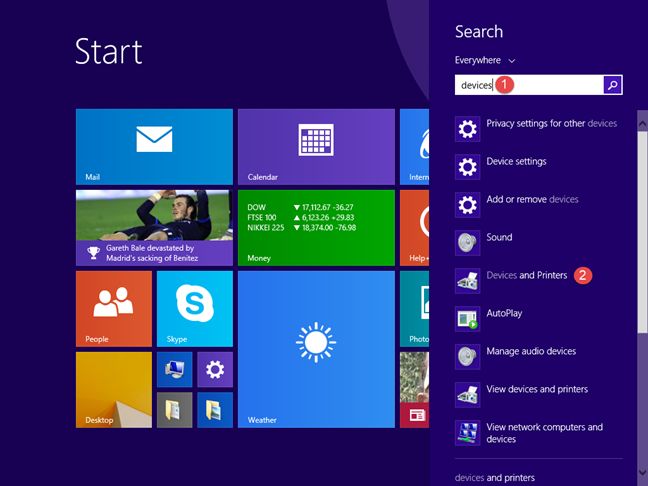
In Windows 8.1, go to the Start screen and type "devices". In the list of search results, click or tap Devices and Printers.
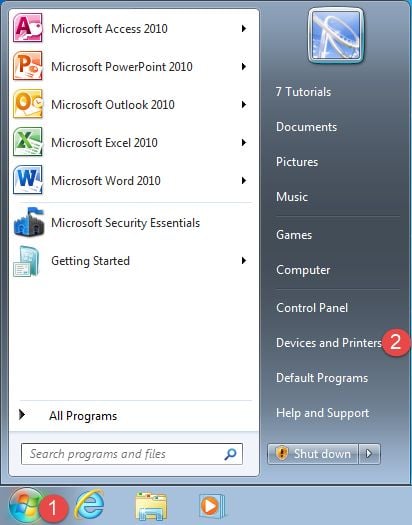
In Windows 7, click the Start button to open the Start Menu and then click on the Devices and Printers link.
The devices shown in Devices and Printers
Devices and Printers will show your own computer plus the external devices connected to it. The list of included devices is the following: smartphones, portable music players, digital cameras, webcams, monitors, keyboards, mice, printers, scanners, bluetooth adapters, external hard drives, media extenders and network devices connected to your computer.
It will also list some internal devices, such as your Serial ATA hard disk drives, DVD/Blu-ray players or your sound card. However, it all depends on their drivers' support for this feature. On some Windows computers you will see such devices listed, while on others you won't.
Devices excluded from Devices and Printers
Devices and Printers does not list most of the devices which are inside your computer case. This means that you will not see the following types of components: video cards, the RAM memory, the processor (CPU), internal modems, network cards and so on.
Some external devices may also not be included, depending on their support for this feature of Windows.
What can you do from the Devices and Printers panel?
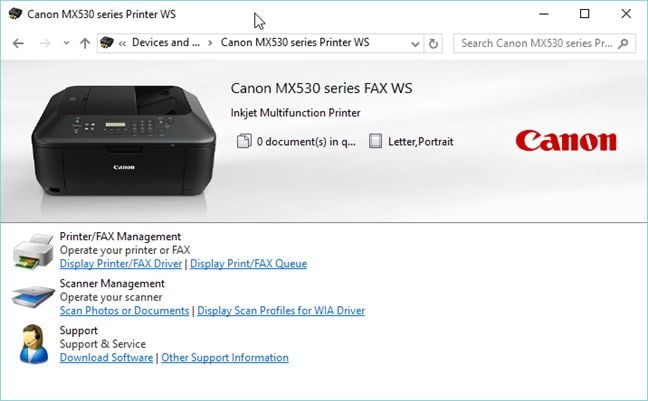
What you can do with a device listed in Devices and Printers depends a lot on the support provided by the manufacturer of the device. For example, when I access my Canon MX530 multifunctional wireless printer, I can see how many documents are in the printing queue, set the default paper size for printing, manage the printer, the fax and the scanner included in the device and access the support service from Canon.
When I access my Microsoft Lumia 950, which is connected to the PC, I can browse files on my smartphone, change some general settings and get the Windows Phone app for managing my device.
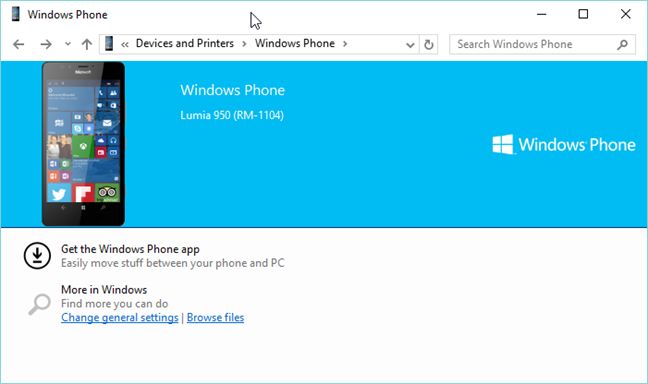
These are only two examples of what you can do with the devices listed in Devices and Printers. You may be able to do even more with your devices, if their drivers provide support for this feature.
Conclusion
The concept for the Devices and Printers is around since Windows 7 was launched. Even though it is useful, as it improves the interaction people have with the devices connected to their computers, hardware manufacturers still provide lackluster support for this feature. After you read this guide, try it out for yourself and learn how you can use it to interact with your devices. Then, let us know what you think about this less known feature of Windows. How is your experience with it?