
In a previous article, I talked about adding People tags to images in Windows Photo Gallery. If you've looked at Photo Gallery, you already know that people tags aren't the only identifiers you can add to your images. In this tutorial, I'll talk about adding Geotags and Captions. Adding such tags to your photos is time consuming, but it's worth it. Once you have identified your images they become especially easy to search.
How to Add Geotags in Windows Photo Gallery
A Geotag lets you tag the image with the location in which the photo was taken. There's a small complication here, though: Photo Gallery suggests locations as you type in a name, and it gets those suggestions from Bing. If you don't have an active internet connection when you go to place the geotags, you won't get that list of suggestions.
I'll demonstrate geotagging with my photos from our vacation to the Grand Canyon. When you open Photo Gallery and choose the Home tab, you'll see the tagging options in a sidebar on the right.
You'll need to select one or more images for those tagging commands to be active. If you haven't selected any photos yet, the Geotag command is greyed out, as you can see in the screenshot of the Home tab in the ribbon, below. If you want to select all the images in a Photo Gallery, you can either click on one image and then press Ctrl+A, or you can use the Select All command in the ribbon. If you don't want to select all the images, you can Ctrl+click or Shift+click to pick the ones you want.
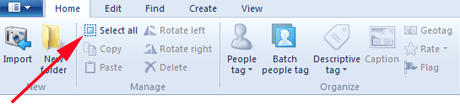
After selecting your images, click on Add geotag in the right sidebar, or in the ribbon. Clicking the ribbon takes you to the sidebar.
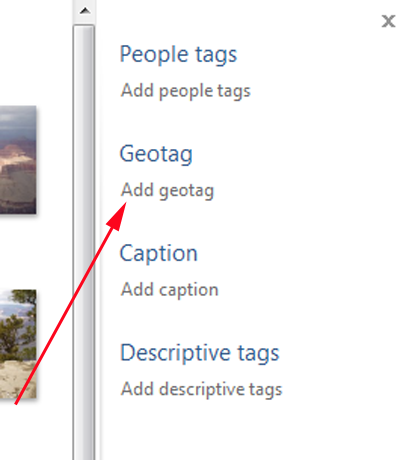
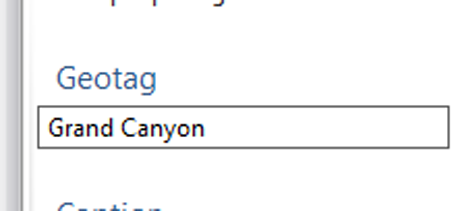
Begin typing the geotag you want to use. Unfortunately, Bing doesn't have a list of every location, so even one as well known as the Grand Canyon might not appear. This is quite an annoyance, since it means your geotags may be a lot less precise than you want. As you can see, I've typed in Grand Canyon and Photo Gallery has offered me no suggestions.
So, since Bing doesn't know the Grand Canyon, I've tried using Arizona as a general geotag. It's going to let me select "AZ, United States."
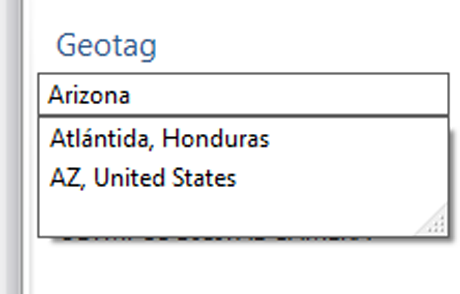
Pressing Enter applies that tag to all selected photos.
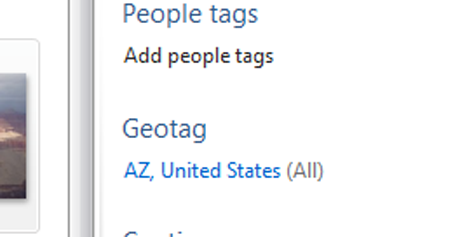
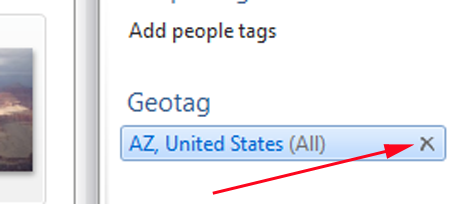
If you want to remove a geotag, select the photos from which you wish to remove the tags, and then click on the tag to select it, then click the X next to that tag.
How to Add Captions to Images in Windows Photo Gallery
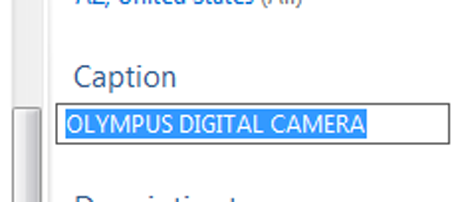
My vacation photos were taken with an old and rather primitive digital camera, which added its own caption to all the photos it took. As you can see, it's about as un-helpful as it gets; it doesn't even identify which camera took the pictures!
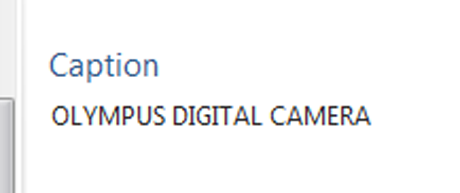
Let's see how to add a more informative caption. I'm going to select a small group of pictures that were taken at Meteor Crater on the same trip to Arizona.
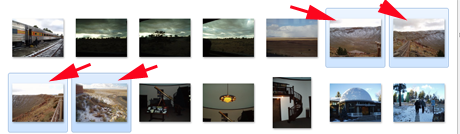
I'll change the caption on those from "Olympus Digital Camera" to "Meteor Crater." Clicking on the caption highlights it.
Then I type in the caption I want.
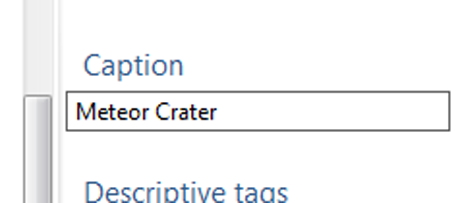
Pressing enter applies that caption to all the selected photos.
Removing the caption works the same way as removing a geotag.
How to Add & Manage Descriptive Tags in Windows Photo Gallery
I talked a little about descriptive tags in my tutorial on creating your own screen savers. While People tags and Geotags are specific to people and places, Descriptive tags can be anything you want. The more information you put here, the easier it will be to find the images when you search for them.
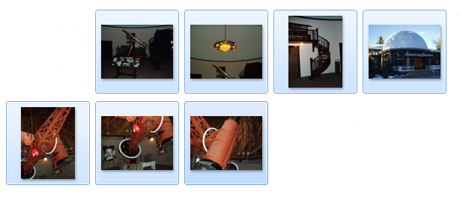
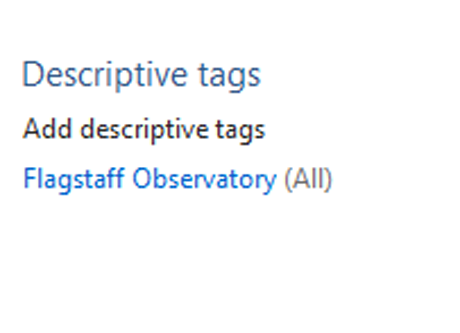
Here I'm going to select a group of photos taken at the Observatory in Flagstaff, Arizona, and give them all a descriptive tag that identifies them as having been taken there.
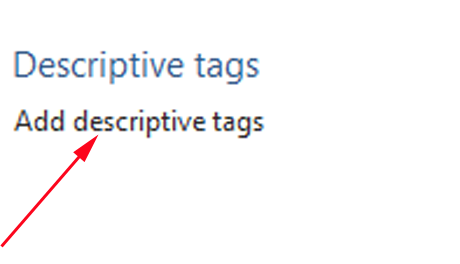
In the sidebar on the right, click on "Add descriptive tags". If you've already added some descriptive tags, when you click you'll see your other tags in a list.
Type in what you want and press enter to set the tag.
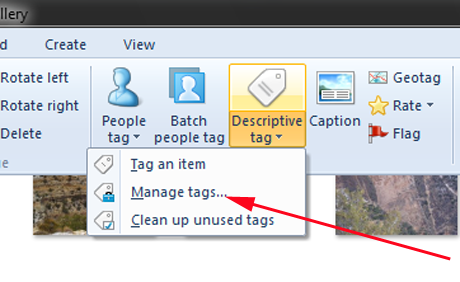
The nice thing about Descriptive tags is that they're not just a "once and for all" addition. You can manage your tags quite easily. On the Home tab, click the down-arrow to the right of the Descriptive tag button, and you'll get a short menu of choices. Choose Manage tags.
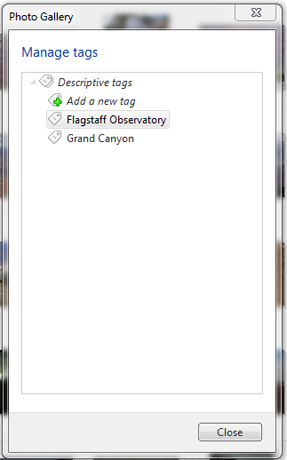
This gives you another handy set of options.
Right-click on any tag, and you'll get another menu of options.
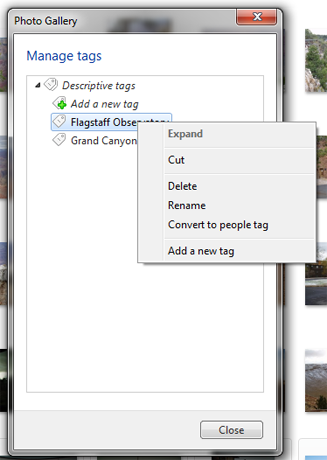
Clicking on "Add a new tag" will add a sub-category to the tag you've already created.
The others are self-explanatory, with the possible exception of "Convert to people tag". This is a little more complicated. If you choose this option, the descriptive tag you've chosen will be changed to a people tag, and every photo that has that descriptive tag will then have a people tag with that name instead. As you might expect, using this command might be tricky, if you already have a people tag with that name.
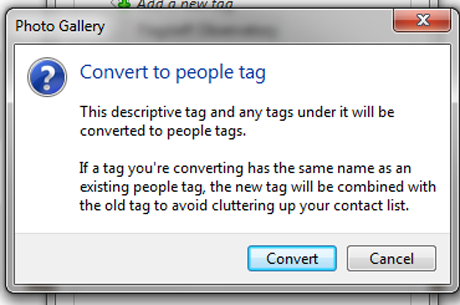
You'll get a warning that your new tag will be combined with the existing tag, so be sure you really want to do this before you click Convert.
Conclusion
The more thoroughly you identify your photos, the easier it will be for you to find them later. It's also helpful to give them captions that are more useful than the standard information your camera may attach to every photo it takes. As with the other kinds of tags, adding these might be time consuming, but if you spend the time to do it when you import the images into Windows Photo Gallery, it can save you plenty of time later on.
Do you have any helpful suggestions or creative ways you've used tagging and captions? Please tell us about it in the comments.