
Fix Windows Explorer Annoyances with Classic Shell

Windows ExplorerMany of you complained about bugs being still active in Windows Explorer, even after a lot of time since the Windows 7 launch. We read your complaints and we tried to find fixes for them. Today, we are happy to present a free tool called Classic Shell, which can help you fix some of the most annoying bugs in Windows Explorer: the jumping folders in the navigation pane and the missing sorting headers in list view. Also, it can replace the navigation arrows introduced by Windows Vista with the crosses and lines from Windows XP era.

Classic Shell Installation

First go to its Sourceforge project page, to download the latest version and launch it’s installation program.

When installing it, make sure you select only the modules you need. If you are interested only in fixing Windows Explorer, select Classic Explorer and uncheck the other modules. Also, don’t forget to leave the ’Create a start menu folder’ option checked. Without it, there won’t be any Start Menu shortcuts to use for configuring this tool.
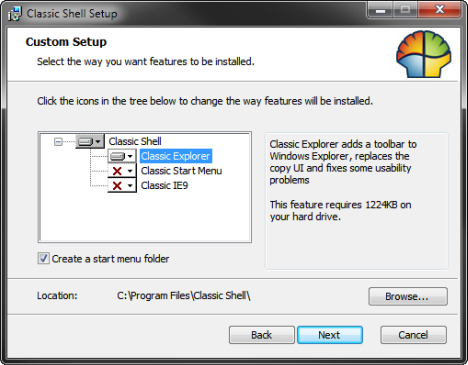
Classic Shell - Windows Explorer

Once this is done, press Next until the installation finishes. When finished, it opens a readme file with information about the features included in the tool. You can read it to find more about the tool and its features.

Configuring Windows Explorer Settings

Now it is time configure the Windows Explorer settings, the way you want them. Go to the Start Menu and click on Classic Shell -> Explorer Settings.
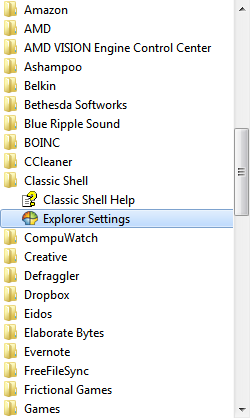
Classic Shell - Windows Explorer

The Settings window is now open. In the Basic Settings tab, check the changes you want enabled in Windows Explorer. Some settings you might not want to miss are regarding the Navigation pane style and the Auto-navigate to the selected folder.

From the whole list of settings, I strongly recommend you NOT to Disable breadcrumbs. Breadcrumbs are a very useful navigation tool in Windows Explorer.
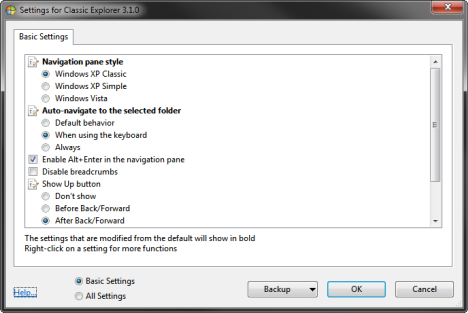
Classic Shell - Windows Explorer

Once you are happy with the settings you made, click OK. You are notified that the new settings will take effect when you open Windows Explorer again. Click OK.
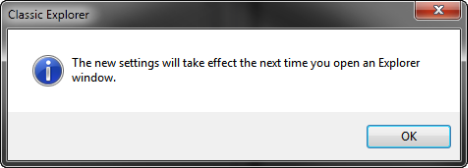
Classic Shell - Windows Explorer

If Windows Explorer is already open, close it and open it again.

Enjoy the Improved Windows Explorer

Below you can see a screenshot of Windows Explorer after applying the settings I wanted. My favorite settings where to enable back the Windows XP navigation style, with pluses and lines, instead of the triangles introduced with Windows Vista.

Classic Shell - Windows Explorer

Also, Windows Explorer no longer jumps folders in the navigation pane like it used to, forcing me to scroll up.

Conclusion

Before closing this article, I recommend you to go to the Classic Shell’s webpage to find out about other useful modules and fixes (not only for Windows Explorer). There you will be able to get in contact with the developer and also support his work via a small donation.


Related articles:

How to Improve Windows Explorer Using Folder Options
Explaining the Windows Explorer Views
Set a Default View Template in Windows Explorer for Any Folder
Configure the Default Viewing Templates in Windows Explorer to be as YOU Want Them!
Transform Windows Explorer with Filtering Options

Comments

I've been using Classic Shell since about day one. Without Classic shell, I probably would not be using Windows 7. (still maintain an XP machine for important work as it is. Windows 7 is nothing more than Vista with gobs of make-up smeared on) The sad thing about Classic Shell is the need for it. It is disgraceful that Microsoft took the attitude, "screw you, it's gone and it is not coming back" - without even offering any excuse whatsoever during development. Poll after poll showed that 40% of Windows users indicated a preference for the classic start menu and Microsoft just thumbed their nose at every one of us. After disabling Homegroup (that does not work on my three Windows 7 computers anyway), Libraries, Favorites, and a couple of other frustrations and installing and configuring Classic Shell, Windows 7 is now down to only a few hundred un-excusable flaws, bugs, and frustrations.

Now if we could just permanently delete some folders in Windows Explorer that keep re-appearing at every re-boot (which itself is required all to often).

Can you tell me which folders you are trying to delete but re-appear at every reboot?

There is a folder named "Public" that appears on one Windows 7 installation and refuses to be deleted. I don't recall at the moment all the details of that one, but I delete it and it goes away then re-appears when I reboot.

On another Windows 7 installation a Folder named "Pictures" refuses to be deleted. It also goes away when I highlight it and select "delete", then re-appears when I reboot. On this computer, I renamed the "Pictures" folder to "Junk Folder" and "Junk Folder" remains, but the "Pictures" folder that I am trying to get rid of regenerates itself on reboot. I now have a user created "Pictures" sub-folder under a user created folder (directory) named "All Documents", I have a "Junk Folder" that used to be a "Pictures" folder (that I possibly could delete, but windows saves certain items to that folder by default - - I would also LOVE to change that), and I have an absolutely superfluous "Pictures" folder that Windows 7 insists on regenerating. I can furnish full paths to each of these folders if you are willing to tackle the issue.

I could furnish you a small truckload of generally similar frustrations that Windows 7 introduced that even Vista did not present.

The Public folder can never be deleted it is one of those folders the Operating System was designed to use in order to function. Everything you need to do know about this folder can be found here: What is the Public Folder & How to Use it for Sharing.

The other folders you mention, are folders automatically created by Windows for each user profile. The Pictures and other folders will always remain there because both the operating system and some of the applications you install, will use that folder in some way, sometimes not even noticeable to the user.

Thank you so very much for your explanation. I totally accept and appreciate your efforts in explaining this (and countless other things that you explain) but I continue to think it is totally disgraceful on Microsoft's part. One of the features that they touted so highly when Windows 7 was in beta and RC was the configurability and customization capabities built into the OS. When a computer is only used by a single user, that individual should be able to configure their computer for a single user.

Am I missing something in my thought process here? This was an issue I presented to Microsoft during beta. I do not know what the percentages are, but among the reported 1 billion Windows users world wide, there are millions and millions of computers used by only one person from "cradle to grave". Why should these users have to wade through all the multi-user configuration and features every minute they use their computers? The biggest single change that should have been made at some point in the development of Windows versions should have been to make it an option to disable ALL features and settings that are designed specifically for multiple users.

That's my story, and I'm stickin' to it

I understand your frustration. I'm pretty sure this kind of decisions are tough to make when designing such a complex operating system. I don't know if Microsoft was right or wrong on this one. Personally I have no issues with the Public folder and others as I use a second partition to store my stuff. So it doesn't bother me in any way.

Anyway... there's one thing I would like to highlight: DO NOT delete these folders. Keep them as they are. By deleting them you only increase the chance of having issues with your operating system or some of your installed applications. It is better to simply hide those folders and ignore them if you don't plan to use them.

Classic Shell is one of the MUST-HAVE programs that you simply can't do without. And it improves so much over time. Every few months the developer has added new functionality.

Is there any file manager application that allows you to give the file and folder names text attributes as in Word, along with colors?

Classical Shell has saved my sanity. The Windows7 explorer was driving me crazy, with all of the stupid "features" that made using Windows7 so painful. Classical Shell removes all of the "features" that are so annoying in Windows7 explorer and it keeps the only one that I consider an improvement, the "new" option on the right-click menu. Well done!

is there a way to change the location of files i'm downloading to another? coz it goes to computer>local disk(c:)>Users>users>downloads. and whenever i try to access downloaded files window explorer stops working and restarts then closes the window. i know it's a bug and i don't know how to fix it so was thinking of downloading files to another place. hope u can help. thanks.

AWESOME! Thank you so much.
Was so so so disappointed with Win7 and refused to use it because of the Win-Explorer "Upgrade".
This makes all the difference.

Missing one part though (might be there, I just haven't found it): In the old XP Explorer it was possible to rename folders in the folder panel on the left by single left-click and wait for a sec. Is that available somewhere in your package?

Thanks again.

Add new comment