Did you know that, beyond the basic personalisation of Windows themes, there's a slightly more hidden but more powerful way to customize visual settings? With the help of the Window Color and Appearance window, you can change the background color used by certain applications, you can increase the size of the scroll bar or change the fonts used for menus. This tutorial will show how you can do all this and a bit more.
How to Open the Window Color and Appearance Window
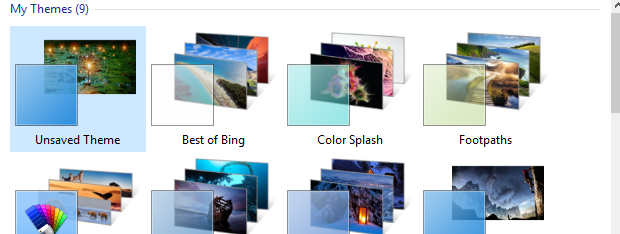
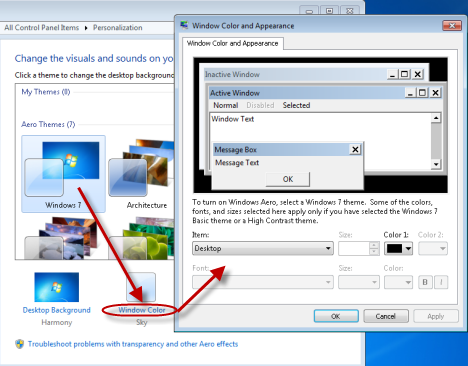
The answer is slightly different, depending if you are using Aero or not. If you are, then go to "Control Panel -> Appearance and Personalization -> Personalisation" or simply right click on your desktop and select Personalisation. Now you see a list with all your Windows themes. Select the one you want to use and customize, then click on Window Color.
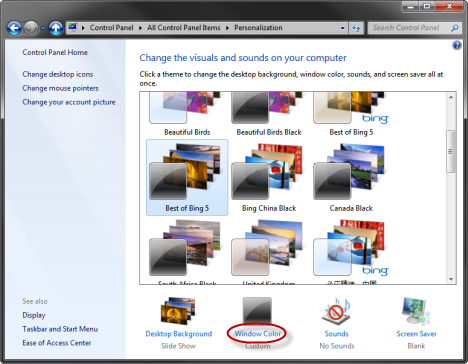
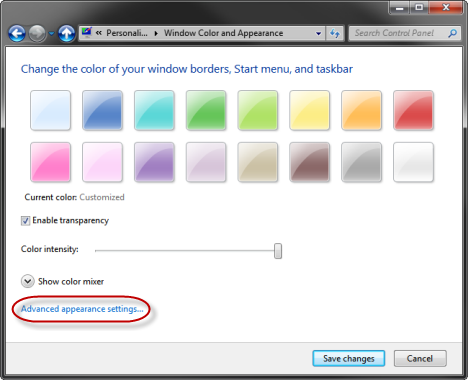
This opens the first Window Color and Appearance window - it is not the window we need. If you want to know more about how to customize the options in this window, check out this tutorial: How to Customize Windows 7 Themes.
The interesting thing for us, is the link appearing on the bottom of the window, called "Advanced appearance settings". Click on it.
This opens the window we need, called just like the one before it - Window Color and Appearance. 🙂
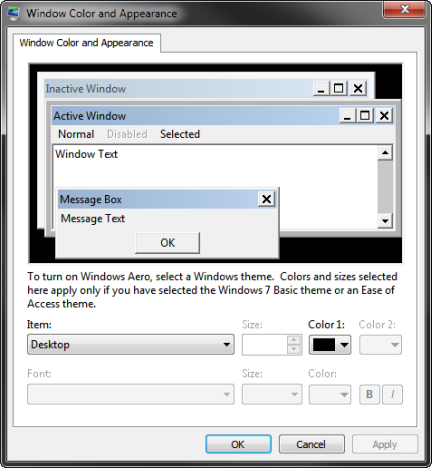
If you are not using Aero, but a Windows basic theme or a Windows Classical theme, getting to this window is much simpler. Go to "Control Panel -> Appearance and Personalization -> Personalisation", select the theme you want to use and customize and click Window Color. You get the Window Color and Appearance window you need.
Personalizing Advanced Appearance Options
In the Window Color and Appearance window you have a long list of items you can customize. However, even if you customize them, it doesn't mean they will always get applied. There are some important "rules" worth highlighting here:
- Many of the configuration items apply only to the Windows Classic or High Contrast themes. One example is the Desktop item. If you change its color, it will change your desktop background to that color, but only for these themes.
- There are few items which get applied for any theme you might be using. We will cover them in detail in the next section.
- The settings of the Windows theme you are currently using trumps the settings you can make here for most items, especially when using Windows Aero themes. To learn more about customizing Windows Aero themes, I recommend this tutorial: How to Customize Windows 7 Themes.
Personalisation Options that Get Applied to ALL Themes
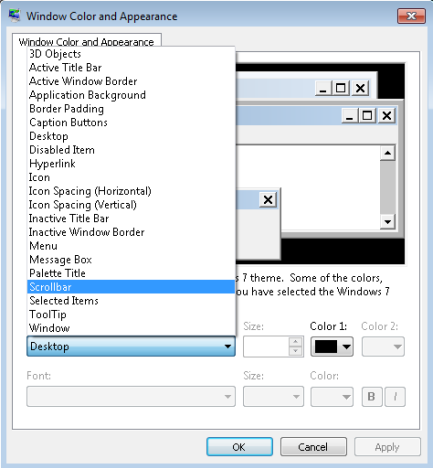
As promised, let's go through the options that get applied to any theme. As you will see, even though there are few items you can configure and apply, all of them can be very useful, especially if you want to improve ease of access for the elderly, or for people with seeing issues.
- Icon - allows you to change the font and size used for icons.
- Icon Spacing (Horizontal and Vertical) - allows you to increase or lower the space between icons, both horizontally and vertically.
- Menu - use it to customize the font and size of the text shown in menus.
- Message Box - use it to customize the font and size of text shown in message boxes. These message boxes pop-up when certain events take place (when there is an error, when a process has finished successfully, etc.).
- Scrollbar - this option lets you change the size of the scroll bar, to make it thicker or thinner.
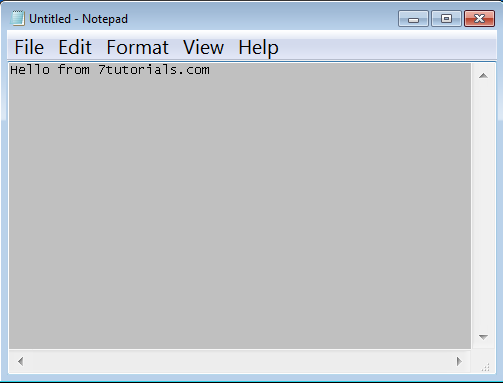
- Window - allows you to change the color of the so called "window text". This is the portion of an application window where you need to fill in text and some areas where text is displayed dynamically. For example, with this setting, you can change the background of Notepad or Wordpad. However, you won't change the background color of Windows Explorer, while the Start Menu search box will change its color according to this setting when displaying search results.
Below you can see an example of the results I obtained by changing the settings for Menu, Scrollbar and Window. I managed to increase the size of the menus shown, make the scroll bar thicker and change the background window of Notepad and other applications to gray.
Resetting your Personalization Settings
If you are not pleased with the changes you made, you can easily revert back to "normality". All you have to do is change the active theme with another one. All your visual settings will be set according to the new theme.
Conclusion
I hope you enjoyed this article. If you are looking for more tips on how to customize the looks of your Windows 7, check out the stuff we recommend below. We've got some great recommendations.