How to Share Folders in Ubuntu & Access them from Windows 7

In a previous tutorial I have shown how to enable the sharing service in Ubuntu and change the Workgroup so that it is the same with all the other computers in your network, thus making networking between Ubuntu and Windows 7 easier. In this tutorial I will show how to share folders in Ubuntu and how to access them from Windows 7 computers.

NOTE: Article updated to work on Ubuntu v10.10 & 11.04.

Enable File Sharing & Configure the Workgroup

In order for Ubuntu and Windows 7 to share files, they have to be configured to be part of the same Workgroup. Also, file sharing needs to be enabled in Ubuntu.

To change your Windows 7 workgroup, see: How to Change the Workgroup in Windows 7.
To configure Ubuntu, see: How to Enable File Sharing & Change the Workgroup in Ubuntu Linux.

Once these items are set up correctly, proceed with this tutorial.

How to Share Folders in Ubuntu

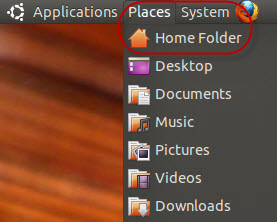
First, open the Home Folder in Ubuntu, found in the Places menu.
Folder Sharing

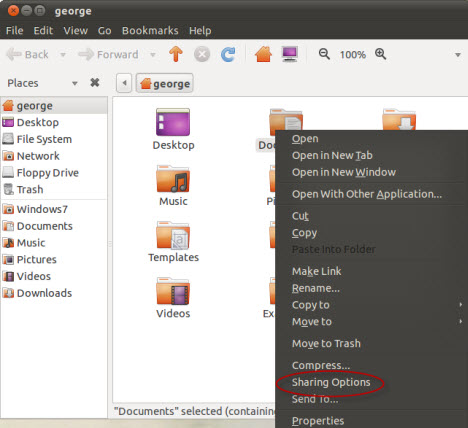
Browse to the folder you want to share. Right-click on it to open the contextual menu and click on Sharing Options.
Folder Sharing

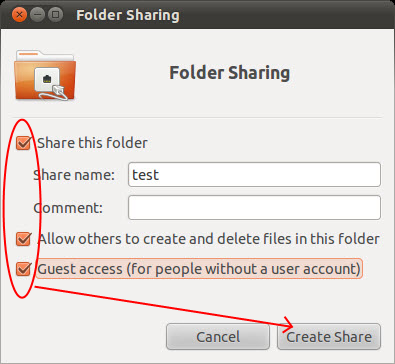
The Folder Sharing window will open. Check the box next to ’Share this folder’. Then, in the Share name field, type the share name you want to use. In the Comment field type anything you want or just leave it empty - there’s no need to complete it. If you want to allow others to create and delete files in the folder you are sharing, check the box next to ’Allow others to create and delete files in this folder’. Also, if you want to allow Guest access, check the box next to ’Guest access (for people without a user account)’. When done, click on Create Share to actually share the folder.
Folder Sharing

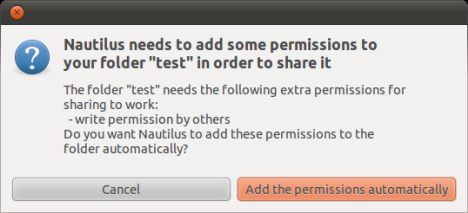
If you have selected the option ’Allow others to create and delete files in this folder’ a pop-up shows up, asking if you want to add some permissions to the folder you are sharing. Click on the ’Add the permissions automatically’ button. Now, the folder is shared with the rest of the network.
Folder Sharing

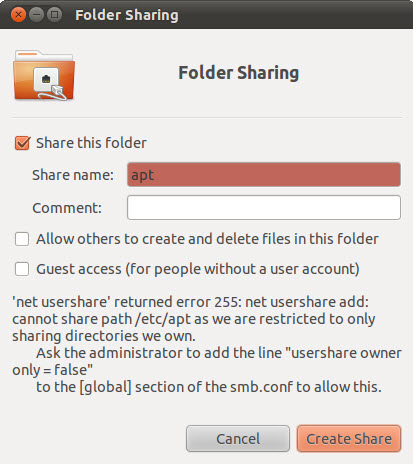
Note: We recommend that you only share folders found or created in the Home Folder because those are folders on which your username has ownership. If you try to share a folder outside the Home Folder, you will receive the following error message: “net usershare returned error 255: net usershare add: cannot share path as we are restricted to only sharing directories we own." This error appears because you don’t have ownership on those folders. In order to share any of them you have to go through a complicated procedure that has the potential to add security risks to your Ubuntu computer.
Folder Sharing

Access Ubuntu Shared Folders from Windows 7

After you shared a folder in Ubuntu, let’s see how to access that folder from a Windows 7 computer.

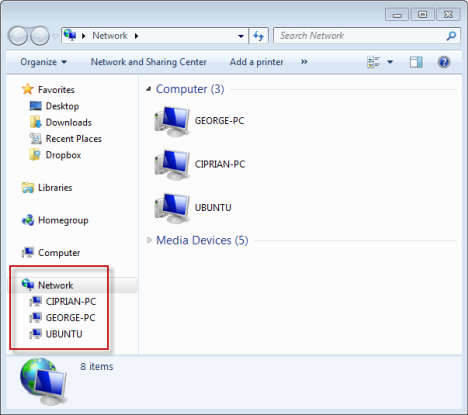
Open Windows Explorer. Click on Network to view a list with all computers available (turned on at that time) in the network.
Folder Sharing

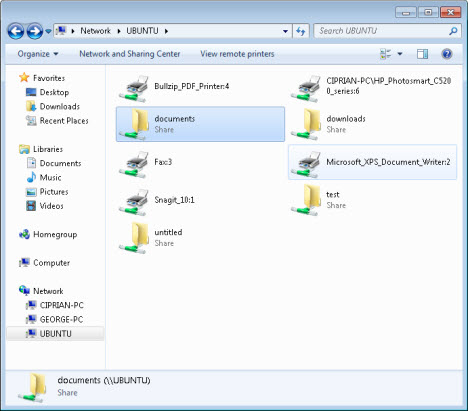
Double click the Ubuntu computer you want to access. A list with all the shared folders and devices from that computer opens.
Folder Sharing

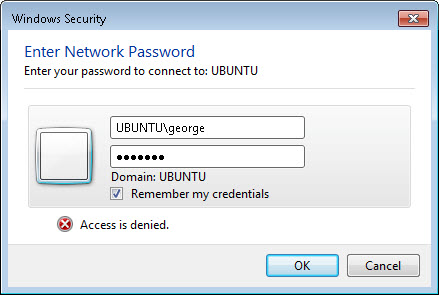
Double click the folder that you want to access. If you haven’t setup the shared folder to allow Guest access, you are asked to introduce a username and password.

In the first input field, type the name of the Ubuntu computer followed by a backslash (“\") and the name of the user account with access to the shared folder. In the second input field type the password. If you want Windows to remember your username and password, check the box next to ’Remember my credentials’. When done, click on OK.

Folder Sharing

Now the content of the shared folder is shown.
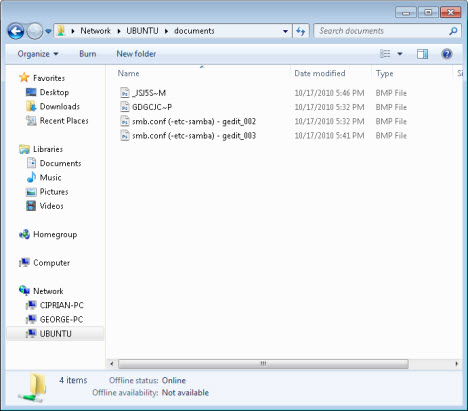
Folder Sharing

Conclusion

On a network with Windows 7 and Ubuntu computers, you can configure Ubuntu to share files and folders which are easily accessible from a Windows PC. If you want to know more about setting up other PCs on a local network, or how to further utilize the networking features between Ubuntu Linux and Windows 7, check out the articles listed below.


Related articles:

How to Enable File Sharing & Change the Workgroup in Ubuntu Linux
How to Access Windows 7 Shared Folders from Ubuntu
Mount Windows 7 Shared Partitions & Folders in Ubuntu
How to Access A Windows Shared Printer from Ubuntu
How to Change the Workgroup in Windows 7
How to Customize Network Sharing Settings in Windows 7

Comments

When I try to share a folder using the procedure you described, I get the following error:

'net usershare' returned error 255: net usershare add: cannot convert name "Everyone" to a SID. Logon failure.

How do I fix this?

great tutorial, only problem is when I get to the section titled "Access Ubuntu Shared Folders from Windows 7" the Ubuntu computer simply does not show up on the network list.
You make no mention of anything to setup on the win 7 machine, what do I have to do to make my Ubuntu computer show up on my network?

In the Run window (Windows + R), type \\name of ubuntu computer and see if you can access it. If not, then... either the Ubuntu computer is not on the same network or something is blocking it - sometimes security solutions interfere with your network and cause such issues.

I tried these same steps but whenever I try to access the shared folder I can access the linux machine but nothing is displayed (0 items), am I doing something wrong?

Also what is the role of the 'smb.conf' file when we can share the folders from inside the linux desktop? or do we have to configure \smb.conf' file first?

Thnx

You need to edit and configure the smb.conf file first. Check out this tutorial to learn what you need to do with it: How to Enable File Sharing & Change the Workgroup in Ubuntu Linux.

simple and useful tutorial. using it right now

Fantastic i loved it, it really helped me alot thanx :-)

That helped very much. Thank you.

We're glad this tutorial helped! :D

When you share files with this method there are no entries created in /etc/samba/smb.conf that I can detect.......so what gives? Is this not a part of samba? Where is the .conf for this fileshare? I ask because I have a more complicated problem.

I've been trying to share password-protected folders on my Ubuntu (Desktop installed on top of Kubuntu) 11.04 laptop for almost two weeks now. I have not been able to do so, as my Windows 7 Home Premium installed on a desktop machine has invariably and repeatedly given me the message "Login failed: incorrect password" whenever I have tried to open the folders either of those shares represent from Win 7. Allowing Guest access works fine, and I'd be satisfied with it, except that under Guest access, any files created, copied to, or saved in the share invariably have to have their permissions, ownership and group ID changed in Linux. I know this isn't necessary when a password-protected share has files created, copied to or saved in it, because the file's umask is set correctly in smb.conf or somewhere else "under the hood" in Linux.

I have also discovered that, unless one mounts one's own shared folder in Ubuntu Linux, there is absolutely no way of specifying that share's umask; not to mention, this workaround seems only to apply to files created in shares from logged-in computers running Ubuntu, Debian or some other 'flavor' of Linux.

So what we have here is the proverbial 'dog chasing its own tail.'

The last version of Windows I ran on any of my computers was Windows XP Pro SP3. It's sad to think that in the last six or seven years, Microsoft, in trying to make up for security flaws and gaffes in the past (of this I have no doubt), have completely ruined what most folks might have been inclined at one time or another to call "their baby." Samba, to many people I know, is synonymous with "Windows file sharing"; they're surprised when I tell them it's maintained by a separate organization having little or nothing to do directly with Microsoft. Now it would be foolish for anyone to make the connection, full stop, between the one and the other.

In short, there is no way to access password-protected folders on Ubuntu machines running SMB/CIFS from any incarnation of Windows 7, because what Windows 7 runs is obviously not "straight Samba."

But take heart: most ISPs block the highest TCP/UDP ports, by number, by name 139 and 445, and as the lower two or three were intended strictly for LAN use, the whole of honest-to goodness Samba is, while not 100% secure, as close to it as should make no difference for most users.

BZT

Add new comment