Anyone who utilizes multiple computers in a network with a single printer knows the importance of being able to share resources. In a previous tutorial, we explained How to Access Windows 7 Shared Folders from Ubuntu. However, the sharing doesn't stop there. This tutorial will show how to access from Ubuntu printers that are shared from another Windows computer.
NOTE: Article updated to work on Ubuntu v10.10 & 11.04.
Step 1: Configure the Computers on the Same Workgroup
In order for Ubuntu and Windows 7 to share printers, they have to be configured to be in the same Workgroup.
To change your Windows 7 workgroup, see: How to Change the Workgroup in Windows 7.
To change your Ubuntu workgroup, see: How to Enable File Sharing & Change the Workgroup in Ubuntu Linux.
Once the Workgroup is set up to be the same on both computers, proceed to step 2 to share your printer.
Step 2: Share the Printer from Windows 7
Next, you'll need to configure the printer to be shared on the network. To do this, please see: How to Share a Printer on Your Network.
Step 3: Configure Ubuntu to Access the Printer
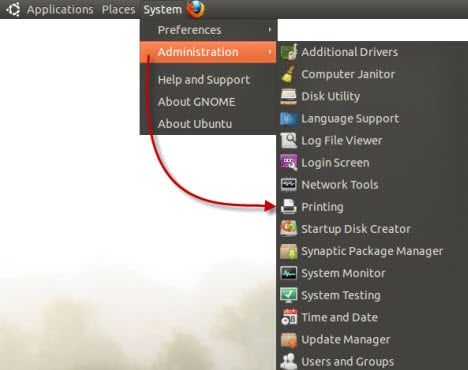
From your main panel, go to 'System -> Administration -> Printing' to open the printer configuration manager.
In this window you can see all the printers installed your computer and the other computers on your network.
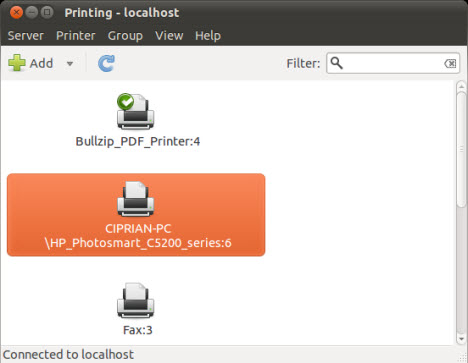
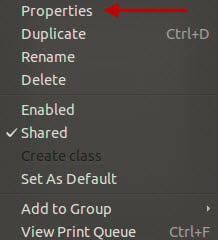
Right-click on the network printer that you want to access and from the menu select Properties.
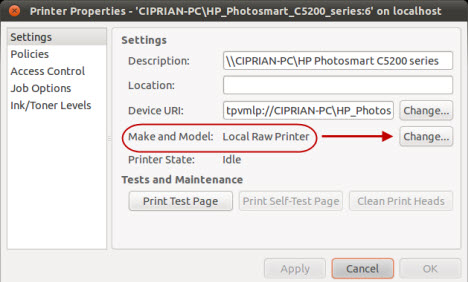
In the Printer Properties window, if the Make and Model of the printer is listed as Local Raw Printer, you need to install drivers for that printer. Click on the corresponding Change button to access the Change Driver window.
Note: If the Make and Model of the printer is correct, you can skip the next steps, because the printer will work from Ubuntu.
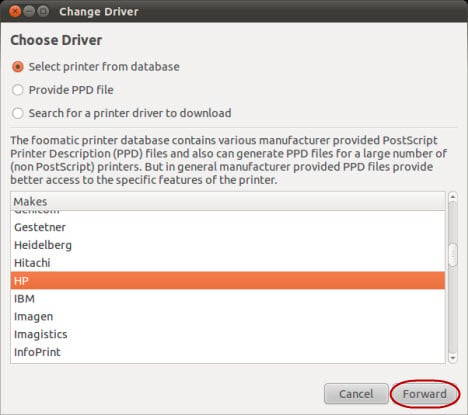
In the Change Driver window search the manufacturer of the printer you want to access and select it. In our example, it is HP. Then click on Forward.
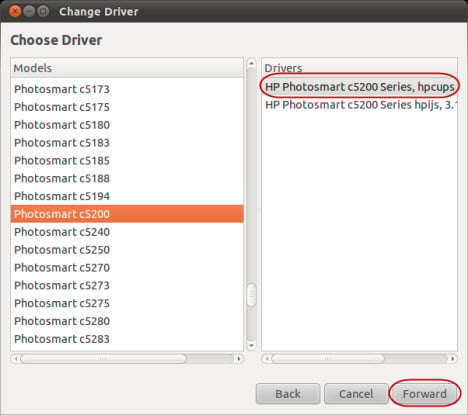
Now search and select the correct model of the printer. Ours is a Photosmart C5200. If you have to choose between multiple drivers, select the one with 'cups' in its name (these drivers should work better on Linux, CUPS meaning Common Unix Printing System). Click Forward to proceed.
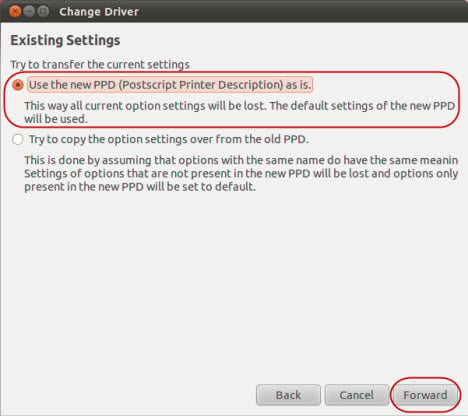
In the next window you are asked if you want to transfer the current settings. Because the printer is not yet installed there are no settings to transfer, therefore, select Use the new PPD (Postscript Printer Description) as is and click on Forward.
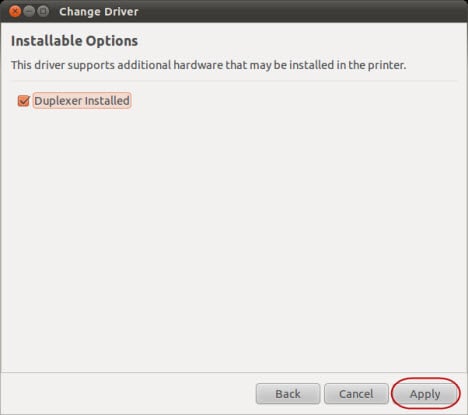
The final step is choosing which additional options to install. These options depend on the printer model, in our example we can only install the Duplexer, a feature that allows printing on both sides of a paper. Choose the options that you want to install and click on Apply.
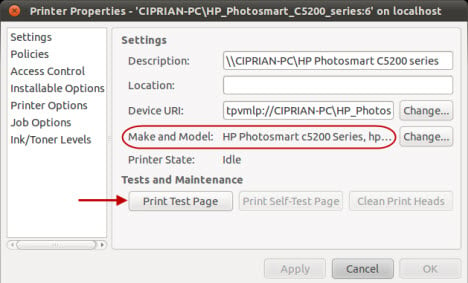
Now, in the Printer Properties window, the Make and Model field shows the printer correctly identified. Finally, to test the printer, click the Print Test Page button.
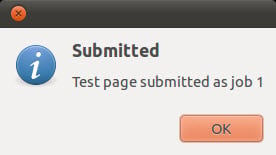
You are informed that the test page was submitted. Click on OK and then close the Printer Properties window if all is good.
Conclusion
As you can see, accessing a shared printer on a network is reasonably easy to do with Ubuntu. If you have any tips for printer sharing or advanced usage of shared printers between Ubuntu and Windows 7, feel free to leave a comment. You may also want to review the articles below that can further explain the operation capabilities between Windows and Ubuntu on a network.