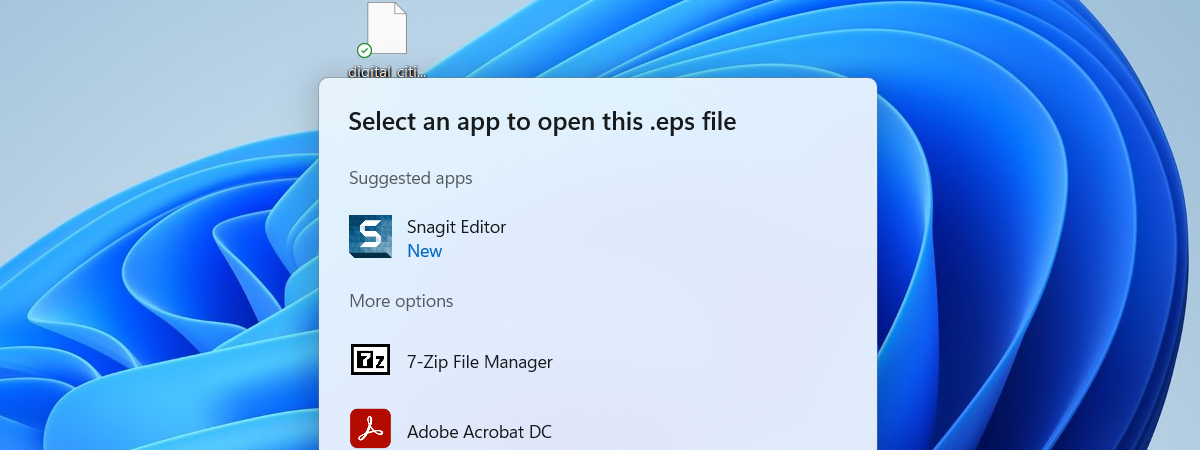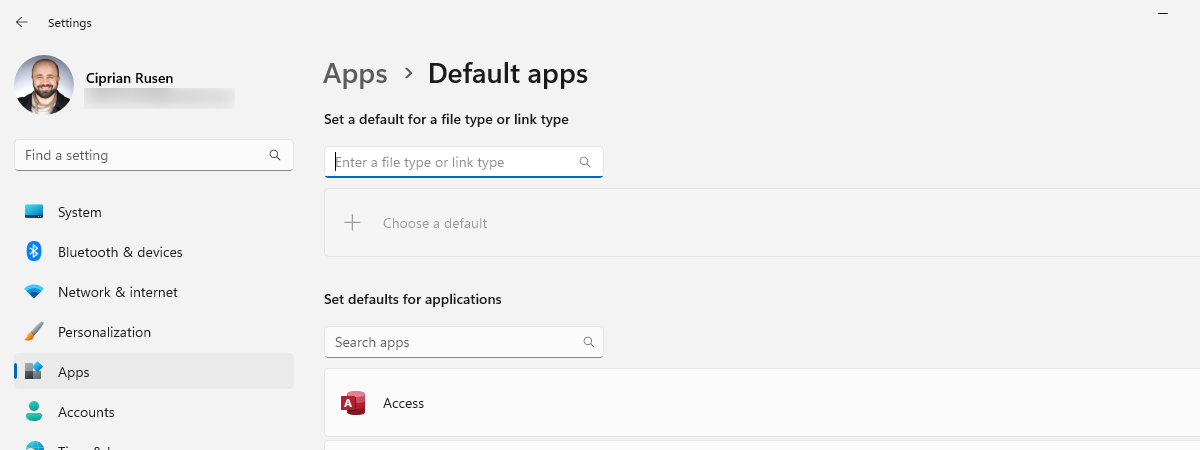
There are hundreds of different kinds of files on your computer, including images, videos, music, text documents, and executable applications. Each file stores different information differently and can only be opened by certain programs. Windows takes the potential confusion out of this system by associating certain programs with certain file types right out of the box. While your default associations will work for most apps and programs, you’ll undoubtedly want to change a few as you try out alternative applications and find new favorites. Read on, and I’ll show how to set default apps in Windows 11, as well as how to change file and link associations by type:
How to find the settings for default apps in Windows 11
To change the default apps used in Windows 11, you need to open Settings. Once you do, select Apps on the left sidebar and click or tap Default apps on the right.
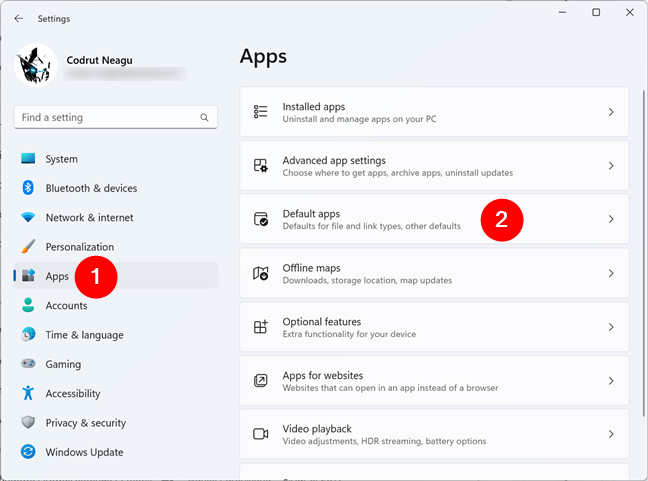
How to get to the Default apps in Windows 11's Settings
Windows 11 then shows you all settings you can change for the Default apps on your computer.
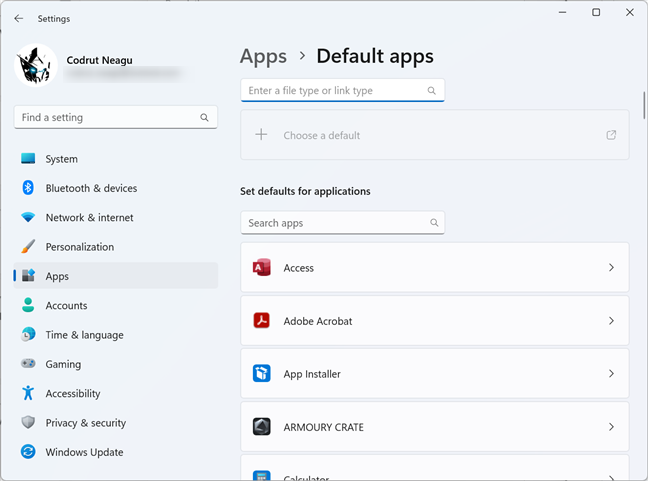
The Default apps page in Settings
Now that we got that out of the way, let’s see how to set the default apps, how to associate a file type with a program, and how to choose default apps by protocol:
How to set an app to be the default for the supported file types
Probably the most efficient way to change file associations in Windows 11 is to tell the operating system that you want a certain app to handle all or some of the files it supports. Depending on their purpose and design, most apps can handle various file types, so you might have two, three, or even more apps that know how to work with the same file types. For example, on your Windows 11 PC, you could open PNG images with any of the following applications: Photos, Paint, or Snipping Tool.
So, configuring each app’s default file types is clearly a handy way of setting file associations. To do that, on the Default apps page in Settings > Apps, look at the programs listed under “Set defaults for applications.” This list includes all the apps installed on your Windows 11 PC. Scroll or use the Search apps field at the top of the list to find the app whose default settings you want to change. Once you do find it, click or tap on the app’s name. I’ll take Adobe Acrobat as an example, but you can take any other app, including your web browser:
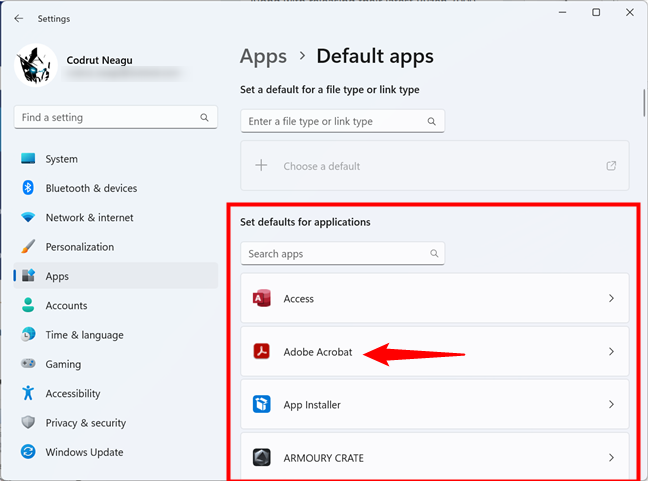
Choose the app to configure
The previous action makes the Settings app open a new page with the name of the app you selected, listing a series of file types and/or link types the app can open. For my example, Adobe Acrobat, the “Set default file types or link types” list includes all the file types and protocols this PDF reader can handle. You’ll get a similar list for any other app you select in the previous step.
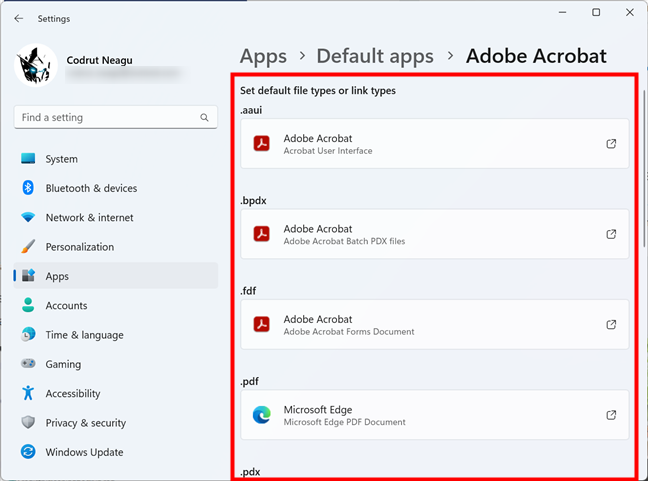
The list of file types and protocols supported by the app
For each file type or protocol supported by the app, you can see the default app currently used by Windows 11 to open it. To change the default for a file type or protocol, click or tap on the default app set for it. For instance, in the next screenshot, you can notice that the default app for opening PDF files on my computer is Microsoft Edge. However, I’d like to have Adobe Acrobat do that instead, so I have to click/tap on Microsoft Edge under the .pdf file type.
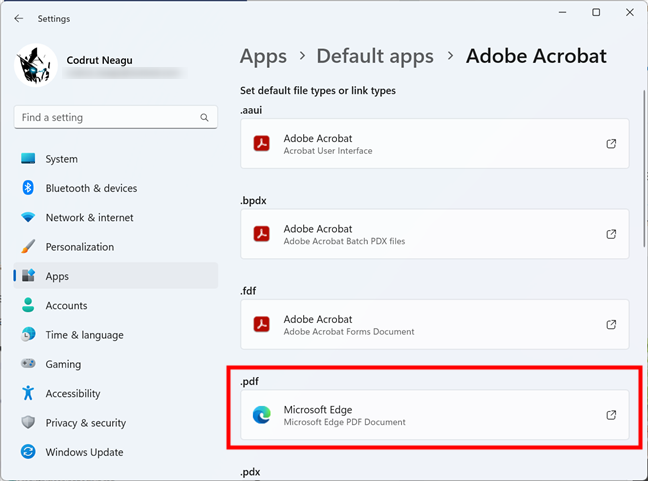
You can configure a file extension association
This opens a pop-up menu with a list of apps that can open that file type or protocol. In it, select the app you’d rather use for it, and then click or tap on Set default.
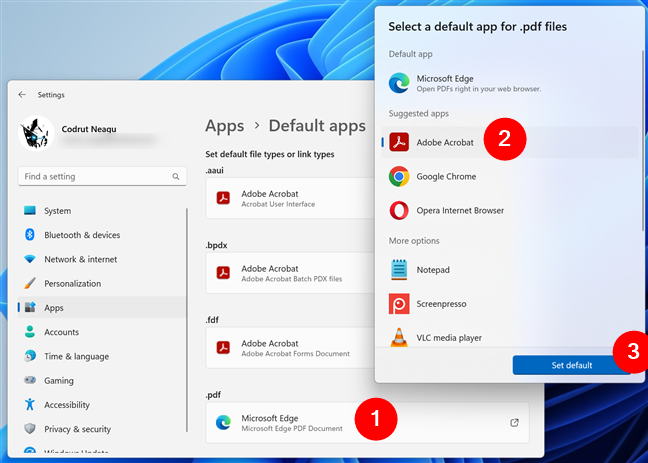
Select a default app for a file type
The change is applied immediately. You can then repeat the process for all the apps, file types, and protocols whose defaults you want to change.
How to associate a file type or link type with a program
What if you want to associate only a certain file extension (file type) or protocol with a certain application or program? In that case, you need to go back to square one: Settings > Apps > Default apps. Then, start typing the name of the file type or link type in the search field at the top of the window. It’s easy to identify it because its description is quite self-explanatory: “Enter a file type or link type.”
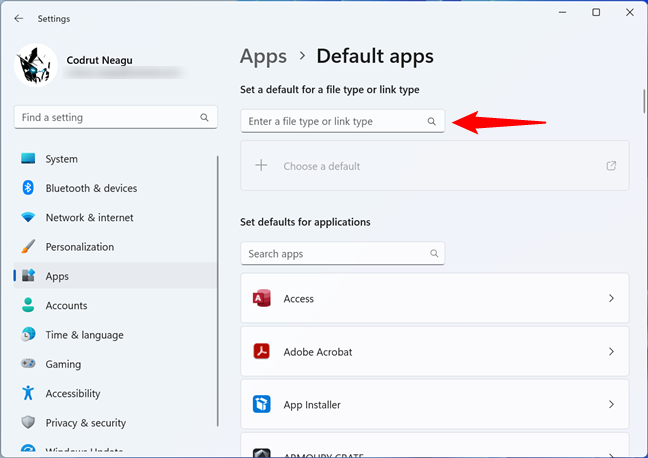
Enter a file type or link type
For example, because I want to change the file association for the PDF file type, I’m typing pdf in the “Enter a file type or link type” field. This gives me a short list of all the file types, links, and protocols that include this search term in their names.
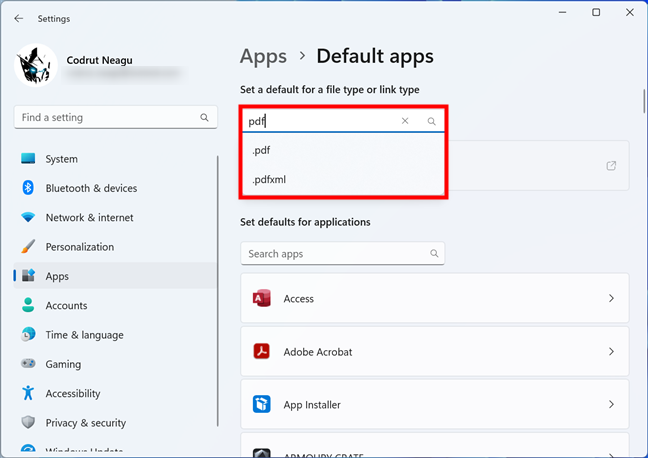
Entering the file type or protocol name in the search field
In the list of search results, click or tap the file type or link type that you want to configure.
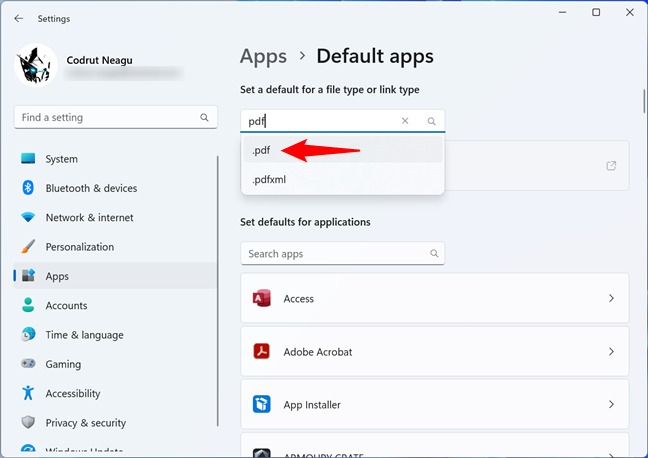
Choosing the file type association to configure
The Settings app then shows you the current app associated with that file type or protocol. In my case, that is Microsoft Edge. Click or tap on the default program.
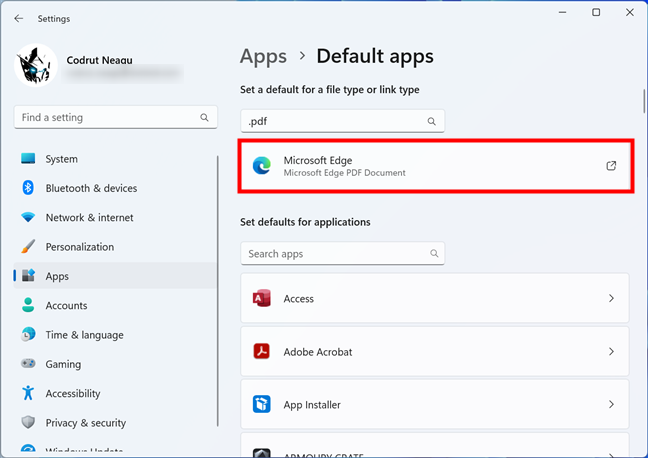
The currently selected default app
This opens a list of apps that can work with the selected file type or protocol. In it, select the app you want to associate by default with that file type or protocol, and click or tap the Set default button.
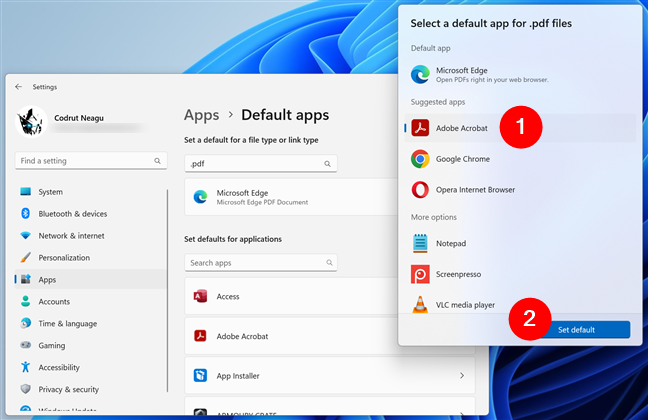
Selecting a new default app
That’s it! But wait, there are other ways of setting the default program for a file type or link type. So don’t stop and read on:
How to set a default app for a file type using the Open with menu
Did you know that you can also select a default app for a file type using the right-click menu? It’s based on using the Open With option in the context menu, and it works like this:
Right-click or press and hold on a file that currently opens with a default app that you don’t like. Then, in the context menu displayed, head to Open with and click or tap on the Choose another app option from the submenu.
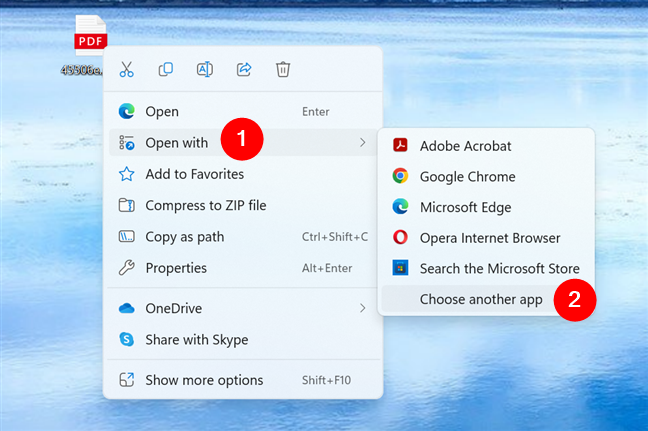
Choose another app in the Open with menu
Windows 11 will then show you a list of apps that can open that type of file. Select the one you want to set as default and click or tap on the Always button at the bottom of the list.
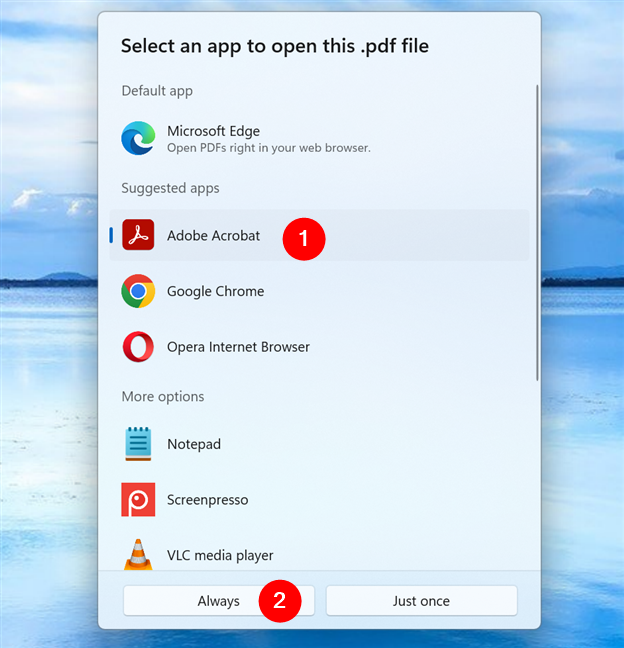
How to set a default app using the right-click Open with menu
From now on, all the files that have the same extension as the one you just opened will always be handled by the app you selected as default in the Open with menu.
TIP: If you want even more details about the Open with menu, read this guide: What is Open With and how to use it in Windows.
An alternative way to choose defaults by file type or link type
Besides searching for the file type or link type that you want to associate with a program, Windows 11 also allows you to see the entire list of file types and protocols known by it. And you can change their defaults right there, from the list.
To see and set the default app for a file type or protocol, on the Default apps page in Settings, scroll down until you reach the Related settings section. Under it, depending on what you want, click or tap on “Choose defaults by file type” or “Choose defaults by link type.”
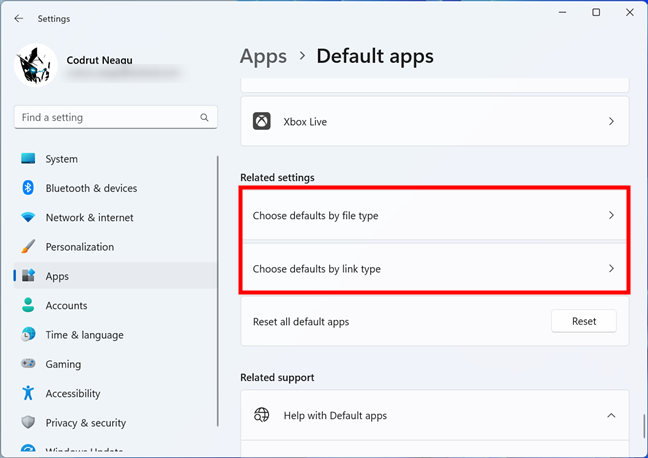
Choose default by file type and Choose default by link type
Both options will give you long lists of either all the file extensions that are registered in Windows 11, or all the known protocols (link types).
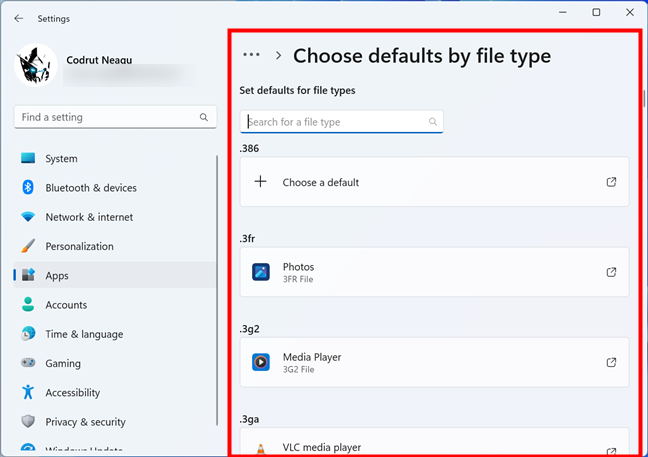
Set defaults for file types
For each file type or protocol, you see the default app that’s used for opening it. If a default is not set, you get a + Choose a default button instead.
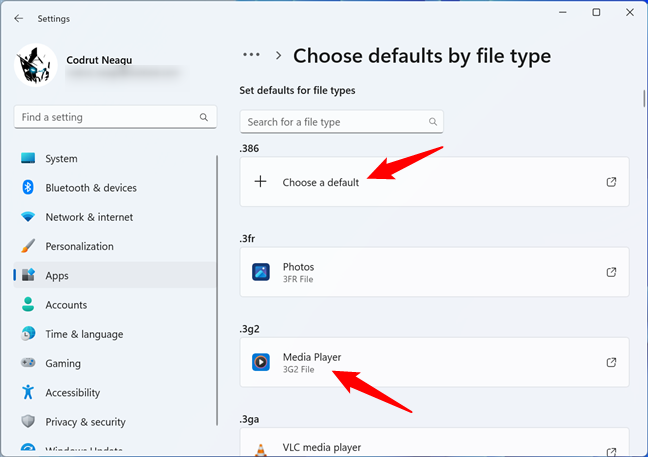
Associations are shown with their default apps
To find the file type or protocol you want to configure, you could use the “Search for a file type” or “Search for a link type” fields at the head of the lists. However, that’s a bit redundant, as it’s the same as the process that I showed you earlier in the previous section. But, in these lists, you can also scroll down until you find the file extension or protocol you’re looking for. It helps to know that both lists are ordered alphabetically.
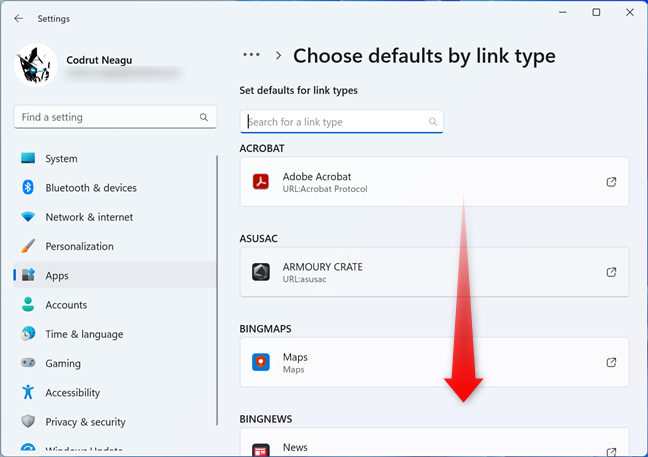
Scroll to find the file type or protocol in the list
Once you find the file or link type that you want to configure, click/tap on the name of its default app (or the + Choose a default button). That shows a list of apps that can open the selected file type or protocol. In that list, select the app you prefer and click or tap the Set default button.
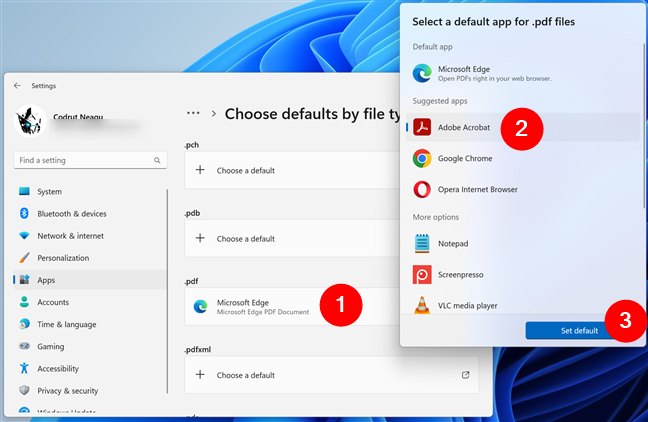
Select a default app for a certain file type
The setting is applied immediately by Windows 11. Repeat the same steps for all the file types and link types you want to configure.
How to reset the default apps
If, in time, too many file associations have changed and they no longer make sense, you can reset the default apps to Microsoft’s recommended apps. If you do that, Windows 11 switches back to using the apps recommended by Microsoft for all the common file types and protocols. That means apps like Mail, Maps, Photos, and Microsoft Edge will be defaults once again. To do that, launch Settings and head to Apps > Default apps. Scroll down until you reach the end of the page, and click or tap the Reset button next to “Reset all default apps,” in the Related settings section.
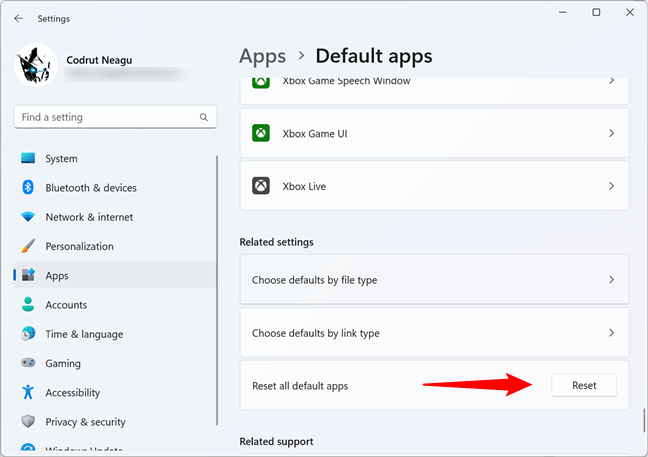
Reset the default apps in Windows 11 to Microsoft’s defaults
Once you’ve pressed Reset, your Windows 11 default apps are immediately set to the ones recommended by Microsoft.
Did you change the default apps in Windows 11?
Before closing this tutorial, would you mind letting me know how you used this guide? Did you follow the steps in order to change your default web browser or another app? Was it something easy to do, or did you find it difficult? Use the comments section below to share your experience.