In both Windows 10 and Windows 11, you can change any shortcut icon, whether it's a regular one linking to an app, file, folder, or web page or one of the standard desktop icons. This comes in handy if you dislike the default icon of an app or you want to add a personal touch to your Windows computer or device. Changing the icons of certain shortcuts, especially the ones with boring, generic icons, such as files, folders, and web pages, can also help you find them faster. This tutorial illustrates how to change icons on Windows 10 and Windows 11, replacing them with others more to your liking:
First things first: Find icons for your shortcuts
The icons used for your shortcuts in Windows can be stored in several file types, that use the following extensions:
- ICO - the best-known file format used for icons in Windows operating systems. It can only store one icon.
- EXE - icons can be embedded into the executable files of an app or program. An executable file can store one or more icons.
- DLL - sets of icons can also be embedded into DLL (Dynamic-link library) files. A DLL can store one or more icons. Windows uses DLL files to store most of its icons. To learn the location of the default icons, read Windows 10 icons. Where are they located? In which files and folders?
Only some EXE and DLL files store icons, depending on how they were designed. However, ICO files always contain an icon. Keep in mind that Microsoft recommends using an icon with a size of at least 256x256 pixels, and if the icons that come with Windows don't fulfill your needs, you can always download others. To get you started, feel free to check out these 7 sites where you can download free desktop icons for Windows. If you want to create your own icons, read 2 ways to convert PNG, SVG, JPG files to ICO files in Windows.
How to change the icon of a shortcut to a file, folder, app, or program in Windows 11 or Windows 10
Changing the icon of any file, folder, app, or program works the same way in both Windows 10 and Windows 11. This section illustrates changing the icon of a file's shortcut, but the process is the same for folders, apps, or programs. After creating your shortcut or finding the one you want to modify, right-click or press-and-hold on it. Then, in its contextual menu, click or tap on Properties. Please note that, in Windows 10, the Properties entry is located at the bottom of the right-click menu instead.
TIP: Alternatively, you can also use the keyboard shortcut Alt + Enter to open the Properties window.
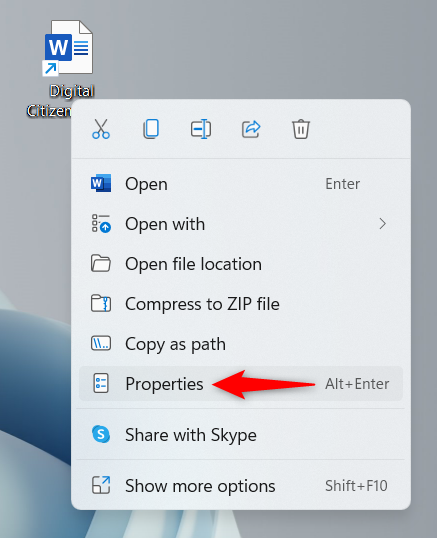
Open Properties from the shortcut's contextual menu
The Properties window should now open in the Shortcut tab. Click or tap on the Change Icon button.
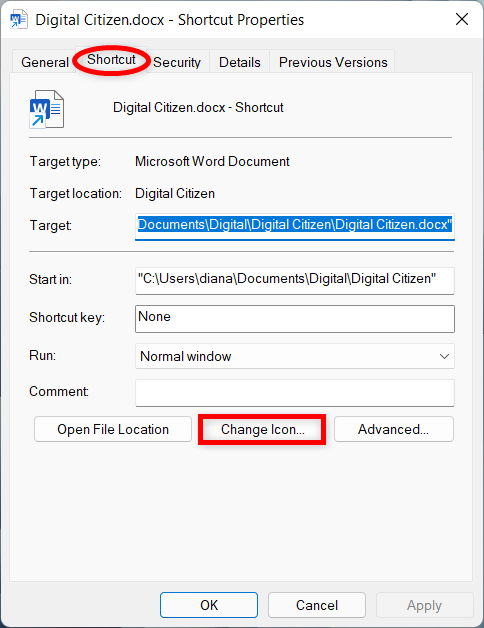
Press on Change Icon
This opens the Change Icon window, which, in our case, displays all the icons found in one of the Windows DLL files. You can now select a different icon from the ones available or change the path in the “Look for icons in this file” box. One way to change it is to type in the path to another file and then press Enter on your keyboard to see its icons. However, when it comes to downloaded icons, we found it easier to click or tap on Browse.
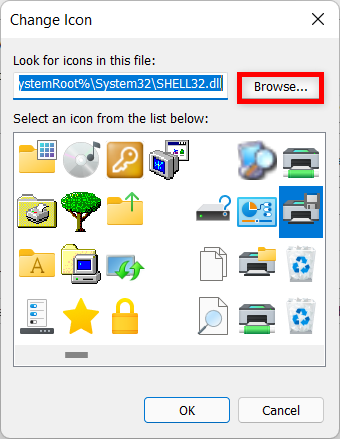
You can Browse to find the file for the icon you want
Next, navigate to the file that stores the icon you want for your shortcut, select it, and then click or tap on Open.
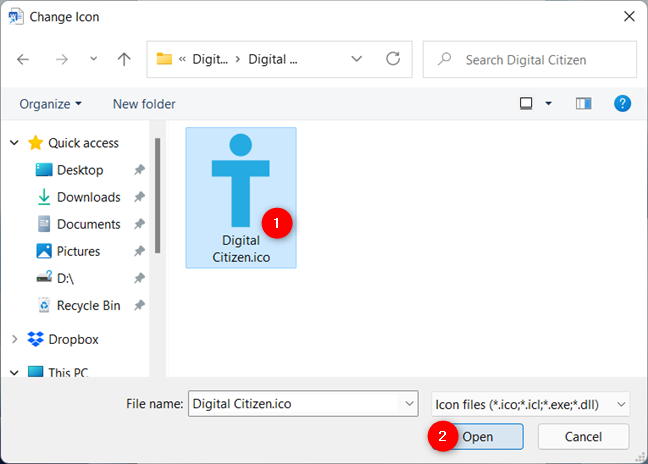
Select your file and press Open
If the file you opened has several icons to choose from, select the one you want and then click or tap on OK.
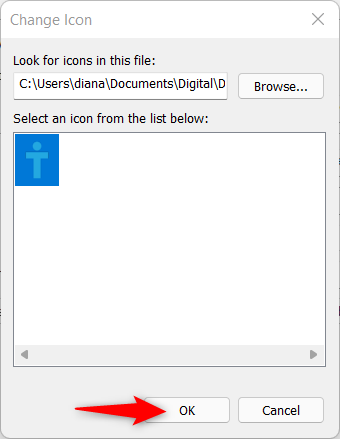
Select the icon and press OK
In the Shortcut tab, you can see the new icon replacing the old one.
Confirm your choice by pressing either OK or Apply at the bottom of the window.
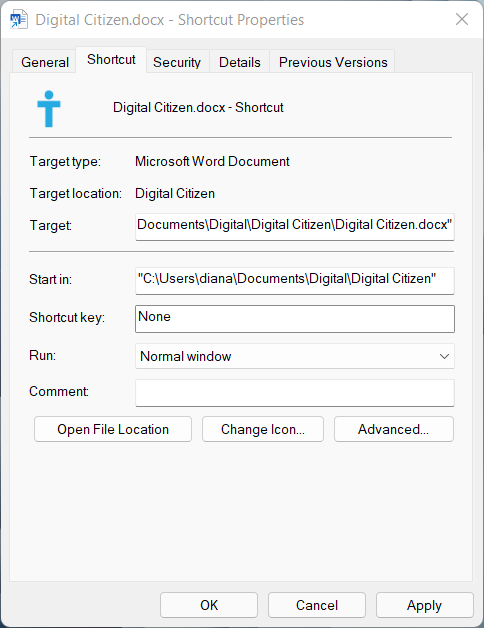
Click or tap on OK or Apply
The shortcut now proudly displays the new icon you selected.
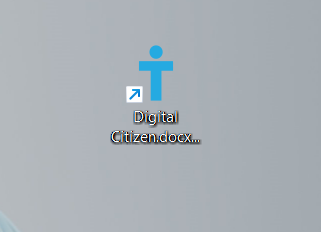
Your shortcut displays the new icon
How to change the icon of a shortcut to a web page in Windows 10 and Windows 11
By default, all the shortcuts to web pages use an icon similar to that of your default web browser. However, if you frequently use multiple webpage shortcuts, this can become confusing in the long run, so we recommend changing them. The steps are the same for both Windows 10 and Windows 11. Select the shortcut and press Alt + Enter on your keyboard. Alternatively, you can right-click or press-and-hold on the shortcut, and then click or tap on Properties from its contextual menu.
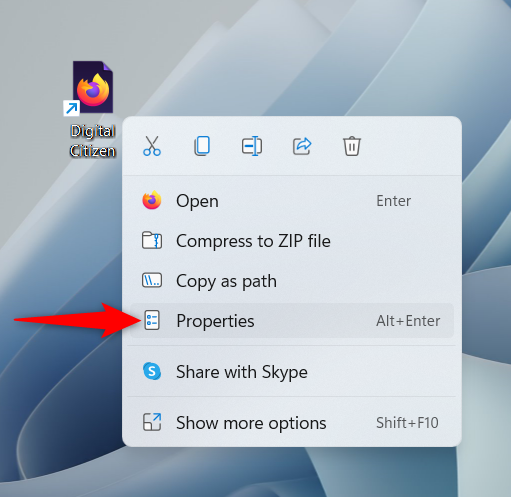
Press Properties in the contextual menu
In the Web Document tab, press the Change Icon button.
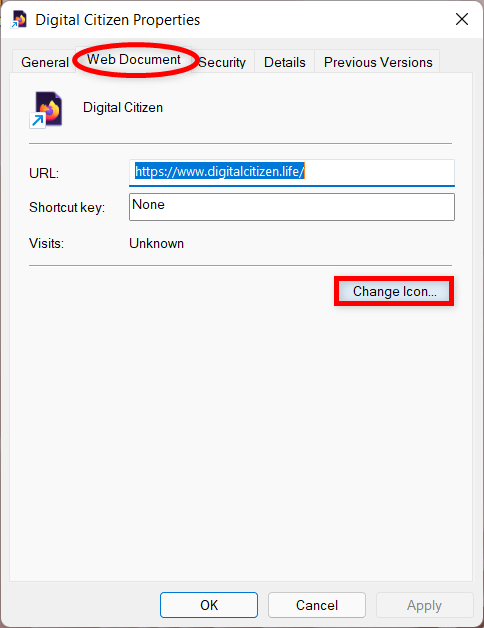
Click or tap on Change Icon
This opens the Change Icon window, where you can select a different icon from the list at the bottom or change the file in the “Look for icons in this file” field. You can change the file by inserting in a new path in this field and pressing Enter on your keyboard.
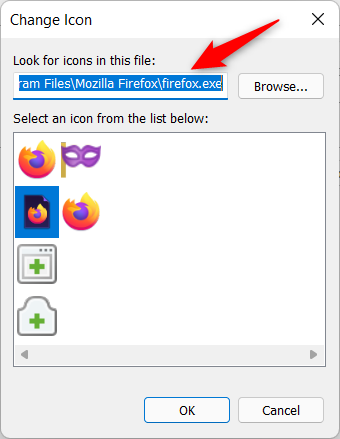
You can insert the path to the file with the icon you want
You can also click or tap on Browse, navigate to and select the file containing the new icon.
Then, press Open.
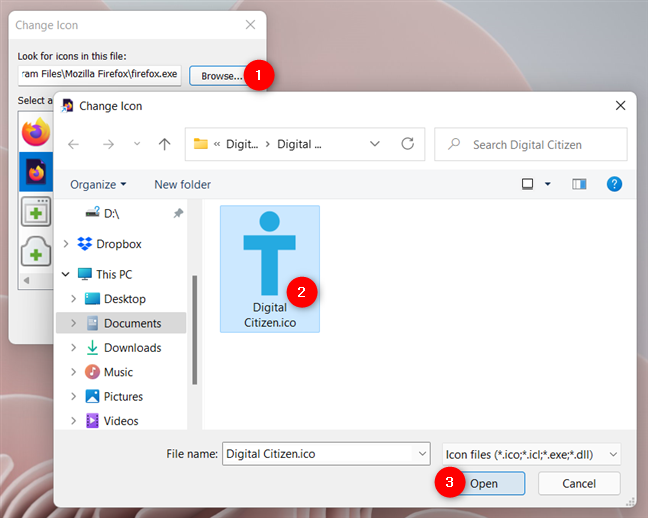
Find and open the file storing your icon
If there are more available icons in the file, select the one you want and then click or tap on OK to close the Change Icon window.
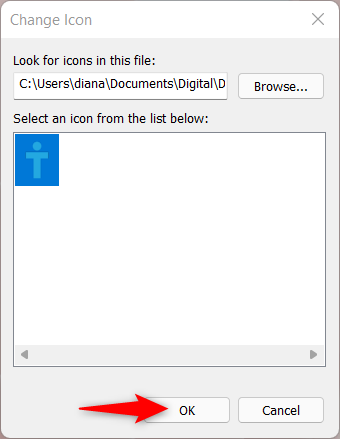
Select an icon if you have more options and then press OK
Then, press OK or Apply to confirm your choice in Properties.
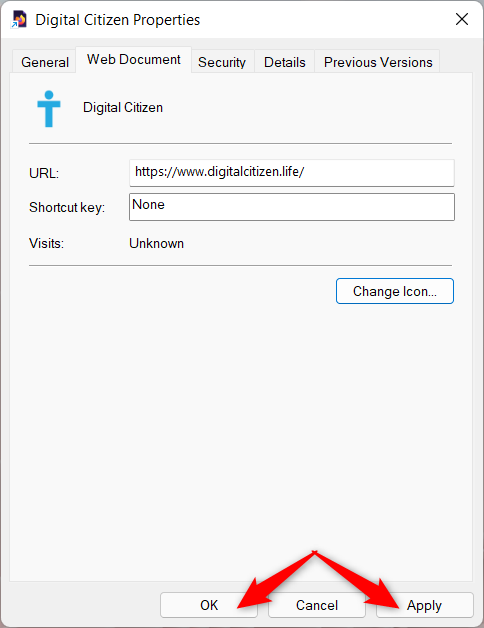
Confirm your choice
The web page shortcut now displays the icon you chose.
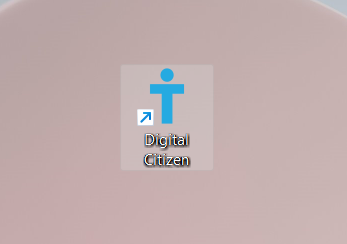
The icon for your shortcut is changed
How to change the icon of a standard Windows shortcut
Windows has a predefined set of shortcuts, like the Recycle Bin. To learn more about them, you can check out our tutorial on How to add or remove desktop icons (shortcuts) in Windows.
If you want to change the icon displayed by one of these shortcuts, you first need to access the “Desktop Icon Settings” window. The steps to get there differ slightly for Windows 11 and Windows 10. However, to begin, right-click or press-and-hold on an empty area on your desktop, no matter which operating system you’re using, and then click or tap on Personalize.
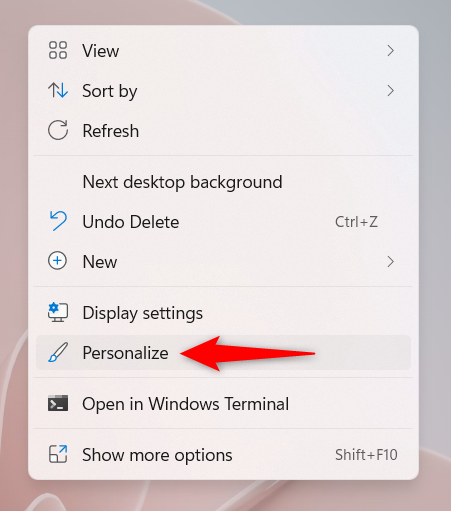
Access Personalize
In Windows 11, access the Themes section from the right side of the window.
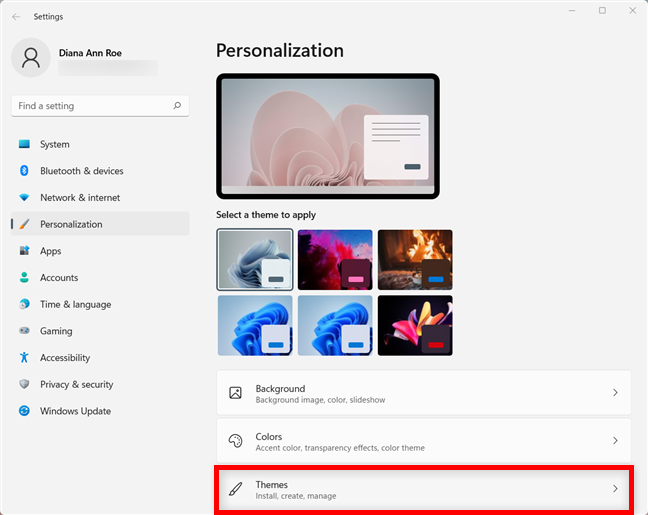
Click or tap on Themes from the Personalization tab in Windows 11
Then, scroll down to the Related settings section, and click or tap on “Desktop icon settings” to open the window with the same name required for the next step.
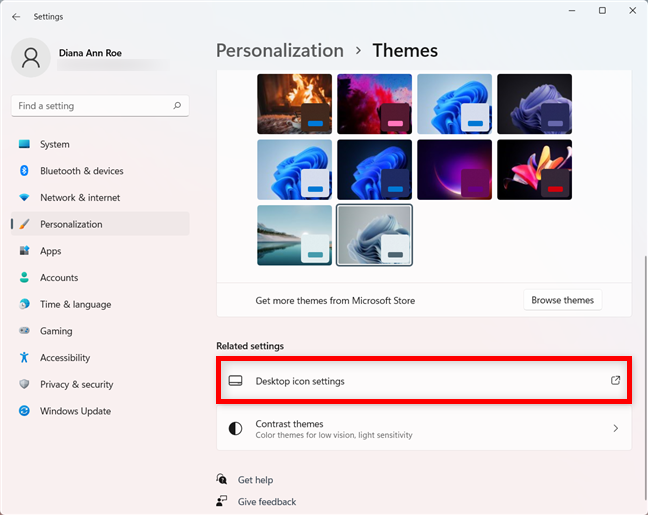
Access Desktop icon settings
If you’re using Windows 10, in the Personalization settings window, select Themes from the left sidebar. Then, on the right side of the window, scroll down and click or tap on the “Desktop icon settings” link from the Related Settings section.
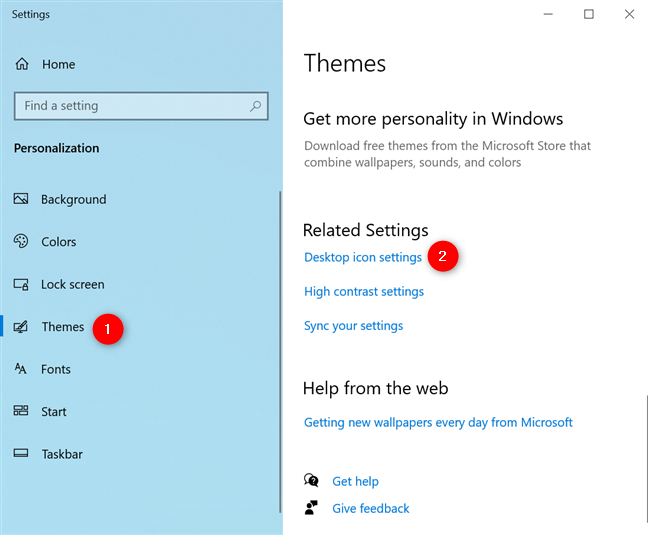
Click or tap on Desktop icon settings
On both systems, clicking or tapping on “Desktop icon settings” opens the same window, which you can then use to change any of the icons displayed in it.
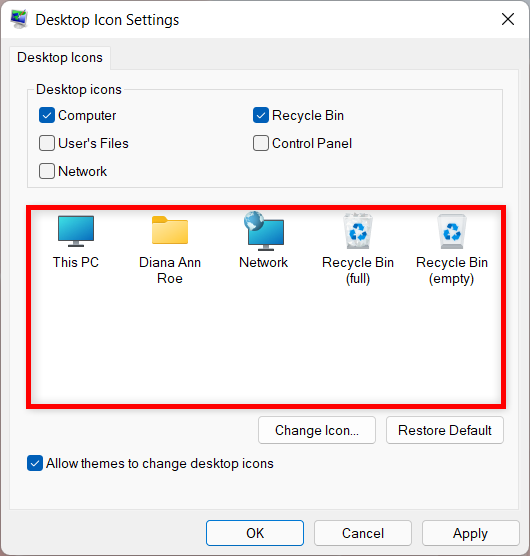
Change any icon shown in the highlighted area
Select the icon you want to change and then press the Change Icon button.
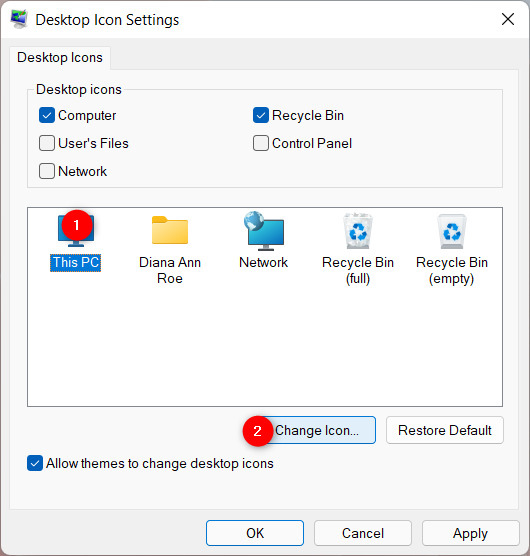
Click or tap on Change Icon
In the Change Icon window, select one of the available icons. If none of them are to your liking, you can also change the path under “Look for icons in this file” to select an icon stored in a different file. Type in a new path manually, and then hit Enter on your keyboard, or click or tap on Browse to navigate to it.
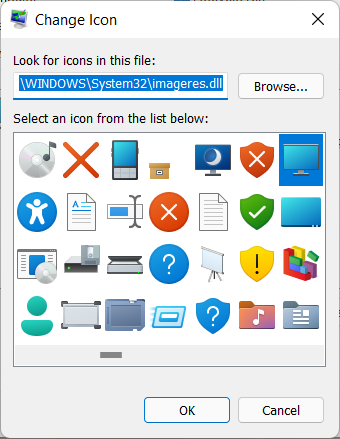
Select an icon or look for one in another file
If you chose to browse, find the file that contains your icon, select it, and click or tap on Open.
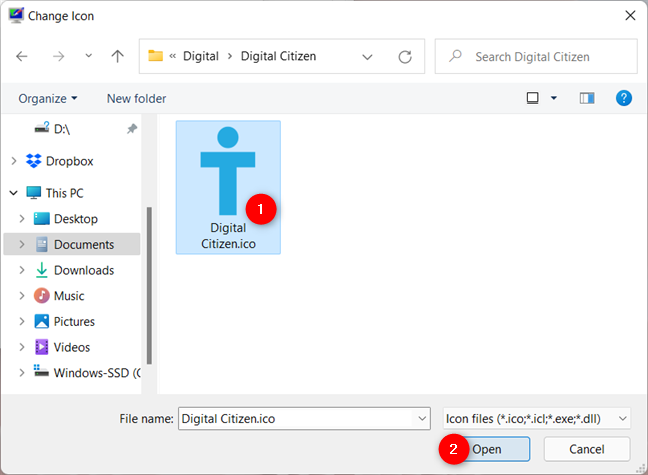
Open the file containing the icon you want
Select the icon you want if more are available, and then click or tap OK.
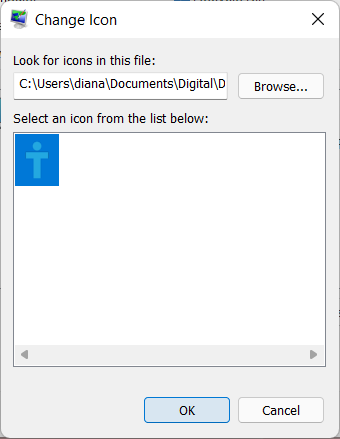
Press OK to use the selected icon
Now, in the “Desktop Icon Settings” window, you can see that your icon replaced the old one.
NOTE: If you want to prevent any accidental changes to the icons used by default shortcuts, as well as preserve your custom icons, uncheck the box next to the “Allow themes to change desktop icons” box at the bottom.
Click or tap on either OK or Apply when you are happy with your choices, and the new icon is displayed on your desktop.
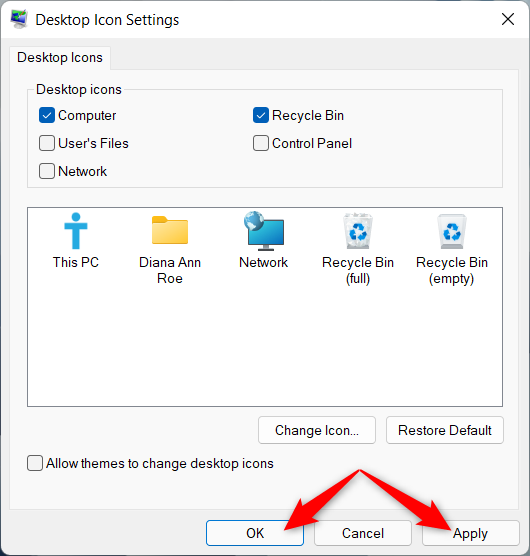
Confirm your changes
TIP: If you want to revert to the default icons displayed by Windows for its standard shortcuts, read How to restore the desktop icons in Windows 10 and Windows 11.
The Control Panel icon is not displayed among the others, but that does not mean you can’t change it. First, make sure to select the box next to its entry from the “Desktop Icons Settings” window above to show the shortcut on your desktop. Then, right-click or press-and-hold on the desktop icon and click or tap on Create Shortcut.
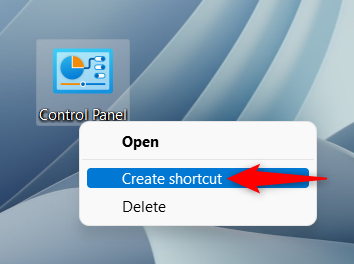
Create a shortcut for the Control Panel
Once you have the Control Panel shortcut on your desktop, head on to its Properties to change its icon. You can use the same procedure illustrated in this tutorial for changing icons that point to a file, folder, app, or program. You don't need the original Control Panel desktop shortcut anymore, so you can remove it.
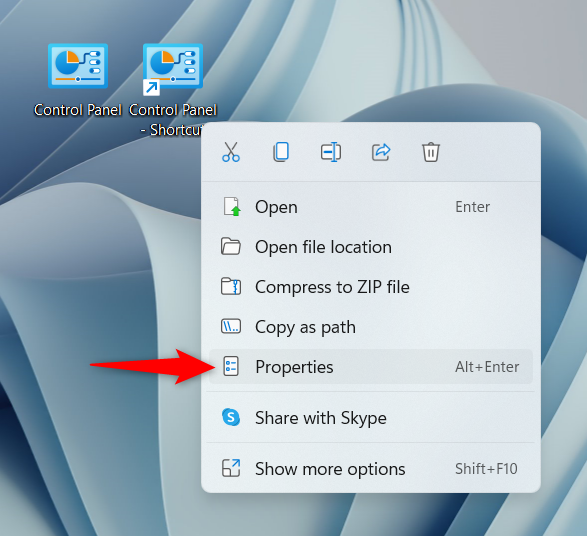
Start changing the icon by opening the Shortcut Properties
TIP: You can also change the icon for a removable drive. To learn more, read: How to change a drive's name and icon in Windows.
Which shortcut icons do you want to change?
Changing the icons for your shortcuts can be both useful and aesthetically pleasing. Before you close this page, we are curious to know which shortcut icon you wanted to replace. Did you feel like your desktop icons needed a makeover, or was it just one icon that was getting on your nerves? Let us know in a comment below.