Have you heard the term “user folders,” and did you wonder what these folders are? Do you know where to find them on your Windows 10 computer or device? In this article, we explain what user folders such as Downloads, Documents, or Music are. Then, we’re also going to show you how to change each user folder location in Windows 10. So, if you want to know the answer to a question such as “how to change my Documents location?” or need to find out how to change the location of Downloads folder in Windows, read on:
What user folders are in Windows 10
All modern editions of Windows create a collection of user folders for each user account, under “C:\Users\User name.” The collection includes:
- 3D Objects - contains 3D files for apps such as Paint 3D or Mixed Reality Portal
- Contacts - if you are using the dated Windows Contacts, this is the folder where all the data about your contacts are stored. Each contact has its own file, with the extension ".contact.”
- Desktop - this is your desktop, containing the shortcuts, files, and folders you have added to it.
- Downloads - this is the default folder where files are downloaded from the internet if you did not set another location in your default web browser.
- Favorites - is the folder where all Internet Explorer favorites are stored.
- Documents - this is the folder where your documents are stored by default.
- Links – is used to store the shortcuts from the Favorites section of Windows Explorer in Windows 7 and File Explorer in Windows 8.1. This folder is no longer used by Windows 10, even though it’s still found in your user folder.
- Pictures - is the folder where all images are stored by default.
- Music - is the folder where all music is stored by default.
- Videos - is the folder where all videos are kept by default.
- OneDrive - if you are using the OneDrive cloud storage service from Microsoft, this is where your OneDrive files are stored.
- Saved Games - the folder where all games that are integrated with Windows 10 save your gaming data so that you can resume playing from your last saved game. However, most games do not use this folder to store saves, even though they should.
- Searches - this is where Windows 10 stores all the searches you save for later use.
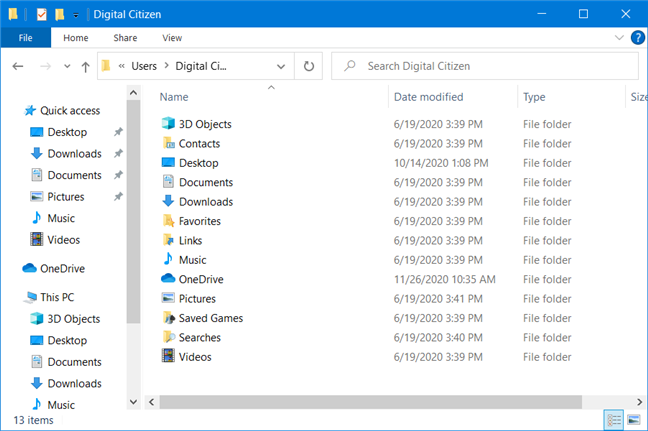
User folders in Windows 10
What’s the location of user folders in Windows 10
The best way to find the complete list of user folders is this:
- Open File Explorer - a quick way to do it is to simultaneously press Win + E on your keyboard, or press the File Explorer button on the taskbar
- Navigate to the drive where you installed Windows 10: it’s usually the “C:” drive.
- Open the Users folder and then your user account’s folder by double-clicking or double-tapping on them. For example, one of our user accounts is named Digital Citizen, and Windows 10 is installed on the “C:” drive. Therefore we browsed to “C:\Users\Digital Citizen.”
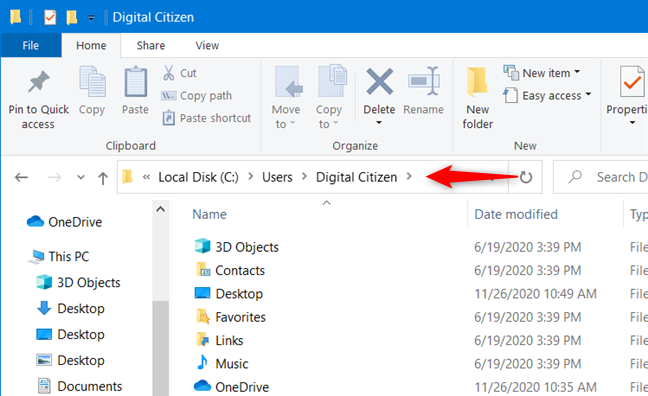
A user account folder from Windows 10
One improvement in Windows 10 compared to earlier versions of Windows operating systems is that it offers easy access to some of the most common user folders. If you open File Explorer and go to This PC, you should find shortcuts for all these user folders: Desktop, Documents, Downloads, Music, Pictures, and Videos.
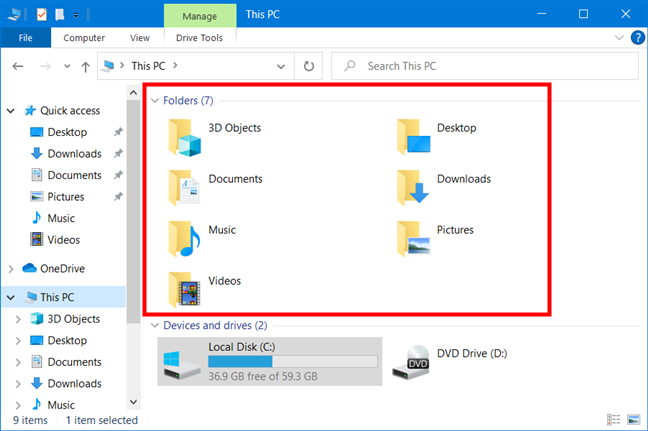
Windows 10's File Explorer offers an easy way to access common user folders
As you can see, they are not all your user folders, just the ones you are more likely to use regularly.
How to change user folder locations in Windows 10 (Documents, Downloads, Music, etc.)
Changing the location of all these user folders is possible, and you can do it using the same procedure. To illustrate this procedure, we’re going to use the Downloads folder as an example and show you how to move it to another location so that your web browser saves the files you download there and not at the location set by Windows 10.
Open File Explorer and go to your user’s main folder. Right-click or press-and-hold the folder that you want to move to a new location and select Properties.
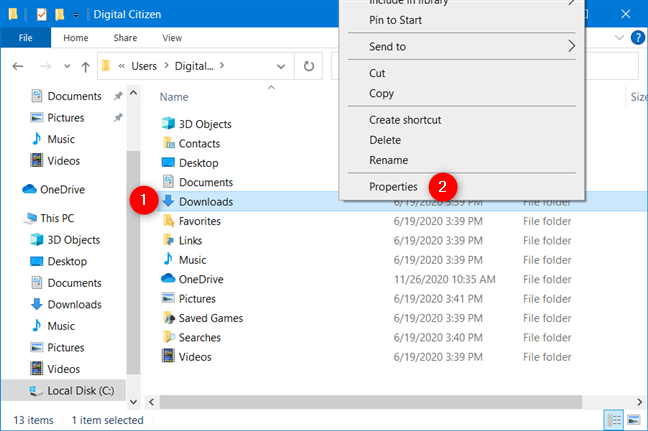
Opening the Properties of a user folder
You can also use the ribbon from File Explorer. Select the folder you want to move, and then go to the Home tab and click or tap Properties.
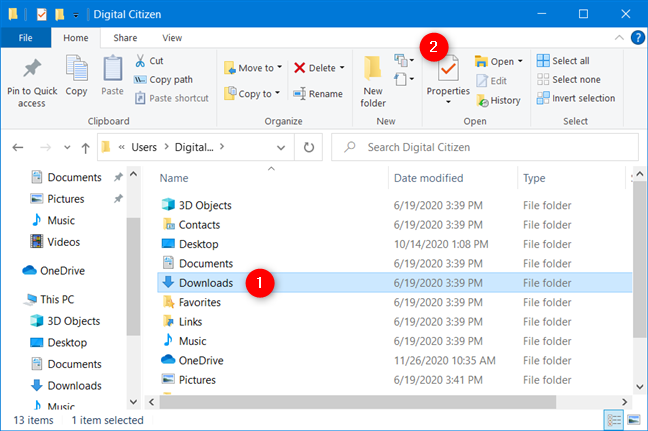
Opening the Properties of a user folder using File Explorer's ribbon menu
In the Properties window for the selected folder, go to the Location tab. There, you can view its current location on your computer. Click or tap Move.
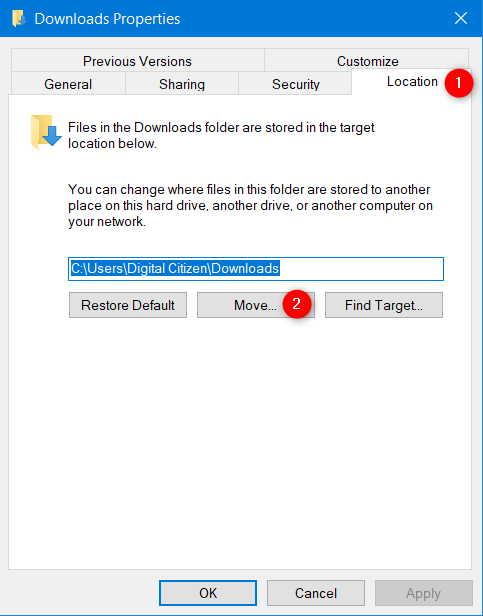
How to change the location of the Downloads folder in Windows 10
A new window named “Select a Destination” shows up.
Browse to the new location where you want the folder to be moved and click or tap Select Folder.
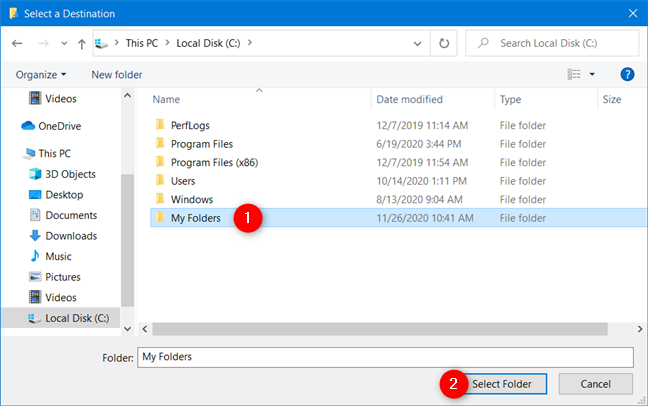
Choosing the new user folder location
The new location is now shown in the Location tab. To apply the change, click or tap OK.
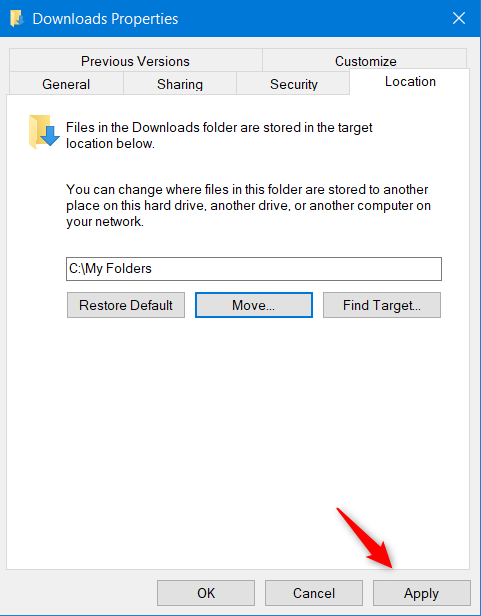
Windows 10 move user folder
You are asked if you want to move all the existing files from the old location to the new one. We recommend that you click or tap Yes so that everything is moved and you don’t have issues finding old files that are kept in the old location.
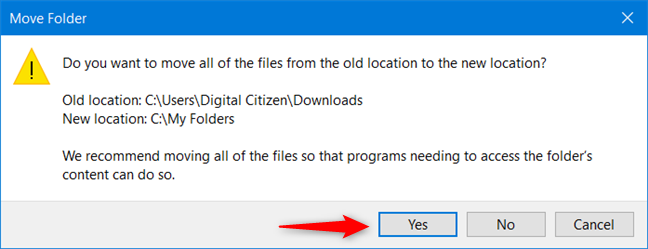
Move all the files from the user folder to the new location
The files found at the old location are now moved over. Once the process ends, you are done moving the selected user folder to a new location.
Watch out for this mistake: Don’t move a user folder into another user folder!
When running a move operation, avoid this mistake we made in one of our failed experiments: we asked Windows 10 to move the Downloads folder to the Desktop. When we did this, Windows 10 warned us that we were about to move the Downloads user folder into another user folder. This means that Windows 10, from now on, is no longer able to separate the two locations causing confusion for users and applications using the Desktop and Downloads user folders.
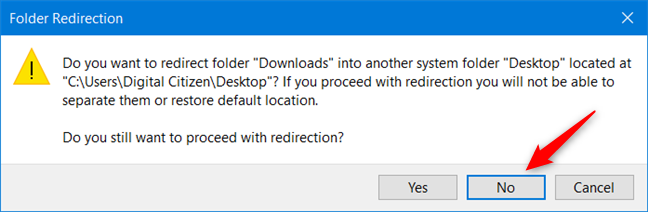
Don't move a user folder into another user folder!
If you receive a similar warning, press No when asked if you are sure you want to proceed with the folder redirection and choose another location. We pressed Yes, and we ended up with a messed up system where the Downloads user folder was pointing to the same location as Desktop. We practically had no easy way of separating the two folders, and the Downloads folder was not even listed in File Explorer.
The lesson here is the following: when moving the location of a user folder, don’t use a location used by another user folder. Make sure that you move it to a location that is not used by another user folder.
Did you change user folder locations on your Windows 10 PC?
As you can see, in Windows 10, it’s easy to move user folders wherever you want. Regardless of whether you wanted to know how to change the Documents location, or change the location of your Downloads folder in Windows 10, now you know how to do it. Our recommendation is to move these folders to partitions not used by Windows 10 so that, if your system crashes, they have less chances of being affected by possible re-installs of the operating system. Furthermore, if you are using a solid-state drive, moving user folders might help you save precious storage space for apps and games that need a fast drive. Having your downloads and documents stored on a slower drive should not be a problem.