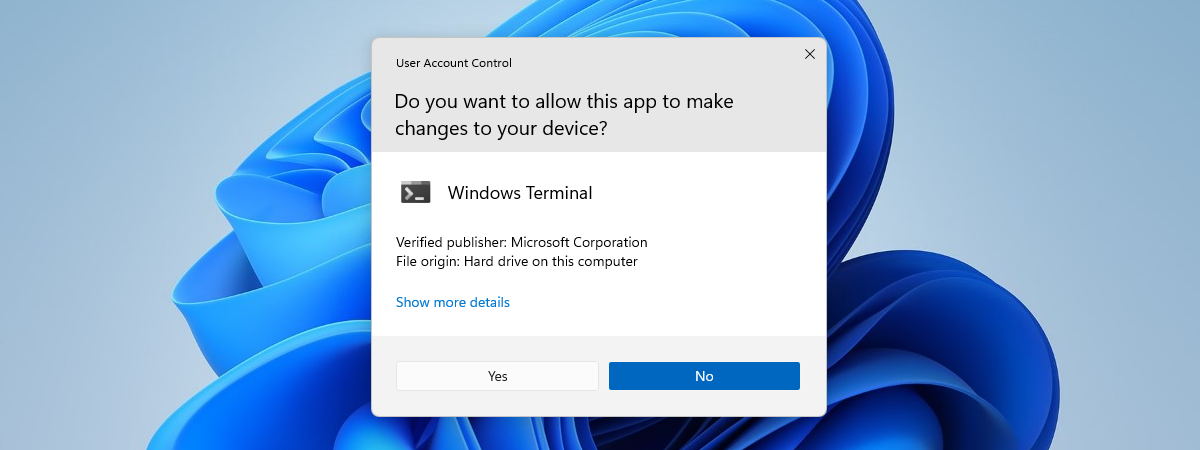
Did you know you can modify the User Account Control (UAC) settings to change the security level in Windows 10? Although most users are barely aware of its existence, the Windows 10 User Account Control (UAC) is a core security feature that prevents apps from making unauthorized changes to your computer or device. Read this guide to learn how to change the UAC notification levels and decide how often you get the "Do you want to allow this app to make changes to your PC?" prompt in Windows 10:
First things first: About the User Account Control in Windows 10
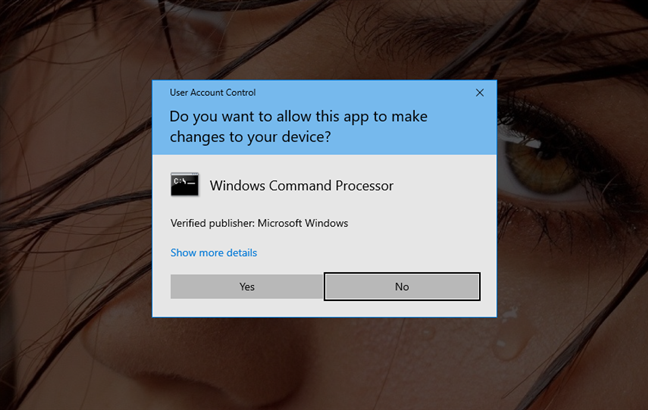
The User Account Control (UAC) has been part of the Windows security system since Windows Vista. Initially considered too annoying, it has since been improved. The result is the more relaxed UAC version you come across in Windows 10. The Windows 10 User Account Control pops up when you run a desktop app that requires administrator permissions in order to function or are changing important system settings requiring administrative approval.
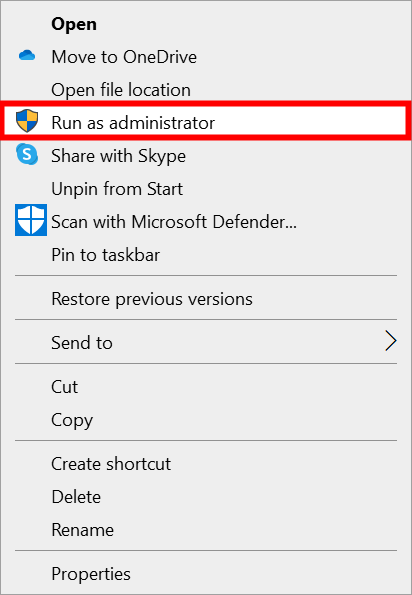
Tasks that require administrator privileges and are likely to trigger a UAC prompt, like Run as administrator, are marked by a yellow and blue security shield icon.
Before changing the security level of the UAC in Windows 10, we recommend learning more about the User Account Control, its role, and why it is essential to keep it turned on, by reading: What is UAC (User Account Control) and why you should never turn it off.
If you still want to change its settings afterward, keep in mind that you need administrative permissions to modify the User Account Control security level.
How to access the User Account Control Settings in Windows 10
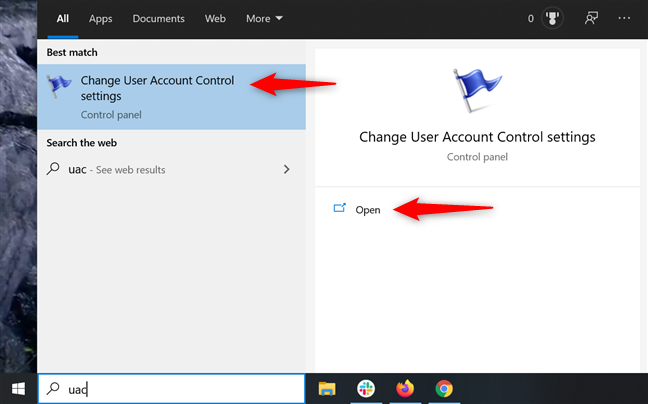
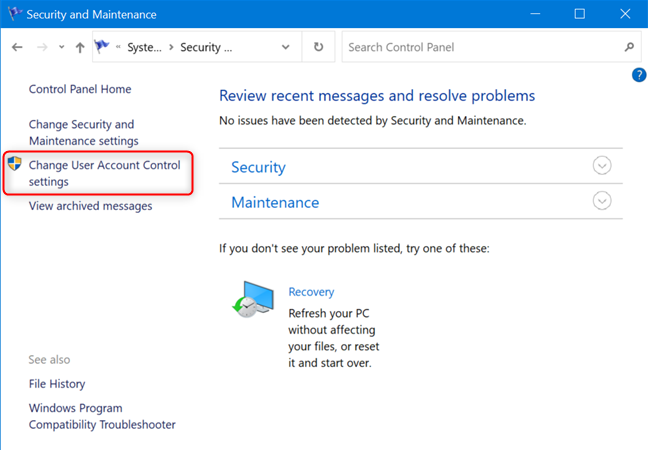
To change the way UAC works, you need to access the "User Account Control Settings" window. The easiest way to do that is by typing "uac" into your taskbar's search field. Then click or tap on "Change User Account Control settings" or on the Open option on the right.
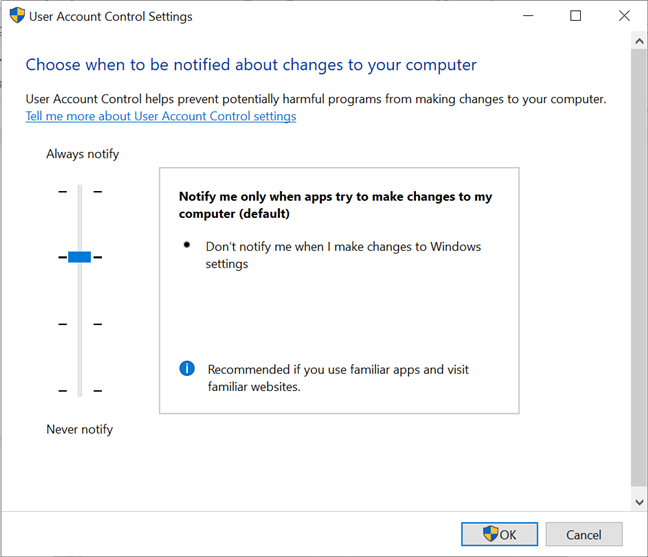
This opens the "User Account Control Settings" window, which you can use to change the security level in Windows 10.
You can get to the same place by opening the Control Panel and accessing: "System and Security -> Security and Maintenance -> Change User Account Control settings."
Which UAC notification level is the default?
The "User Account Control Settings" window only has one slider, and you can use it to adjust "when to be notified about changes to your computer." By default, the Windows 10 User Account Control is set to the "Notify me only when apps try to make changes to my computer" security level.
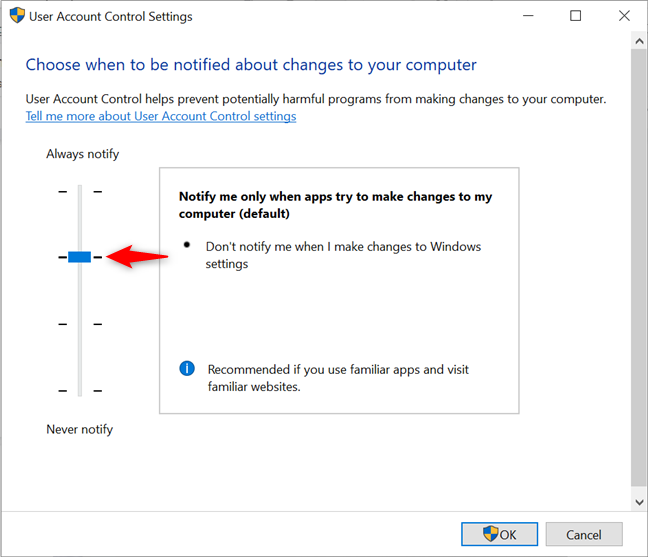
Still secure, while not the strictest option you can use, selecting this default security level ensures that the UAC notifies you only before programs make changes requiring administrative permissions. If you manually make changes to Windows, you don't get a UAC prompt.
Because the UAC pops up only if an app or file wants to make changes, this setting is less annoying and less secure than the top and strictest security level, "Always notify" - which also triggers UAC intervention to confirm user actions.
How to change the User Account Control level in Windows 10
There are four options available on the slider in the "User Account Control Settings" window. To change the security level provided by the UAC in Windows 10, simply move the slider to the appropriate position by clicking or tapping on the desired level. You can also click or tap on the slider and drag it to the option you want to use.
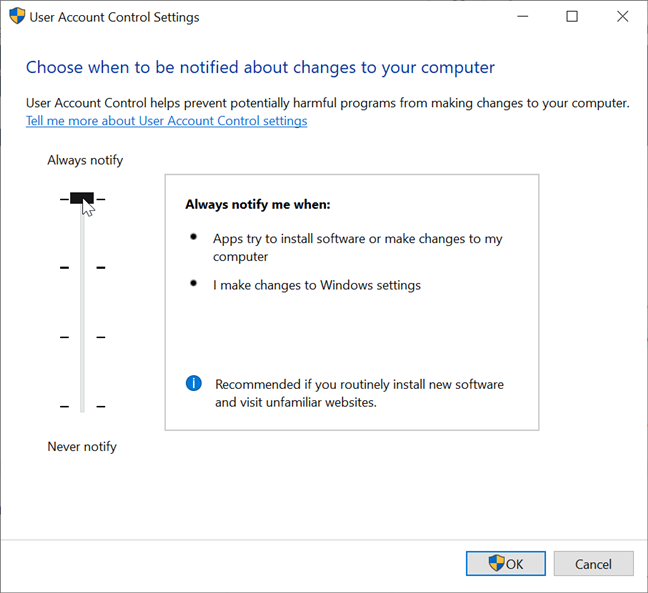
Check the pane on the right for a brief description of how each setting impacts your Windows 10 security notifications. We went over the differences between the four security levels at length in What is UAC (User Account Control) and why you should never turn it off. Make your choice, and then click or tap OK.
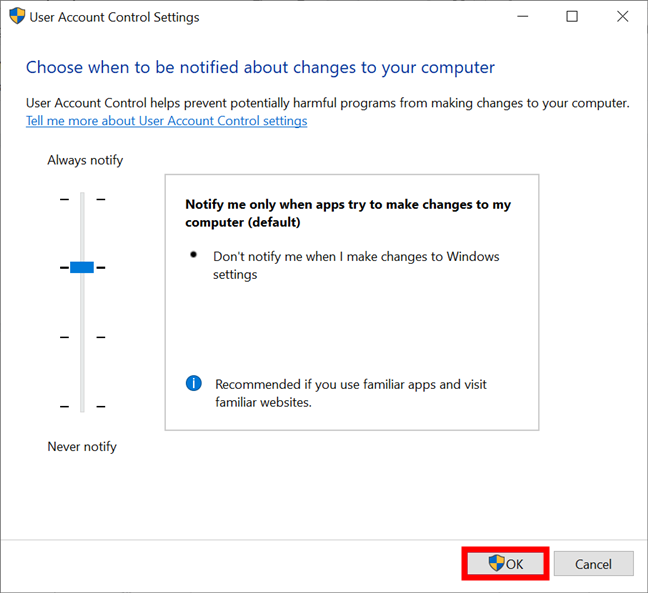
You might receive a User Account Control prompt asking you to confirm this change.
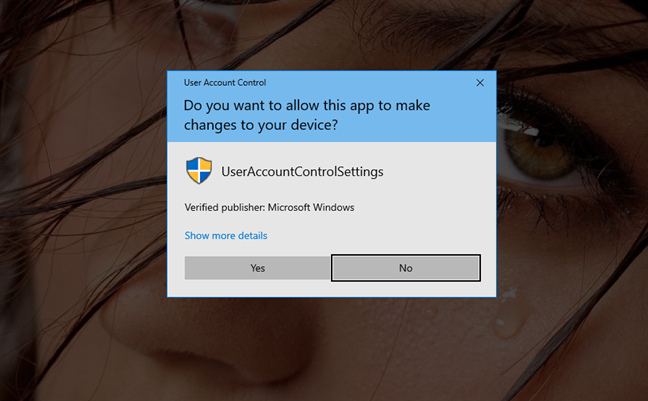
IMPORTANT: You need to restart your Windows 10 computer or device before the new User Account Control settings are applied.
Disable UAC or Which UAC level provides the lowest level of security?
If you went over our guide insisting not to turn off UAC and you're still determined to disable it, move the slider to the bottom Never notify option, the lowest level of security. This turns the User Account Control off, making it easier for malicious programs to infect and take control of your Windows 10 computer or device. On the bright side, the annoying notifications stop, as all apps are allowed to do as they wish without your permission.
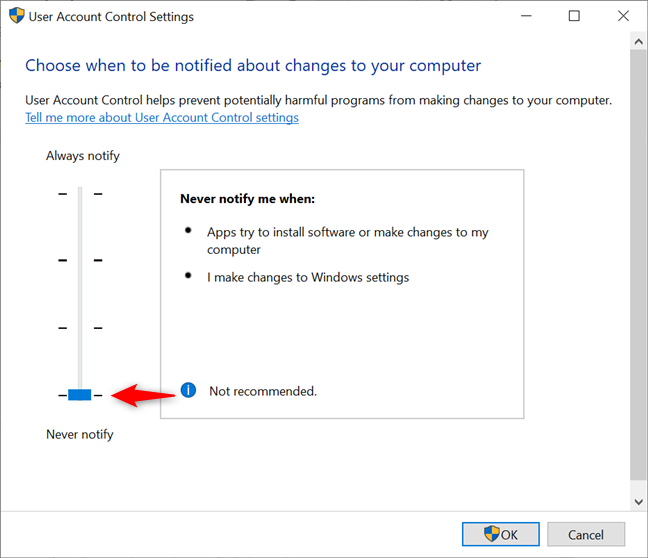
TIP: If you are disabling UAC because the same apps or game launchers keep triggering it, please consider using the Windows Task Scheduler to run apps without UAC prompts and admin rights first.
Which UAC level are you using and why?
While many find the notifications an annoyance, the Windows 10 User Account Control is essential for the security of your system. We always keep UAC enabled at the recommended (default) level to prevent any unwanted malware. What about you? Did you increase or decrease your security level? Before you close this tutorial, do not hesitate to share with us which UAC level you're currently using and why in the comments below.