





Skip to Content

How to Connect to Hidden Wireless Networks


Wireless Network LogoI will continue our Windows 7 Networking series with a guide on how to connect to hidden wireless networks. Hidden wireless networks are those networks which do not broadcast their Network ID (SSID). While not that many people use such networks, some have the feeling of a bit more security to have their home wireless network hidden from unwanted guests. In this guide I will share with you the steps for making a successful connection.

Step 1: Get the Details of the Hidden Wireless Network

First and foremost, you need to know all the identification and connection details of the hidden wireless network you want to connect to. Therefore, open your router's configuration page and go to the Wireless configuration menu. Write down the values for the Network ID (SSID) and Security fields. Depending on what type of security your wireless network has, you will need to write down the value of another important field, as following:

  • For WEP security - note the value of the WEP Key field.
  • For WPA-PSK, WPA2-PSK(AES) security - note the value of the Preshare Key field.

NOTE: If your wireless network has no security enabled, then you only need to know the value of the Network ID (SSID) field. 802.1X, WPA and WPA2(AES) security is generally used in enterprise networks and most likely your laptop will be pre-configured to connect to your corporate wireless network. Therefore this guide won't apply to corporate networks.

Once you have all these three details, you can go ahead with step 2.

Step 2: Start the 'Set Up a Connection or Network' Wizard

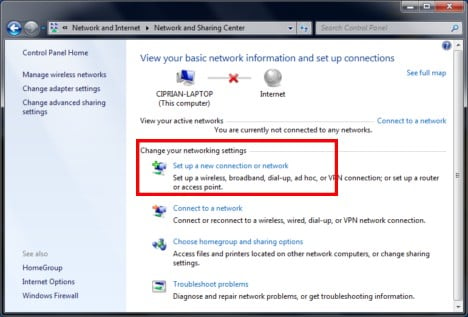
To do this, you need to open the Network and Sharing Center: go to Start Menu -> Control Panel -> Network and Internet -> Network and Sharing Center. In the Network and Sharing Center window you will see lots of shortcuts. Click on the one that says 'Set up a new connection or network'.
Wireless Networks

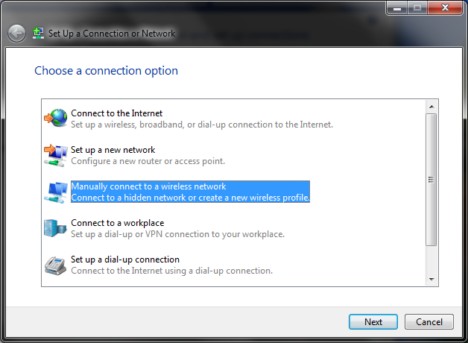
The 'Set Up a Connection or Network' wizard will now start. From the list of available options, select 'Manually connect to a wireless network' and click on Next.
Wireless Networks

Step 3: Complete the Details of the Wireless Network

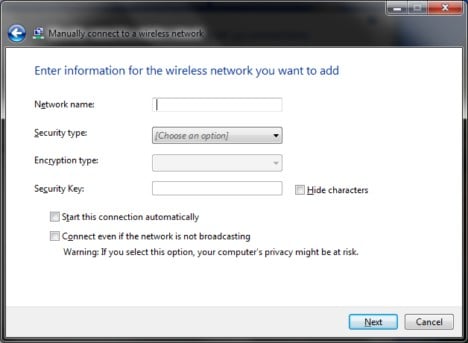
Now you will have to complete all the fields shown in this window. The first one is called Network name. In it, type the name of the wireless network you want to connect to, which is the equivalent of the Network ID (SSID) field from your router's wireless configuration menus.
Wireless Networks

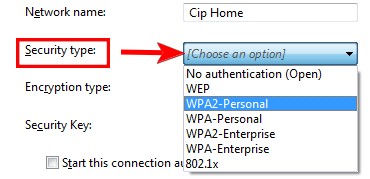
The next field that needs to be completed is the Security type used by your wireless network. Depending on the type of security used, make the following selection:

  • For WEP security - select WEP.
  • For WPA-PSK security - select WPA-Personal.
  • For WPA2-PSK(AES) security - select WPA2-Personal.

NOTE: If your wireless network has no security enabled, then select No authentication (Open).
Wireless Networks

Now it is time to select the appropriate type of encryption. If you are using WPA2-PSK(AES) security, make sure you select AES. Otherwise, leave the default value Windows 7 gives you.
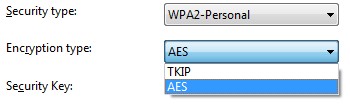
Wireless Networks

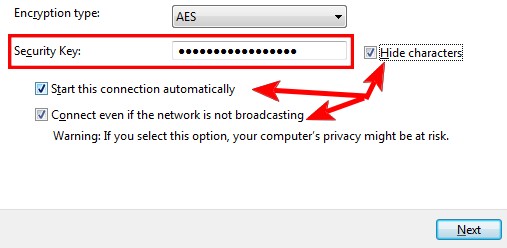
For WEP, WPA2 Personal and WPA Personal you will have to enter the security key as follows:

  • For WEP security - the value of the WEP Key field.
  • For WPA-PSK, WPA2-PSK(AES) security - the value of the Preshare Key field.
Wireless Networks

If you are in a public environment, then it is a good idea to check the 'Hide characters' box. Also, don't forget to check the other two boxes: 'Start this connection automatically' and 'Connect even if the network is not broadcasting'. These two allow you to connect automatically to the hidden wireless network. Once all data is completed, click on Next.

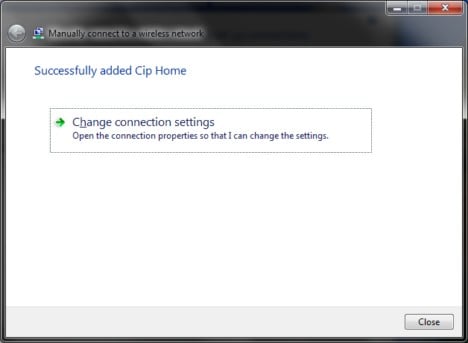
When done, you will see a message which says that you have successfully added the wireless network to your computer. If you are unsure on any of the settings, you can click on 'Change connection settings' and review them all.
Wireless Networks

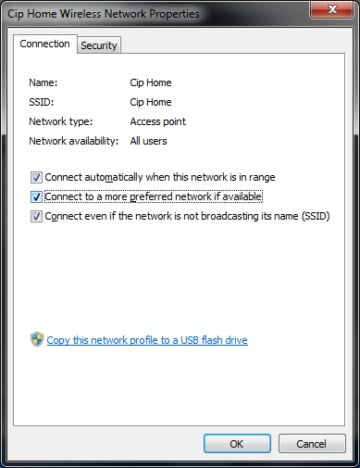
This will open a window where you can change all your settings and looks like the screenshot below. It can be opened at any time by going to Control Panel -> Network and Internet -> Network and Sharing Center -> Manage Wireless Networks and double clicking on the wireless network.
Wireless Networks

When done, Windows 7 will automatically connect to the hidden wireless network. Also, the wireless network icon from the taskbar will change as shown below.

Wireless Networks

Conclusion

As you can see from this guide, connecting to hidden wireless networks requires a bit more work than connecting to public ones. However, if you pay a bit of attention and don't skip any of these steps, it can be done in just a few minutes. If you have any useful tips on connecting to hidden wireless networks, don't hesitate to leave a comment.

Related articles:

How to Connect to Wireless Networks
How to Set Up an Ad Hoc Wireless Computer-to-Computer Network
Network Locations Explained
Transfer Files Between Devices & Your Windows 7 PC via Bluetooth
What is the Network and Sharing Center?
How to Troubleshoot Network & Internet Problems
How to Customize Network Sharing Settings in Windows 7
Share Libraries or Folders Using the Sharing Wizard
Share Libraries or Folders Using Advanced Sharing
Windows 7 Networking - What Do You Want to Know About it?

Recommended reading:

Easily Backup & Import Your Wireless Network Settings in Windows 7

Share this

Comments

Who hides a wireless network?

Who hides a wireless network? That practice does nothing for security. Use VERY strong passwords for the router password and encryption and that is all you need, providing you use nothing less than WPA.

I've seen people who do

I've seen people who do this:
1. they have a hidden wireless network so that most people won't be able to see it on their devices. if they don't know it is there, they will not connect to it.
2. they have also strong encryption so that people trying to hack the network have a harder time at doing that.

If you think about it can make sense to have a hidden wireless.

I hide my wireless network

I hide my wireless network using this method and also have a strong password for the exact reason listed above. My question is why wouldn't you want hide it?

This method is only required

This method is only required for Windows XP. In Vista and Windows 7, hidden wireless networks show up in the list irrespective of whether the SSID is hidden or not. Just click Connect and then enter the SSID and encryption key and you can connect right away. Once connected, you only go to Properties and modify the settings.

I'm sorry but this is not

I'm sorry but this is not true. The networks do not show up in the list if their SSID is not broadcasted.
I've tried this with two hidden networks: one at work and one at home and they never show up.

Oh I beg to differ, in

Oh I beg to differ, in windows 7 I have 2 different wireless connections that show up as OTHER networks and if I had the ssid and password I could connect to them and could with little effort if I wanted to.
My point is that YES they do show up even if hidden from public!

It'll show once I connect.

It'll show once I connect. However, it doesn't show up if I'm not connected or manually connecting to my network.

Hide wireless key

Hide wireless key permanently...
I have a need to setup machines so that the user can't unhide the wireless key after I've entered it. How do I do this? I know it's possible in previous versions of Windows but can't find any info on how to do this in Win7.

Did you look through the

Did you look through the group policy editor? That'd be worth a look if you haven't yet.

Why would you not want to

Why would you not want to hide the SSID? Hiding the network , repeat, does nothing for security and can cause connectivity issues. If you put a strong password on the device and encryption, and I mean nothing less than 14 characters, and use nothing less than WPA, you are 99.999999999% safe.

I think this is a matter of

I think this is a matter of personal choice. If you hide your SSID you will get rid of all the "noobs" who believe themselves to be hackers. If they don't see your network they won't try to hack it.

However, true hackers will find ways to identify your wireless network even if you hide it. If you are a "control-freak" you will hide your SSID and use strong encryption and passwords.

Everyone can choose his/her own approach.

It may actually be LESS

It may actually be LESS secure to hide your SSID. The reason is that when your SSID is hidden, your laptop will actually send out a query to see if that network is available when it is booted up. If you were to take that laptop to a public place, it would send this query out to anyone willing to listen. It would take little for someone to then spoof your SSID and let your laptop connect to theirs. You would then be allowing direct access into your laptop and you might not even notice.

So lets take a paranoid

So lets take a paranoid senario. Lets say someone is sitting in a car outside my house trying to get on my network and I have the SSID hidden. All they have to do is wait until I log on and then they can attempt to get onto my network? And the only real security on networks is having strong passphrases?

Sorry but, the tips could be

Sorry but, the tips could be more easier installing a tool like Netstumbler or VistaStumbler that show you the networks hidden or not using with the channel.

Sorry guys. Anyway nice note for thos who don't know this kind of software.

PS : Get more Wi-Fi news on our site : www.planet-wifi.com (thx to the team if they leave this PS in comment)

i have a problem, i can't

i have a problem,
i can't connect to my wireless network even it showed my SSID,
i typed the correct password but it says incorrect....
although my other computer still can connect to it with that password ...
PLS help me

Change the channel that your

Change the channel that your wireless is broadcasting on. - not sure if first reply went through so doing it again.

It used to -- *used to* --

It used to -- *used to* -- seem obvious that hiding the connection SSID would essentially put the router and available SSID into 'stealth' mode, so that only those with the hidden SSID and security code would even know about it, let alone be able to connect to it.

The router manufacturers all pushed this idea as an additional level of security, by making the SSID hidden and secret for the users.

Microsoft all along contested the practice as a very bad idea for security. Why? Because that one hidden SSID, which could be serving hundreds of different users, did nothing for the hundreds of users who themselves are broadcasting their handshake signals TO the router to connect to the hidden SSID. Would you rather protect one known, seen, source like the router SSID? Or would you rather leave unprotected ALL the unseen users sending out "seeking to connect" signals to the seen (and secured) broadcast SSID?

Microsoft felt it was safer to secure one SEEN broadcast SSID than to risk the exposure of all potential users trying to connect to a hidden SSID when the users are sending out "seeking to connect" signals that are as easily trapped and invaded. Even when the router SSID is hidden, the laptops are still sending "seeking to connect" signals everwhere around it, whether hidden or not, when they are seeking networks. The router's SSID may be hidden, but it isn't any more hidden than your laptop's SSID is in seeking out networks.

In addition: If someone were trying to get into a system, would you rather someone try to secretly connect to a secured SSID access point? Or directly to your laptop while it's broadcasting its availability to everyone around you?

Interesting, however you said

Interesting, however you said regardless of the SSID status the laptop is still sending out a trying to connect signal. So I really don't understand why making the SSID seen protects the clients handshake.

"Even when the router SSID is hidden, the laptops are still sending "seeking to connect" signals everwhere around it, whether hidden or not, when they are seeking networks. The router's SSID may be hidden, but it isn't any more hidden than your laptop's SSID is in seeking out networks."

I understand this as my pc is sending out a seeking to connect signal whether SSID is hidden or not.

Also making a router visible and secured still does not convince me that an attacker can't spoof the SSID and trick my pc into connecting to the spoofed router.

I suppose I'm questioning the rationale that Making a Router Visible somehow hides the nodes connecting to it, if as you say the handshake is broadcast regardless. It sounds as though the nodes connecting to it have the same vulnerability, and whats more the target SSID is readily available to the attacker for spoofing.

I have just bought a Acer

I have just bought a Acer 3810TZ (running Win 7 Home Premium 64 bit) which has a peculiar problem when the SSID is hidden it cannot connect to my network but when the SSID is NOT hidden it connects peacefully. I use WPA2 Personal+AES. This has worked well for the last 2.5 yrs with my HP laptop (running Vista Home Basic). I use a Linksys WRT54G router. Acer India is trying to fob off use of WPA & TKIP instead of what I want to use. Any advice?

First thing I would check is

First thing I would check is to make sure that Windows is handling the connection and not some third party utility and then check the driver status.

This was very helpful. I had

This was very helpful. I had trouble as my customer has a setup with unlisted wifi connection. I was able to connect in Vista but did not realize this option in Windows 7. Appreciate you giving such detailed information on this subject.

I hide my network too, the

I hide my network too, the only reason is : for the neighbours.

A hidden network is hidden when no clients connected.
A hidden network becomes visible for monitoring as soon a client connects.

Client-AP traffic always makes networks visible to hackers.

These instructions were clear

These instructions were clear and I followed them completely.
There is one instruction that is not here. After much frustration and repeated attempts I still had no connection. After shutting down the computer and restarting it later - everything was fine and working properly. Is this normal? Shouldn't the instructions state that a reboot of the computer is necessary for the changes to be effective?

For all those who are still

For all those who are still using this walkthrough, please keep in mind that much of the information is dated, such as WPA2 being for enterprise only. Many wireless home networks now fully support WPA-2 AES and should use it as it provides stronger encryption.

Having Your SSID hidden is a great tool because, despite what other people on this page have said, the network SSID will not be shown to anyone who has not manually entered your SSID into their system. Your router/modem software should allow you to manually change the name of your SSID so that no one can randomly guess at it using standard default names. Once hidden, your unique SSID will serve as an additional password to the system because, as I said before, without the SSID no one can configure your network on their computer.

No network is guaranteed secure, but hidden SSID with strong WPA2 password is a great way to go. Get familiar with your router/modem software by visiting the address (if your don't know where to go, contact your provider or the manufacturer of your router- they can direct you to your modem/router's web site).

Please dismiss any comments about hidden SSID doing no good- they will show up in the list of Windows 7 users as "Other Network" or look like a blank space, but will still require the user enter the SSID before proceeding.

Also, Windows 7 interface

Also, Windows 7 interface makes it seamless, meaning once configured, the network SSID will show up so you know what you're connecting to, but it won't show to outsiders ;).

the "Manually connect to a

the "Manually connect to a wireless network" box From the list of available options it does not show in my network and sharing center. I NEED HELP!!!! (I HAVE A WINDOWS 7 UNLIMITED)

Hiding your SSID does nothing

Hiding your SSID does nothing for security because the router is actually broadcasting the name of the network (SSID) the client is looking for in clear text. Not the key, but the name of the network.

Use the strongest encryption available for your router (please no WEP), use an equally strong password for the key, for example:

1qaz@WSX3edc$RFV (look at the keys, it is easy to remember)

and an equally strong password for the router password.

The rest is somewhat useless and inhibits performance. You will stop "casual drive-bys" and the noisy next door with my steps.

@Anonymous, You prolly have

@Anonymous,

You prolly have had this fixed for some time now, but just for inquiring minds, the "Manually connect" in Windows 7 does not appear until you enter open the "network and sharing center," select " set up a new connection" - then you will get a list of options with his as a choice.

@ John Willis, you are obviously just bent..you need to pick up and honest to goodness text book and stop basing your opinions on internet gab- there is no point in arguing about it. There IS a lot more encryption going on there than you think- (with exception, I do admit, to WEP). Hiding your SSID works in COMBINATION with encryption.. and it helps to hide your SSID from people who have no clue what they are doing and download instructions on the internet on how to break into networks with open SSID- which in my opinion is twice as threatning as someone who does know what they are doing because at least that is logical (compared to a wreckless idiot) . No network is 100% secure, I don't care who it belongs to or what they've done to it.
If your broadcast your signal and your neighbors know it is there just by looking into their devices, then you've lost the battle- they may go in search of something to break your network just because they know it is available- you can prevent this by doing what? Hiding SSID.. that is the point no one said anything abou it being okay to just go bare with no encryption... that's not cool either.

@ John Willis, Connection

@ John Willis,

Connection problems were a very limited equipment problem when standards on many wireless routers used today were still fairly new, that's not so much an issue for people newly trying to set up their networks.

People should know this is not the ONLY security they need to use, virus checkers, firewalls, proxy servers, MAC filters, Malicious software detection, up-to-date encryption protocol, all of that stuff is ona much greater level than a flimsy hidden SSID, but just because you completed the first 10 steps in securing doesn't mean you shouldn't perform the last one also.

Show me something written fresh over the last year by any recognized technical institution that says Hidden SSID's are worse than broadcasts and then we'll talk.

I'd like to know why it takes

I'd like to know why it takes Windows 7 Pro, installed on a MacBook Pro, 4-5 minutes after boot up to connect to my wireless network, even after following all the correct steps for setting up automatic connection to a hidden-SSID network. The network shows up immediately in the list of availables and I can force the connection without issue and without typing in the WPA2 password, so the setup was done correctly. But in order to get the automatic connection, it takes the aforementioned 4-5 minutes of just waiting.

Dear guys I have created

Dear guys I have created profile but it,s still not coming in visible list, plz help me in this regard how to connect it as the guys here in apartment are using that network and I,m unable to connect even though I have key for that....

I have my ssid hidden. When

I have my ssid hidden. When I connect and look at the networks I see:
my_network_name 2 3 4 5 6 7 Connected
my_network_name 2 3 4 5 6 Security-enabled network
my_network_name 2 3 4 5 Security-enabled network
my_network_name 2 3 4 Security-enabled network
my_network_name 2 3 Security-enabled network
my_network_name 2 Security-enabled network
my_network_name Security-enabled network

What don't I just see one entry, "my_network_name Connected"? What do the 2 3 4 5 6 7 indicate?

Post new comment

The content of this field is kept private and will not be shown publicly.
  • Web page addresses and e-mail addresses turn into links automatically.
  • Allowed HTML tags: <a> <em> <strong> <cite> <code> <ul> <ol> <li> <dl> <dt> <dd>
  • Lines and paragraphs break automatically.

More information about formatting options