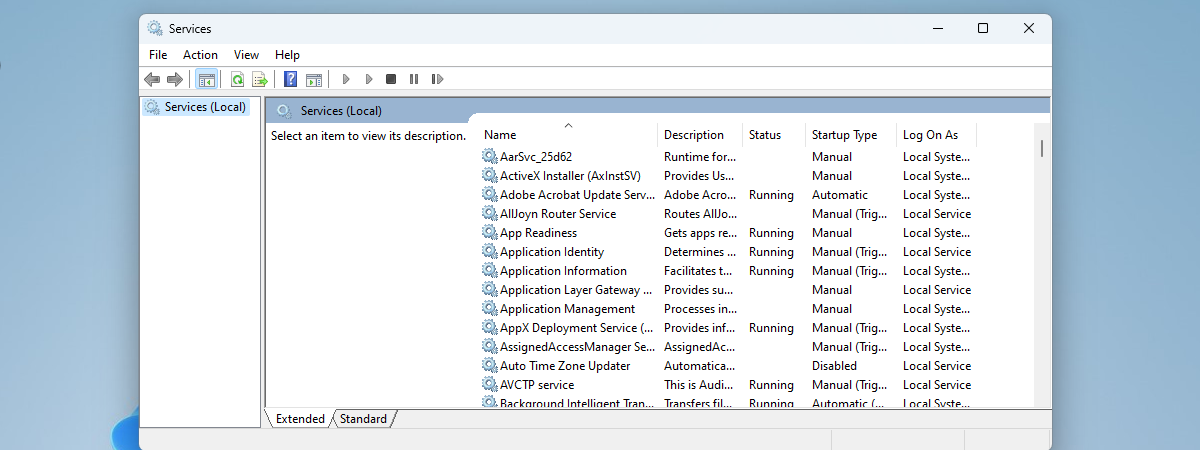
Windows 8 and 8.1 provide a simple interface for connecting to wireless networks. The procedure varies depending on whether or not the network broadcasts its name (also known as SSID - Service Set Identifier). If the name is broadcast, connecting to the network is as simple as entering a password. But enough talk, let's see how it works:
NOTE: Because the process is very similar between Windows 8 and Windows 8.1, in this guide we will use mostly screenshots taken in Windows 8.1. Where there are major differences, we also provide screenshots for Windows 8.
How to Connect to a Broadcasting Wireless Network
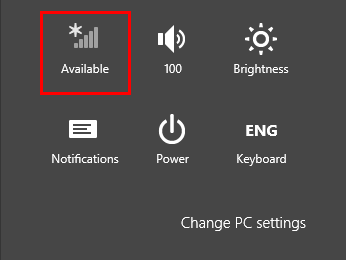
When a network broadcasts its name or SSID, it will appear in a list of available networks on all computers or devices within its range. To access this list in Windows 8 or 8.1 from the Desktop, simply click or tap the network icon from the system tray.

To access the list of available networks from the Start screen, move your cursor to the bottom right corner of the screen to open the charms. On a device with touch, swipe from the right side of the screen. Then, click or tap Settings and then Network.
Locate the network you wish to connect to and click or tap on its name. Select "Connect automatically" if you use this network regularly and Windows will automatically connect to the network any time you're within range.
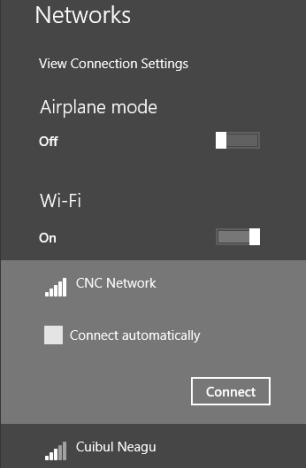
Click or tap "Connect" to continue.
NOTE: The airplane mode slider at the top of the list disables your wireless network adapter which will prevent your device from attempting to connect to any networks. This also preserves battery life when you don't need to work online.
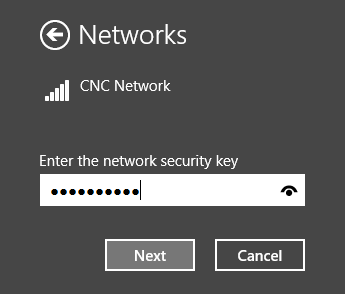
Windows will scan for the security settings of the network and then prompt you for a security key. Enter the key carefully to ensure accuracy and click or tap Next. You can view it before pressing Next by clicking or tapping the eye-like icon on the right of the password field.
Once connected, you'll be able to choose whether or not to enable sharing on the network.
If you're using Windows 8, you should see something similar to the screenshot below:
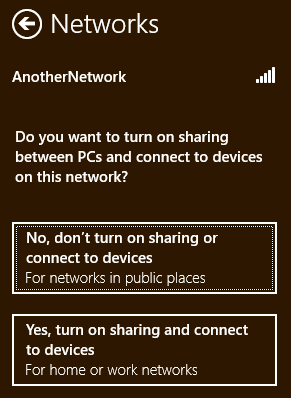
If you are on a private network, such as one in your home, you should select "Yes, turn on sharing and connect to devices". If you are on a public network, you should select "No, don't turn on sharing or connect to devices".
And, if you're on Windows 8.1, the dialog looks a bit different:
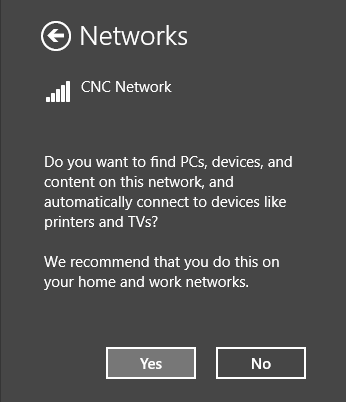
Either way, if you are on a private network, such as one in your home, you should select Yes. If you are on a public network, you should select No.
Once you've successfully connected, the networking entry from the charms bar will change to say it's now Connected.
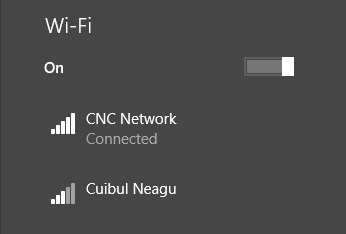
Also, the network icon from the taskbar notification area will change to depict the strength of your connection.

How to Disconnect from a Broadcasting Wireless Network
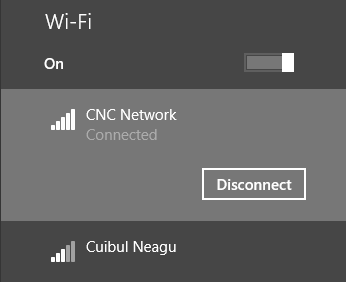
Disconnecting is as simple as finding the network name in the list, clicking or tapping it and selecting "Disconnect".
Troubleshooting Connections to Wireless Networks
If you followed the previous steps closely and you still are unable to connect to your broadcasting wireless network, 7 Tutorials has a few articles that you can reference for help:
- Troubleshoot Internet Connection Problems over a Wireless Network - Windows has a built-in utility that can help determine the cause of your connectivity issues. This article details how to use it.
- Troubleshoot Wireless Network Connection Problems by Yourself - This article provides a series of flowcharts that help determine common networking issues. By answering simple questions in series, you can troubleshoot common issues yourself.
Conclusion
That's all there is to it. By following the steps mentioned above you can check for available networks and connect to those you have access to. Look out for open networks in public places. They won't require the use of a security key for access, but they can put you at risk. Avoid transmitting sensitive information unless you're behind a safely encrypted connection and always use a firewall and antivirus/spyware application. We have some useful recommendations for you to read at the end of this article.