Building on our article about how to edit user accounts, I will try to complete this subject with a tutorial about creating and deleting user accounts and how to turn on or off the guest account in Windows 7. I'll also explain what is the difference between the available account types and help you understand the usage scenarios and limitations for all available options.
What Is an User Account & When You Need More than One?
User accounts allow multiple users to share the same computer, each having their own, private Documents folder, e-mail inbox, settings, etc. It also improves security and reduces file-sharing and network problems. Having your own account means that you can do all the customization you want to your Windows 7, without affecting other user accounts. Other users will have their own visual customization, their own application settings, etc.
A new account should be created when there is another person who needs to work on the same PC as you. There are two types of accounts: administrator and standard (limited user). The administrator has full access to all user accounts from a computer. He or she can create and delete user accounts, create account passwords for other users, change other account's name, password, picture and account types. As a rule, there must be at least one administrator user account on a computer.
A user with standard account rights has access to programs that have already been installed on that computer and cannot install other software without the administrator password. He can change his account picture and create, change or delete his password but he cannot change his account name or type. Also, some programs (mostly older ones) might not work properly on this type of account and may require a temporary or permanent change of the account type to administrator.
Where to Find the User Account Control Panel
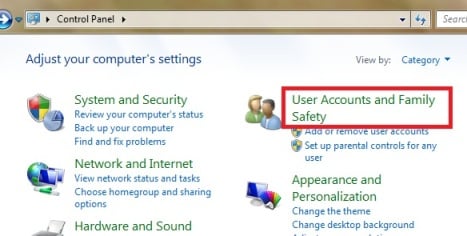
There are different ways of finding the User Account control panel. The first method is to open Control Panel from the Start Menu.
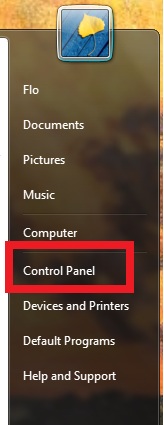
In Control Panel, choose 'User Accounts and Family Safety'.
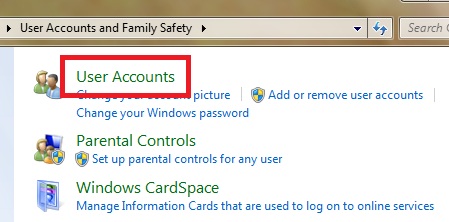
From the 'User Accounts and Family Safety' panel, choose User Accounts.
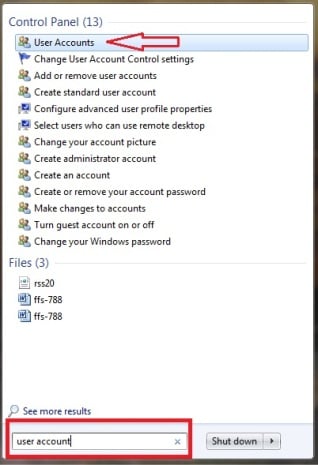
The other way of finding the User Accounts control panel is to search for 'user account' in the Start Menu search box.
How to Create a New Account
In the 'User Accounts and Family Safety' control panel, select 'Add or remove user accounts'.
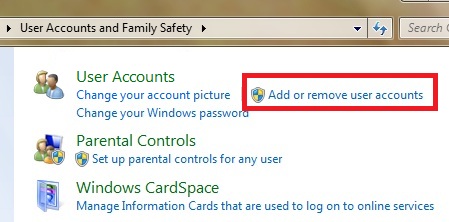
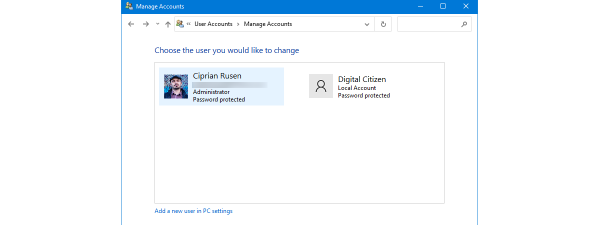
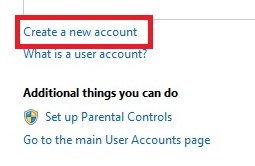
The Manage accounts window is the starting point for all the operations that you can do with user accounts: create, edit and delete an account. To make a new account, choose 'Create a new account'.
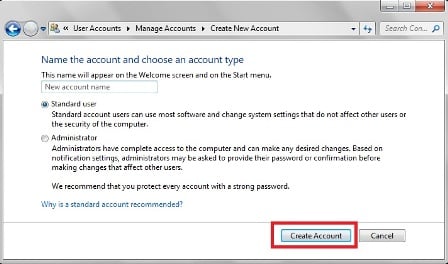
In the 'Create New Account' window you have to write the name of the new account and then select the account type: Standard or Administrator. Then, click on 'Create Account'.
A new folder with the new account name will be created in the 'C:\Users' folder, where all the personal files of the new user are kept. To this folder no other user than the administrator and the new user have access. By default, the new account doesn't have a password set. We recommend that after you log in with the new user to edit your account and create a password. For more information on changing a user account, we recommend our tutorial on How to Edit User Accounts.
If you want to access the new account, use the Log off or Switch user options.
How to Switch Between User Accounts
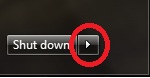
To switch between user accounts, open the Start Menu, go to Shut Down and click on the arrow next to it.
If you want to switch from the currently logged user to the new one, without logging off and closing your running programs and files, click on Switch User.
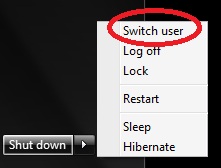
If you want to log out from the current user and close all its running programs and files, before logging with the new user, click on Log off.
Next, in the logon screen, click the new account to log in.
How to Delete an Account
From the Manage Accounts control panel, click on the account that you want to delete.
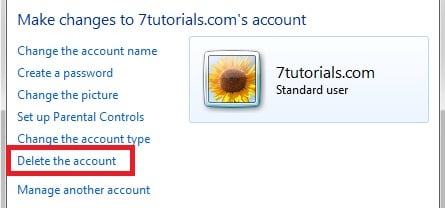
Then, select 'Delete the account' and choose if you want to keep or to delete the user's file.
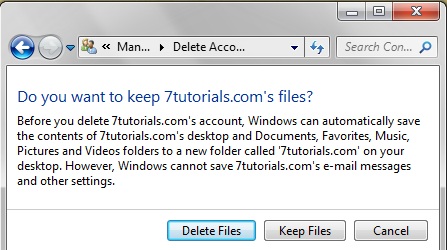
NOTE: If you decide to keep the user's files, they will be saved in a folder with the deleted account's name, on the desktop.
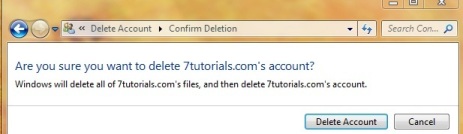
If you choose to delete the files, you will be prompted first for a confirmation of deletion.
If the account you wish to delete is still logged on, you might lose the data from that account.
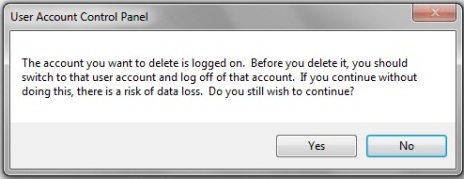
Therefore, this operation it is best done from an administrator account, without having the user you want to delete logged on in parallel (by using the switch option mentioned above).
How to Turn the Guest Account On/Off
The Guest account is a special type of user account, with very limited permissions. If you would like to learn more about it and how to use it, read this complete step-by-step guide: Simple Questions: What is the Guest Account & How to Turn it On?.
Conclusion
As you can see, creating & deleting user accounts can be done very easily from any account with administrative permissions. Also, turning on or off the Guest account is just as easy. If you have some issues or questions about this subject, don't hesitate to share them in a comment and we will do our best to help.