If you are using Windows, each time you plug in a media device like a memory card, USB memory stick or external hard disk, you see an AutoPlay window, asking you to choose what you want to do. If you want to know what AutoPlay is, why it is useful, how to personalize it or how to disable it, read this tutorial:
What is AutoPlay in Windows?
Each time you plug in some kind of media into your Windows computer or device, like a USB memory stick, you may see prompt asking you to choose what you want to do. Here's what it looks like in Windows 10.
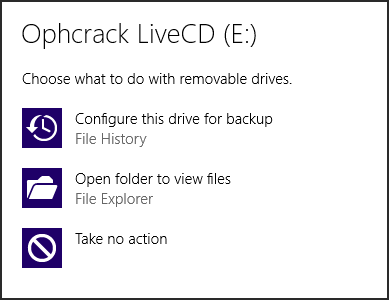
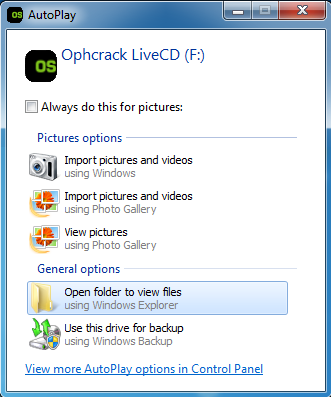
In Windows 7, this prompt looks quite different.
In Windows 8.1, the prompt is very similar to what you see in Windows 10.
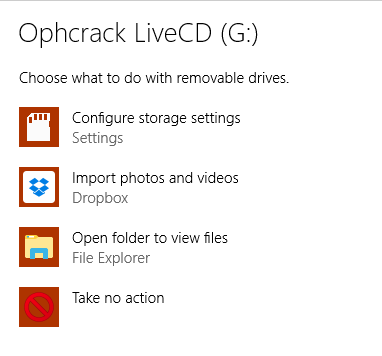
This prompt is named AutoPlay and it is shown for all kinds of media devices: removable drives (USB memory sticks, external hard disks), memory cards, DVDs, CDs, Blu-Ray discs, installation discs with software and games, and devices like smartphones that are connected to your Windows computer or device, through USB.
The options you see in the AutoPlay prompt are different between Windows versions and they depend on the apps that you have installed and the types of media that you plug in. For example, when you plug in a memory card, you get many options for importing the photos and videos on it, and for viewing the multimedia files that are stored on it. When you plug in a Blu-Ray disc with a movie, you get options for viewing the files that are on the disc and for playing the movie using the specialized apps that are installed on your Windows computer or device.
AutoPlay can be turned off for good and also can be personalized to suit your needs and wants. Also, if you don't like your personalized settings, you can reset it to its default behavior. Read the next sections in this guide to learn how to do all these things.
Where to find the AutoPlay settings in the Control Panel
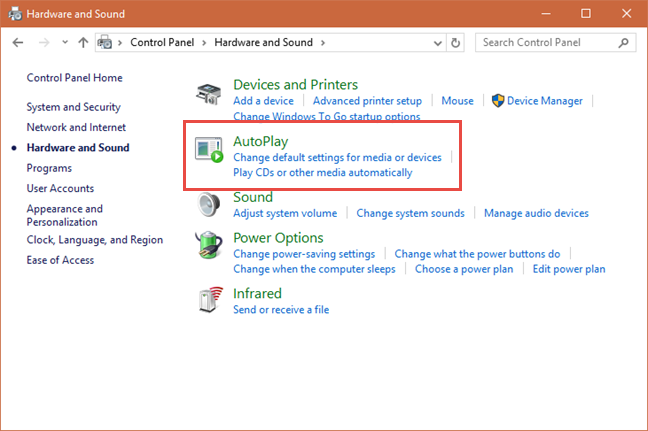
If you want to change anything about the way AutoPlay works in Windows, you need to head to the Control Panel.
Then, click or tap "Hardware and Sound."
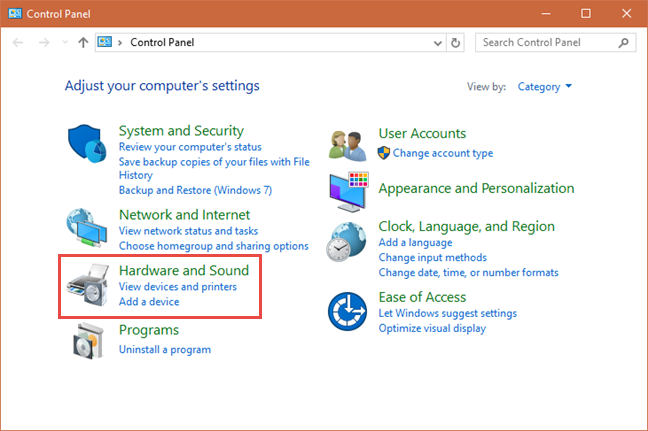
Next, click or tap AutoPlay.
Now you see all the settings that are available for AutoPlay, in Windows. While things look slightly different between versions of Windows, all the configuration options are the same, so we will use screenshots that are taken in Windows 10, to keep things simple and not overload you with pictures.
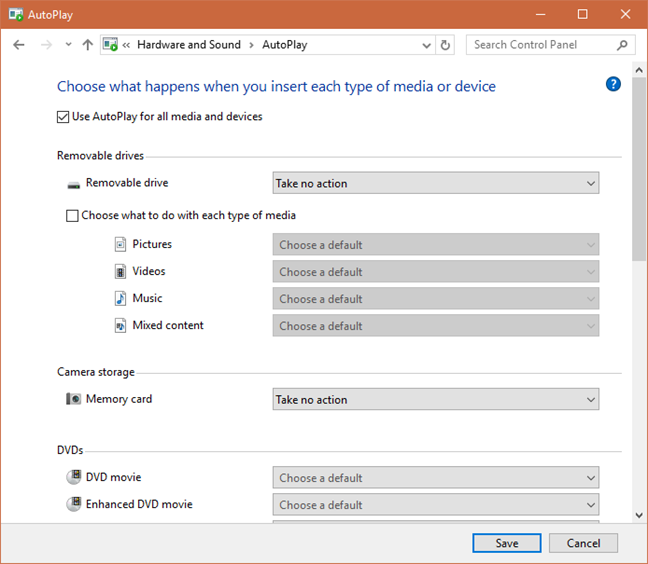
In Windows 10, there are some AutoPlay settings available also in the Settings app. However, they are far fewer and you can perform a much detailed configuration from the Control Panel.
Next, let's see how to personalize the AutoPlay behavior for all types of media devices.
How to customize the AutoPlay behavior for all media devices
If you want to use AutoPlay for different types of media or devices, first, make sure that you check the setting that says: "Use AutoPlay for all media and devices."

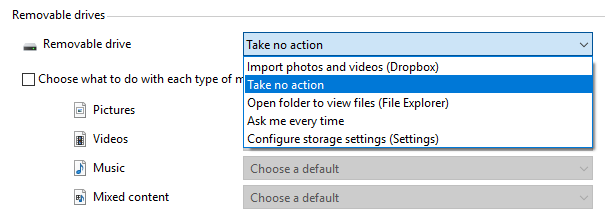
Then, go to the type of media device that you want to personalize and click on the drop-down list on the right of its name. Most users work with removable drives, so let's take them as an example. You can see in the screenshot below, the actions available on one of our Windows 10 computers. On yours, they will be different, depending on how many apps you have installed and which of them interact with removable drives.
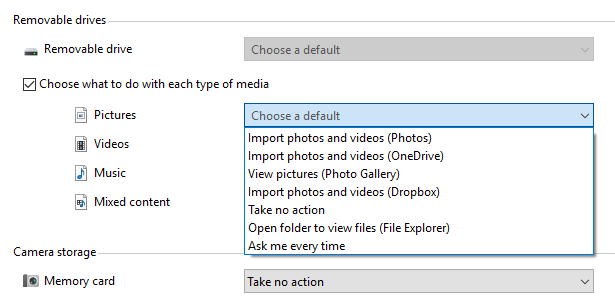
A useful feature that is available only in Windows 10, is that you can set default actions for removable drives depending on their majority content: pictures, videos, music or mixed content. You have to check "Choose what to do with each type of media" and then select the actions you want performed for each type.
Windows 7 users will notice that they can't configure AutoPlay for removable drives or for memory cards. These options are available only in Windows 10 and Windows 8.1.
But, Windows 7 users can configure AutoPlay for other kinds of media, including Blu-ray discs. Let's see the actions available on our Windows 10 PC. Again, the action available on your PC will be slightly different.
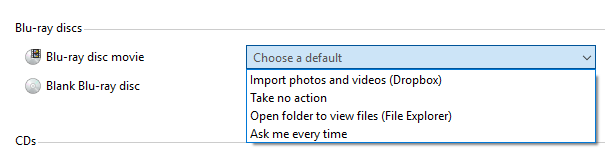
If you pick "Ask me every time," then Windows will ask you to choose what it should do, each time you insert that type of media device.
If you want to turn off AutoPlay just for one type of media, then select "Take no action" from the list of actions that are available for it.
When you are done setting things up, don't forget to click or tap Save, so that your changes are applied.
How "Ask me every time" works in the different versions of Windows
As mentioned earlier, if you select "Ask me every time" for a certain type of media or drive, each time you plug it in, Windows asks you what to do with it. However, the way it does this, is different between Windows versions. For example, Windows 7 automatically loads the AutoPlay prompt with available options, as soon as you plug in that type of media. You can also select the default action for future interactions with that type of media.
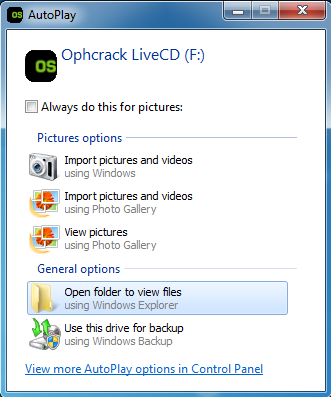
Windows 10 is more discreet and it shows a notification that something was plugged in. You can ignore this notification or you can click or tap on it.
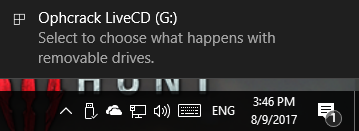
If you click or tap this notification, then you see the AutoPlay prompt with all the available actions.
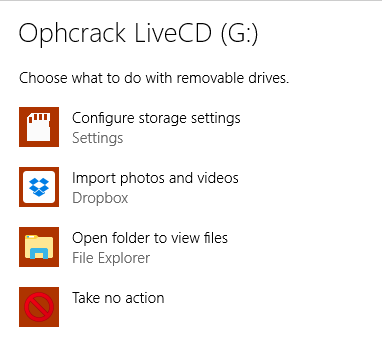
The same in Windows 8.1: first you are informed that something was connected to your computer or device.

Click or tap on the notification and you see the available actions.
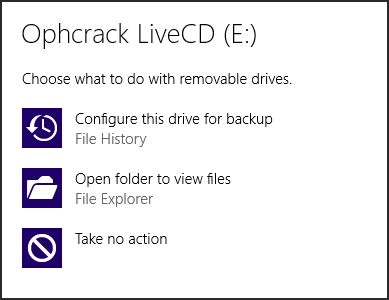
Click or tap on the option you prefer and it is executed. However, there is no checkbox for setting that action as the default for that type of media, like in Windows 7. To change the default, you need to go to the AutoPlay window and follow the instructions shared in the previous section.
How to Reset AutoPlay to its defaults?
If you have fiddled too much with AutoPlay and its settings, and you want to go back to its default behavior, you can do so. In the AutoPlay window, scroll down until you find the "Reset all defaults" button. Click or tap on it and then on Save.
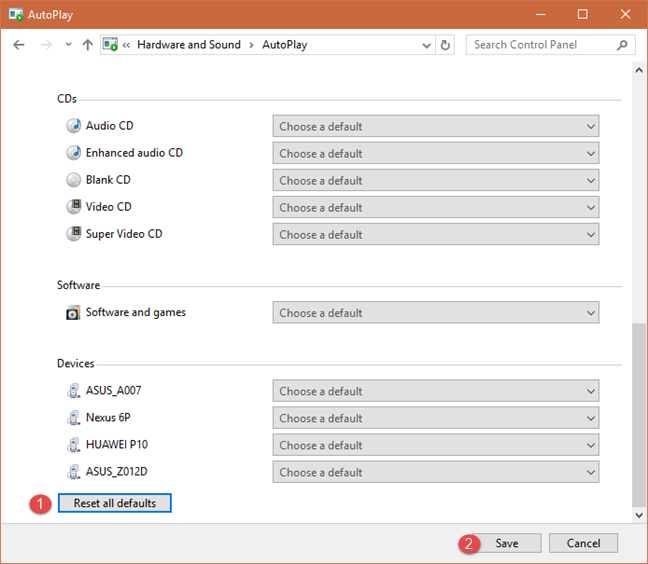
AutoPlay is now reset to its default behavior from Windows.
How to turn off AutoPlay for all media and devices
You may be annoyed by AutoPlay and you want it turned off for all types of media and devices. If that is the case for you, in the AutoPlay window, uncheck the box that says "Use AutoPlay for all media and devices," and then press Save.
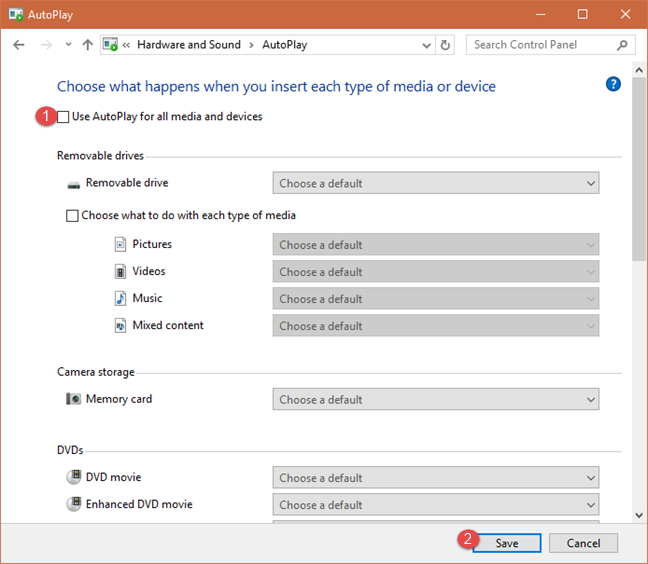
AutoPlay is now completely disabled.
Do you like the AutoPlay feature in Windows?
Now you know how to configure AutoPlay in all modern version of Windows. Before you close this article share with us whether you like this feature and whether you kept it turned on or you have disabled it. Use the comments form accessible below.