I will continue our series on Windows 7 networking with an article about how to set your network sharing settings. Compared to older versions of Windows, Windows 7 makes it is easier to set such settings. In this article I will cover the following: where to find the network sharing settings, how to turn on or off network discovery, file sharing, media streaming, password protection, how to set encryption for sharing connections and how to configure HomeGroup connections.
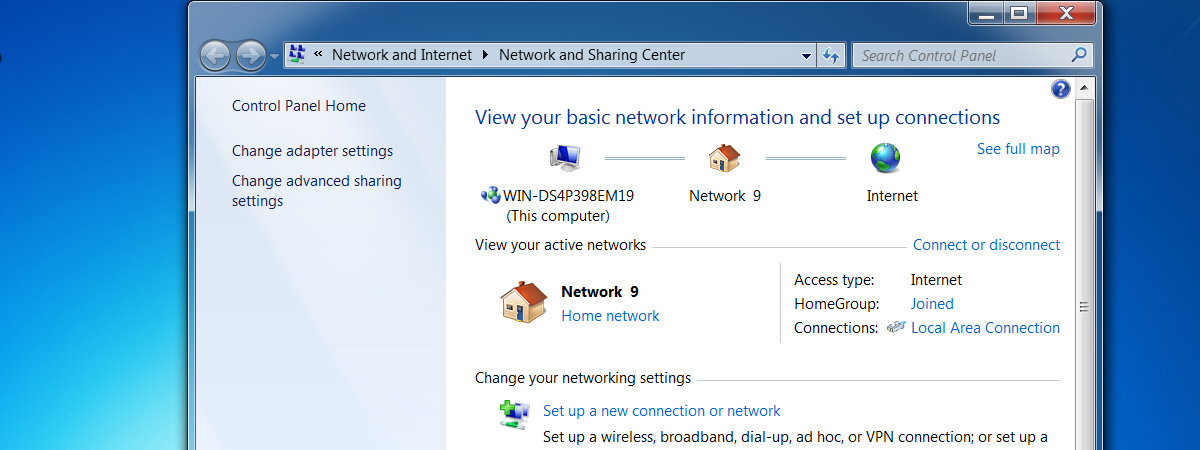
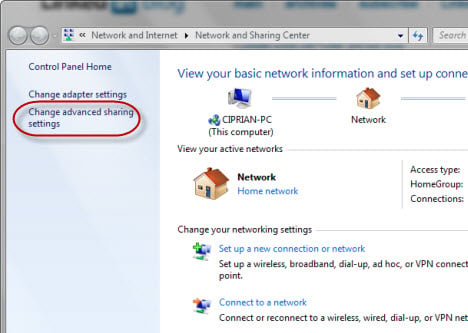
First, you have to open the Network and Sharing Center. On the left side of its window, there is a link called 'Change advanced sharing settings'. Click on it and the appropriate window will open. An alternative is to search for the word sharing in the Start Menu search box. One of the first search results will be called 'Manage advanced sharing settings'. Click on it and the 'Advanced sharing settings' window will open.
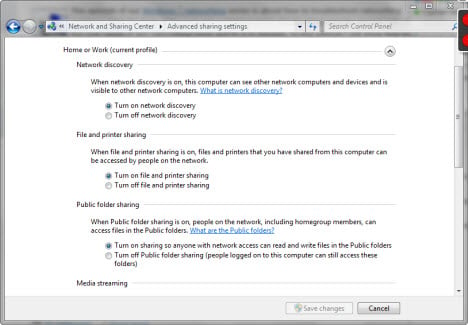
In the 'Advanced sharing settings' window you will see lots of settings, split in two categories: Home or Work and Public.
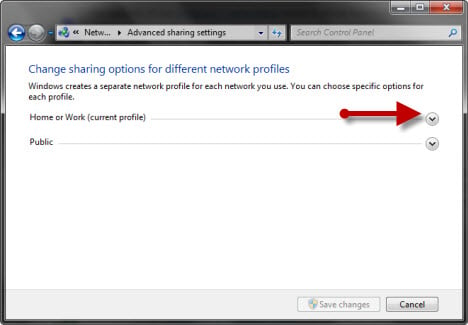
These categories have some arrows on the right side of their top row. If you click on it, the category will minimize or expand.
First, you will need to modify the settings of the current profile, whatever that might be. You can change the sharing settings for the other profile too and they will be applied once you connect to a network to which that profile applies. Next, I will be describing all available settings one by one and give you recommendations for how to configure them.
The first setting from the list is called Network Discovery. When it is turned on, this setting allows your computer to search for other devices on the network it is connected to. Also, it allows other computers on the same network to find it.
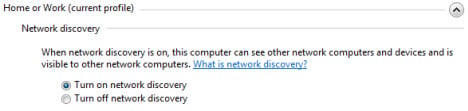
Recommendation: If you are connected to a home or work network, it is best to turn on this settings. For public networks, it is best to turn it off so that your computer won't be visible to other computers.
Next, you can enable or disable the file & printer sharing. When turned on, this feature allows you to share content with other computers from your network. With it turned off, you won't be able to share anything. Even if your computer is visible for other devices on the network, nobody will be able to access any shared files or folders.
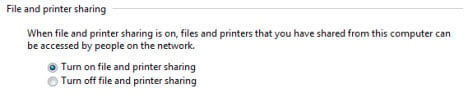
Recommendation: Turn it on for home or work networks. Turn it off for public networks.
One way to share files and folders is to move them to the so called Windows 7 Public folders. These are found in 'C:\Users\Public\'. If this option is turned on, anything that you copy to those folders will be visible to other computers on your network.
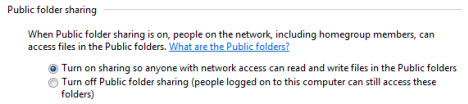
Recommendation: Turn it off. Personally, I don't need this feature. I prefer to share directly the files and folders I want to have shared, without having to copy them to another location. In the end it is a matter of personal work style. If you find these public folders useful, you can turn the feature on. However, on public networks it is highly recommended to turn this feature off.
The next setting is about media streaming. This feature allows you to stream multimedia files (pictures, video, music) by using Windows Media Player. In this section, Windows 7 it will tell you if it is turned on or off. If you want to change the current status, click on the 'Choose media streaming options' link.
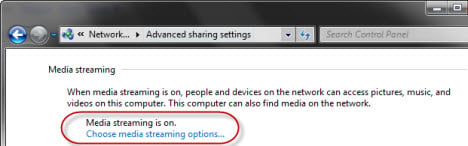
If it is turned on, you will see a window listing your computer and others from your network which have media streaming enabled. If you don't need to use such a feature, you can disable it by clicking on the 'Block All' button and then on OK.
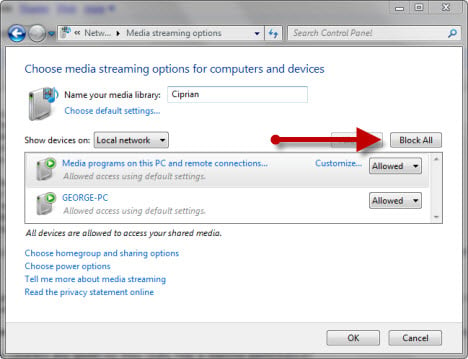
If media streaming is turned off and you will be asked to turn it on. Click on 'Turn on media streaming'. Then, you will see a window similar to the one above, where you can edit your media streaming settings.
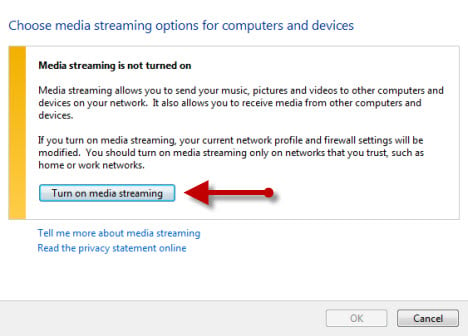
Recommendation: Turn it on only if you use media streaming. For public networks always turn it off.
We will cover more about media streaming and how to use it in a separate article, dedicated only to this topic. So, stay tuned for future updates on our site.
The next setting is about the type encryption used for file sharing connections, when computers connect to each other and copy files and folders from one to the other. By default, this is set to 128-bit encryption.
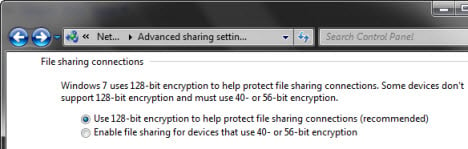
Recommendation: Leave it set to 128-bit encryption, unless you have issues with some older devices or computers with operating systems which cannot properly access your shared files and folders.
Password protected sharing allows people to access your shared files and folders only if they have a user account and password set on your computer. If they don't know such details, they cannot connect to your shared items. This feature comes into play with computers which are not included in your HomeGroup (in case you defined one) or for computers for a public network.
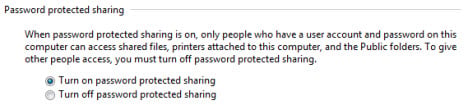
Recommendation: Turn it on at all times.
We've covered the HomeGroup feature extensively in one of our previous articles. By default, a HomeGroup has its own password which all computers who join it, must know. If you happen to use the same username and password on all computers from the HomeGroup, you can set Windows 7 to use that, instead of the separate HomeGroup password. However, this is not a recommended practice. Using the same username and password across all your HomeGroup computers can be a security risk.
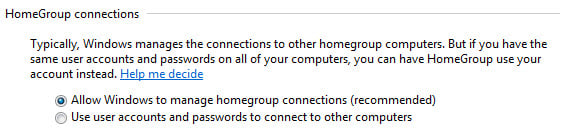
Recommendation: Use only 'Allow Windows to manage homegroup connections'.
As you can see, setting network sharing settings is not very complicated. What you need to remember in terms of best practices is that everything should be turned off when you are connecting to public networks. This way you will avoid for your files and folders to be access by unauthorized persons. Also, for home or work networks, turn on only the features you are actually using. If you've got some other interesting things to share, don't hesitate to leave a comment.
What is the Network and Sharing Center?
How to Share a Printer with Your Network
Network Locations Explained
The HomeGroup Feature & How it Works
What is the Public Folder & How to Use it
Comments
In all the words you, and
In all the words you, and others, have written on the subject of Windows 7 networking, nowhere can I find instructions on how to change the network location from "public" to "home".
Running W7HP on a Dell 1520 with already operating home network. I have successfully established a homegroup to which other PCs belong - very easy - but nowhere can I find how to change from "public" to "home" on this one laptop.
Microsoft obviously disinterested (W7 is so superior, after all) - can you help?
The answer you seek, can be
The answer you seek, can be found here:
http://www.7tutorials.com/network-locations-explained
Just read the How to Change the Network Location location section of the article.
I have this strange behavior
I have this strange behavior that the network settings keep changing when I switch network locations. I have T410 (Lenovo) with Windows 7. I go to the advanced settings and change Home or Work settings as the following: 1. Turn on network discovery, 2. Turn off file and printer sharing. For the Public I change to: 1. Turn off network discovery, 2. Turn off file and printer sharing.
I basically have two network locations: at home with Home network setting, and at work with Public setting. The strange behavior is whenever I change network location from home to work, or work to home, the network discovery and file/printer sharing turns on. I have been trying all sorts of method, but something is turning them on.
What may be causing this? It has driven me crazy. Because whenever I go to work, the first thing I do is turning the network discovery and file/printer sharing off. I do not want any of my personal information leaking. Thank you for the help.
I have a problem with the
I have a problem with the settings, i cant enable for example
turn on network discovery or turn on file and printer sharing and so on,
but Media Streaming settings and every setting under it works, can anyone help me?
I've pressed save changes, but when i go into the settings again they are just back do off..
This is the first time I have
This is the first time I have been to this site and I cannot believe how FANTASTIC it is. It does what MS seems incapable of doing: giving step-by-step (with visuals) instructions on "how to's" - I hope you are not affiliated with MS, but if you are, they sure are keeping it secret. Can you believe there is no user's guide/manual for Windows 7 users? Typical. They should pay you for this very understable site.
Oh well, here's my problem. I am staying in a hotel where you can only use a wireless service. Every month they give us a new code to connect. I have no idea what service they use, except it is affiliated with the hotel - something like G-Tek (I'm not sure and I can't find where I saved it). Anyway, everything was fine, I was able to connect to the network every month with no problems. I could see other networks; I can still see the other networks available (they are all security protected, ours is not), but if you wanted to see if you could connect (just so I could see how a "secure" and "unsecure" network wored. Previously, there was an option to to check/not check the "connect automatically" feature. Now all of sudden, all of them show they have the ability to connect automatically - the box is checked. I can't find ANY site where they tell me how to disable this feature. When I went to MS Suport/Windows 7, it only told me how to enable.
As you can probably tell, I am not technically minded AT ALL! I used to think ignorance is bliss, but I am founding out this is not true. I have never used a wireless connection before and have heard so many horror stories about using it. I am running Windows 7, Norton 360 on a Dell Laptop Inspiron 15R. I have installed all updates via Windows update. PLEASE HELP.
I can share DOCUMENTS file
I can share DOCUMENTS file but can not share other files on c drive. they show up on other computer but not allowed to access.
Can you give an example of
Can you give an example of what other files you want to share from the C drive?
For example the built-in security of Windows 7 will not allow access if you share the C:\Windows folder or C:\Program Files as it tries to protect system files from unauthorized access.
We have a wireless LAN at our
We have a wireless LAN at our office. There are computers using windows XP , windows Vista and windows 7. We have a server which we use for internet and email facility. A NAS box is connected to the system. the problem is, only computers with windows Xp can see the box. It is meant to be used as a back up box. All the machines receive internet and email well. What could be the problem?
Finally someone who avoided
Finally someone who avoided using all the technical jargon and posted a tutorial in plain english so that anyone can understand it. Thanx for resolving my issues with WinXP and Win7.
At work we are using windows
At work we are using windows 7. We have 2 computers and normaly they network just fine. Sometimes they just stop connectiong and wont share new information. Any ideas as to why this happens?
I have 2 Windows 7 laptops on
I have 2 Windows 7 laptops on which I had set-up a homegroup which was working just fine. Suddenly none of the PCs can detect each other although they are both connected to the same Network. I checked everything, including the set-up you published and can't find anything wrong. I believe this happened when one of the PCs was "updated" by Windows, so I restored it before that point but it still doesn't work. Please help!
Thank you!
I have done everything on all
I have done everything on all the sites I can find. My XP and XP pro computers all see each other and can access files and shared directories.
My XPS all can see and access the new Windows 7 computer but
The computer with Win 7 can't see the other XP computers at all. No shared dirs or anything. No computer names. It does see the network printers.
My settings are all right, shared, no password, 128 is off, public is off, all shared, Discover is on. The workgroups all have the same name. So what is missing.
You might have an internet
You might have an internet security suite (or other security solution) that is configured incorrectly and doesn't allow you to access shared network resources correctly.
Could you expand on this
Could you expand on this comment more. I have no idea where to find my internet security suite or what might be configured incorrectly.
thanks.
Add new comment