
Although the notification area has been around since Windows 95, it wasn't very customizable and useful until Windows 7 was launched. Even though many know what it is and what it does (or at least in theory), few know how customizable it has become. In Windows 7 and Windows 8 you can change every aspect of its functioning and make it look and behave the way you want to. Here's how:
What is the Notification Area in Windows?
By default, the notification area is located at the right end of the taskbar; it is also referred to as the system tray. Its purpose is to provide:
- Easy access to different system functions: the date and time, volume, network, the action center, the active keyboard input language, etc.

Notification Area, Customize, Windows 7, Windows 8 - System notifications - the notification balloons that pop in the notification area. For example, when a USB stick is successfully removed, you are notified about it.
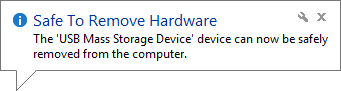
Notification Area, Customize, Windows 7, Windows 8 - Easy access to applications that display their icon in the notification area.
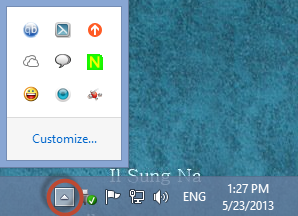
The notification area icons (system or application-related) can either be shown, or hidden. Whenever there is at least a single hidden icon, the notification area displays an arrow that, when clicked, allows the user to reveal the hidden icons.
The notification area also includes a Show Desktop button, on its right side. In Windows 7, this button is a lot more visible than in Windows 8.
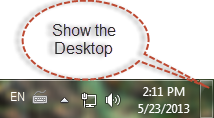
However, Windows 8 includes it as well. Click or tap in the same area and the Desktop is shown.
How to Access the Settings Window for the Notification Area
As anything else in Windows, the notification area can be customized in detail. In order to change the way it works, you need to access the Notification Area Icons window. There you can set the display behavior of all notification area icons, turn system icons on or off (e.g. time/date, volume), restore the default behavior and set the notification icons to be always displayed.
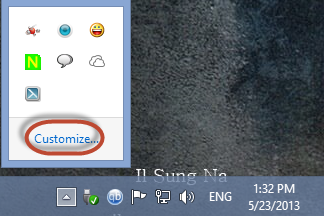
The simplest way to access this window is to click or tap the arrow displayed on the left side of the notification area and then the Customize link.
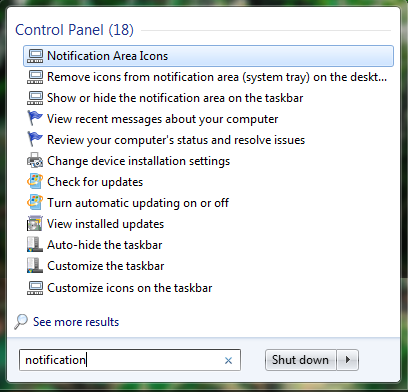
An alternative is to use search. In Windows 7, click the Start button and search for the word notification in the Start Menu search box. Then, click "Notification Area Icons".
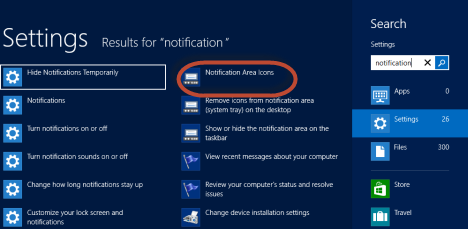
In Windows 8, go to the Start screen and type notification. Filter the results by Settings and then click or tap "Notification Area Icons".
The Notification Area Icons window is now open.
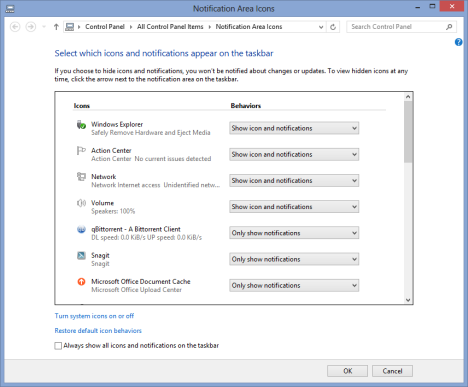
Let's learn how to configure the notification area.
How to Control the Display Behavior of the Notification Area Icons
The Notification Area Icons window displays the list of system and application icons that are available for display and customization, along with their associated behavior. You will see application icons only for those applications that add icons to the notification area. Those which do not add such icons are not added to the list. An application will have its icon listed in this window only after you have used it for the first time.
For each icon in the list there are three available display behaviors:
-
"Show icon and notifications" - the icon and its related notifications are always displayed in the notification area.
-
"Hide icon and notifications" - the icon and its related notifications are always hidden. You can access them only by clicking the arrow that expands the notification area.
-
"Only show notifications" - the notification icon is hidden, but its related notifications are displayed whenever they are triggered by the application.
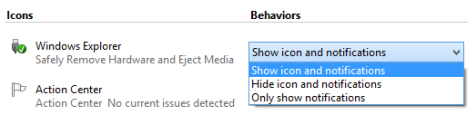
After making the changes you desire, click or tap OK.
How to Turn System Icons On or Off
System icons, like those for the volume, network status, action center or the battery status, can be completely hidden. They will not be displayed even if you expand notification area icons list, by clicking or tapping the appropriate arrow.
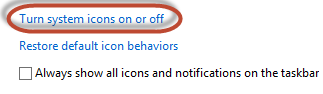
To toggle the visibility of the system icons, click or tap "Turn system icons on or off" in the Notification Area Icons window.
The System Icons window opens, displaying all the system icons that can be customized.
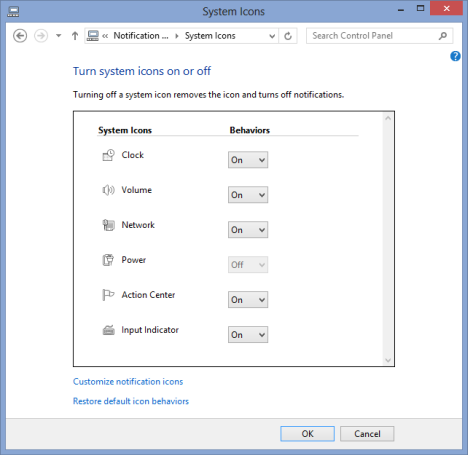
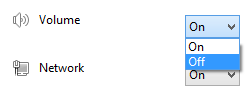
For each icon in the list there are two available options: On and Off. Change the behavior for each system icon, as you want.
When done, click or tap OK.
How to Restore the Default Behavior for the Notification Area
Sometimes it's easy to mess up the way icons are displayed in the notification area. You can undo all your changes and return to the default behavior: "Show icon and notifications" is enabled for system icons and "Only show notifications" is enabled for application icons.
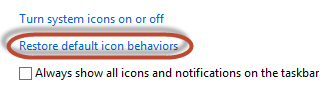
To restore the default behaviors, click or tap the "Restore default icon behaviors" link in the Notification Area Icons window.
Then, click or tap OK.
How to Set Notification Icons to be Always Displayed
You can choose to display at all times, all the notification area icons and notifications. In the Notification Area Icons window, check the box that says: "Always show all icons and notifications".
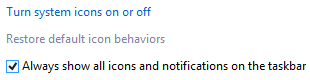
Then, click or tap OK.

In the screenshot above, you can see how the end result will look when this setting is enabled.
How to Change the Position of an Icon in the Notification Area
To change the position of individual icons in the notification area, drag-and-drop the icon you want to move to the desired place.
Let's take a look at this example: initially I had all my application icons hidden. I maximized the notification area list.
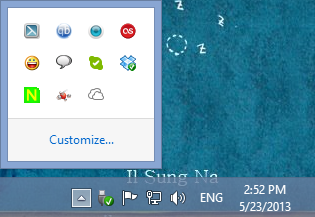
I took the SkyDrive icon and I dragged it to the notification area, so that it becomes visible.
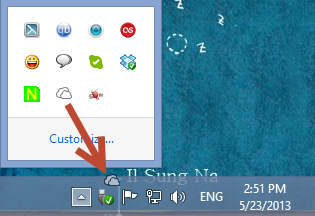
The SkyDrive icon is now displayed in the notification area.
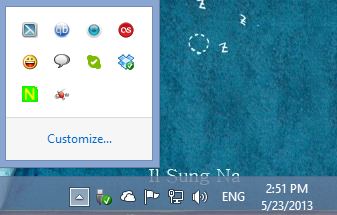
Icons can be dragged and dropped from and to any position.

Don't hesitate to experiment so that you customize the notification area so that it is the way you want it to be.
Conclusion
I hope you found this guide useful. If you are looking for other great tips, don't hesitate to read our recommendations below. As always, if you have any questions, don't hesitate to leave a comment.