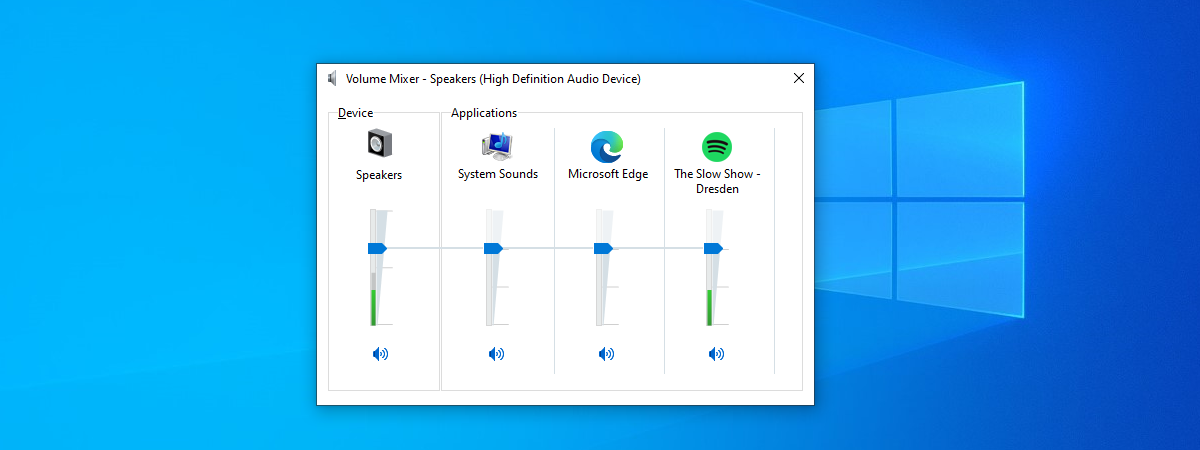
The Windows sound schemes are collections of sounds that play automatically during certain system and app events, like errors, notifications, or reminders. If you find the current alerts annoying, you can customize the sound schemes for Windows 10 to play what you want in every situation. Furthermore, it only takes a few clicks or taps to mute your system entirely. This guide covers how to customize the sound scheme on your PC, including how to turn off system sounds in Windows 10:
How to access the Windows Sound Schemes settings
If you want to tinker with the Windows 10 sound schemes, first, you need to open the Sound window. The fastest method is to find the speaker icon in the Windows 10 system tray (bottom-right corner) and right-click on it. In the contextual menu that opens, click or tap on Sounds.
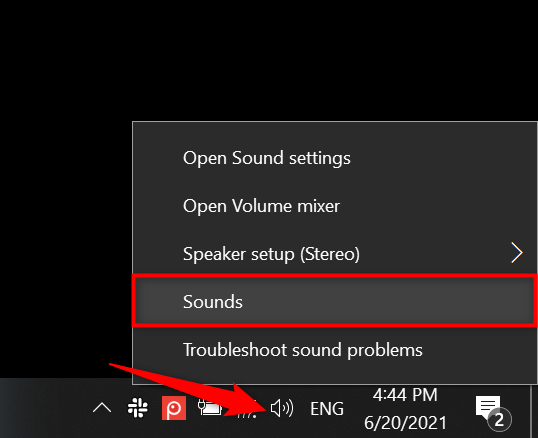
Use the speaker icon to access the Windows sound schemes
An alternative is to open the Settings app and access Personalization.
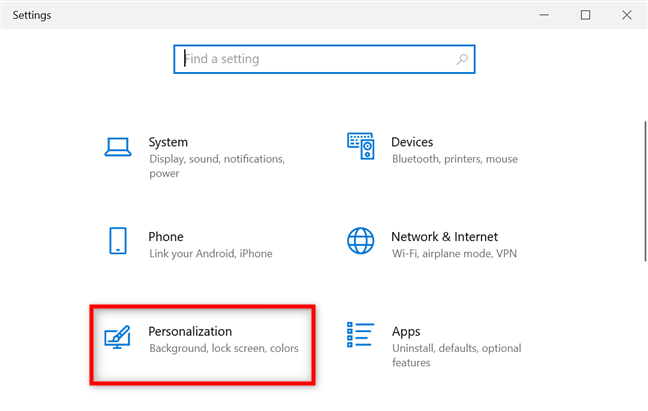
Click or tap on Personalization
Then, access the Themes tab from the left column and, on the right, click or tap on Sounds.
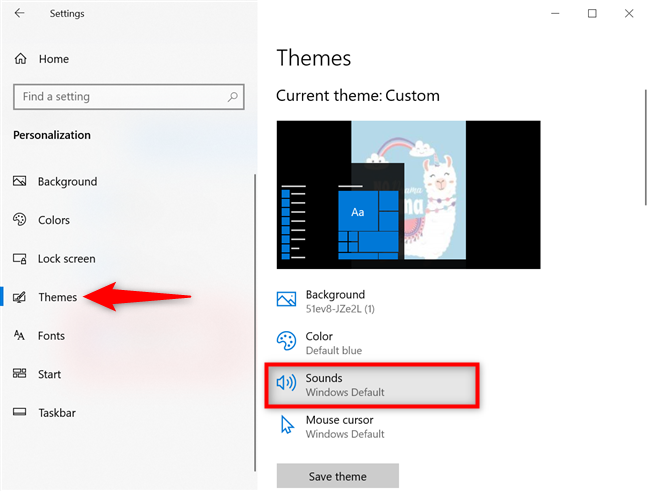
Click on Sounds to access the sound schemes for Windows 10
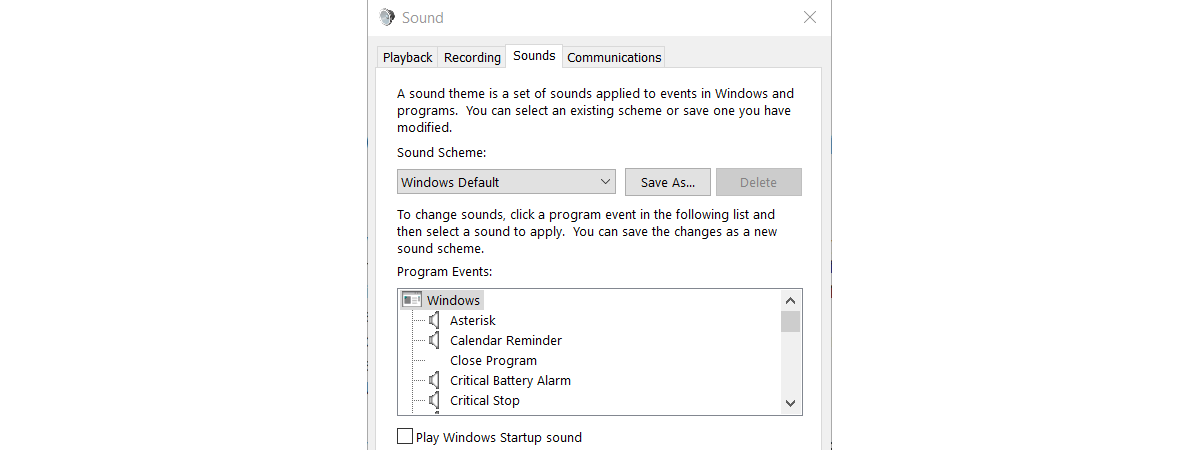
No matter the method, the Sound window opens to its Sounds tab, as seen below.
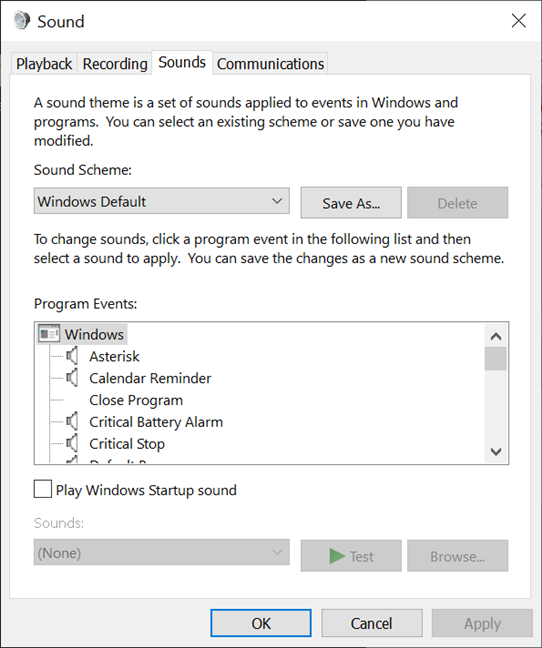
The Sound window from Windows 10
How to turn off system sounds in Windows 10
By default, Windows 10 comes with only two sound schemes: Windows Default and No Sounds.
If you want to turn off system sounds in Windows 10, click or tap on the Sound Scheme dropdown menu and select No Sounds.
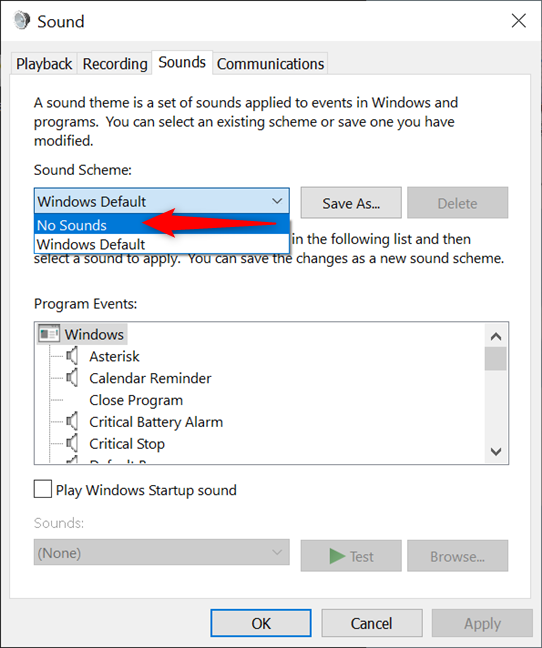
How to turn off system sounds in Windows 10
TIP: If you install or create other sound schemes on your Windows 10 computer or device, you can also use these steps to change the active sound scheme to another one.
If you only want to turn off the sounds for certain events, the next chapter provides more details on customizing a sound scheme by changing the desired sound effects.
How to customize a sound scheme or create a new one
If you want to create a new sound scheme, start by customizing the sounds found in an existing one. To begin, click or tap an item in the Program Events section. To see the current sound assigned to this event, you can use the Test button at the bottom.
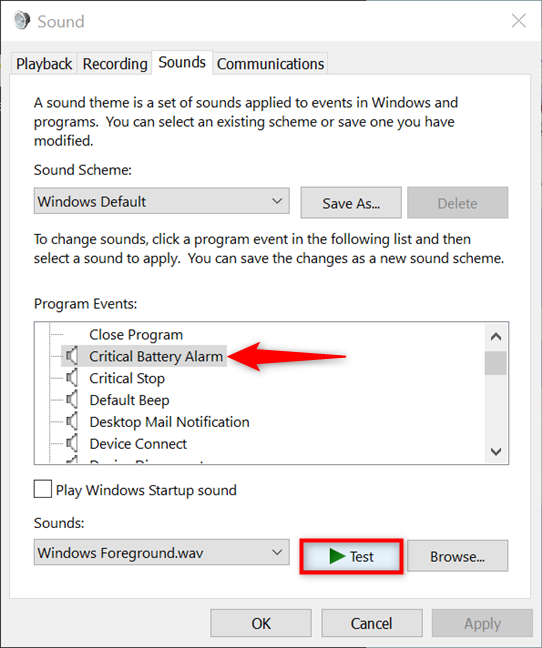
Test the current sound assigned to an event
NOTE: If you want more details on the Program Events on this screen, you can first find out when Windows plays each sound.
To change the default alert for a selected event, click or tap on the Sounds field at the bottom.
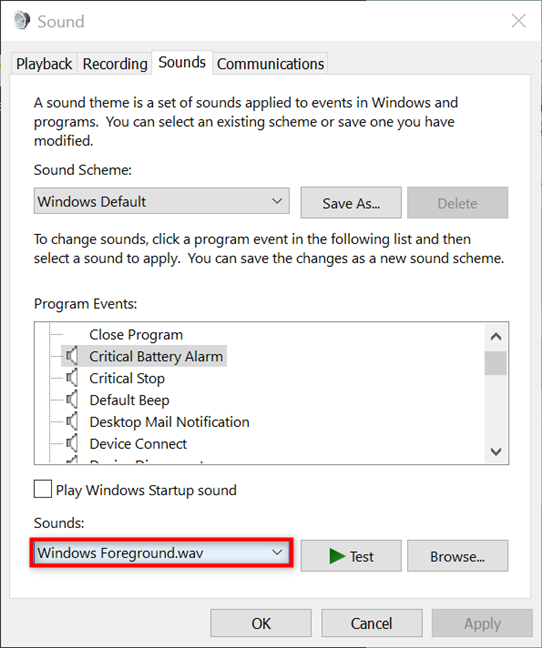
Use Sounds to choose another alert for a selected program event
This opens a dropdown menu with all the sounds available by default in Windows 10. Click or tap on the sound you want to use for that event.
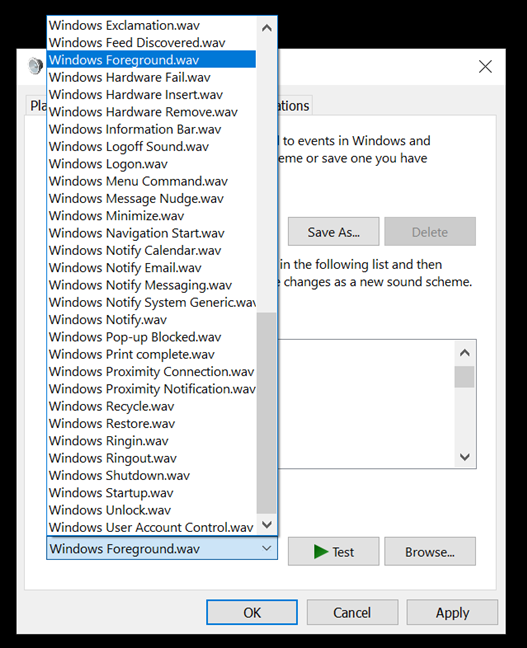
Select the sound file you want to use for the program event
Alternatively, you can also press Browse to locate and use any WAV file on your Windows 10 PC for that event.
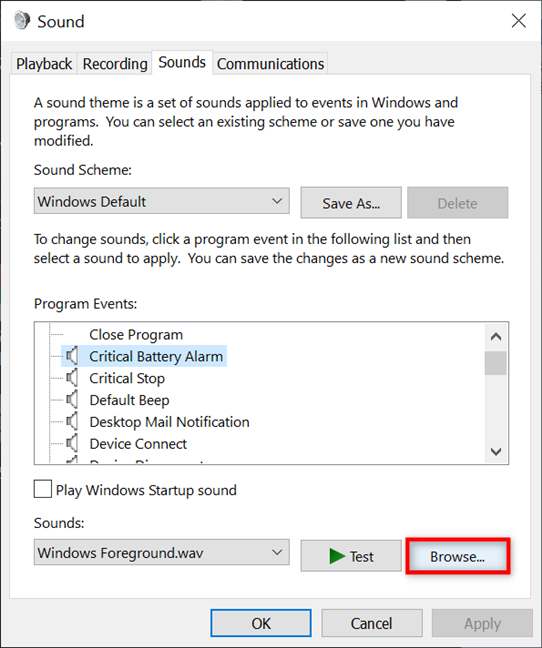
Browse to find another WAV file for your event
Follow the same steps for all the Program Events you want to customize. The speaker icon next to the one(s) you modify is highlighted in a different color to help you remember your changes.
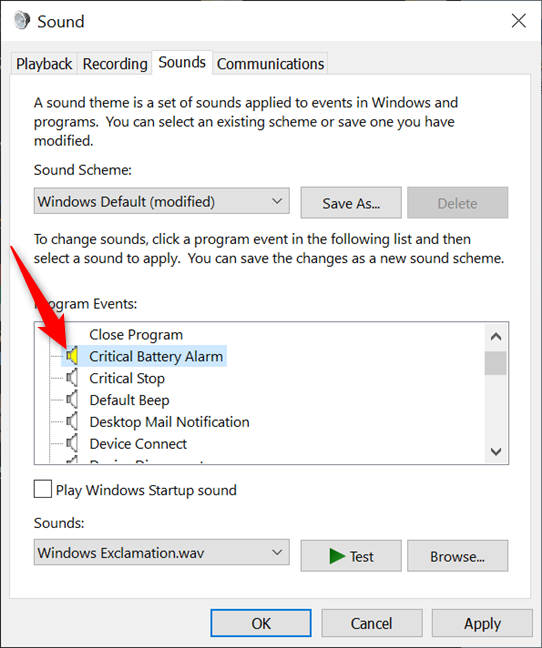
The speaker icon indicates the event is modified
How to save and delete a sound scheme in Windows 10
Once you finish changing the sounds included in a scheme, you should save it to ensure that your hard work doesn’t get lost. If you modify a scheme and do not save it, Windows 10 displays the sound scheme’s name with the text (modified) next to it, as shown below. Click or tap the Save As button.
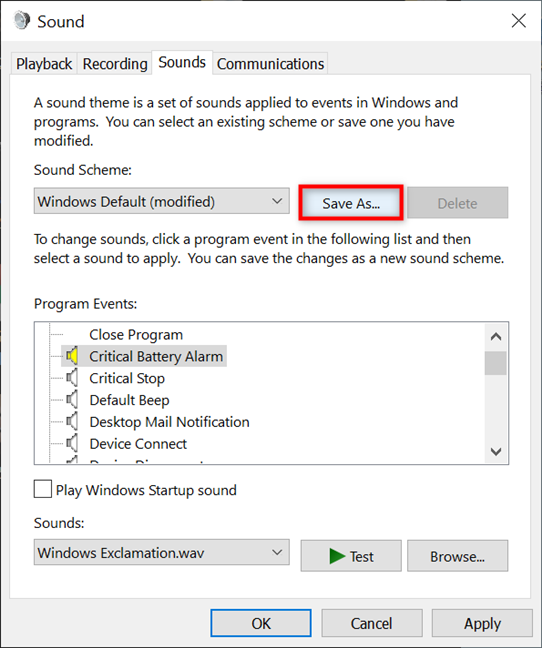
Press Save As
Type the name you want for the new sound scheme in the “Save Scheme As” window and press OK.
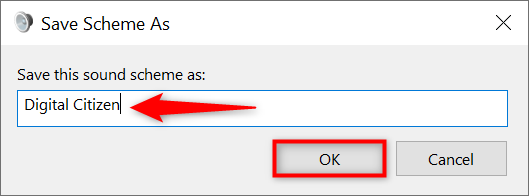
Name your new sound scheme
From now on, the new scheme is displayed in the list of sound schemes, and you can select in Windows 10.
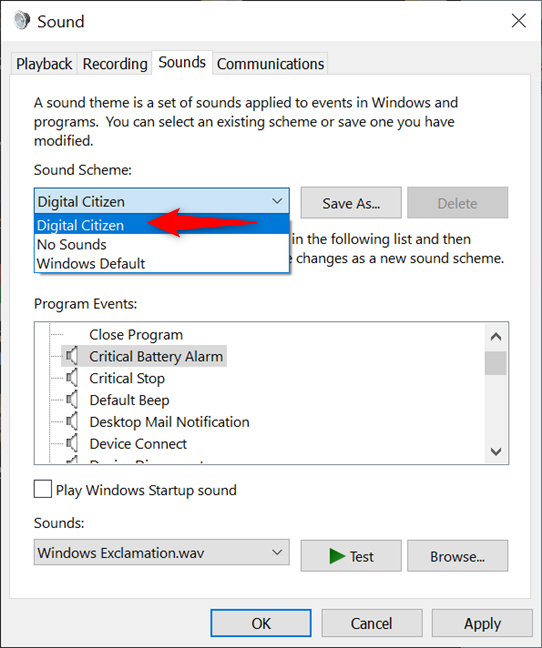
Windows 10 saves your new Sound Scheme
If you get bored with a scheme you created, you can use the Delete button and then confirm your choice to remove it from Windows 10.
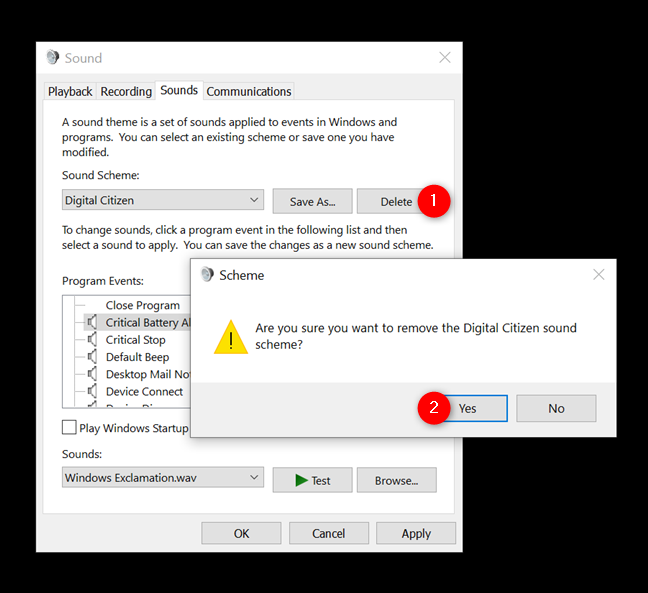
How to delete a sound scheme in Windows 10
NOTE: Keep in mind that sound schemes are associated with Windows themes. By default, the themes bundled with Windows 10 are using the Windows Default sound scheme. When you change your Windows 10 theme, the sound scheme is also changed according to the new theme’s settings.
Did you change or turn off system sounds in Windows 10?
Modifying the Windows sound schemes is not exactly obvious. As a result, many users don’t bother changing the system sounds in Windows 10 and are stuck with the same annoying alerts. We prefer to edit the sound scheme used on our devices. What about you? Did you choose different sounds, or did you turn off system sounds altogether? Let us know in the comments.