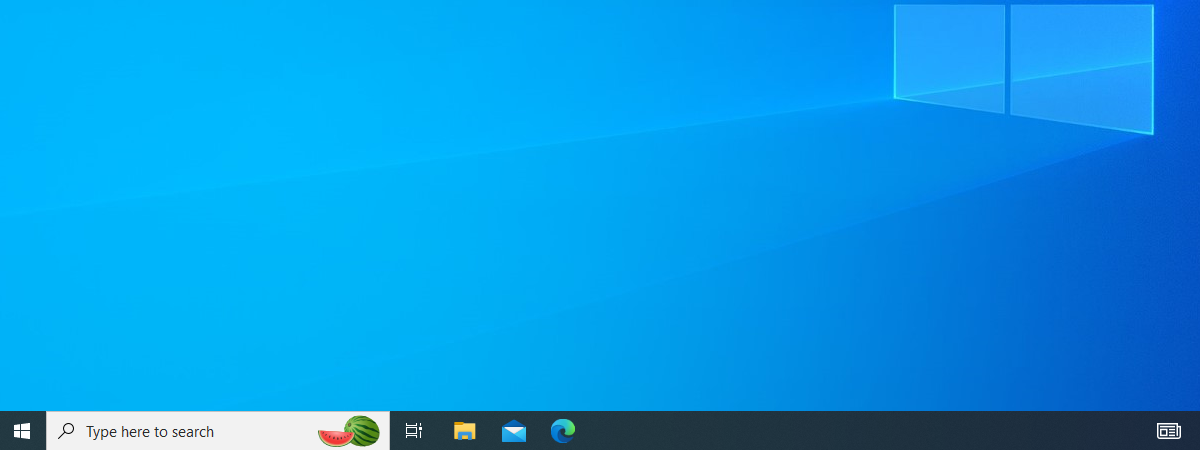
Microsoft made some great improvements in the taskbar with Windows 7, making it much more versatile and useful than the taskbar in previous Windows versions. Although there weren't nearly as many changes between Windows 7 and Windows 8.1, because they got it so nearly right the first time, there are a few things that have changed in Windows 8.1. One of the major improvements in the taskbar is in the way it can be customized. Since most people work more productively when their tools are arranged according to their own preferences, let's take a look at what can be done with the taskbar both in Windows 7 and in Windows 8.1:
NOTE: Most of the information we'll share with you in this tutorial applies equally to Windows 7 and Windows 8.1. We'll talk about the Windows 8.1 exclusives along the way. Also, if you got here while searching for a guide about the taskbar from Windows 10, check this other article we wrote: The complete guide to personalizing the taskbar in Windows 10.
How to open the taskbar properties
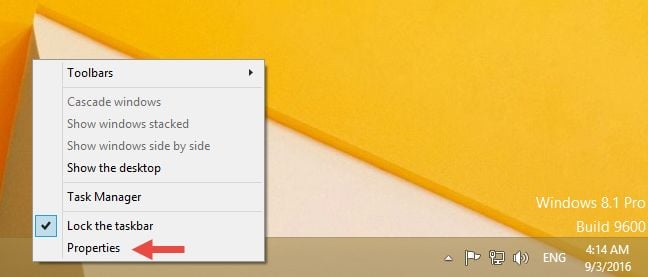
Most of the configuration options are located in the taskbar properties window. To open it, right click or press and hold on a blank space of the taskbar and select Properties.
The configuration options are found in the first tab, called Taskbar. Below you can see what it looks like in Windows 8.1:
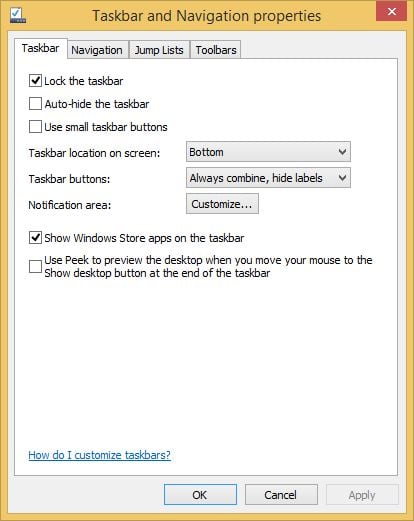
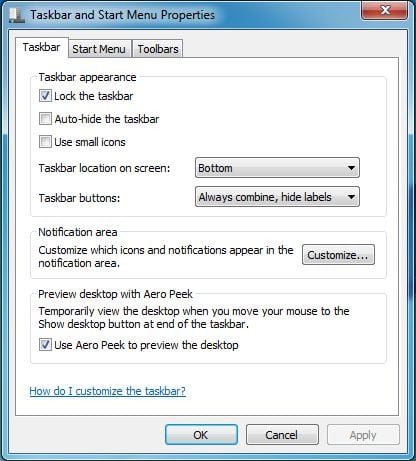
Here is a view of how it looks in Windows 7:
Let's see what these options do.
How to change the appearance and location of the taskbar
On the Taskbar tab, you'll be able to choose where your taskbar is located, whether it stays there or not, the size of the icons on it, which icons appear where, and whether you use Peek to get a preview of your desktop. Let's go through these one by one:
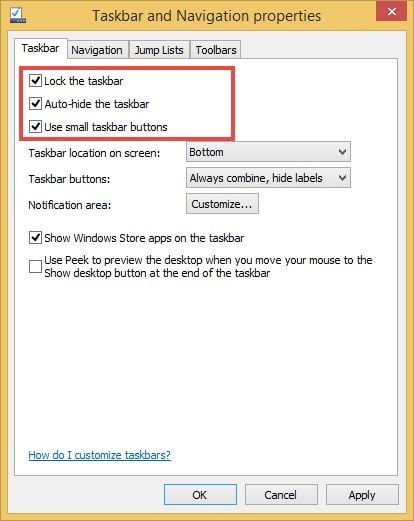
- "Lock the taskbar" - If you select this, your taskbar will stay where you place it, and it won't allow you to move it somewhere else or change its size. If you'd like to have a movable or hidden taskbar you should uncheck this.
- "Auto-hide the taskbar" - This option hides the taskbar until you hover your mouse pointer over the area where it's hidden. Then it slides into view. Once you move away from it, it hides again.
- "Use small taskbar buttons" in Windows 8.1 or "Use small icons" in Windows 7 - This can make your taskbar less obtrusive, by changing the size of the icons on it and therefore the width of the taskbar itself.
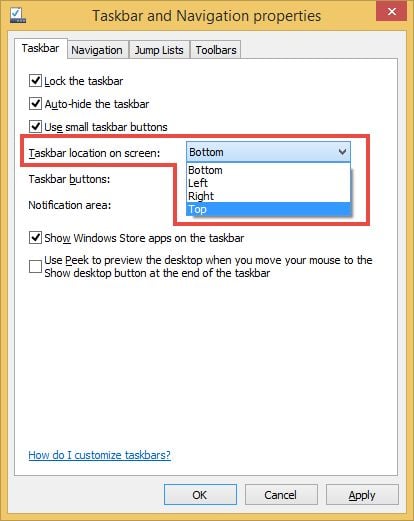
- "Taskbar location on screen" - This lets you put the taskbar on the side or top of your screen instead of the bottom, which is the default. Click or tap the dropdown menu and choose your location. If your taskbar is unlocked, you can also simply drag the taskbar elsewhere with your mouse or with your finger.
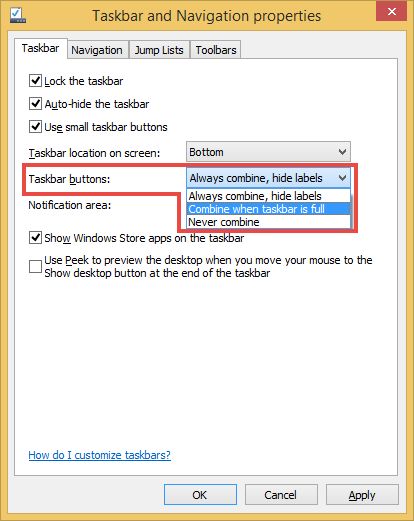
- "Taskbar buttons" - This lets you choose how application icons behave. You can choose from "Always combine, hide labels" (each application shows only one icon regardless of how many instances you have running, but the icons are stacked to show that there's more than one of them, and they are icons only, no text), "Combine when taskbar is full" (works like "Never Combine" until you fill up the taskbar, and then the icons stack), and "Never Combine" (just keep squeezing in the icons for as many applications as you open).
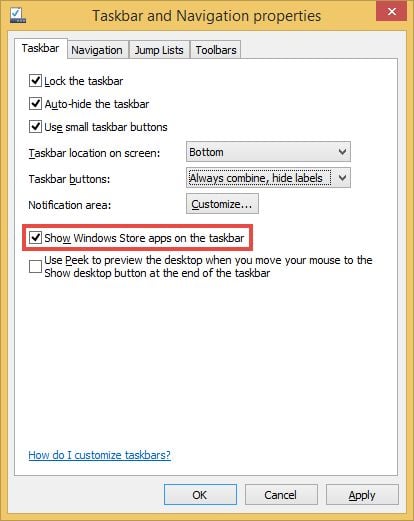
- "Show Windows Store apps on the taskbar" (this option is available only in Windows 8.1) - It allows Windows 8.1 users to view the Windows Store apps they open on the taskbar, alongside desktop applications. This is very useful when you are working with both modern apps and classic desktop programs.
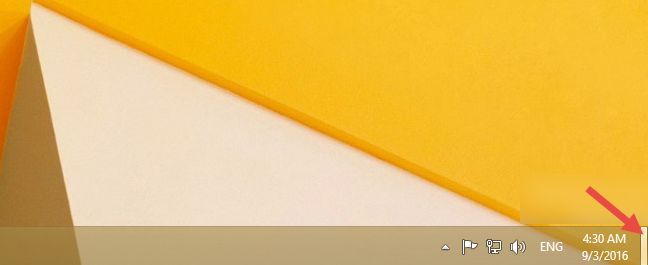
- "Use Peek to preview the desktop when you move your mouse to the the Show desktop button at the end of the taskbar" in Windows 8.1 or "Use Aero Peek to preview the desktop" in Windows 7 - If you select this, you can move your pointer over the "Show Desktop" button on the far right of the taskbar. In Windows 7, this button is vaguely delimited by a faint border, while in Windows 8.1 it's just a blank space at the end of the taskbar. If you hover your mouse over the "Show Desktop" button, it makes all the open applications on your desktop transparent so you can see how the desktop looks, without minimizing or closing everything. If you click or tap the button everything on your d esktop will be minimized. Click or tap again to put it all back.
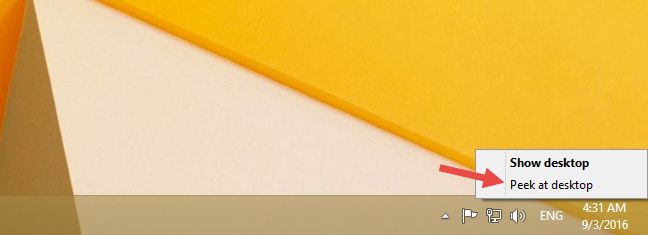
If you're using a mouse (this does not work on touch screen devices) you can right click on the Show Desktop button to quickly enable or disable the Peek at Desktop feature.
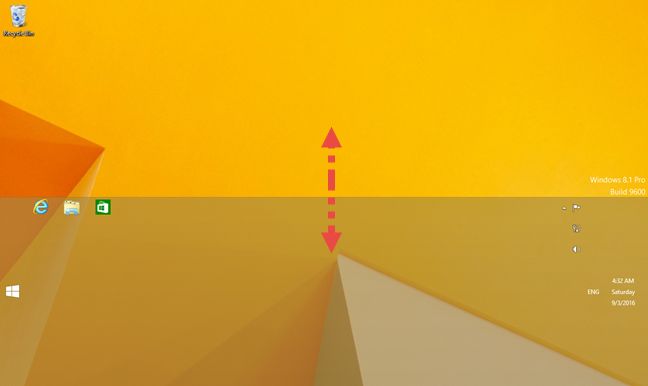
In both Windows 8.1 and Windows 7, you can resize the taskbar as you would resize any window, by hovering over the upper margin till you see the "resize" cursor appear and then dragging the margin up or down. Note that the taskbar must be unlocked to do this, and it has minimum and maximum values beyond which it can't be dragged.
How to add toolbars to the Windows taskbar
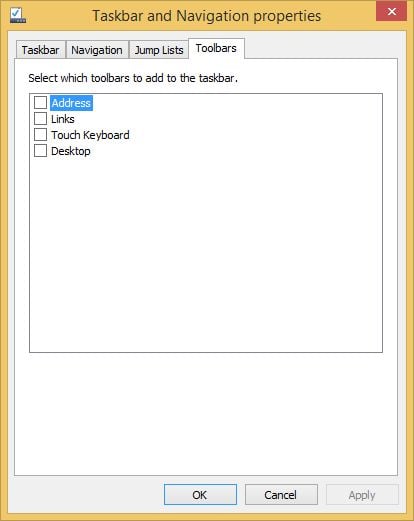
You can add toolbars to the taskbar if you like. To do that, right click or press and hold on a blank space on the taskbar and choose Properties , then the Toolbars tab.
The choices that appear will be different depending on which programs you have installed. These are the toolbars that are available by default in both Windows 8.1 and Windows 7:
You can also right-click (or press and hold) on the taskbar, then choose Toolbars and check the toolbars that you want to enable.
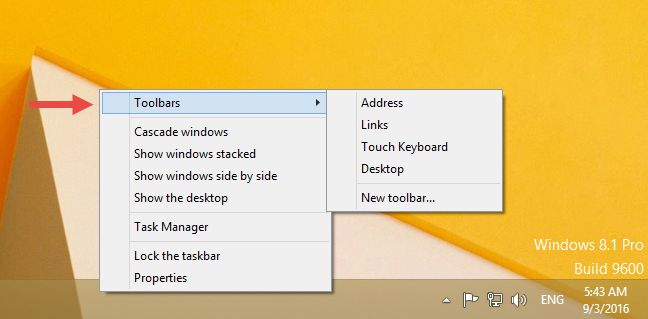
The default toolbar choices are:
- Address - adds the equivalent of a URL bar to the taskbar, so you can type in frequently used websites or file locations.
- Links - puts in a toolbar with all your favorite web sites, but only if your default browser is Internet Explorer, so this toolbar is pretty much useless if you're a Chrome, Firefox or Opera user.
- Touch Keyboard - puts a shortcut on your taskbar that you can use to launch the touch keyboard. You will see this option only if your Windows device has a touch screen.
- Desktop - repeats all the shortcuts on your Desktop and it's a fairly useless choice regardless o f whether you use Windows 8.1 or Windows 7.
- If you used the right click menu from your taskbar, you also get an option to create a New Toolbar , which lets you put in a custom toolbar with the contents of any favorite folder of your choice. If the folder you choose to pin has a lot of content, your taskbar can fill up pretty fast and it will take longer to load. The default folder is your Documents user folder.
How to pin items to the Windows taskbar
You may have favorite programs or frequently-used files that you want to have speedy access to. One good way to make this happen is to pin those items to the taskbar. This works the same way in Windows 8.1 and in Windows 7.
If an app or program is already running, right-click or tap and hold on its icon in the taskbar, and choose Pin to taskbar from the menu that pops up. Here, I've chosen the icon of my favorite web browser, Opera.
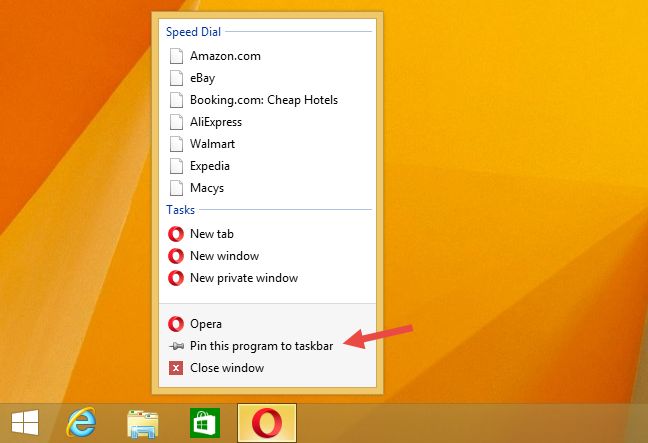
There are many things you can pin to the taskbar and we have covered this subject extensively in separate tutorials:
- How to pin a folder to the taskbar in Windows
- How to pin & display modern Windows 8.1 apps on the taskbar
- How to pin special items to the taskbar in Windows 7 & Windows 8
- Pin shortcuts with parameters on the taskbar or the Start Menu / Screen
How to remove toolbars from the taskbar
If you don't want to see a particular toolbar any more, right click or press and hold on the taskbar, choose Toolbars , and deselect the toolbar you wish to hide. Items that you have added will disappear; default items on the list will just uncheck so that if you change your mind you can re-check them.
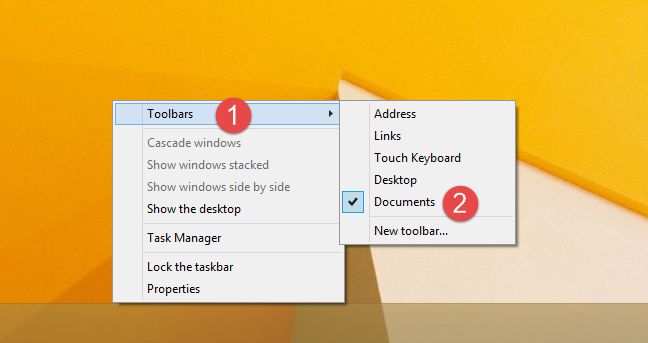
If you want to hide multiple toolbars, it's faster and easier to right-click (or press and hold) on the taskbar and choose Properties , then the Toolbars tab, and uncheck the ones you don't want to see any more. Again, default items will be unchecked; custom items will disappear.
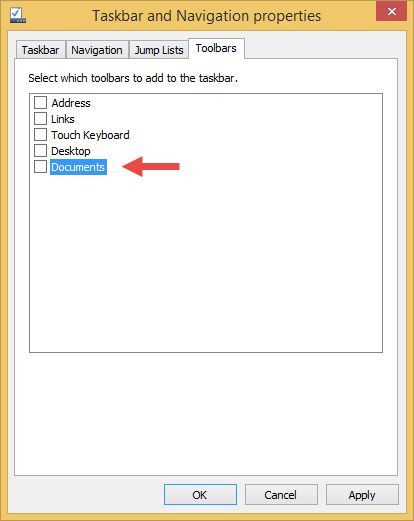
Don't forget to press the Apply or the OK button to save your changes.
Conclusion
As you can see, the taskbar is far more versatile and customizable than it might appear at first. Microsoft has made this area of the screen pretty much a one-stop-shop location for your programs, files and favorites. It's worth playing around with to get it set exactly as you prefer. Have you customized your taskbar in an interesting way? Please show us what you did!