Some users might not yet have discovered that Microsoft supplies a selection of colorful wallpapers with its operating systems, and thus they never experiment with changing the standard background. We've always picked something other than the default background, so, in this article, we're going to talk about how that's done in Windows 10. If you want to learn how to change your desktop wallpaper, read on:
1. How to set a picture as desktop wallpaper in Windows 10, using the right-click menu
If you want to set a picture as your desktop background in Windows 10, the fastest way to do it is probably by using the right-click menu. Open File Explorer and browse to the picture that you want to use as your wallpaper. Then, right-click or tap and hold on it, and choose "Set as desktop background" in the menu.
![The right-click menu of a picture lets you Set [it] as desktop background](https://www.digitalcitizen.life/wp-content/uploads/2020/10/wallpaper_13.png)
But what if you want to also choose how it fills your desktop or if you don't want just one image? What if you want to have your own slideshow with multiple images from a folder? Read the rest of this guide to see how you can access more desktop wallpaper customization options.
2. How to set and customize a picture as desktop wallpaper, in Windows 10, using the Settings app
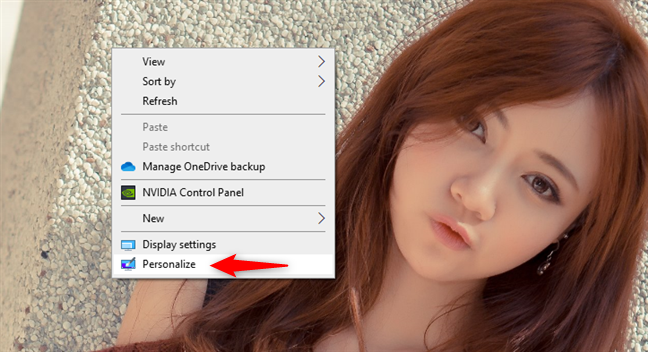
Like most things in Windows 10, you can also change the desktop wallpaper from the Settings app. Right-click or tap and hold on your desktop, and then select Personalization in the contextual menu.
The previous action opens the Settings app and instantly takes you to the Background section from the Personalization settings. This is what you should see:
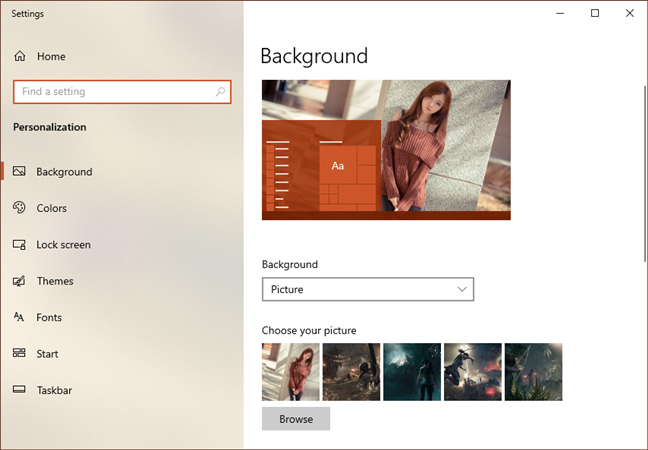
NOTE: Alternatively, instead of using the desktop right-click menu to get here, you can also simply open the Settings app and navigate to Personalization > Background.
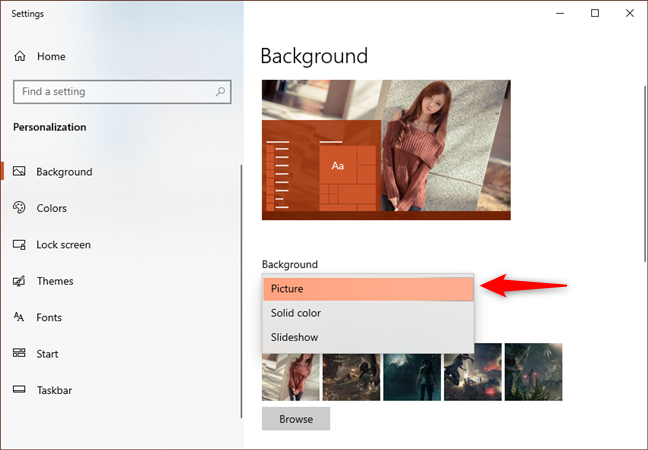
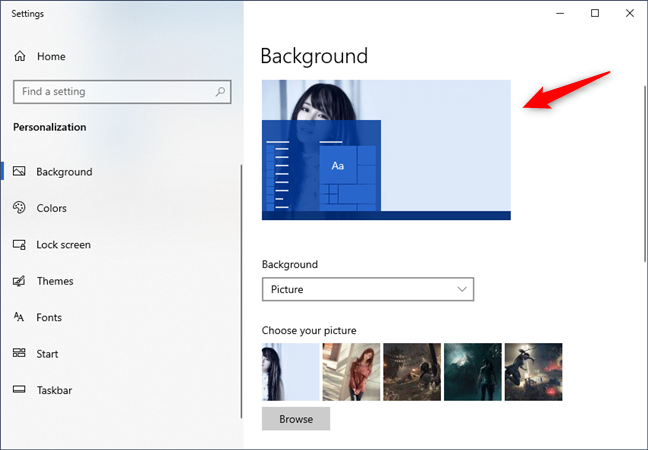
On the right side of the Background page, you can see a small preview of what your desktop looks like using the current settings, followed by a series of settings that change its looks. The first of them is called Background. Click or tap on the Background drop-down and select the Picture option.
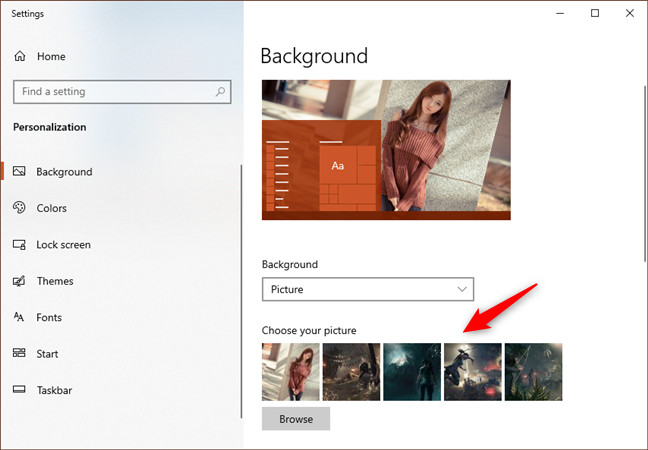
Right under the Background setting, there's a section called "Choose your picture," in which Windows 10 shows you a series of pictures that you can quickly set as your desktop wallpaper. If you want to use one of them, click or tap on it.
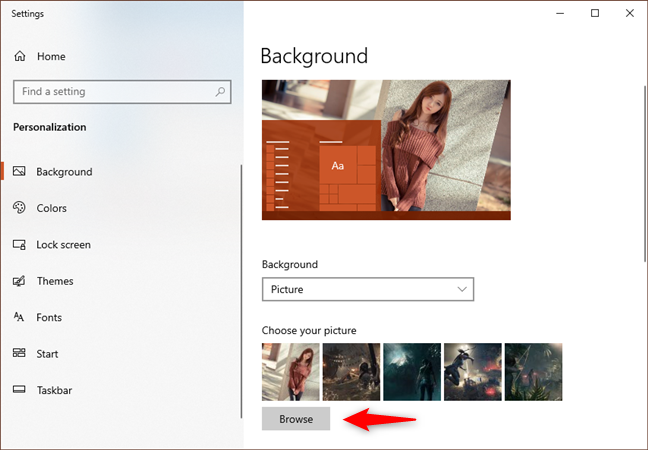
If you want to use a different picture than the ones shown in the list, click or tap on the Browse button. Then navigate through your Windows 10 PC to select the picture you prefer to use as wallpaper.
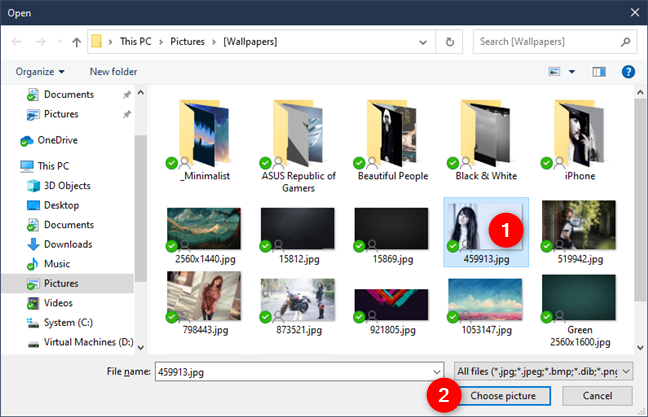
When you find the one you want, select it and click or tap on the "Choose picture" button.
As soon as you do that, Windows 10 sets the new picture as your desktop background. You can also see how your desktop looks in the Background preview.
What about customizing how the picture fills your screen space? Scroll down on the right side of the Background window. Then click or tap on the "Choose a fit" drop-down list and select the picture positioning that you prefer: Fill, Fit, Stretch, Tile, Center, Span.
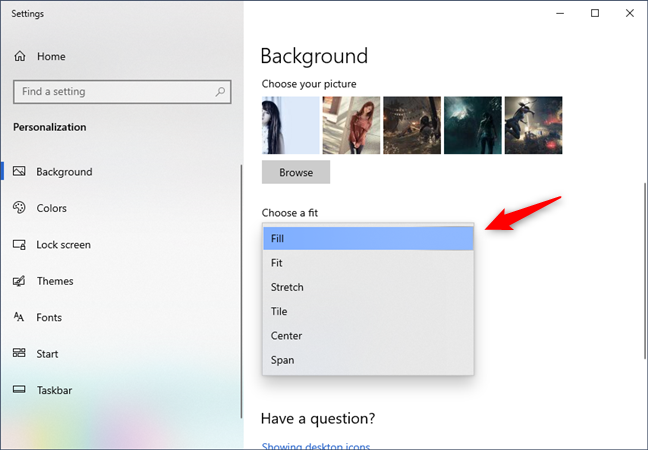
Experimentation is the best way to decide which of these options works best. Here's what happens:
- Fill enlarges or reduces your image so that your desktop space is filled. The images are either stretched or cropped to make this happen.
- Fit makes your images as large as possible to fit in the available space. They are neither distorted nor cropped.
- Stretch either stretches or squashes your image to the same dimensions as your screen. If your monitor size doesn't match the size of the image well, this can look really ugly.
- Tile puts your image on the screen multiple times, filling up the space, but it may or may not fit the images into the space.
- Center puts your image in the center of the screen. You may have one small image in the center of a big blank space, or you may have just the center part of a big image.
- Span makes the image span on all your displays, if you have more than one installed on your computer or device.
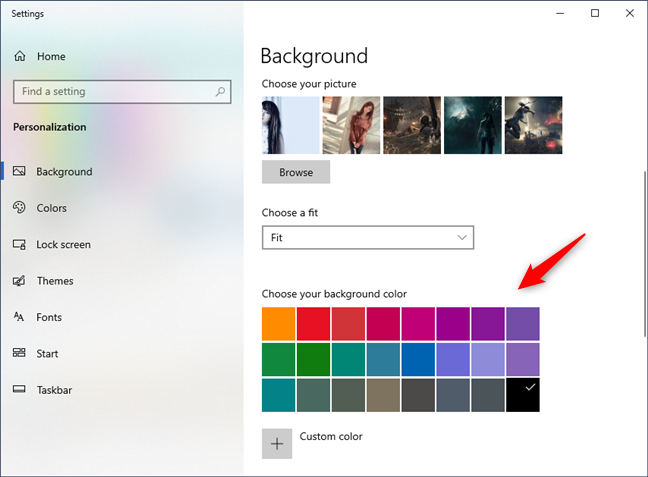
If it turns out that your image does not fill the screen properly, you can click on "Change background color*"*, and find a color that coordinates with your image to fill up the rest of the screen.
3. How to set a slideshow with multiple desktop wallpapers, in Windows 10
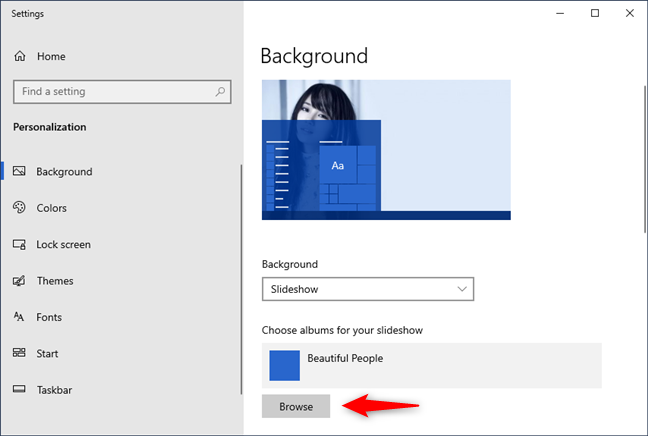
If you want to use more than one picture as wallpapers in Windows 10, open the Settings app and go Personalization > Background. Then, click or tap on the Background drop-down and select Slideshow from the list.
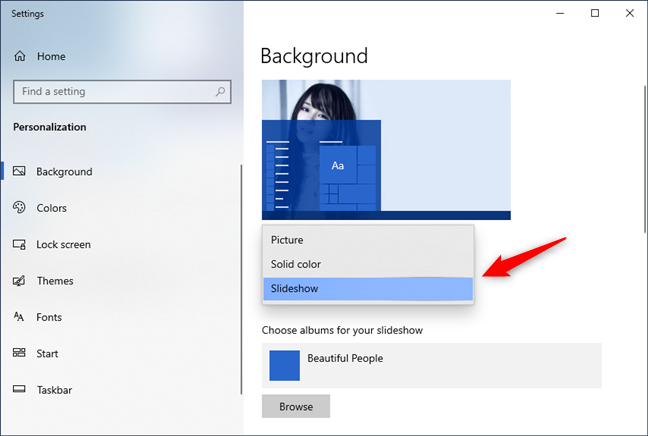
In the next section, called "Choose albums for your slideshow," click or tap on Browse.
Navigate to select the folder that has the images you want to be used on your desktop. When you find it, select it and click or tap on "Choose this folder."
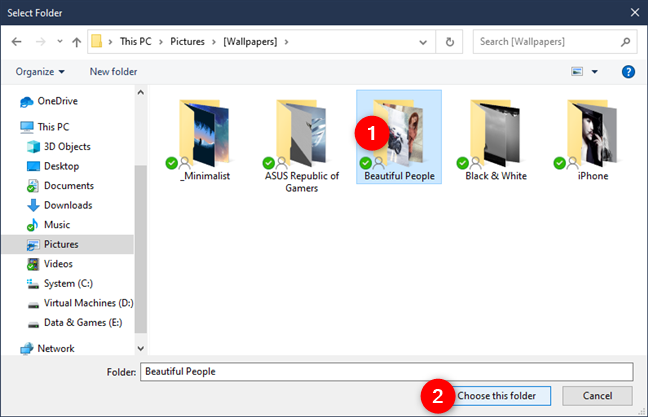
Windows 10 changes the desktop background right away, starting to play a slideshow with pictures from the folder you chose. Note that you can only use one folder. If no folder on your computer has the images you want, you have to create a folder with images selected just for this purpose.
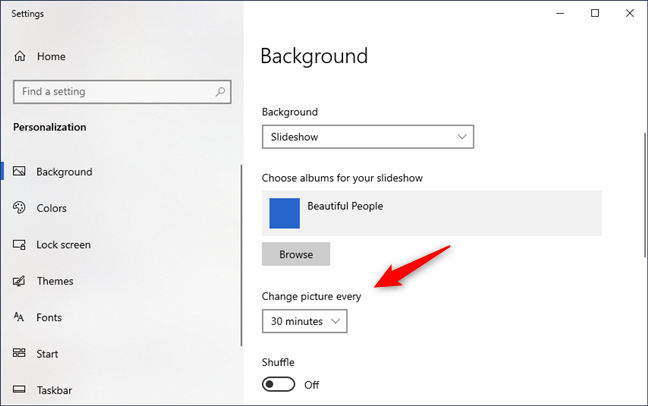
By default, the images you've chosen become a slideshow that changes at whatever time interval you wish. Use the "Change picture every" list and choose the time span you want. If you want the images to play in random order, click or tap on Shuffle also.
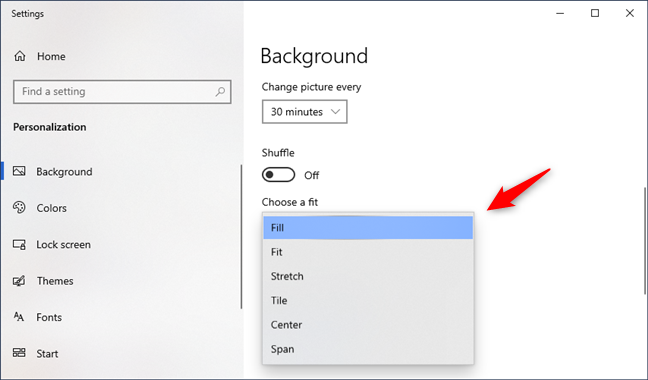
Also, if you want to adjust the position of the wallpapers on your desktop, follow the same steps as we've shown you for setting a picture as desktop background. Essentially, all you have to do is to click or tap on the "Choose a fit" drop-down list and select the option you prefer: Fill, Fit, Stretch, Tile, Center, Span.
4. How to change the desktop wallpaper in Windows 10, by setting a new Theme
Microsoft also puts together collections of backgrounds, window colors, sounds, and screensavers into what they've called themes. Choosing one of those is a great way to get started with customizing your desktop. Each theme has a selection of wallpapers to choose from. You can keep just one, or let them play like a slideshow.
If you want your desktop background to be set by a theme you like, here's how to do it. Open the Settings app and navigate to Personalization. Then, select Themes on the left side of the window.
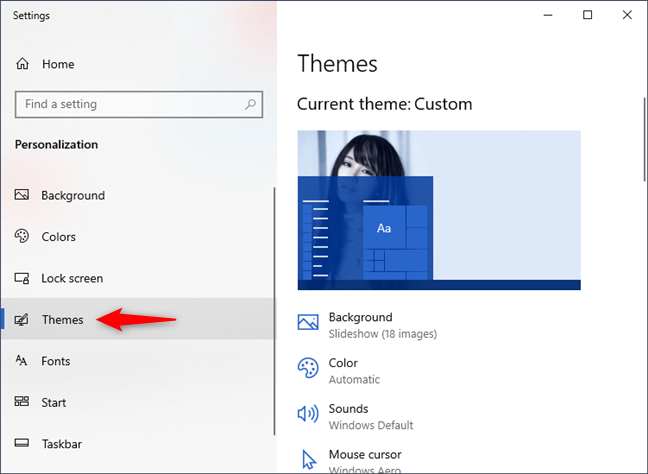
Scroll down to see which themes are available on your PC or device and click or tap on a theme that appeals to you. When you do that, Windows 10 changes your wallpapers, the screen colors, sounds, and the mouse cursors to those included in that theme.
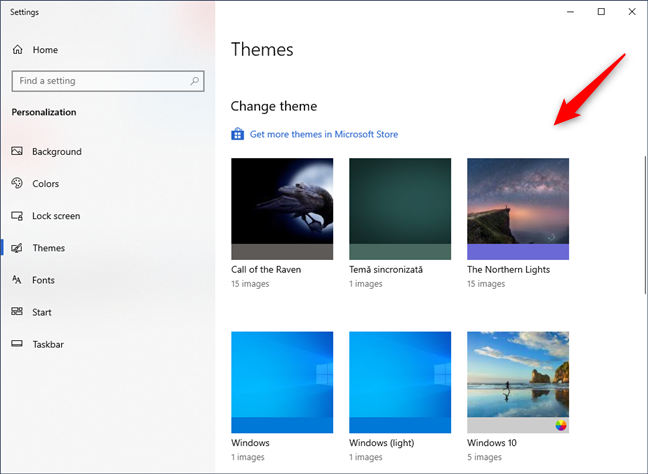
TIP: You can find the images used as wallpapers by the default Windows 10 themes in the "C:WindowsWeb" folder on your PC. For more details, check this article: The location of Windows 10 wallpapers for the Desktop and the Lock Screen.
Play around with the available choices as much as you like. If none of the built-in themes pleases you, Microsoft has an outstanding collection that you can access by clicking or tapping on the "Get more themes in Microsoft Store" link found at the beginning of the Themes list.
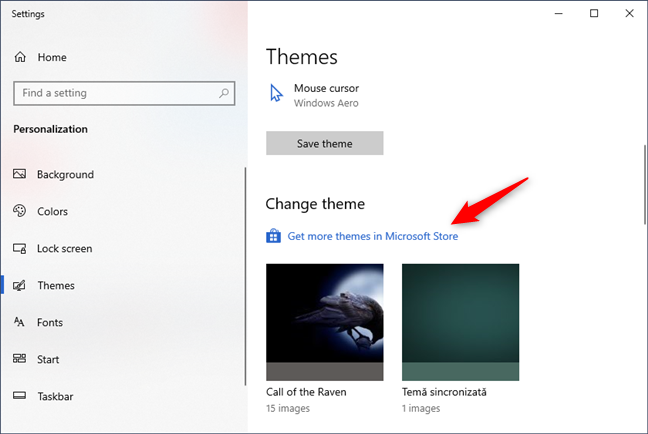
Following the "Get more themes in Microsoft Store" link takes you to the Microsoft Store app, where you can download any theme you like.
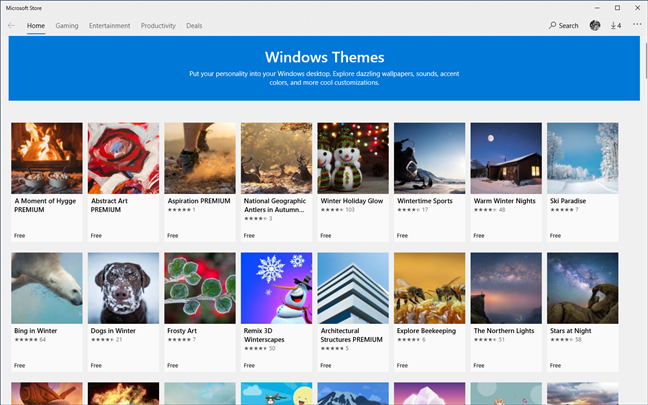
And that's pretty much everything you can do to personalize the way your desktop background looks.
What's your favorite desktop wallpaper for Windows 10?
There's no reason to use the same old boring wallpaper that everyone else has. Changing it to suit your own preferences is quick and straightforward, and it's easy to change back to what you had if none of the new images or themes is to your liking. Experiment, and if you come across a good collection of public domain images that would make good wallpapers, please share it in the comments.