How do you tell which Windows you have? The answer to this question is not rocket science. It is not even a complicated thing to do. However, it is a question you may have to answer so that you receive technical support with a problem you have. If you have handled Windows devices before, the answer is only a couple of clicks away. On the other hand, if you are like our parents, you may call your children or friends at 8 AM to ask them how to do it. This tutorial is aimed at those who want to save the cost of a call and discover how to check what Windows they have on their own. Let’s get started:
1. How to tell what Windows you have by looking at the sign-in screen
It may sound too easy to be true, but if you want to know what Windows you have, it is often enough just to look at the Windows sign-in screen to learn whether you have Windows 11, Windows 10, Windows 7, or Windows 8.1. Start your computer or device and wait for it to boot. When the sign-in screen shows up, check the way it looks.
If the sign-in screen on your PC looks similar to the screenshot below, with rounded corners around the password field, then you are using Windows 11:
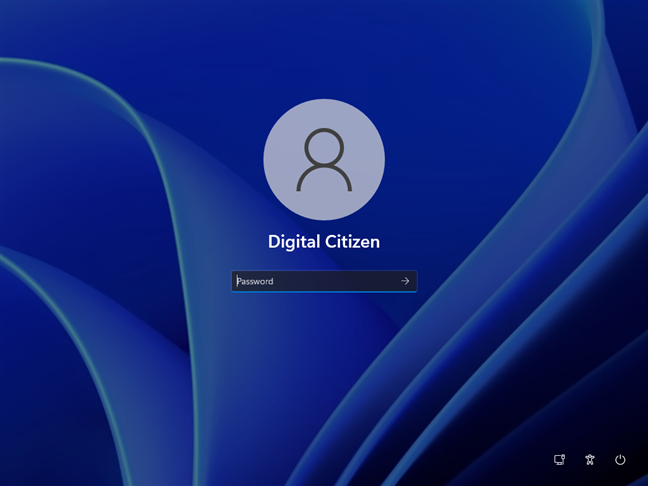
Windows 11 sign-in screen
If your sign-in screen looks similar to the previous picture but with rougher edges and sharp corners, then you have Windows 10:
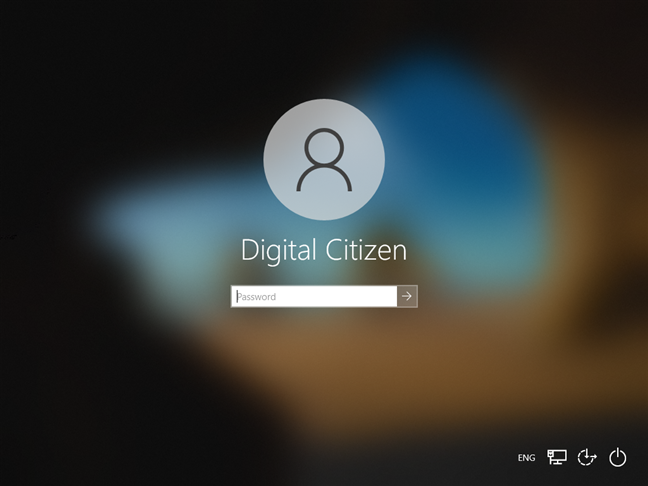
Windows 10 sign-in screen
If what you see when you sign in looks like the screenshot below, then you are using Windows 7. This version of Windows is all about lively colors. 🙂
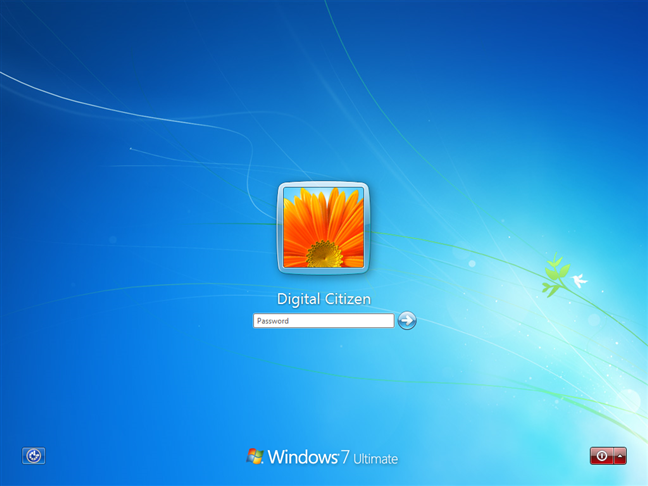
Windows 7 sign-in screen
NOTE: Windows 7 also tells you its name and edition at the bottom of the sign-in screen. For instance, the Windows 7 edition in the screenshot above is the Ultimate one.
And if your sign-in screen looks like the one below, then you are using Windows 8.1. Boring, isn’t it? 🙂
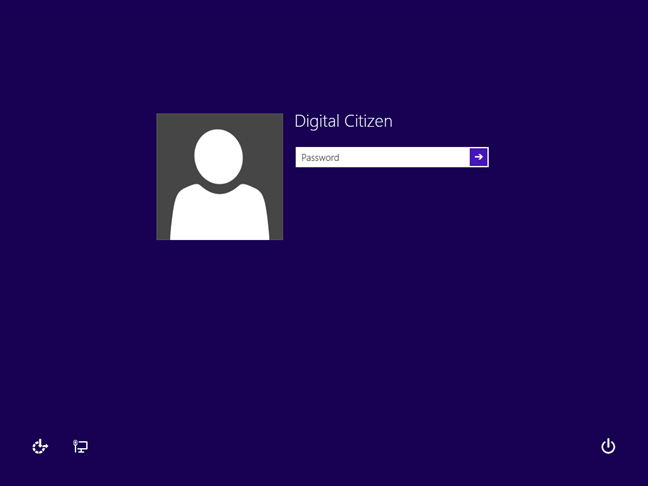
Windows 8.1 sign-in screen
2. How to check what Windows you have by pressing the Windows key
Windows 11, Windows 10, Windows 7, and Windows 8.1 differ quite a lot in what their user interface looks like. Just by looking at your desktop, taskbar, icons, Start Menu, or Start screen, you can immediately tell which Windows you have.
If you have Windows 11, the taskbar icons and the Start Menu button are centered. There’s a search button near Start and a Widgets icon further on the row. Also, if you open the Start Menu, you’ll see a search bar at the top, as well as some Pinned and some Recommended apps, but no tiles whatsoever.
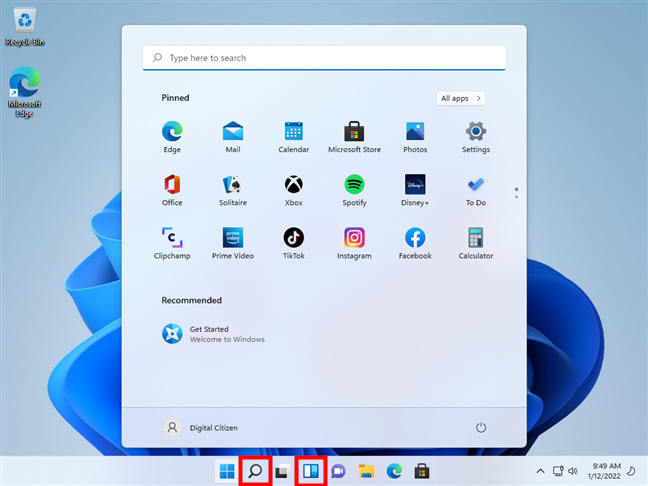
Windows 11 desktop and Start Menu
If you have Windows 10, then your desktop and icons have a flat design, your taskbar has a search field or at least a search button on it. Press the Windows key, and the Start Menu shows up. If it has tiles on it, like in the screenshot below, then you are using Windows 10.
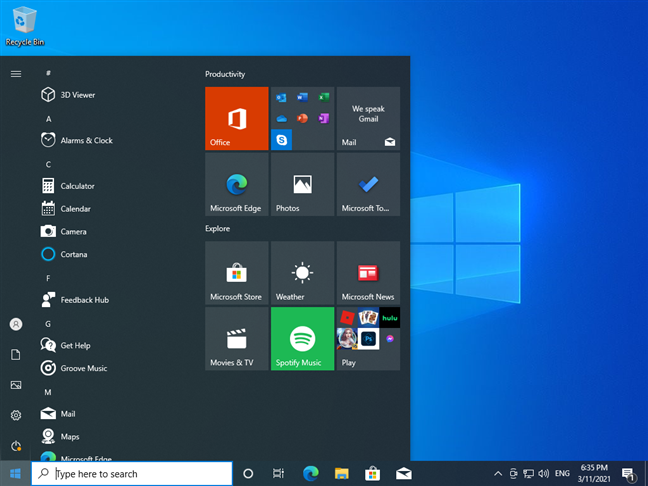
Windows 10 desktop and Start Menu
When you press the Windows key, if your Start Menu is transparent and has a search field inside, and the edges of the taskbar and icons are rounded, then you are using Windows 7.
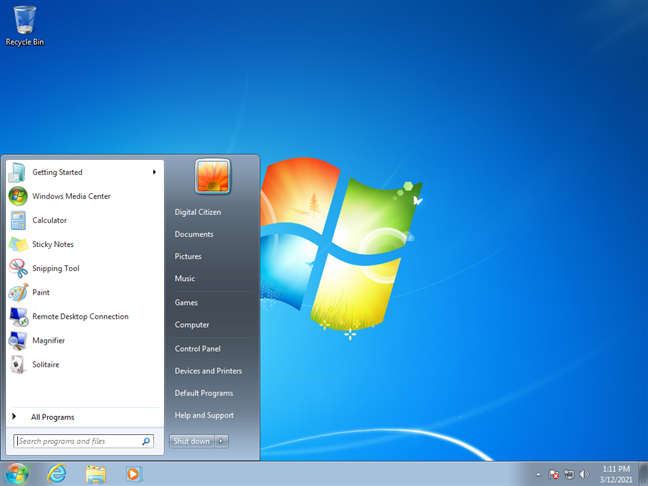
Windows 7 desktop and Start Menu
If you have a Start button on the bottom-left corner of your screen, but it does not open a Start Menu but a Start screen filled with tiles, then you are using Windows 8.1.
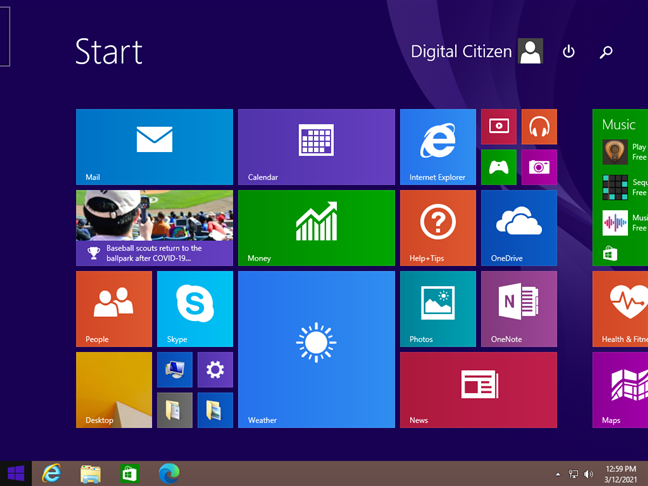
Windows 8.1 desktop and Start Screen
3. How to tell what Windows you have by locking your PC
You can also tell what version of Windows you have just by checking how the lock screen looks. The fastest way to lock your PC is to simultaneously press the Windows + L keys on your keyboard. If you are using a Windows tablet, you can also press the Power button twice to do the same.
If your lock screen shows the time and date at the upper center of your monitor, while some system icons are in the bottom right corner, like in the next screenshot, it means that you have Windows 11.
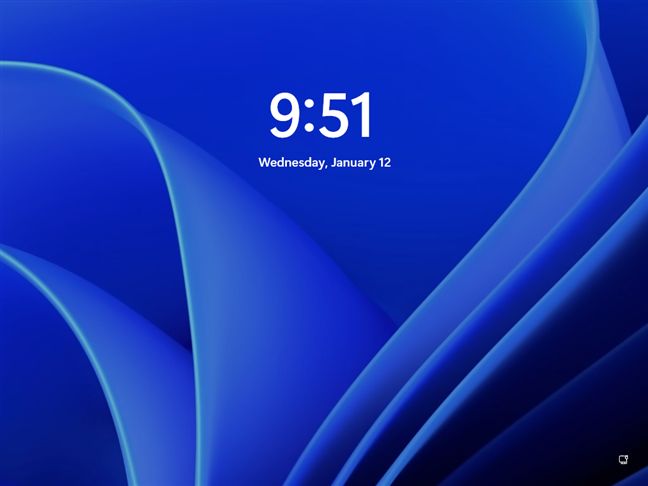
Windows 11 lock screen
If the lock screen looks similar to the one in the screenshot below, with a beautiful wallpaper image, and the icons for network and battery on the bottom-right side, and the time and date on the bottom-left, then you are most likely using Windows 10.

Windows 10 lock screen
If the lock screen looks like the one below, it is evident that you are using Windows 7. Windows 7 even tells you what edition you have at the bottom of the screen.
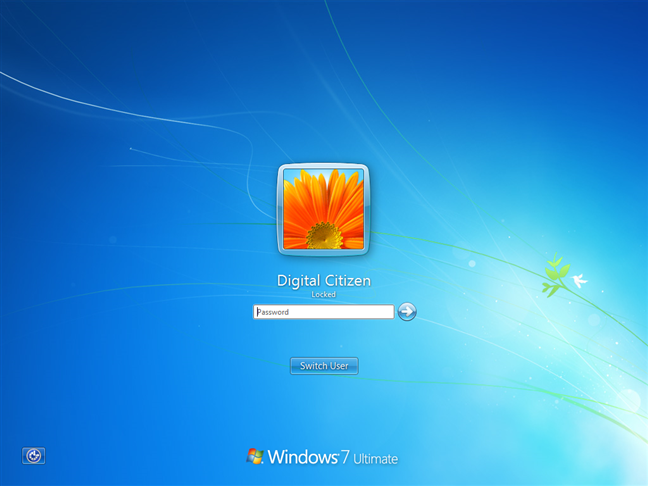
Windows 7 lock screen
If your lock screen looks similar to the one below and the network and battery icons are shown in the bottom-left corner, then you are using Windows 8.1.
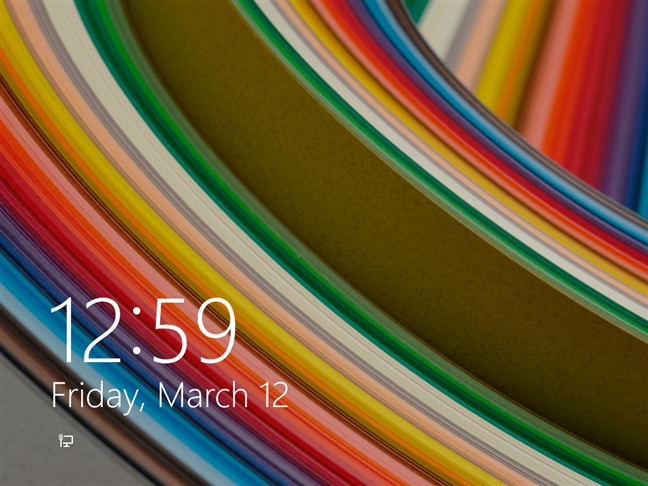
Windows 8.1 lock screen
4. How to check what Windows version you have by running the winver command
To find which Windows edition you have, you can also use the winver command. There are several ways in which you can run this command:
Press the Windows + R keyboard keys to launch the Run window, type winver, and press Enter.
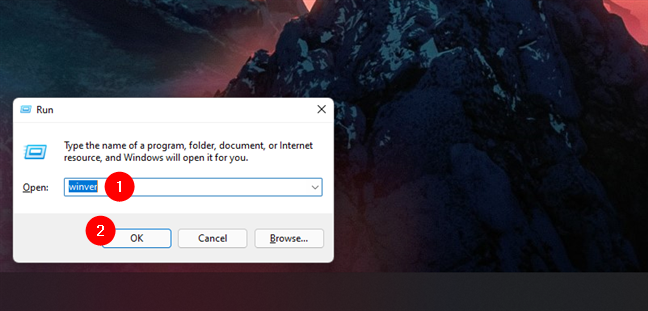
winver command in Run
Open Terminal, Command Prompt (CMD), or PowerShell, type winver, and press Enter.
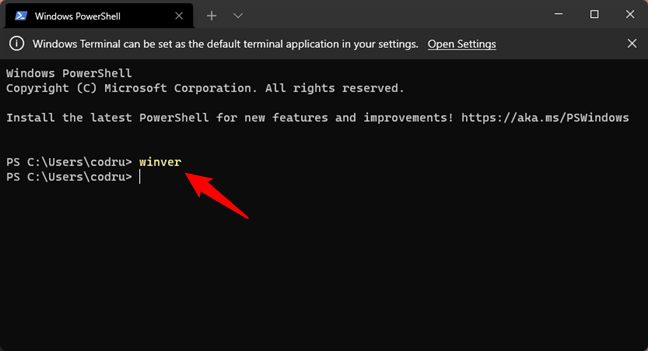
winver command in Terminal
You can also use the search feature to open winver.
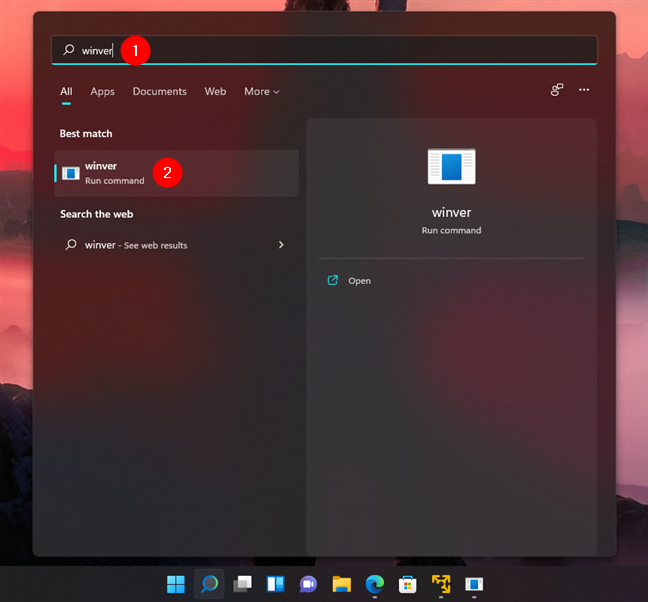
winver command in Search
Regardless of how you choose to run the winver command, it opens a window called About Windows. This shows you the operating system that you’re using, Microsoft's internal version of the operating system, and the Windows edition that you own.
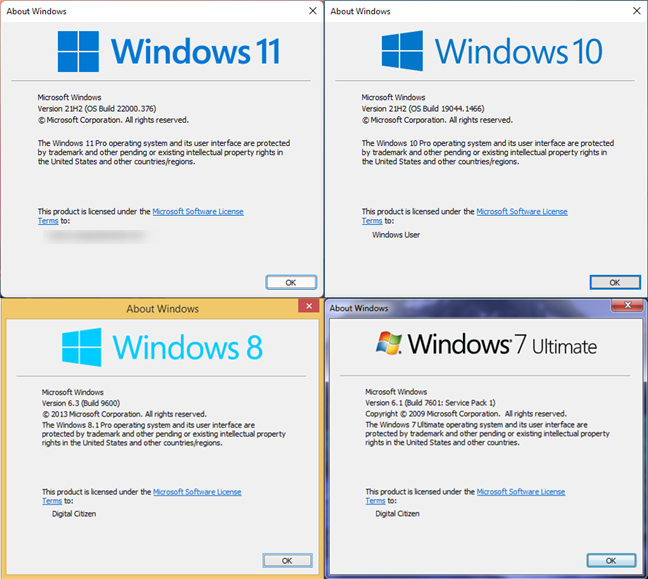
winver command: About Windows
5. How to find the Windows you have from the System page
All the specifications of the operating system that you are using are located on the System page. There are several ways to get there. The fastest way to get to the System window is to press the Windows + Pause/Break keys on your keyboard.
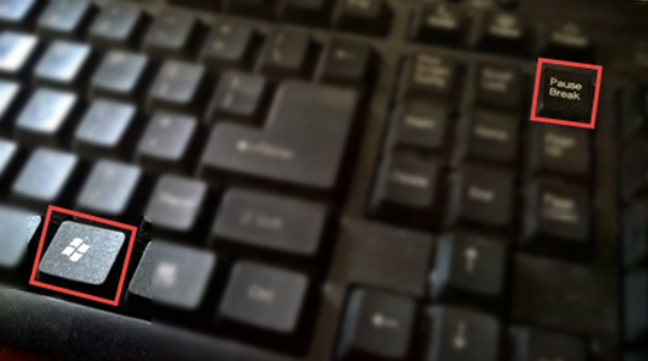
Win + Pause (Break)
If you’re using Windows 11 or Windows 10, this brings up the Settings app and takes you to the System page. There, you can see details about your PC, including Windows specifications.
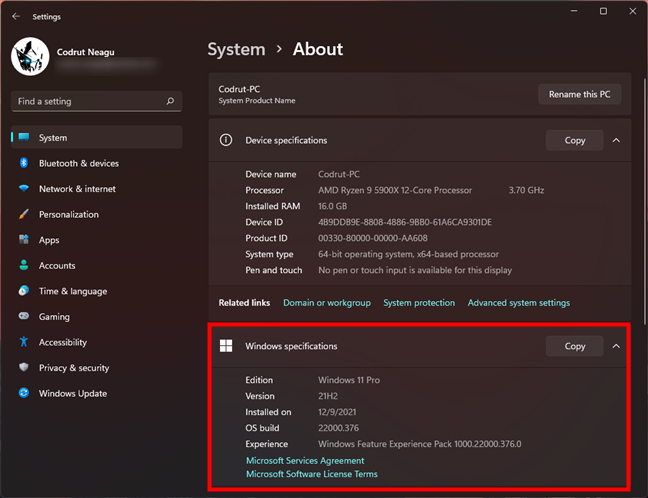
Windows specifications in the Settings app
If you’re using a different Windows version, like Windows 7 or Windows 8.1, the Win + Pause keyboard shortcut brings up the System window from the Control Panel. Except for a few minor visual differences, the System window is identical and displays the same information, regardless of what Windows you have.
In the Windows edition section from the top of the window, you get to see what Windows version you have and what edition you’re using.
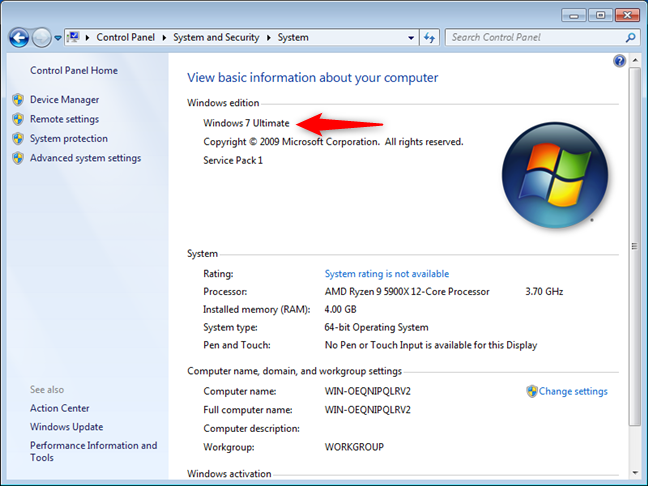
Windows information in the Control Panel
6. How to tell what Windows you have using the System Information app
The System Information app offers another easy way to find out what Windows you have. Open it and check the first line from the System Summary: it should tell you the name of the Windows operating system you use.
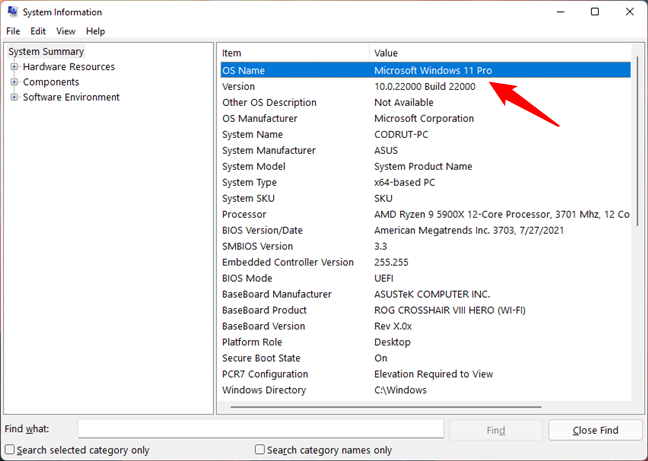
OS Name in System Information
The System Information tool offers a lot of details about the system, not just the name of the OS. If you want to learn more about it, read: How to see details about your PC’s hardware and software, using System Information.
7. How to tell what Windows you have using DirectX
Another tool that’s surprisingly useful if you want to find out what Windows you have is Microsoft’s DirectX Diagnostic Tool. Open it either by using the search or by running the dxdiag command in CMD or Run (Win + R). After it opens, check the System Information area from the System tab - it tells you what Windows you have, including its edition and build number.
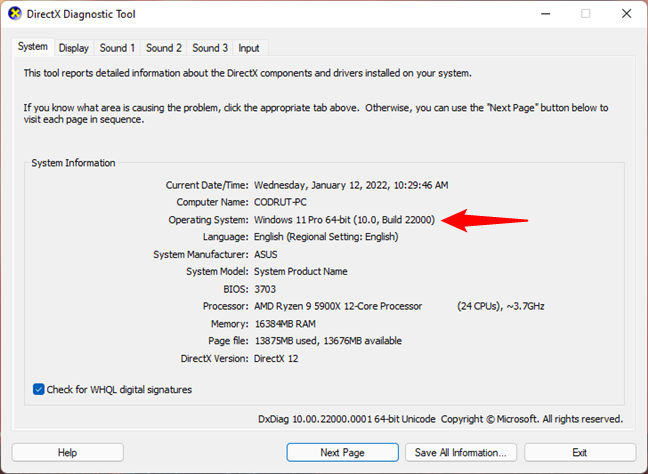
Operating System information in DirectX Diagnostic Tool
8. How to check your Windows version in cmd (Command Prompt)
Another simple yet non-intuitive method of finding out what Windows you have is offered by Command Prompt, and it doesn’t even require you to run a command - you just have to open it. Before anything else, Command Prompt tells you the version of Windows you use. If it shows Version 10, then you have Windows 11 or Windows 10. If the third group of numbers is 22000 or higher, then you have Windows 11.
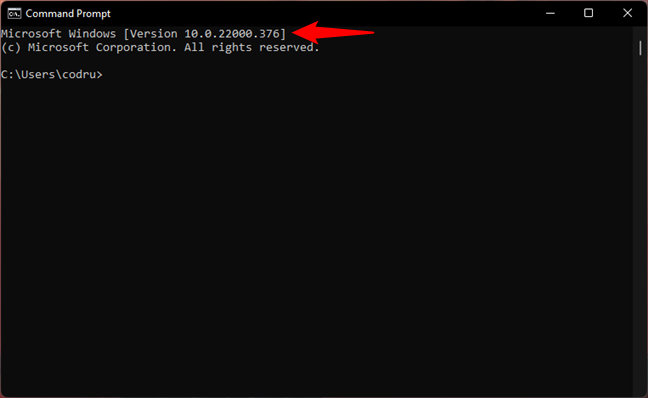
Windows 11 is shown as Version 10 build 22000 or higher in Command Prompt
If the third group of numbers shown in Version is below 22000, like 19000 or 18000-ish, then you’re using Windows 10.
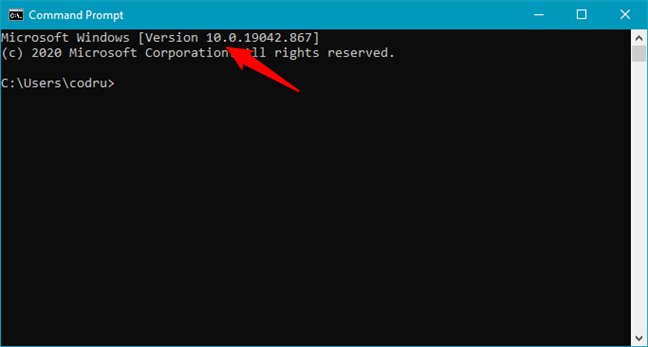
Windows 10 is shown as Version 10 and build number below 22000 in Command Prompt
If you see cmd display Version 6.1, then you have Windows 7.
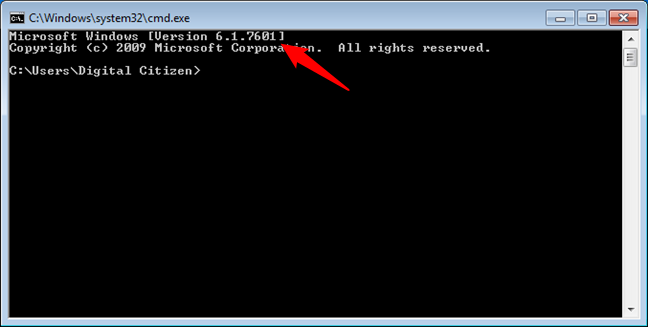
Windows 7 is shown as Version 6.1 in Command Prompt
If Command Prompt shows Version 6.3, then you’re using Windows 8.1. If it shows Version 6.2, you’re using Windows 8.
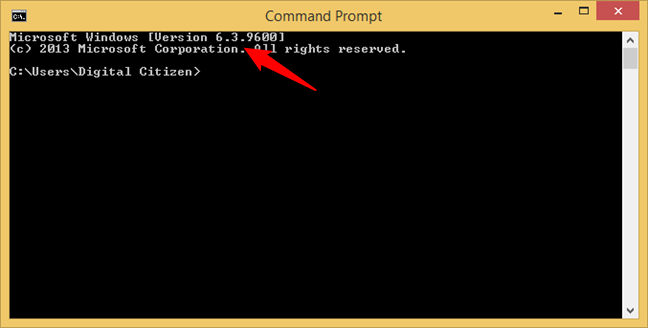
Windows 8.1 is shown as Version 6.3 in Command Prompt
9. How to find what Windows you use with the systeminfo command (in Terminal, Powershell, or Command Prompt)
One other way to check the Windows version in cmd is to take advantage of the systeminfo command. Although you could just run this command and look for the information you want, it would be easier to pipeline all that data to a search for the term “OS,” like this:
That gives you only a few lines of data, and the first one tells you what Windows you have.
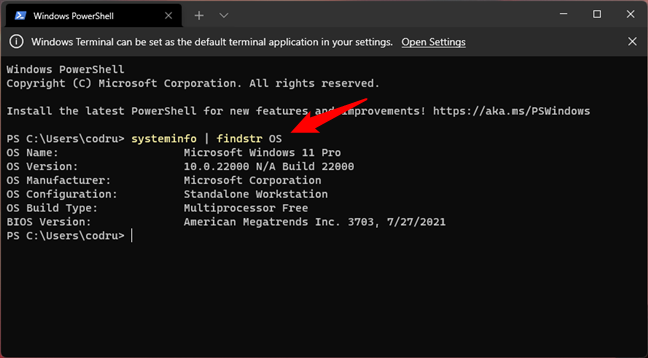
How to tell what Windows you have using commands
10. How to tell what Windows you have using Registry Editor
If none of the previous methods suits you, you might prefer using Registry Editor to find out what version of Windows you have. Open Registry Editor and follow this path:
Then, on the right side of the window, the ProductName key tells you what Windows you use.
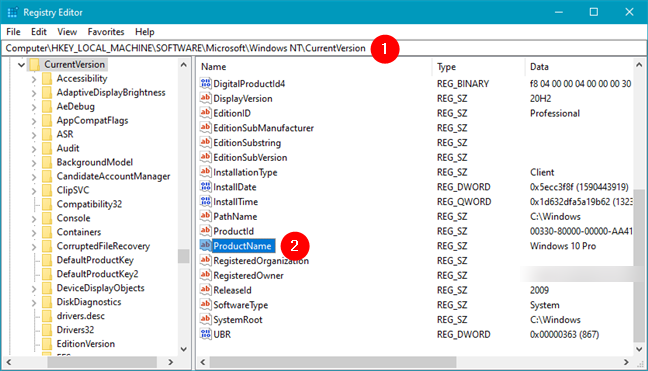
How to tell what Windows you have: ProductName in Windows Registry
Unfortunately, this method is reliable only for Windows operating systems before Windows 11. If you’re using Windows 7 or Windows 8.1, it is accurate. However, the ProductName key from the Windows Registry has the same Windows 10 value regardless of whether you have Windows 10 or Windows 11. In this case, you’ll need to also look at other keys to correctly identify your operating system. For example, check the BuildLab from the same registry location. If its value is 22000 or higher, then you’re using Windows 11. Otherwise, you have Windows 10.
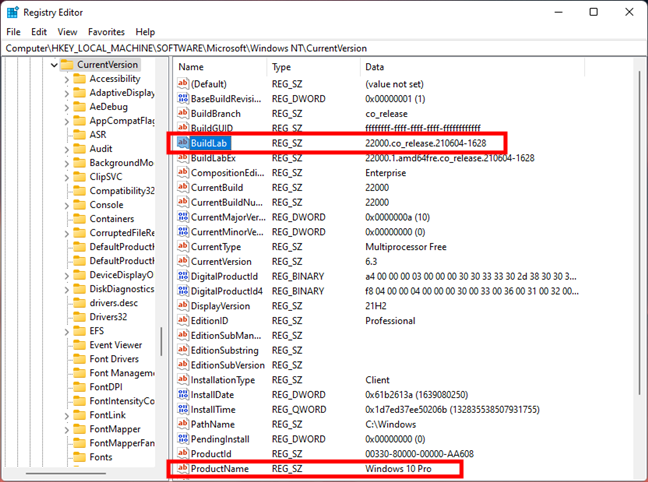
How to properly identify whether you have Windows 11 or Windows 10
11. How to tell what version of Windows is installed on a hard drive without booting it?
What if you have a hard drive on which there was a Windows operating system installed, but you don’t know what version? What if it can’t boot, but you need to know what Windows is on it. The easiest way to find out is to check the license.rtf file from the “Windows -> System32” folder.
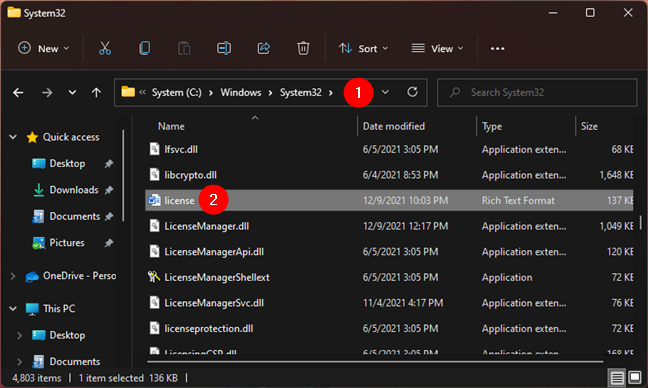
license.rtf in Windows > System32
Open it using WordPad or any other text editor you prefer. With the exception of Windows 11 and Windows 10, license.rtf should tell you what Windows you have on its first page. In the screenshot below, you can see what it looks like if you’re using Windows 7.
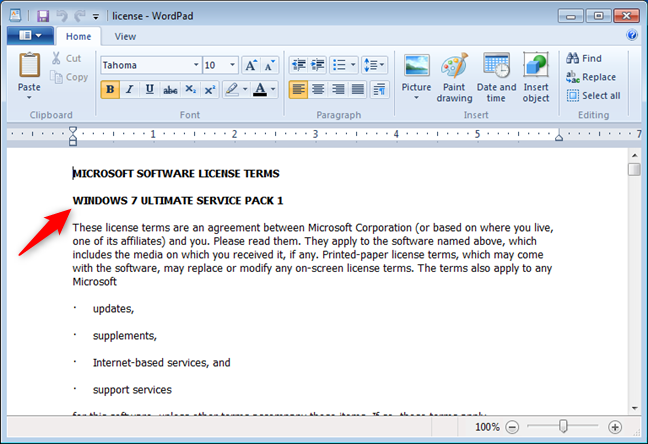
license.rtf showing that you have Windows 7
If you’re using Windows 11 or Windows 10, the license.rtf file doesn’t specify the Windows version you have. This lack of information is actually useful information: if it doesn’t say anything about the Windows version, you either use Windows 11 or Windows 10. Furthermore, to accurately know what Windows you have, you can check the date when the license terms were last updated. If the date is June 2018, you can tell that you have Windows 10.
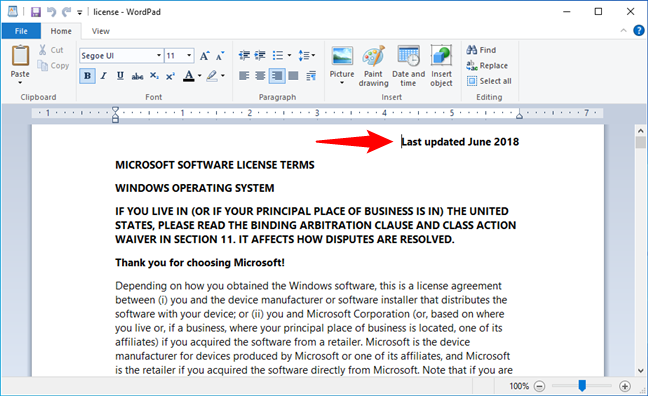
license.rtf showing that you have Windows 10
If the date is June 2021 or newer, you have Windows 11.
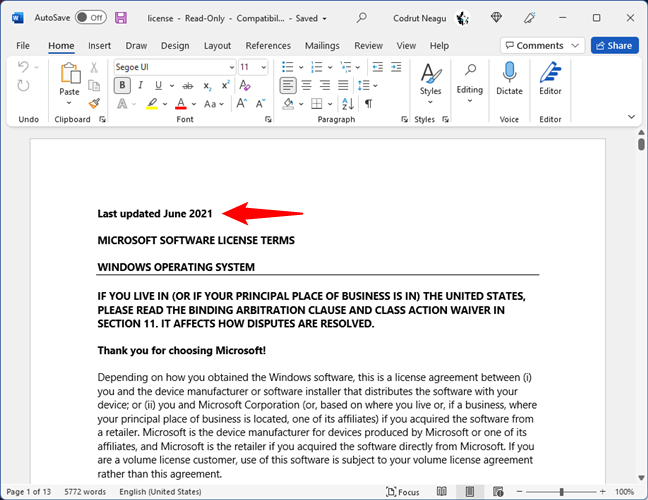
license.rtf showing that you have Windows 11
What Windows do you have?
Now you know quite a few different ways to find out what version of Windows you are using. Before closing this guide, share with us in a comment below the version of Windows that you use. We are curious to see which version is the most popular with our readers. Comment and let’s discuss.