When you press the wrong key on a Windows PC, when an error dialog pops up or when you use the volume control, you hear a beep. After doing this a couple of times, that beep can get quite annoying. Therefore, in this tutorial, we will show you how to disable the system beep sound in all modern versions of Windows, to make sure that it remains silent and it doesn't bother you anymore. As you will see, there are two ways you can do this, both methods being relatively simple.
NOTE: This guide applies to Windows 7, Windows 8.1 and Windows 10. The procedure that applies to Windows 8.1 and Windows 10 is found on the second page of this tutorial.
Method 1: Disable the system beep using the Device Manager (Windows 7 only)
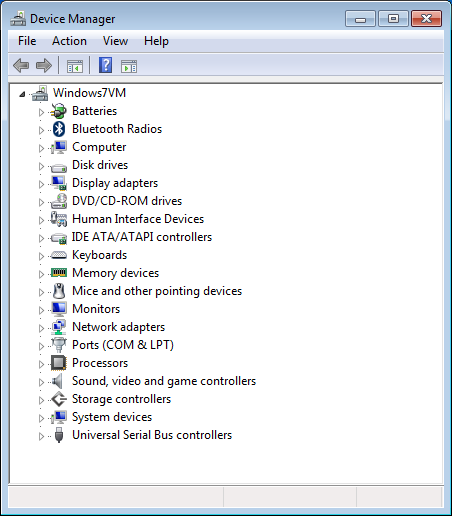
The first method is to use the Device Manager tool. If you want to learn more about this tool and how to open it, read this detailed guide: Find Missing Drivers & Hidden Devices in Windows with Device Manager.
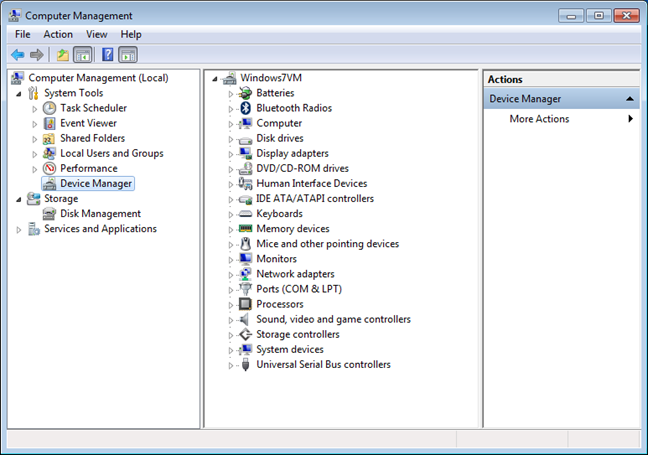
Alternatively, you can open Computer Management and then click on "Device Manager" in the left column.
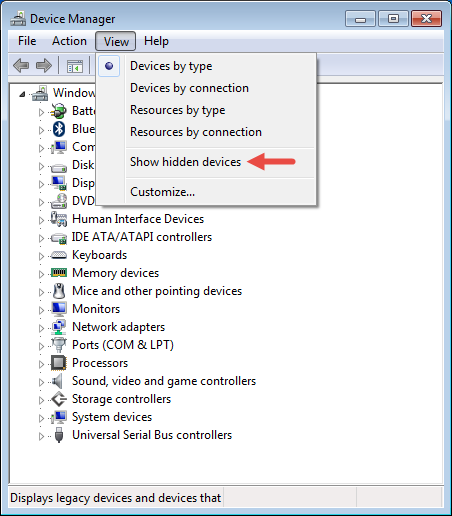
When the "Device Manager" is opened, click the View menu and select "Show hidden devices".
If this setting is not enabled, you will not be able to view the Beep as a device and disable it.
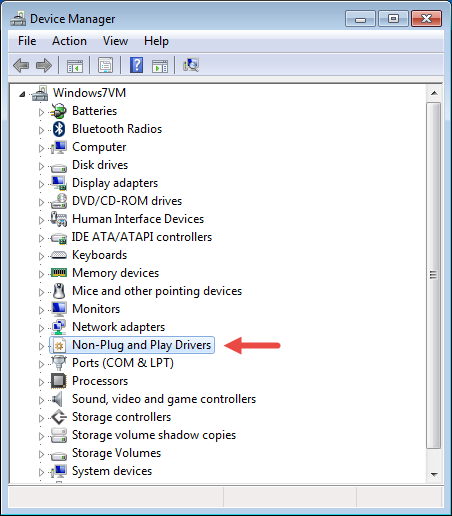
In the list of devices, look for the "Non-Plug and Play Drivers" category.
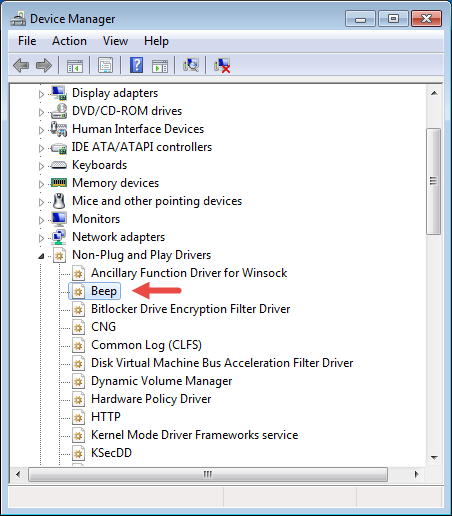
Expand it and find the Beep. Double click on it or right click and select Properties.
In the "Beep Properties" window, go to the Driver tab.
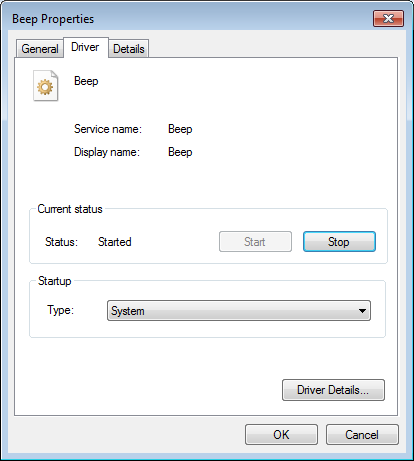
In the Startup section, click and then scroll down the Type list. Select Disabled and click OK.
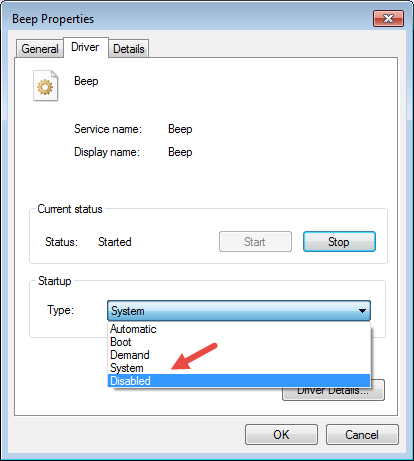
Restart Windows 7 and the system beep is now disabled. If you want to stop it right away, click the Stop button in the Current status section, before closing the Beep Properties window.
Method 2: Disable the system beep from the Control Panel (Windows 7, Windows 8.1 and Windows 10)
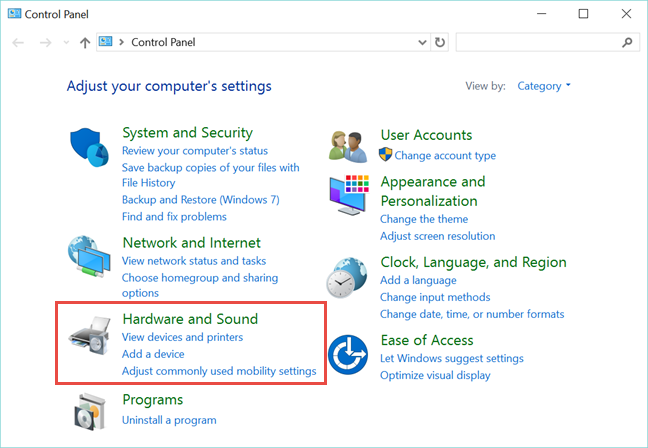
Open the Control Panel and go to Hardware and Sound. Here are some guides that share all the ways in which you can open the Control Panel:
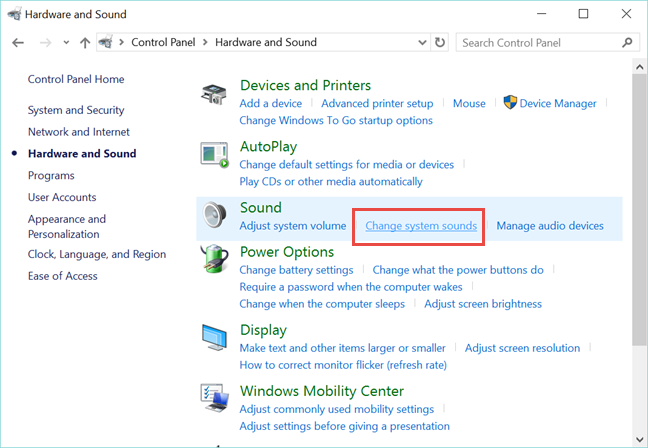
In the Sound category, click or tap "Change system sounds".
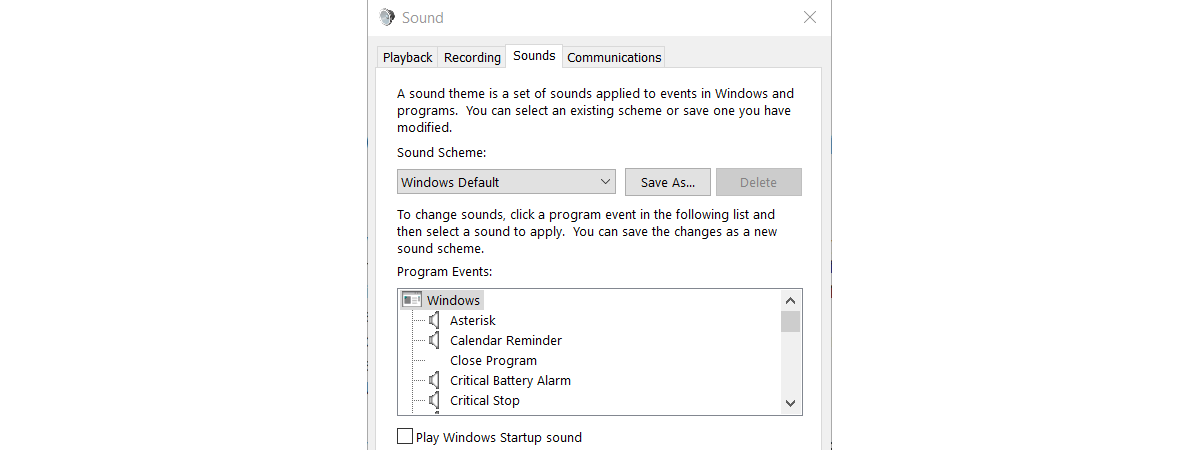
The Sound window is opened. Click or tap the Sound tab and look for the Program Events section.
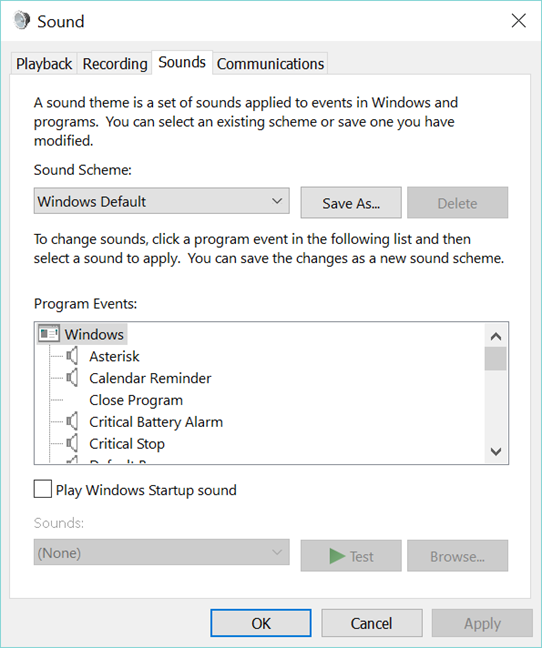
Scroll until you find Default Beep event and select it.
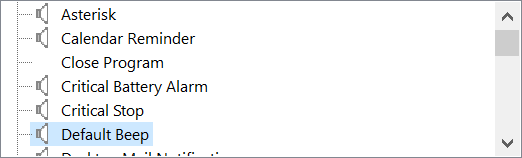
With the Default Beep selected, click or tap the Sounds drop-down list below.
A list with sounds is shown.
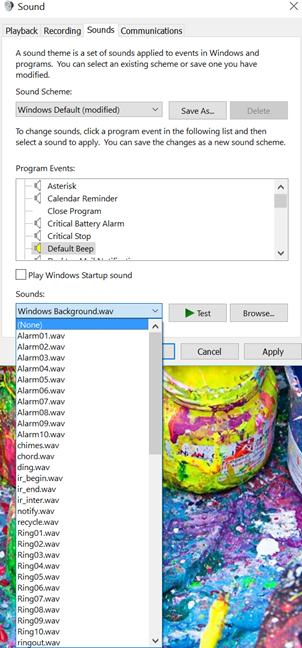
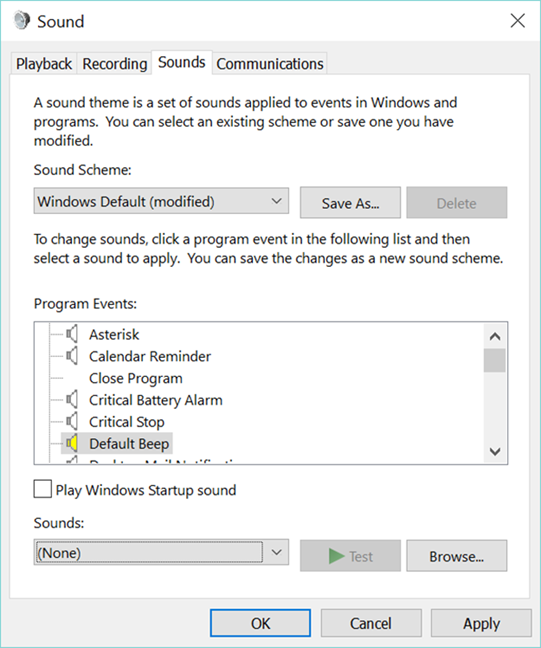
Scroll up that list and select (None). It is the first option in that long list. Click or tap OK and the beep is disabled for the active sound scheme.
If you want to change other elements of the active sound scheme, read this guide: How To Customize The Sound Scheme Used On Your Windows Computer.
If you want to change the sound scheme for a new one, or you want to change the active Windows theme, the system beep may be enabled again. When that happens you have to follow the same procedure again.
Conclusion
As you can see, disabling the system beep in Windows 8.1 and Windows 10 is harder than it was in Windows 7. Also, in Windows 7, once disabled, the system beep remained disabled until you manually enabled it again. This is not the case in Windows 8.1 and Windows 10. In these operating systems, each time you change the Windows theme or the active sound scheme, the system beep might be enabled again and you need to disable it manually once more. If you have any questions or issues about the procedures detailed in this guide, let us know using the comments form below.