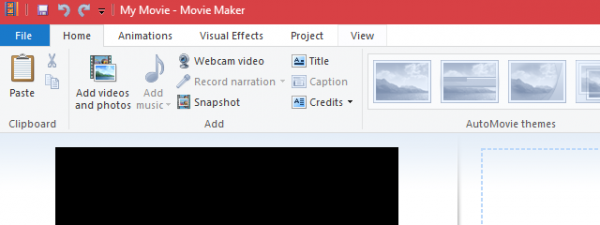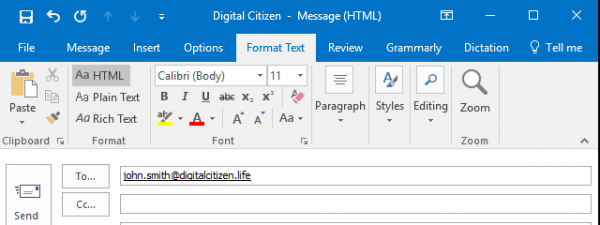
Windows Essentials, also known as Windows Live Essentials, used to be a suite of useful Windows programs that were developed by Microsoft. The suite was free and included apps for e-mail management, instant messaging, photo management and sharing, blogging, and parental controls. Although Windows Essentials have evolved a lot over the years, in the end, they suffered the same unfortunate fate as dinosaurs: they've gone extinct. In other words, Microsoft decided that they are obsolete and that there's no point in maintaining them. Although you can no longer download Windows Essentials from Microsoft, they can still be found in other places on the internet, and you can still use them if you want. Here's where to find Windows Essentials, how to install them and how to start the Windows Essentials apps:
What are (were) Windows Essentials?
Windows Essentials is, or was, a suite of free tools offered by Microsoft to Windows users. The latest version that was developed by Microsoft was called Windows Essentials 2012, and it was released on August 7, 2012. It includes the following applications: Microsoft OneDrive, Mail, Writer, Messenger, Photo Gallery and Movie Maker and Outlook Connector Pack.
Windows Essentials have unfortunately been retired by Microsoft on January 10, 2017. That means that Microsoft stopped maintaining and providing any support for the apps included in the suite. It also means that you can no longer download this software suite from Microsoft's websites. However, as you'll see later in this article, there are still places where you can find Windows Essentials on the web.
Things that stopped working in Windows Essentials
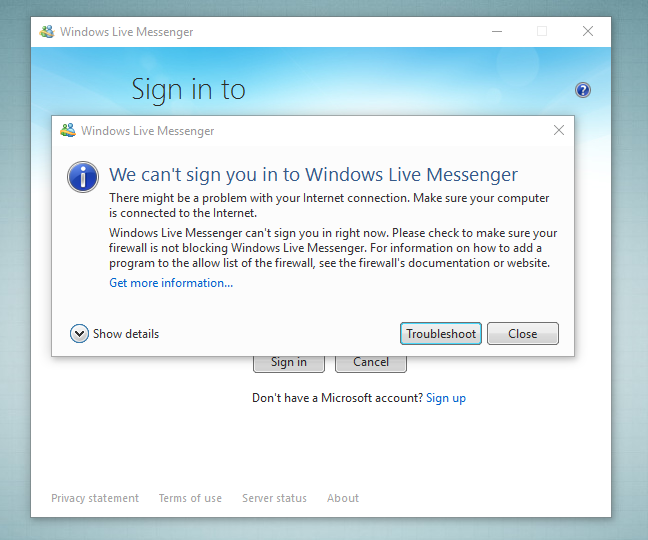
Messenger has been phased out, so you should not install Messenger as you can no longer use it. Instead, consider using Skype, as Microsoft continues to work hard on adding new features and making it better than ever before.
OneDrive can be installed if you use Windows 7. However, you should consider using the latest version that Microsoft provides here. In Windows 10 and Windows 8.1, OneDrive is already built into the operating system, and you should use the version you get with it.
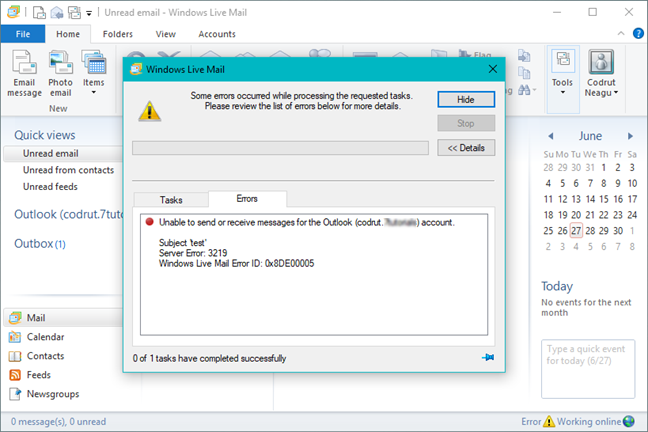
Windows Live Mail - the simple email client included in Windows Essentials - can't be used with an Outlook.com account out of the box. To make it work, you must configure your account using the IMAP or POP3 protocols.
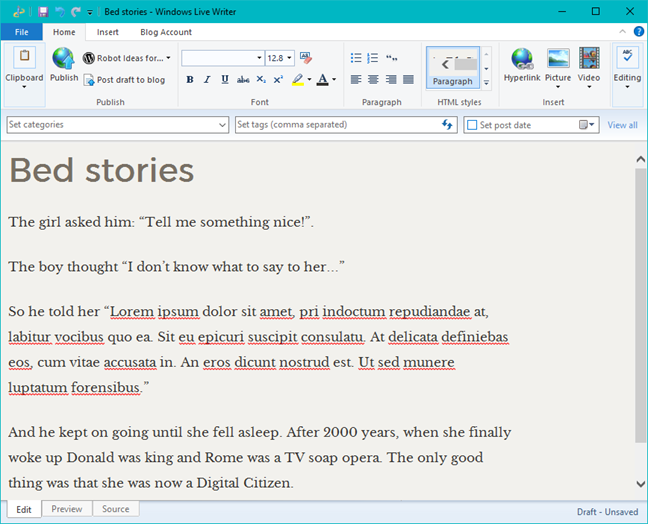
Windows Live Writer, a tool that can be used to write articles and publish them to the web, straight from your desktop, on blogging platforms like WordPress, Blogger or TypePad, no longer works with Blogger. However, Microsoft released the source code for Windows Live Writer, and it's now maintained by a dedicated community, under the name of Open Live Writer. You can find the official website here: openlivewriter.org. If you want to use Writer, we strongly recommend you to use this new version instead of the one found in the original Windows Essentials.
What are the system requirements for running Windows Essentials?
Before downloading and installing Windows Essentials, you should make sure that your computer meets the minimum requirements: Windows 10, Windows 7, Windows 8.1 or Windows Server 2008 R2 installed, a minimum 1.6 GHz processor, 1GB of RAM or more, a display with a minimum resolution of 1024x576 pixels. To use Movie Maker, you should also have a video card that supports DirectX 10 or higher and Shader Model 2 or greater. If Windows runs fine on your computer, with all its visual features enabled, then you should have no problem running the applications included in the Windows Essentials suite.
Where to download and how to install Windows Essentials
To download the setup file, you must search the internet and find a safe location from which to get it. One good place that we checked is WinAero. All the links are valid, and all the files are safe, as our scans with Kaspersky confirmed.
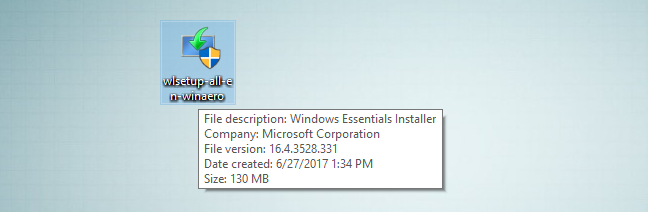
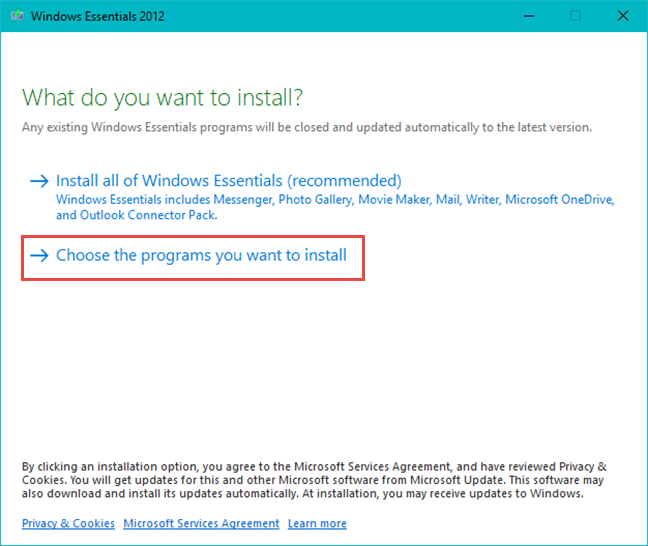
Once you download the installer file, double click or double tap on it to run it. You can then choose to either install all the Windows Essentials tools or select a particular subset, according to your needs.
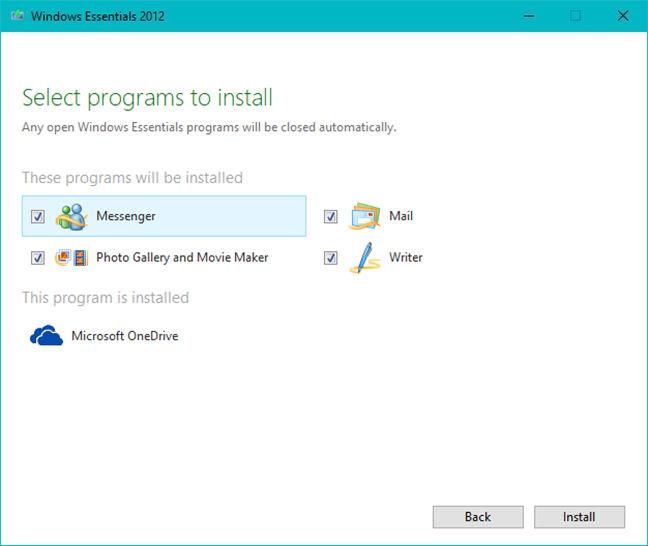
Considering that the Windows Essentials suite includes Windows Live Messenger, which is an application that was phased out, you should always go for the second option: "Choose the programs you want to install."
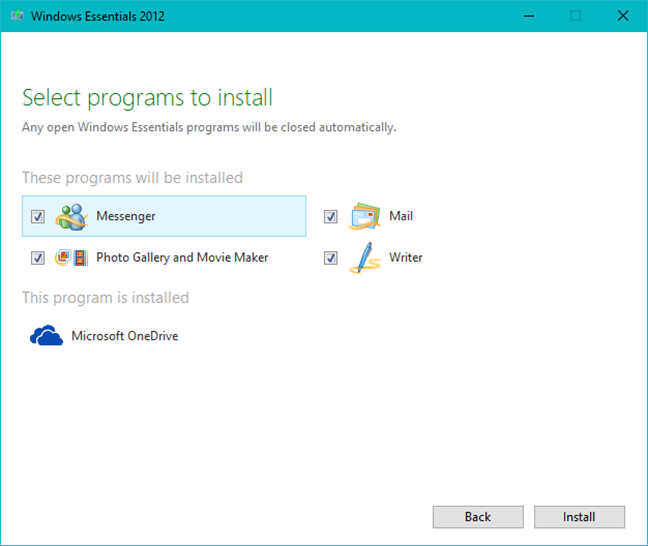
You will then see a list with all the available programs. If you want to install a program, check the box near its name. Notice that Photo Gallery and Movie Maker are bundled together. You cannot install them separately. Press the Install button after you have selected the applications that you want to be installed.
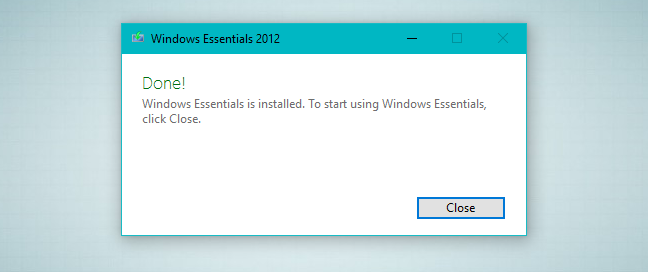
Next, a progress window is displayed. The installation process can take longer if you have opted to install many programs. When done, click or tap Close. You can start using the apps included in Windows Essentials right away, no computer restart needed.
If you have chosen to install Windows Live Messenger, even if this program was phased out by Microsoft, you will also be asked to enter your Microsoft account details, so that you can sign in.
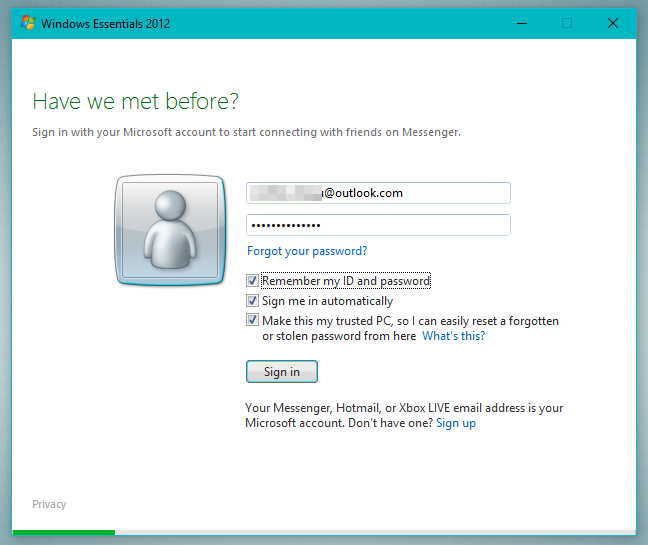
Unfortunately, because Microsoft closed off all the servers that were maintaining instant messages communications for Messenger, you won't be able to connect to your account. All you can do is close the app.
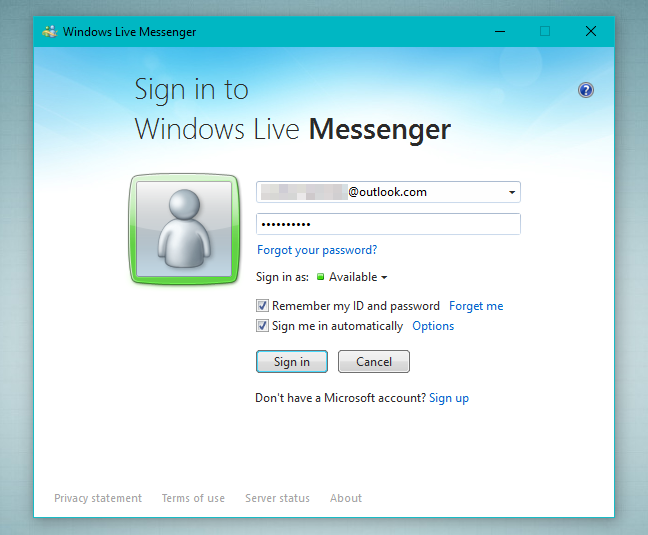
Now you can start using the other applications that you have installed.
How to start Windows Essentials programs
The shortcuts for the programs included in the Windows Essentials suite are displayed directly on the root of the Start Menu, in Windows 10 and Windows 7, or in the Apps view from Windows 8.1. There's no special folder created for them.
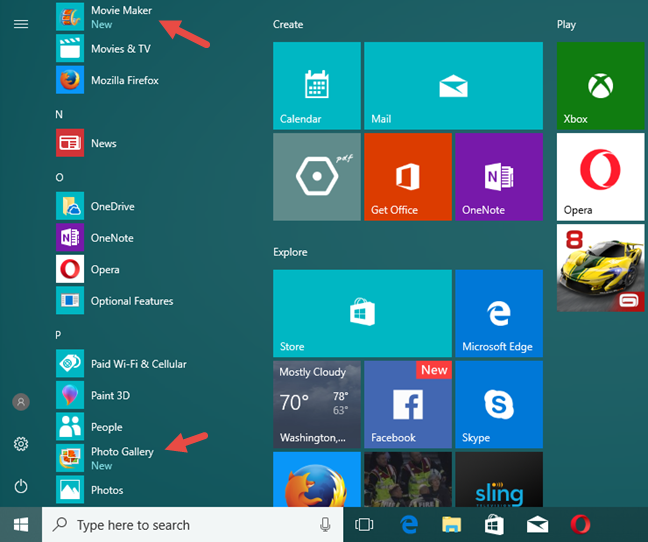
Let's see how to launch a program, by using Photo Gallery as an example.
The fastest way to open this app in Windows 10 is to use the search function offered by Cortana. Type the word photo in the search field on the taskbar and then click or tap on Photo Gallery.
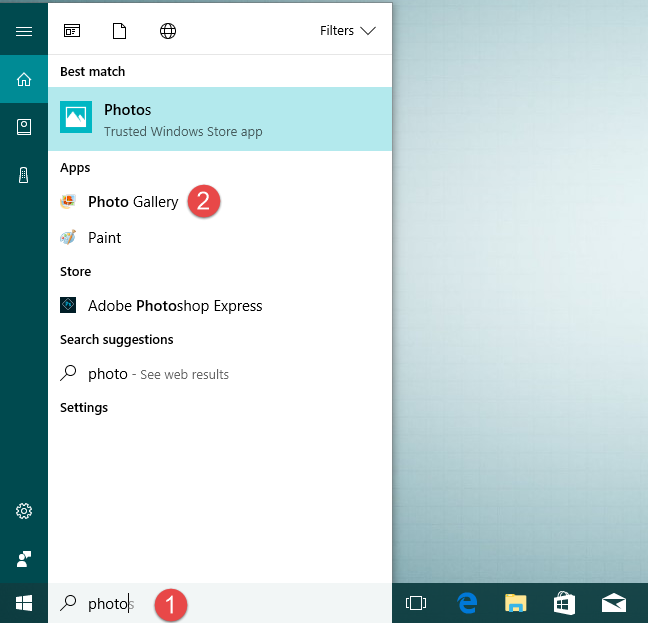
The quickest and easiest way to open Photo Gallery in Windows 7, is to type the word photo in the Start Menu search box and then click on the Photo Gallery shortcut.
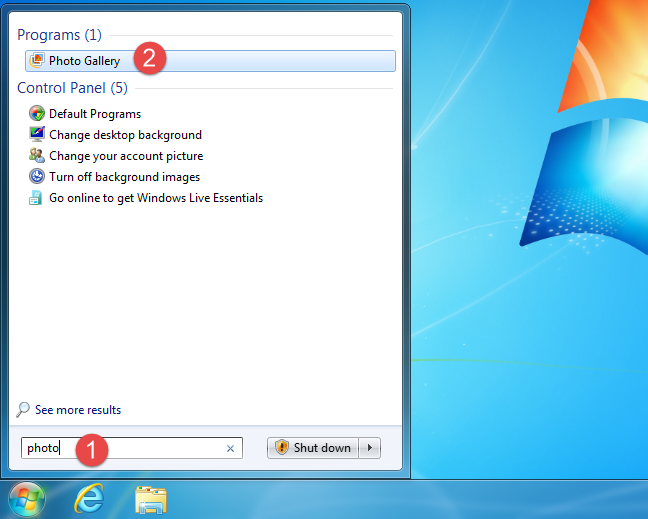
In Windows 8.1, type photo on the Start screen and the appropriate result is displayed in the list of search results.
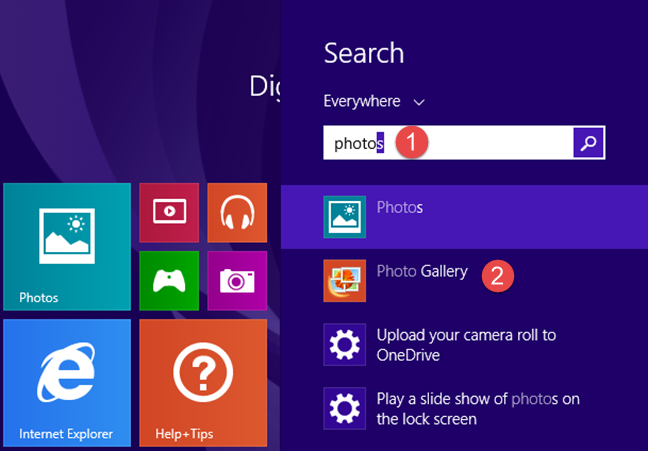
The same process can be used to launch any application from this suite. Also, if you want to use them frequently, it is a good idea to pin them to the Start Menu (in Windows 10 and Windows 7) or the Start screen (in Windows 8.1).
Conclusion
Now you know more about the Windows Essentials suite and its unfortunate fate. It is extinct, but parts of it are still useable. One could say that it resembles democracy :). If you decide to use it still, don't hesitate to browse through our website and find useful tutorials to guide you in these programs. If you have any questions or problems about this suite, do not hesitate to use the comments form below.