Windows Update is an essential part of Windows that is permanently improving the operating system and the quality of your user experience. After using your computer for a long time, you will end up with plenty of updates installed. If you want to find information about them, when they were installed and what they do, you can review all your installed updates. Also, you can restore those updates that you have hidden at some point. This tutorial will share how to do both these things:
NOTE: All the operations presented below are done from the Windows Update window. If you don't know how to access it, please read this guide: Check for Windows Updates, Learn What They Do & Block Those You Don't Need. This guide applies to both Windows 7 and Windows 8.1.
How To Review Your Windows Update History
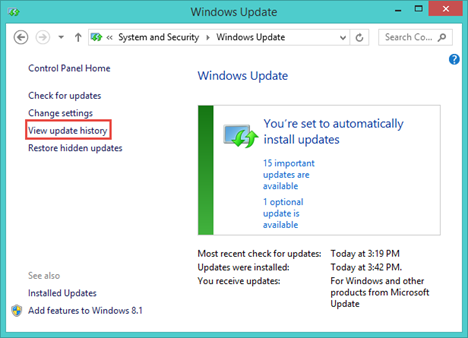
If you want to check the list of updates that were installed on your computer, when and how important they were, follow the steps in this section. After you open the Windows Update window, click or tap "View update history".
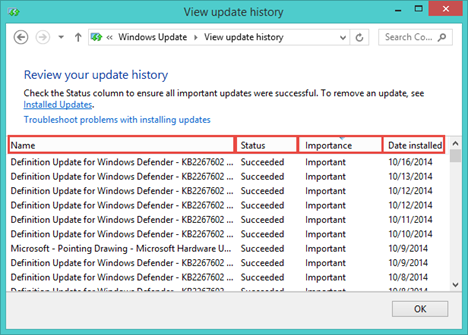
You will see a list with all the updates that were installed. You can use the columns available to sort the updates by their name, status, importance or the date when they were installed. Click or tap the column you want to use and the updates will automatically be sorted.
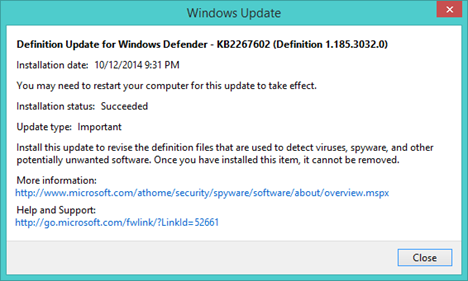
If you want to know more about a certain update, all you have to do is to double click on it and a window with additional information is opened.
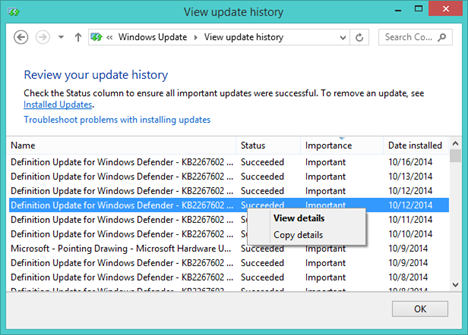
Another way is to right-click or press and hold on that update and press "View details". You can also press "Copy details" from the right click menu and then paste them into a document.
How To Remove Installed Windows Updates
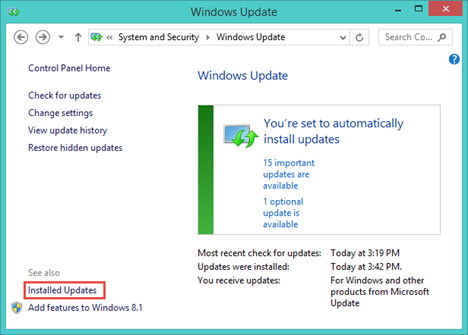
It's possible that some of the updates that you have installed are causing some inconveniences. In this situation the best thing you can do is to uninstall the problematic update. First, open the Windows Update window, then click or tap "Installed Updates".
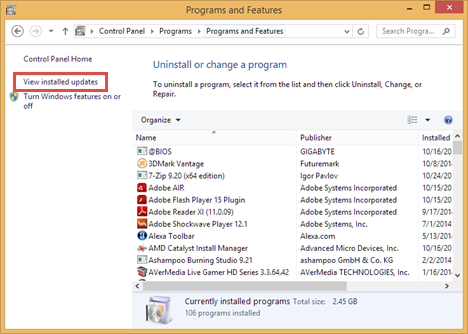
An alternative is to open the Control Panel, click or tap "Programs -> Program and Features" and finally, press "View installed updates".
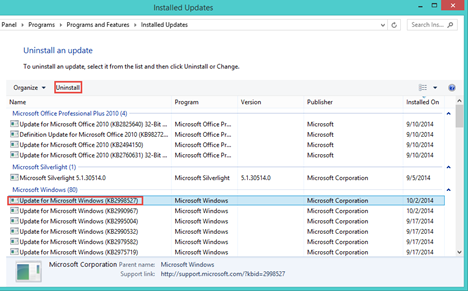
In the Installed Updates window, all the installed updates are split by category. Once you find the one that you want to remove, click or tap Uninstall.
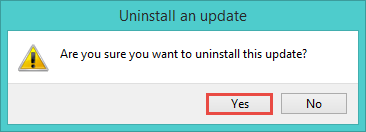
You will be asked to confirm this. Press Yes to proceed.
Then, Windows will start the uninstall process and show a progress bar.
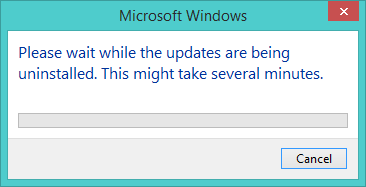
When the uninstall process is complete, you will be returned to the Installed Updates window.
How to Restore Hidden Windows Updates
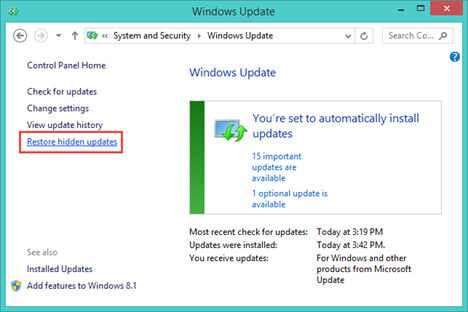
If you have hidden an update to prevent it from installing and then you decide that you want it back, there's a really simple way to make it available again. First, go to the Windows Update window and click or tap "Restore hidden updates" from the left pane.
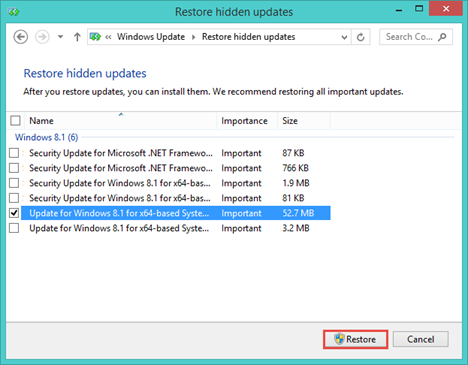
You will now see a list with all the updates that you hid. Check the updates that you want to restore and then click or tap the Restore button.
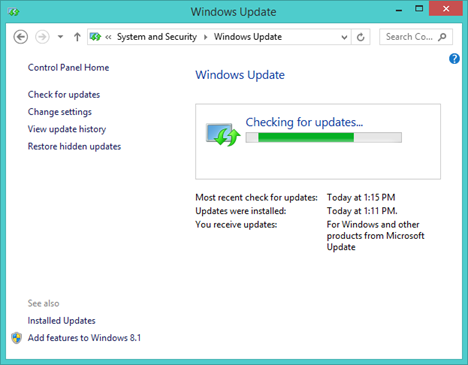
Windows Update will immediately start checking for updates.
When done, the updates that you restored will appear in the list of available updates. You can now install them by following the instructions from this guide: Check for Windows Updates, Learn What They Do & Block Those You Don't Need.
Conclusion
If managing your installed and hidden updates seemed a rather complicated process before now, this guide should have cleared everything for you. If you have any issues or questions, don't hesitate to ask using the comments form below.