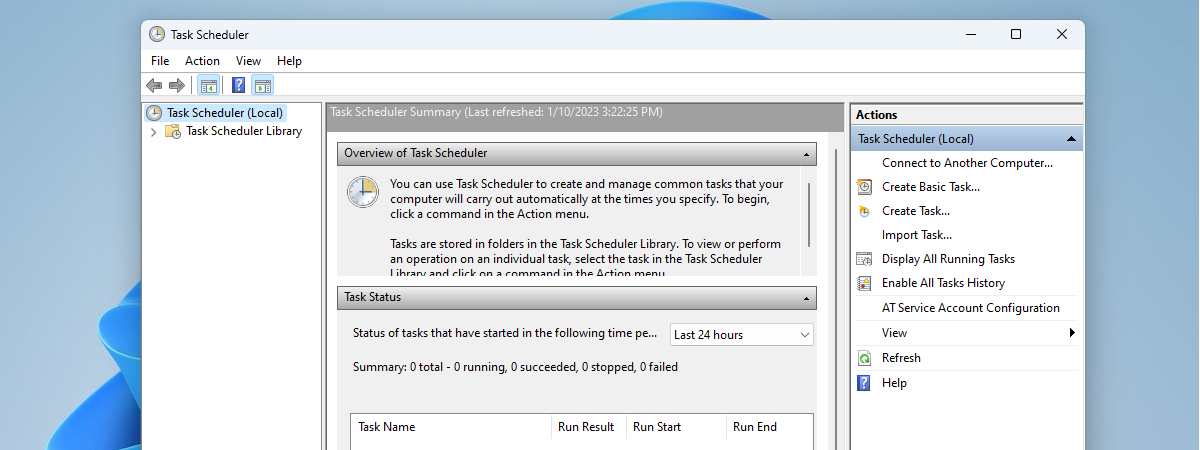
The Favorites in Windows Explorer or File Explorer are an under-appreciated feature, even though they can help boost your productivity. That's why we would like to show how the Favorites work, how they can help you and how to manage them. Let's get started:
What are the Favorites in Windows Explorer or File Explorer?
Favorites are a series of shortcuts that are shown in the left-side navigation panel of Windows/File Explorer, in the section called Favorites. They are always found at the top-left side of the window and they can be easily accessed when working with Windows/File Explorer. Also, your favorites are shown in Save As dialogues that are shown when saving files or downloading files from the web.
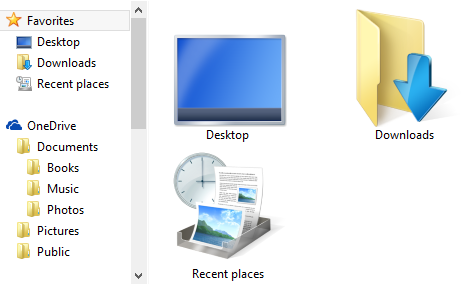
The default shortcuts included as Favorites are: Desktop, Downloads and Recent Places. Shortcuts can be added to this section by you and your installed applications.
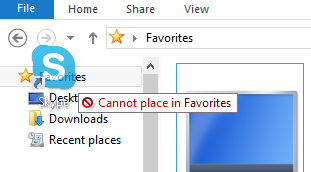
In the Favorites section you can add shortcuts only to folders, libraries and drives on your computer. You cannot add shortcuts to programs or files, for example. If you try to do this, you will see a message saying: "Cannot place in Favorites".
How to Create a New Favorites Shortcut
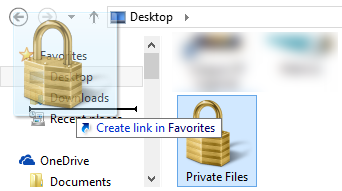
Adding new shortcuts in the Favorites section can be done in multiple ways. One way is to open Windows/File Explorer and browse to the folder, library or drive you want added. Then, select and drag it to the Favorites section. When you see a message saying "Create link in Favorites", release the folder and the shortcut is added.
Another way is to browse to the location you want added, then scroll up to the Favorites section without making any clicks on other locations. Right click or press and on hold on Favorites. A contextual menu is shown, similar to the one shown below. Click or tap the "Add current location to Favorites" section and you are done.
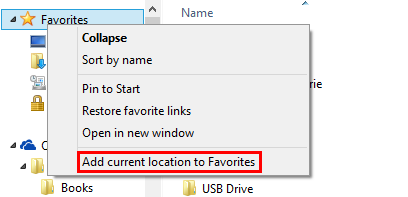
A third way is to Create a shortcut to the location you want to have in your Favorites and then move the shortcut to the Favorites section.
How To Manage Your Favorites From Windows Explorer or File Explorer
You can customize your list of Favorites in several ways. First, you can change the order in which you want to view your favorites. On the left-side navigation bar, simply drag and drop the shortcuts in the order you want to use. When doing this you see a message saying "Move here". If that's the position you want a shortcut to be in, release the shortcut and it is moved.
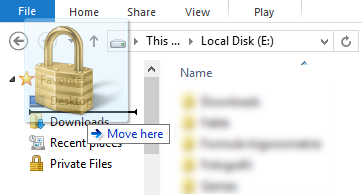
You can also customize the icon of each shortcut. This is explained in one of our previous tutorials: How To Change the Icon of a Shortcut.
Removing shortcuts is done with ease. Simply right click or press and hold the shortcut you want deleted and select Remove.
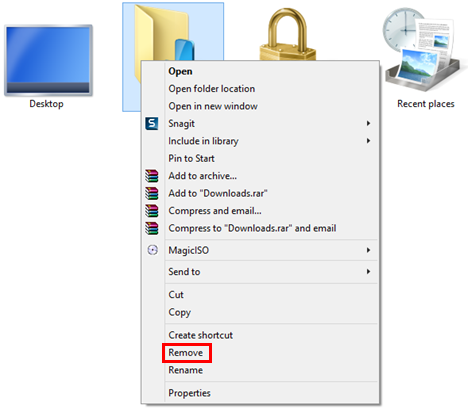
You can also rename shortcuts, just like you would with any other shortcut: right click or press and hold, select Rename, type the new name and press Enter on your keyboard.
How to Restore the Default Favorites in Windows
If you want to restore the default favorites provided by Windows, you can.
Navigate to the Favorites section in Windows/File Explorer. Right click or press and hold somewhere in the empty space available and, from the right-click menu, select "Restore favorite links".
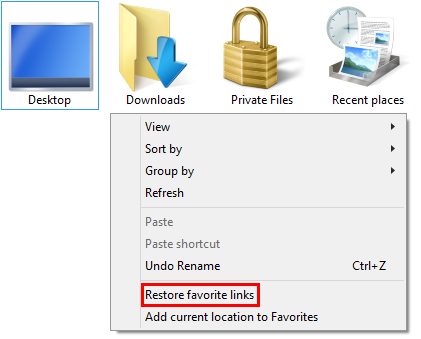
This restores the default favorites that are offered by Windows as well as the favorites installed by your applications.
The shortcuts you have manually created remain as they are. If you want them gone, you have to manually delete each shortcut from your list of Favorites.
Conclusion
Working with Favorites in Windows/File Explorer can enhance your productivity and allow easy access to folders, libraries or drives. Some people might even prefer using Favorites to using libraries. Now that you know how to use this feature of Windows, don't hesitate to try it out and let us know how well it works for you. If you have any questions, don't hesitate to use the comments form below.