In Windows, it’s easy to pin your apps and programs to the taskbar. However, it’s not as simple to pin folders and add shortcuts on the taskbar for the folders you use the most. While there is a way to pin folders to the taskbar, I suspect many users will have lots of trouble figuring it out. If you don’t want to search for an answer on your own, here are the steps you need to pin any folder to the taskbar in Windows 11 or Windows 10:
NOTE: The steps in this tutorial cover both Windows 11 and Windows 10. To showcase all the steps required to pin a folder to the taskbar, and because most of our readers are asking how to pin OneDrive to the taskbar in Windows, I’ll use OneDrive as an example.
Step 1. Create a desktop shortcut for the folder
First, decide on the folder you want to pin to the taskbar. You need to create a desktop shortcut that points to it. Therefore, go to the desktop and right-click or press and hold (if you have a touchscreen) somewhere in an empty space. In the context menu that shows up, choose New and then Shortcut.
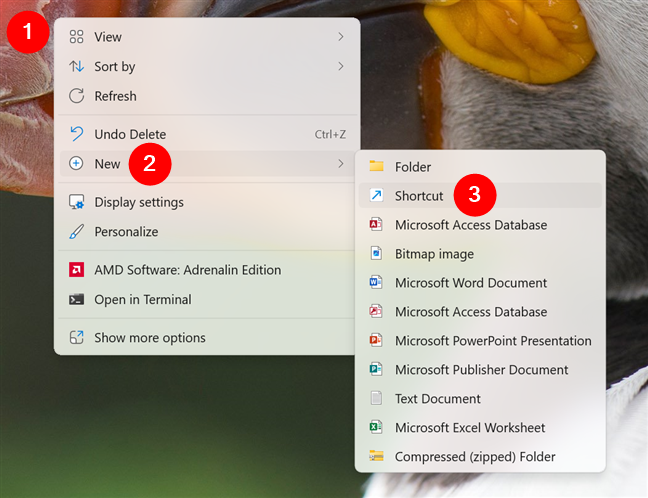
Create a new shortcut
The Create Shortcut wizard opens. Click or tap the Browse button and navigate to the folder you want to pin to the taskbar. After you select it, press OK. As you can see in the next screenshot, I chose to pin OneDrive to my taskbar.
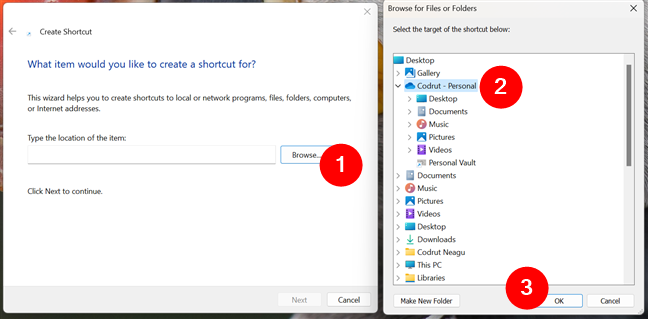
Choose the folder that you want pinned to the taskbar
TIP: If you need more help working with the Create Shortcut wizard, read How to create shortcuts for files, folders, apps, and web pages in Windows.
The wizard places the whole path to the selected folder in the location field. Don’t click or tap Next! Before that, you must type the word explorer, followed by a space, just before the folder’s path. Don’t type “C:\explorer” or something else, and don’t forget the space; otherwise, the procedure won’t work. Look at the next screenshot and follow the same approach. Only then, press the Next button.
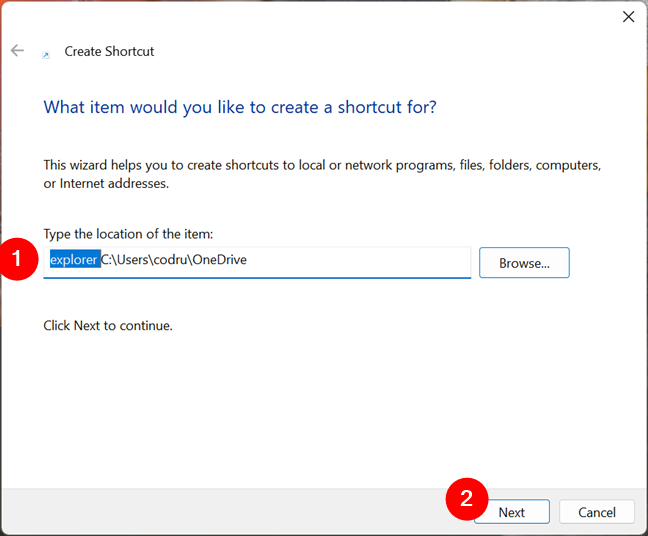
Type explorer and add a space in front of the folder
You’re asked to enter the name of this shortcut. I recommend changing its default name to a personalized one, indicating what folder is opened when you use the shortcut. After you type the name, press Finish.
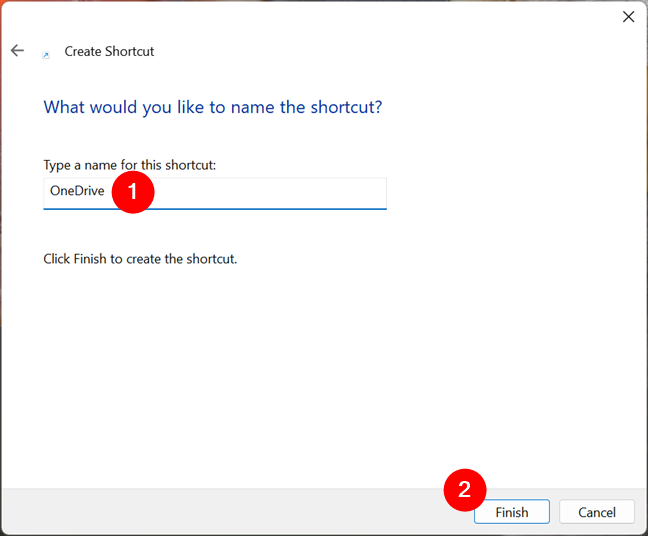
Choose a name for the folder's shortcut
The shortcut is now created on your desktop, but its icon is the same as that of File Explorer.
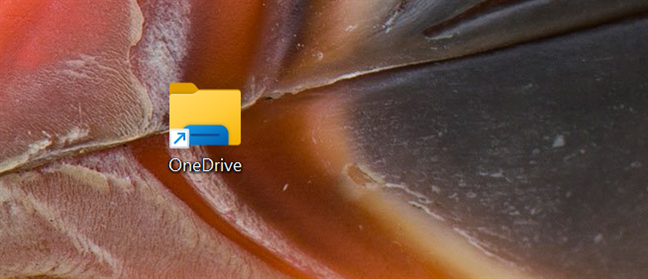
The folder shortcut is created
To verify that the shortcut works and takes you to the folder you intend to pin to the taskbar, double-click or double-tap it.
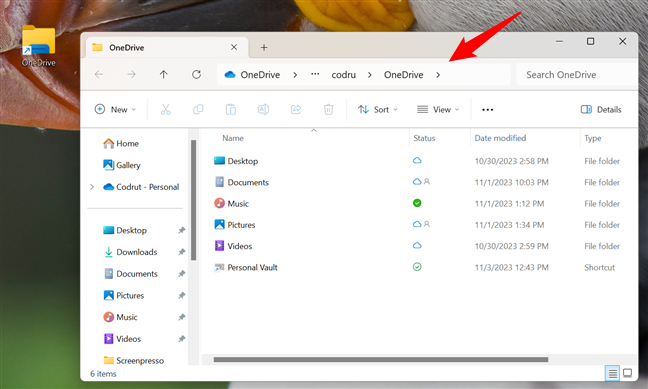
Checking the shortcut to the folder
Next, let’s…
Step 2. Change the icon of the shortcut
The next logical step is to pin this shortcut from the desktop to the taskbar. If you do this right away, you end up having a File Explorer shortcut on the taskbar and an identical-looking shortcut next to it. You’ll likely have trouble telling which one is File Explorer and which one’s the folder you pinned.
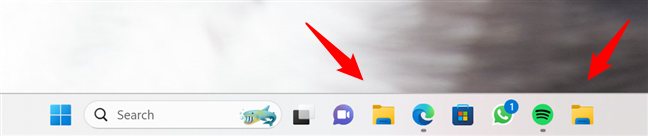
What pinned folders look like by default
To avoid confusion, you should personalize the icon of the folder shortcut to something unique that makes it easy to identify. See below how I replaced the icon of my OneDrive folder on the taskbar.
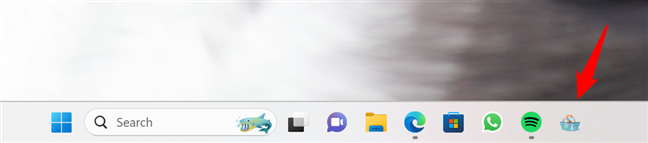
What a pinned folder with a custom icon looks like
To change the shortcut’s icon, you can follow the steps in this guide: How to change a shortcut icon in Windows 11 and Windows 10. However, you might not have the time to spend reading a whole other tutorial, so I’ll give you the short version here: right-click on the folder’s shortcut (or press and hold if you have a touchscreen) and choose Properties.
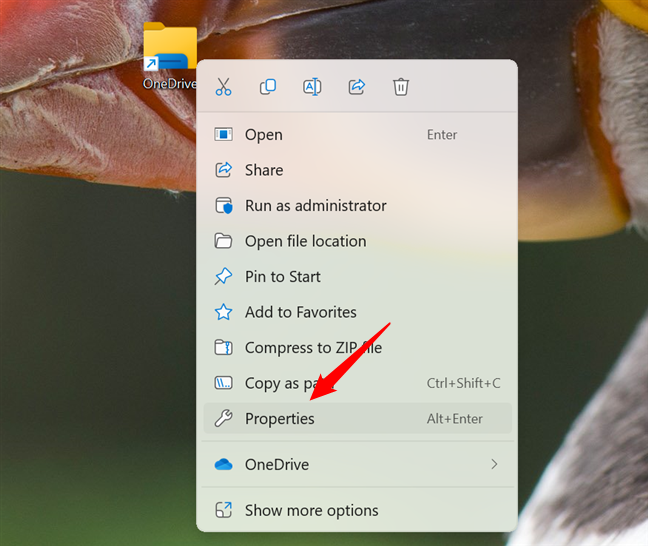
Open the Properties of the shortcut
In the shortcut’s properties, go to the Shortcut tab and press the Change Icon… button. Select the file containing the icon you want to use, choose the icon, and click/tap OK in the Change Icon window and then in the shortcut’s properties.
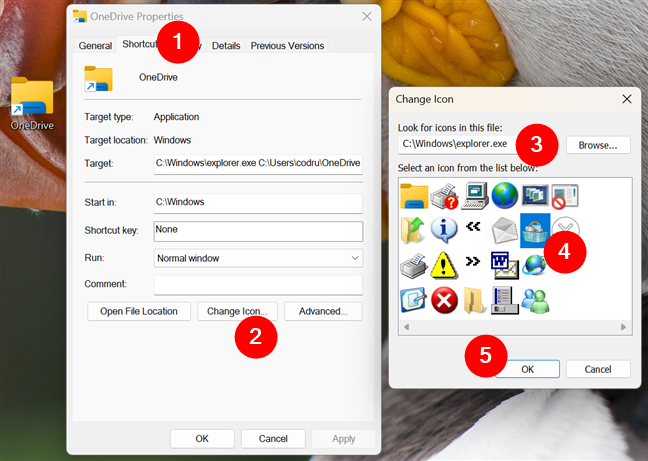
Changing the icon of the folder's shortcut
The icon is now changed for your shortcut to the folder you want to pin to the taskbar.
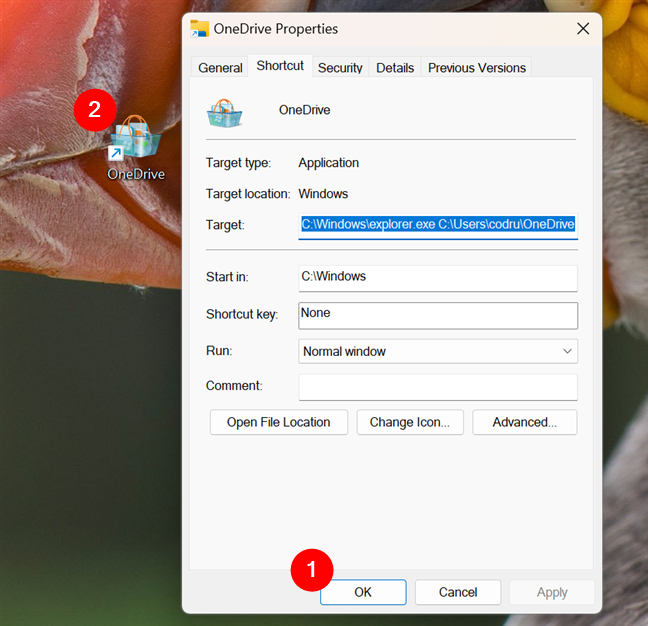
Saving the new icon for the shortcut
TIP: If you’ve created a shortcut for OneDrive, like I did, you may want to use one of the default OneDrive icons for it. In that case, you can find it in this location: C:\Program Files\Microsoft OneDrive\OneDrive.exe. Furthermore, if you want to get some other free icons, you’ll find some ideas in these two articles we published previously: Windows icons locations. Where are the default icons found? and 8 websites with free desktop icons for Windows.
Step 3. Pin the folder’s shortcut to the taskbar
Now, it’s time to pin the shortcut you created to the Windows taskbar. The steps are similar but differ slightly in Windows 11 compared to Windows 10. Therefore, depending on the operating system you’re using, follow the instructions in one of the next two subchapters:
Step 3.1. How to pin a folder to the taskbar in Windows 11
Right-click on the shortcut (or press and hold if you have a touchscreen), and choose Show more options.
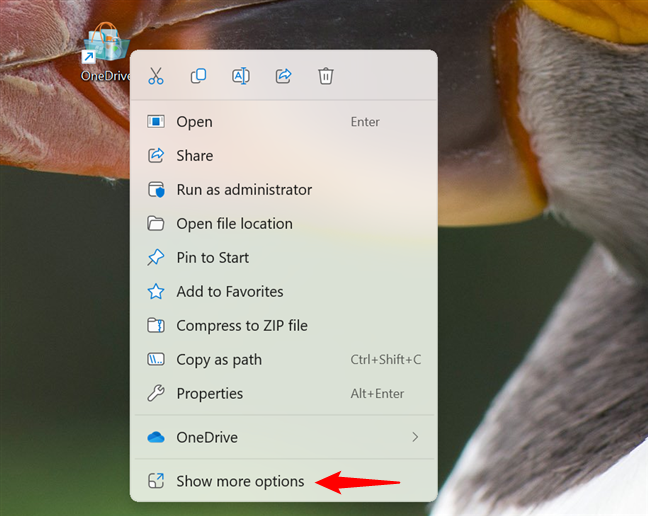
Right-click the shortcut and choose Show more options
Next, click or tap the “Pin to taskbar” option to pin the folder to the taskbar of your Windows 11 computer.
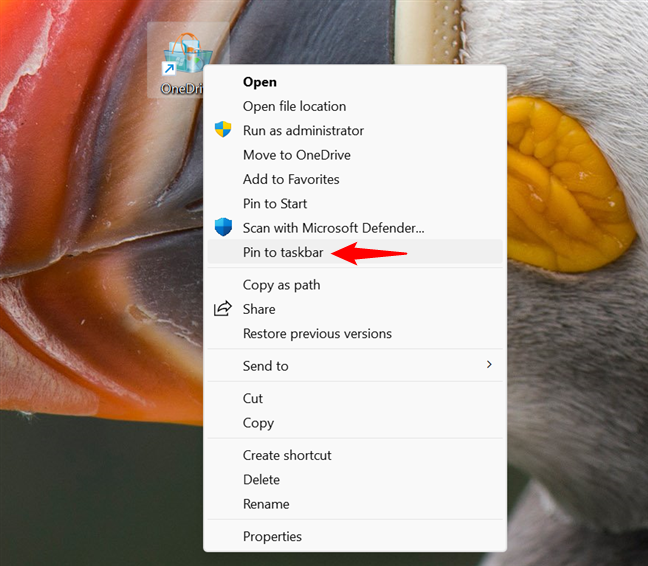
Select Pin to taskbar in the menu
The shortcut is now pinned to the taskbar, and so is the folder it points to.
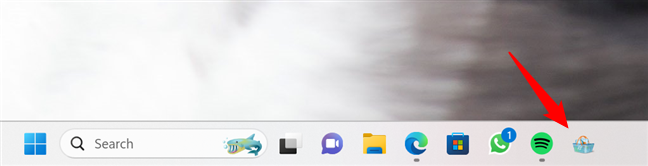
The folder is pinned to the taskbar of Windows 11
Step 3.2. How to pin a folder to the taskbar in Windows 10
Right-click on the shortcut (or press and hold if you have a touchscreen), and then click or tap the “Pin to taskbar” option to pin the folder to the taskbar of your Windows 10 PC.
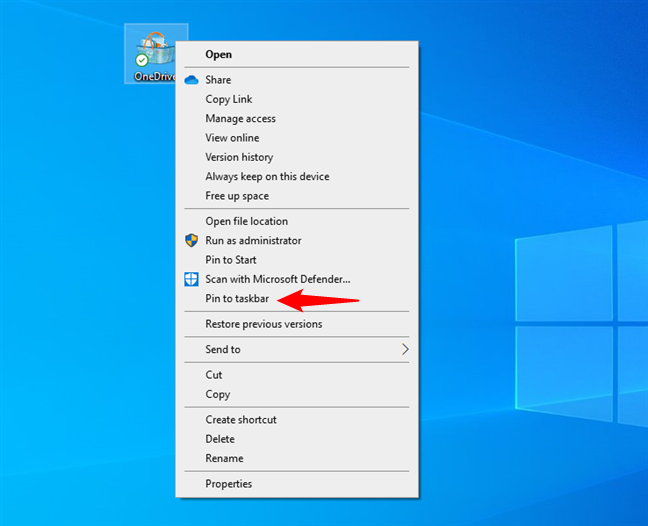
Right-click the folder's shortcut and choose Pin to taskbar
Just like I pinned my OneDrive to my taskbar, your folder should now be pinned to your taskbar.
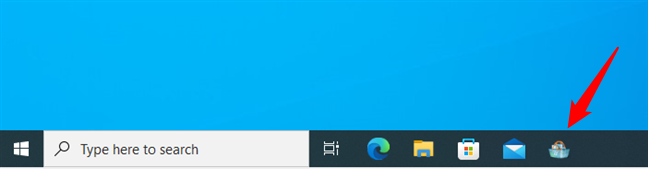
The folder is pinned to the taskbar of Windows 10
TIP: Did you know that there are at least nine methods to pin a shortcut to Windows 10’s taskbar?
How many folders can you pin to the taskbar in Windows?
With this method, you can pin as many folders as you want. However, I recommend changing the icon for each shortcut to tell your folders apart easily.
Can you remove the folder’s desktop shortcut?
After you pin the shortcut to a folder on the Windows taskbar, you can delete from the desktop the shortcut created in the first step of this tutorial. The pinned folder will still work. However, if you also delete the actual folder, its taskbar shortcut will no longer point to a real location. In this case, clicking or tapping the pinned folder shortcut will open File Explorer.
How many folders did you pin to your taskbar?
Now you know how to pin any folder you want to use on the Windows taskbar. I am curious if things worked well for you and how many folders you have pinned. Are they coming in handy? Don’t hesitate to comment below and discuss with us and other readers.