
We think all Windows Phone and Windows 10 Mobile users are familiar with installing apps using the Storeapp. Basically, all you have to do is open theStore, type the name of the app that you want on your smartphone and install it. But there's another way to do the same thing, using any web browser installed on your device. In this article we are going to show you how to install new apps on your smartphones with Windows 10 Mobile or Windows Phone, using this approach.
NOTE: For the purpose of this tutorial we used a Microsoft Lumia 550 running Windows 10 Mobile. The procedure is similar to all devices using Windows 10 Mobile and Windows Phone 8.1.
Step 1: Open the Microsoft Store in a browser
To get started, access the Microsoft Store website in a web browser on your smartphone.
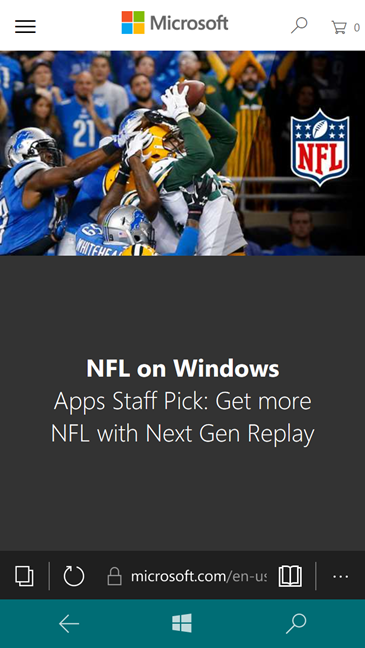
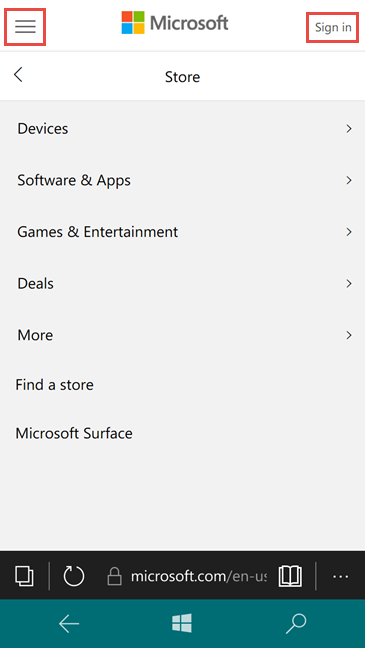
Next, you need to sign in with your Microsoft account.To do this, press the Menubutton, placed at the top left corner of the screen and then tap Sign in.
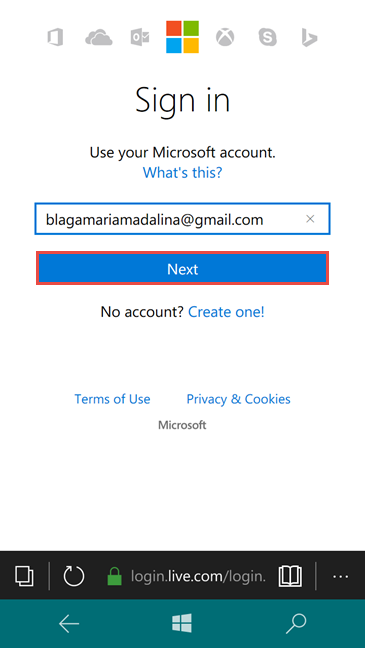
You'll be redirected to a page where you will need to log in with your Microsoftaccount. Type the email address used for your Microsoft accountand tap Next.
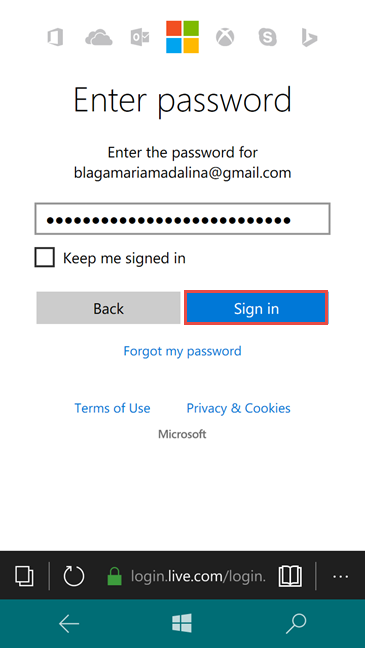
Now start typing your password and then you can press Sign in.
Step 2: Find and install apps from the web browser
Once you've finished signing in you can proceed to the next step: finding and installing your apps.
Let's say you're trying to install the Uberapp. First, locate the search button placed at the top of the screen and press it.
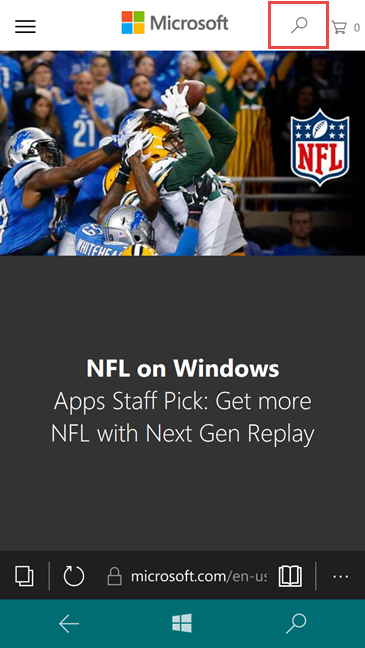
A text field will pop up, where you can type the name of your app and press Search.While you are typing, the system identifies the most popular search terms that match the letters you've already written. Press the Search button to search for your keywords or tap one of the options available in the suggestions.
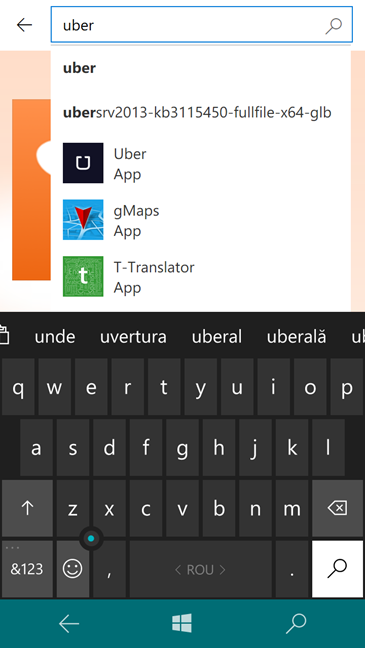
If the app you are searching for has been found and appears among the top results, tap it to open its details page in the Store. Otherwise, you can modify your search terms or press See allto get the complete search results list.
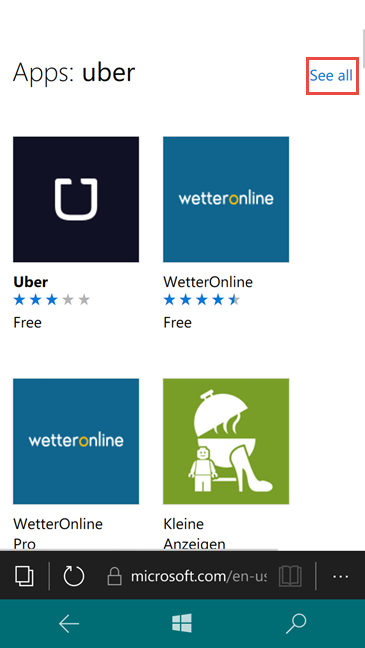
Once you've found the app you want to install, tap on it and you'll see a screen containing details about the app. Scroll down for Screenshots, Description, Available onand reviews from the other users who installed the app.
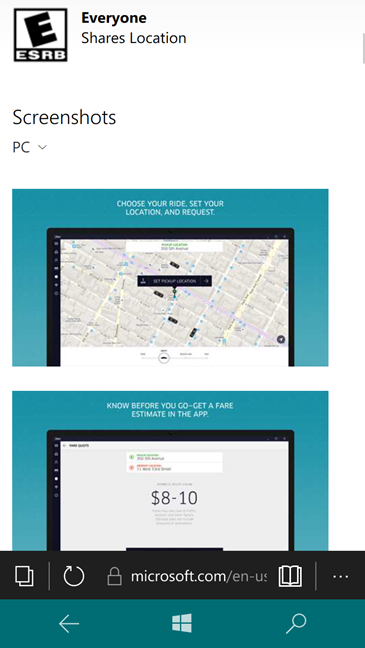
If you've decided that you want to install the app, return to the top of the app's page and tap on the Get the appbutton.
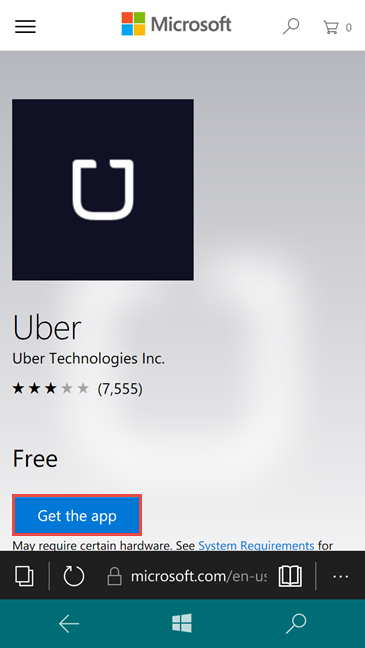
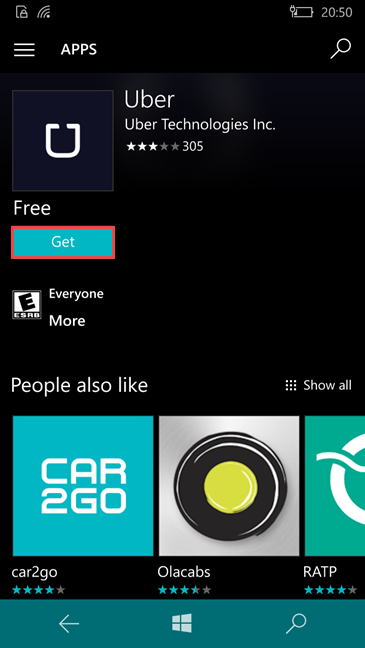
Now, the Storeapp will be launched and a Getbutton will be provided for your app. Tap on it and wait for your app to download and install and you are done.
Conclusion
This method is not necessarily more time efficient than the usual method of installing apps, but it can become really useful if you're browsing the Microsoftwebsite and you don't want to open the Store,type the name of the app, search again for it and then install it. This acts like a shortcut from your web browser to your Store app.If you have any questions regarding this guide, don't hesitate to share them with us using the comments below.