In other articles we talked about how to set your default programs for various activities, using the "Set Default Programs" panel and the list of programs that Windows puts in that panel. However, that's not your only option when you want to set defaults. In this article we'll tell you about the other options you have for setting default programs in Windows 7 and Windows 8.1.
How To Find The List Of Default Programs In Windows 7
In Windows 7, open the Control Panel and choose "Programs -> Default programs-> Set program access and computer defaults". You will need to be logged in as administrator. You can also type default into the Start Menu search box, for faster access.
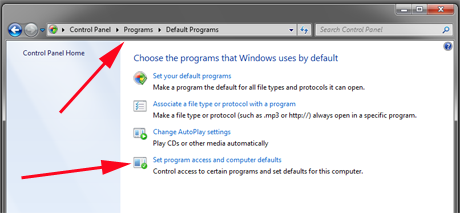
This will take you to the "Set Program Access and Computer Defaults" window.
How To Find The List Of Default Programs In Windows 8.1
The process in Windows 8.1 is very much the same as in Windows 7. Begin by typing default on the Start screen.
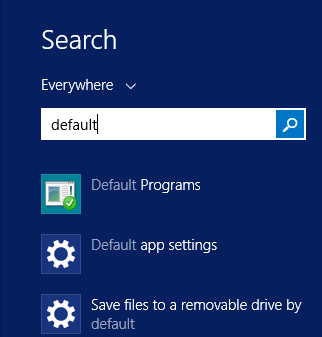
Click or tap Default Programs, then "Set program access and computer defaults". Again, you will need to be logged in as administrator in order to do this.
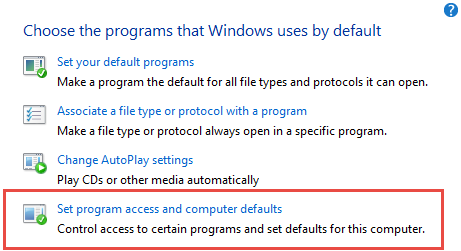
From there, the process is exactly the same as in Windows 7. To learn how to work with the "Set Program Access and Computer Defaults" window, read the next section.
How To Work With The Set Program Access And Computer Defaults Panel
You can choose from one of three options: Microsoft Windows, Non-Microsoft, and Custom. The Custom option is selected by default. The arrows on the right will expand each selection to show you what they do.
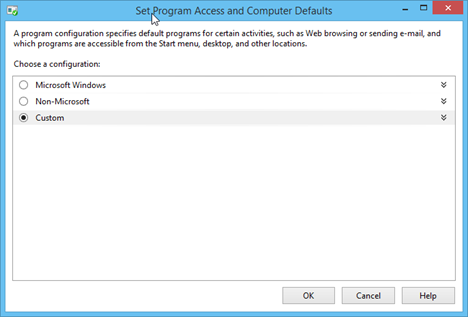
Let's talk about these choices and what each one means. But, before you do, you should note that, in each case, the screenshot shows what is available on the test computer that we used. Yours will look different depending on what you have installed.
The first option, Microsoft Windows, sets the default programs to what comes preinstalled in Windows. You'll get Internet Explorer and Windows Media Player as your defaults, for example. The important thing to notice if you choose this option is that access to other programs in each category is not removed. They will still show up in your list of available programs and you can always choose an alternate program if you wish. However, you won't be offered the option to use this alternate program as your default. The Windows default programs are locked in with this choice.
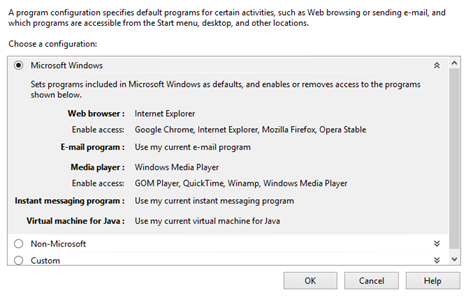
The second option, Non-Microsoft, does something radically different. If you choose this option, non-Microsoft programs will be chosen as your defaults and access to the Windows default options will be removed. This means that those programs will not show up on the Start Menu or the Start screen, nor will they appear in the "Open with" dialogue when you right-click on a file. Any shortcuts to those programs you have created will also be removed.
In the example below, we only have one other browser and one other media player installed. If you have more than two of any type of program you will be given a drop-down menu from which to make your choice.
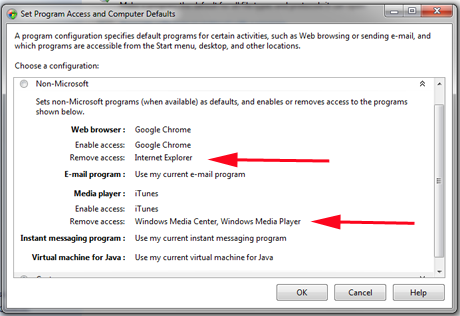
Why would you want to do something like this? One reason would be that you are the administrator of a computer and you want to be sure that the other users only have access to a limited set of non-Microsoft options. The Microsoft programs can only be run by double clicking on the executable file in Windows/File Explorer if you choose this option—but of course you will have to know where to find the executable and have access to Windows/File Explorer in order to do this.
This setting would be most useful on a public computer where you don't want the public to do too much horsing around. We advise you to think twice before using this option on your own computer, because among other things you will have to re-create all your shortcuts if you later change your mind.
The Custom option offers you the most choices. Here, your Microsoft and non-Microsoft options are displayed. You can choose your default program and you can also choose to enable or remove the other options for that category.
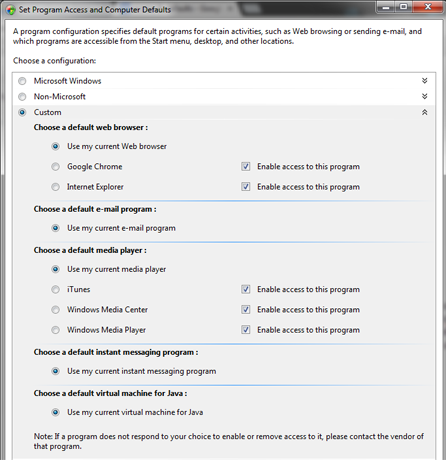
NOTE: Removing access to different programs might require uninstalling those programs, as is the case for Microsoft Office Outlook.
What To Do If A Program Is Not In The List Of Selectable Options
You might notice that not all of your programs for specific activities appear in the list of programs. This is because not all programs are registered and can be set as default programs using "Set program access and computer defaults". If this is the case, you will need to find other solutions: you can set your default programs or associate a file type or protocol to a program, as we've shown in our previous tutorials.
Conclusion
As you can see, choosing your default programs for such common activities as web browsing, media playing, email and instant messaging is a straightforward process. However, as with many things about Windows 7 and Windows 8.1, you need to be very sure you know what you're doing when you choose your options. Microsoft's policy toward selecting only non-Microsoft defaults is particularly draconian, and getting back your access to Microsoft's own programs if you change your mind would involve re-creating your shortcuts at the very least. The Custom option offers the most choices, but since it comes with your already-chosen defaults already selected, there's not much reason to make changes here. We recommend not playing around with this too much unless you're ready and willing to recover from a setup you may not like.