Many of us prefer to use the same program to open certain types of files. For example, you may like to use Photo Gallery to open pictures and Windows Media Player to open music and videos. Or you may have third-party software that you like better. Fortunately, both Windows 7 and Windows 8.1 make it very easy to set your own preferences. Here's how:
Where to Find the Set Default Programs Panel
Setting the default programs for file types and protocols, is performed from a window named Set Default Programs.
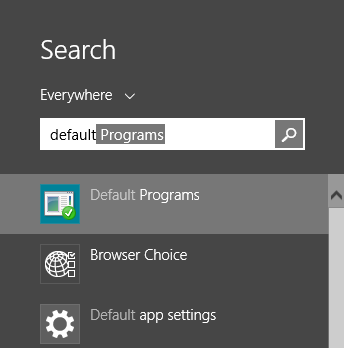
In Windows 7, you can reach it by typing "default" into the Start Menu search box.
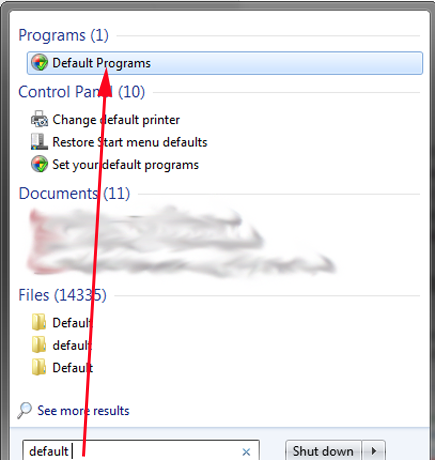
In Windows 8.1, open the Search charm and type "default". If you are on the Start screen, you can simply begin typing "default" and the Search will automatically open.
Then, from the search results list, click or tap Default Programs.
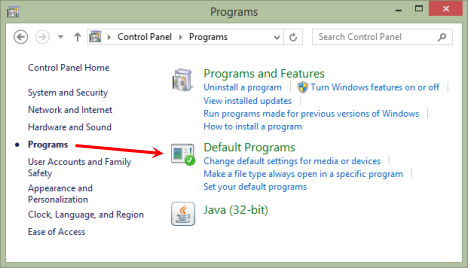
In both Windows 7 and Windows 8.1, you can go to the Control Panel, click or tap Programs, and then Default Programs.
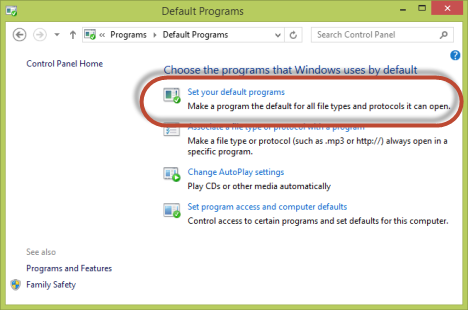
Now that you are in the Default Programs window, click or tap "Set your default programs".
One thing that you should keep in mind is that the changes you make in Set Default Programs will apply only to your user account. The default programs for other users remained unchanged.
How to Set Your Default Programs in Windows 7 & Windows 8.1
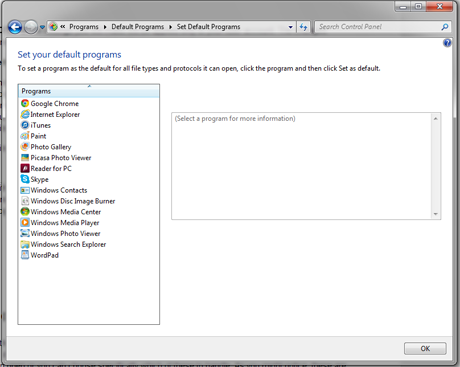
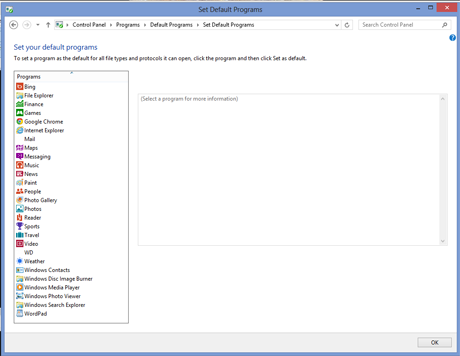
Once you have opened the Set Default Programs window, you'll see a list of all the available programs that you can use to open various kinds of files. The illustrations here are from my computers. Yours will look different depending on what you have installed.
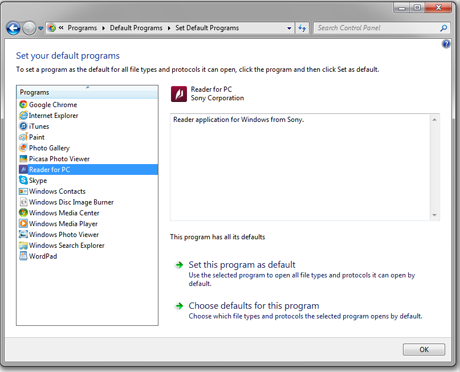
What you see is what you get; you can't add more programs to this list. The windows look pretty much the same in Windows 7 and Windows 8.1, as you can see. Here is how the window looks in Windows 7.
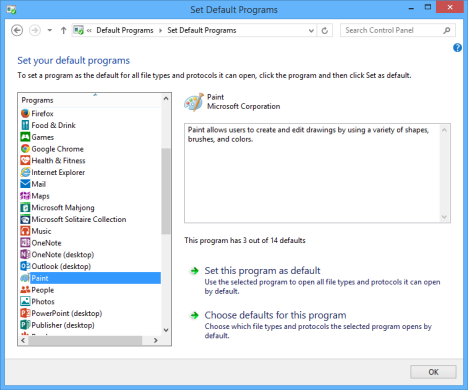
As you can see, in Windows 8.1 you have a longer list of choices because it displays also modern apps from the Windows Store.
With each listed program, you can choose to have it handle all the file types it's capable of handling, or you can set it to deal with only certain file types and assign the others to another program. Let's see how this is done.
Here, in Windows 7, I have chosen the Reader for PC program from Sony, and I'm shown just a little information about the program and offered a choice to have it open all the files it can, or choose which files it will deal with.
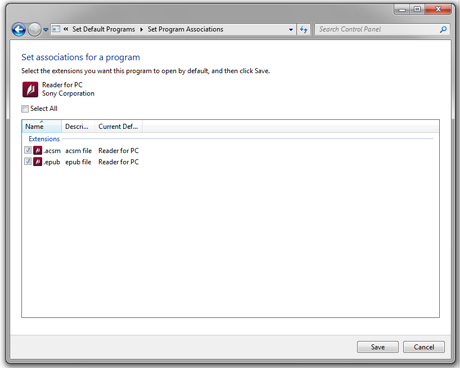
Well, whoa, what kinds of files will the Reader for PC deal with? Not a good idea to tell it to just go ahead and open everything without finding out what it's capable of, first. Click or tap "Choose defaults for this program".
Reader for PC is set up to open two kinds of files, .acsm(which is a DRM protected form of e-book used by public libraries that allow e-book checkout, among other things) and .epub (a very popular e-book format). In this case I am OK with Reader for PC opening both kinds of files, so I didn't change the settings.
In Windows 8.1, I've chosen Paint, which can be configured in a lot more ways. It comes with 3 of the possible 14 defaults set. (For the record, Paint is set the same way in Windows 7, but I use another graphics program for images and did not want to choose Paint as the default).
Let's see what the choices are:
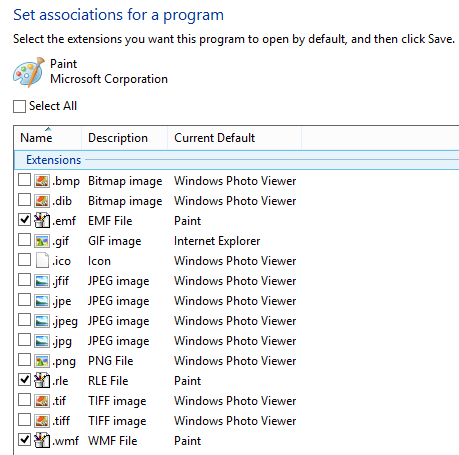
Since I haven't installed another graphics-editing program in Windows 8.1 yet, I am fine with Paint opening the common graphics format files, so I've selected .bmp,.gif,.jpeg,.jpg and .png, alongside its existing defaults.
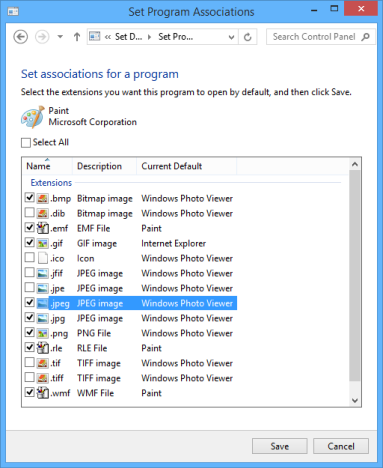
Click or tap Save after choosing what you want, and you're done.
Conclusion
In both Windows 7 and Windows 8.1 it's very easy to choose which programs open which files, although the list of programs for which you can set defaults is almost certain not to be all-inclusive. Still, taking the time to go through the list can make things easier for you, and let you make sure that your files open with the programs you prefer.