If you have a printer plugged into your Windows 10 PC, you can share it with the other computers and devices connected to the same local network. It is a useful feature if you don't want to physically move the printer each time you use it to print something from another computer. Sharing your printer on the network means that you can access it from any of your devices, as long as the main computer, which the shared printer is plugged into, is on and running Windows 10. Without further ado, here's how to share a printer on a network, from Windows 10:
How to share a printer on the network, in Windows 10
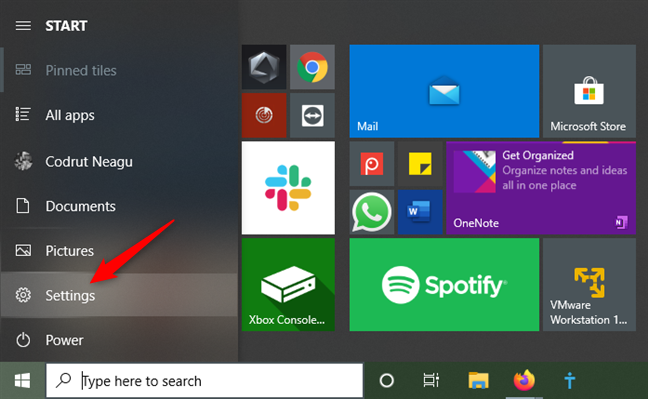
In order to share the printer connected to your Windows 10 PC with the network, you must first open the Settings app. A quick way to do it is to click or tap on its button from the Start Menu.
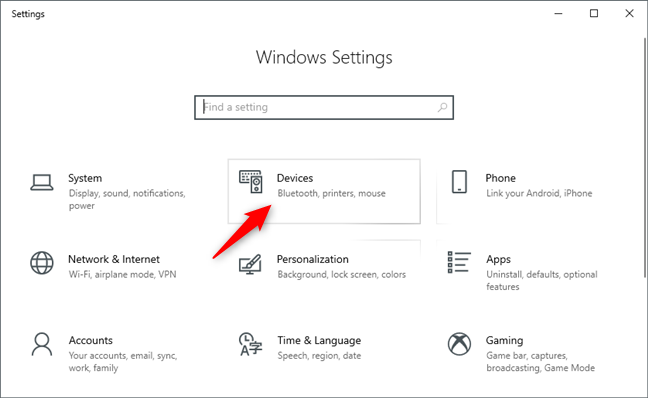
In the Settings app, open the Devices category.
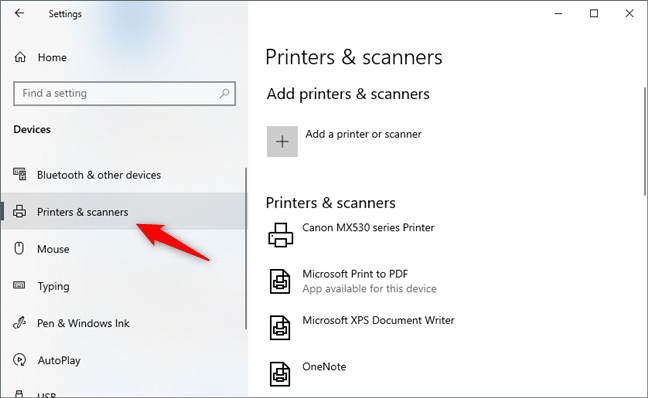
On the left sidebar of the Devices category, select the Printer & scanners tab.
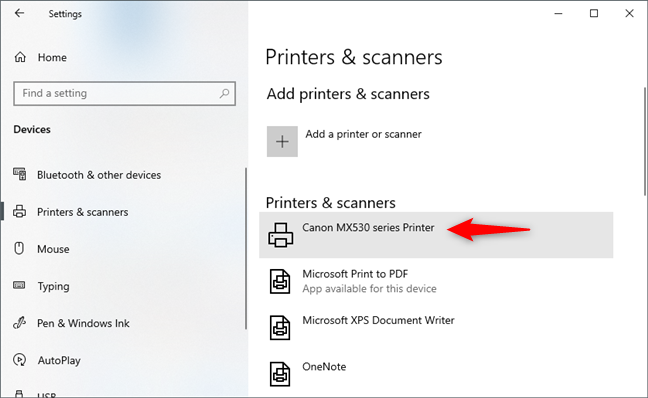
On the right side of the window, select the printer that you want to share on the network.
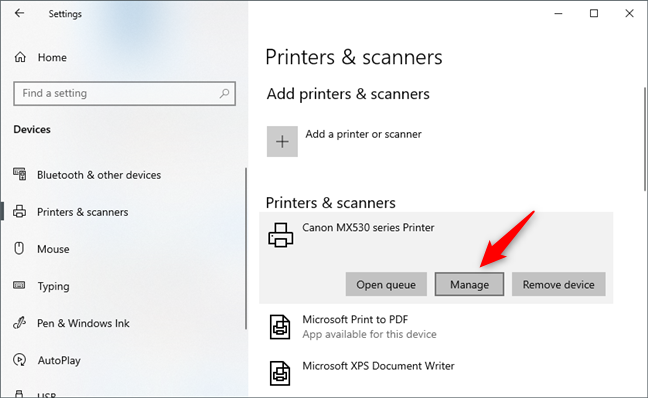
When you select your printer, a few buttons are displayed: click or tap on Manage.
This action opens a page called "Manage your device". Look for a link called "Printer properties" and click or tap on it.
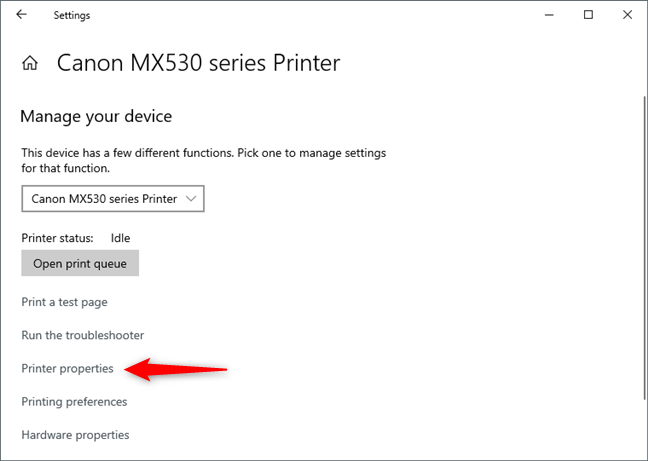
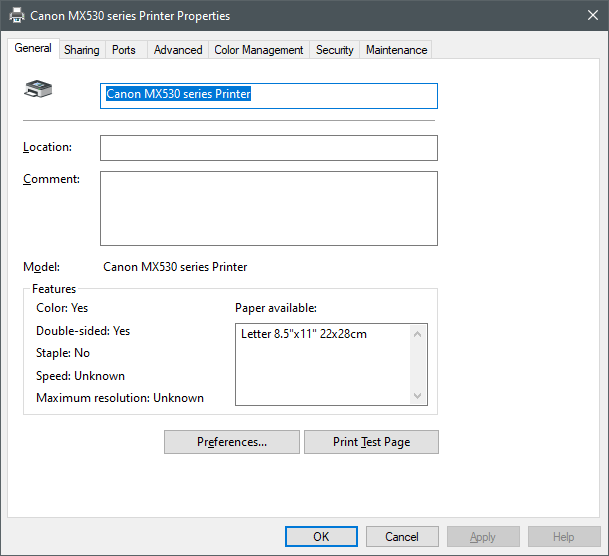
Windows 10 opens the Properties window of your printer. This is where you can share your printer on the network.
Regardless of your printer's make and model, you should see something like the screenshot below:
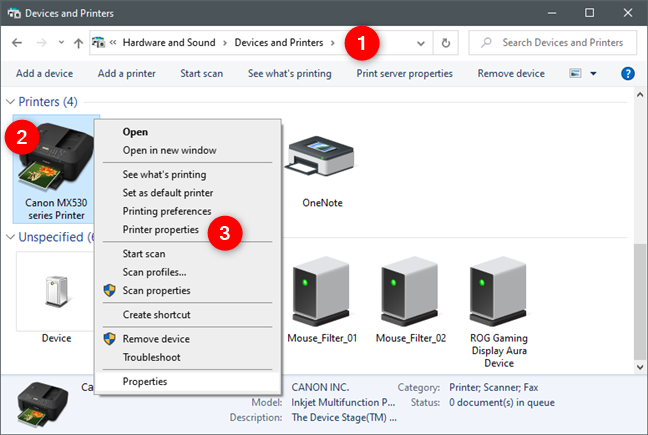
NOTE: There's also an alternative way of opening your printer's Properties window to share your printer with the network: open Control Panel, go to "View devices and printers" under "Hardware and Sound", right-click (or press and hold) on your printer, and then select Printer properties from the contextual menu.
In your printer's Properties window, select the Sharing tab.
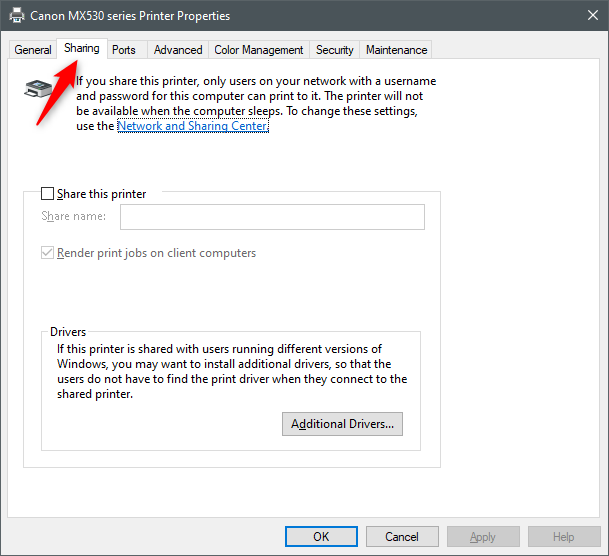
On the Sharing tab, select the "Share this printer" option and, if you want, type a friendly name for your printer to easily identify it when you connect to it from other Windows 10 computers or devices in your network.
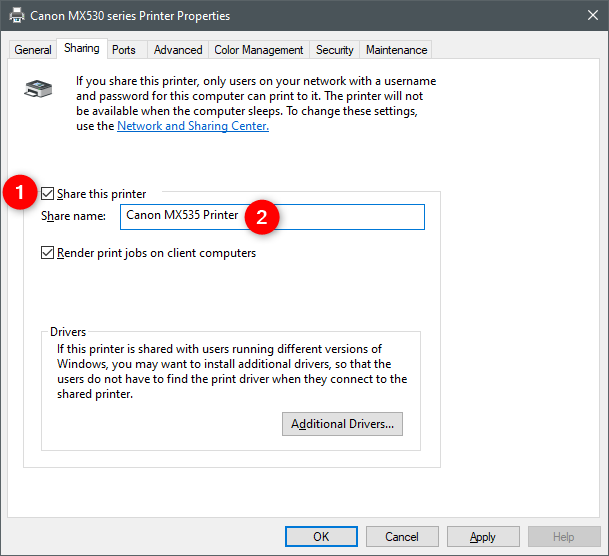
Underneath the Share name field, the "Render print jobs on client computers" setting is enabled by default. We recommend leaving it on, as rendering the print jobs on client devices means that those print jobs are processed by the devices that start them, not by the computer which the printer is plugged into. In other words, the client devices are in charge of the printing processing, so your Windows 10 computer does not have to do additional work whenever a secondary PC tries to print something on the shared printer.
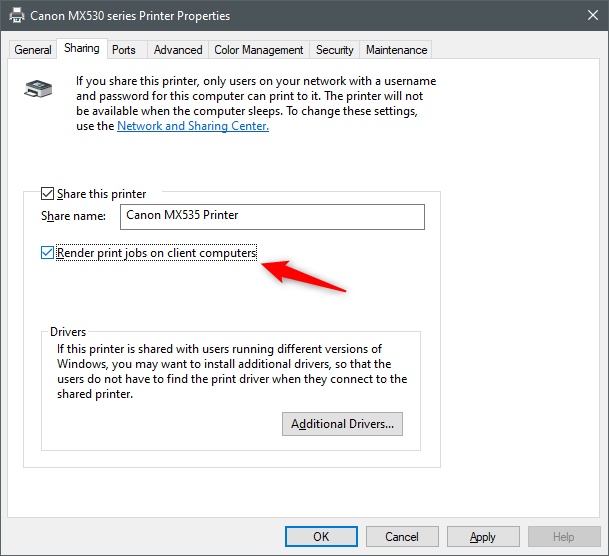
That's it! Now your printer is shared with all the computers and devices in your local network.
However, before saving your settings and closing all the windows, you might also want to check the next section of this guide, to see how to install additional drivers for your shared printer:
How to install additional drivers for a printer shared with the network, in Windows 10
If you have computers or devices in your network that are using other versions of Windows, you might want to also provide them with Additional Drivers for your shared printer. As Microsoft specifies, if you "[...] install additional drivers, [...] users do not have to find the print driver when they connect to the shared printer." If you want to ease their lives, push the Additional Drivers button.
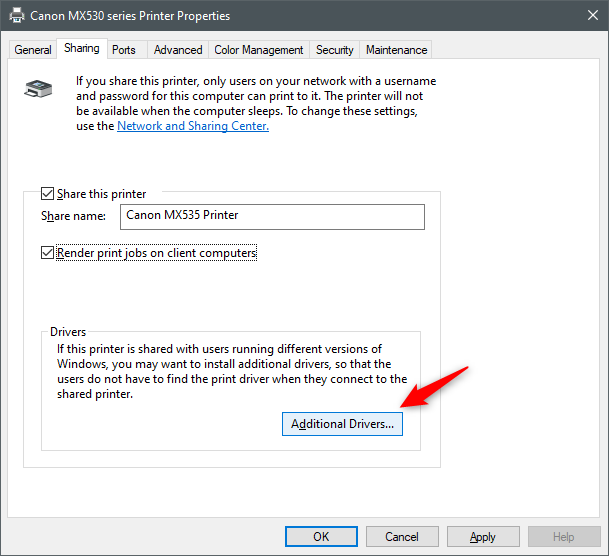
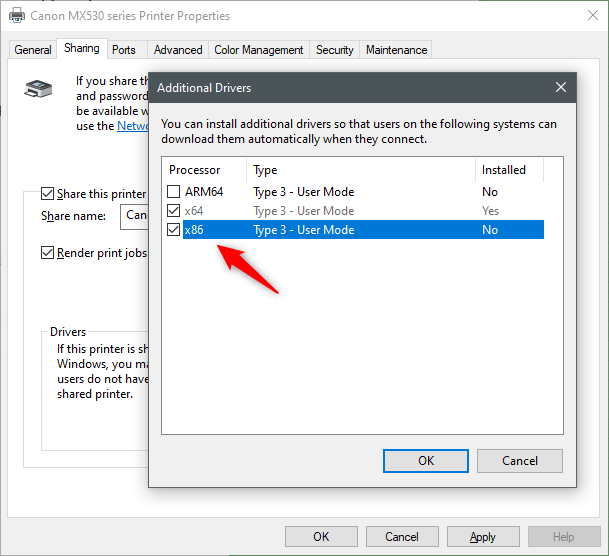
This opens the Additional Drivers window. In it, select the additional drivers that you want to provide for the network computers and devices that connect to your shared printer. Depending on your printer, you should have options to enable additional drivers for various types of processors and operating system architectures. Select the additional drivers that you want to install for your shared printer, and then click or tap on OK. However, note that, on the next step, you need to tell Windows 10 where to get the additional drivers, so you should download them from your printer's support website before that.
Windows 10 asks you where to get the printer drivers that you selected on the previous step. Browse or type the path to the folder that contains the additional drivers for your shared printer.
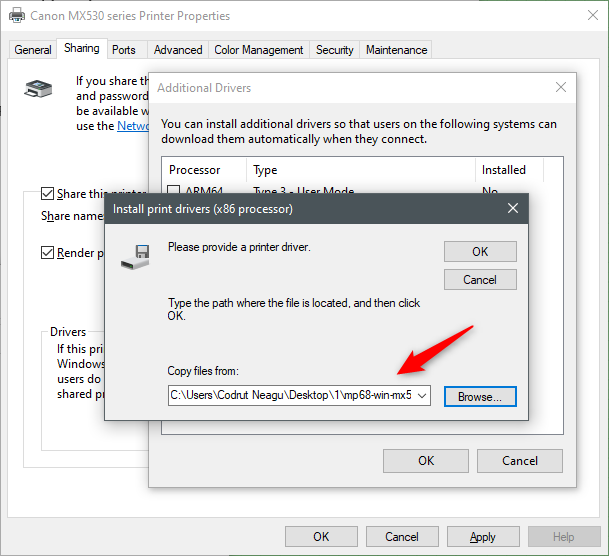
Push the OK button from the "Install print drivers," and, almost instantly, Windows 10 should get the additional drivers and close the window bearing the same name. Finally, click or tap on Apply and then on OK to save your settings and start sharing your printer on the network.
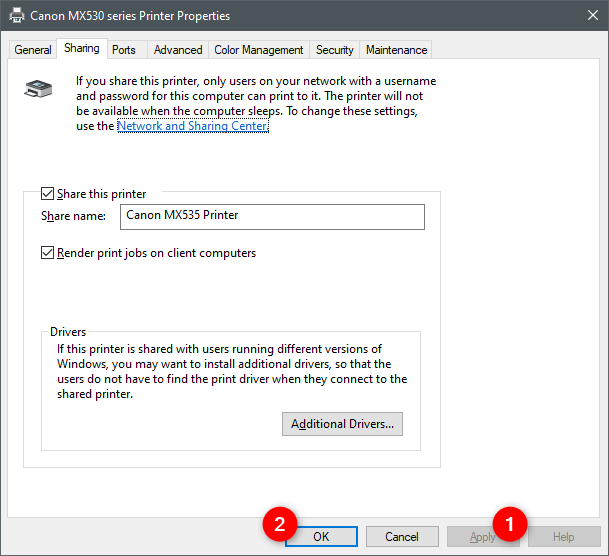
That was it!
Next comes the part where you have to install the shared printer on the computers and devices on which you need to use it. If you need help with that, these guides should help you out:
- How to install a wireless printer in your home network, in 6 steps
- How to install a local printer on your Windows computer
- The Geek's Way of Managing Printers - The Print Management Console
Did you find it easy to share your local printer with the network, in Windows 10?
It is rather easy to share your printer on the network, from Windows 10. Did you manage to go through the whole process fast and without issues? Also, if you have any questions on how to share your printer with the network, don't hesitate to ask in the comments section below.