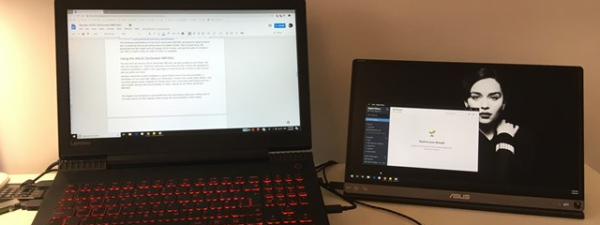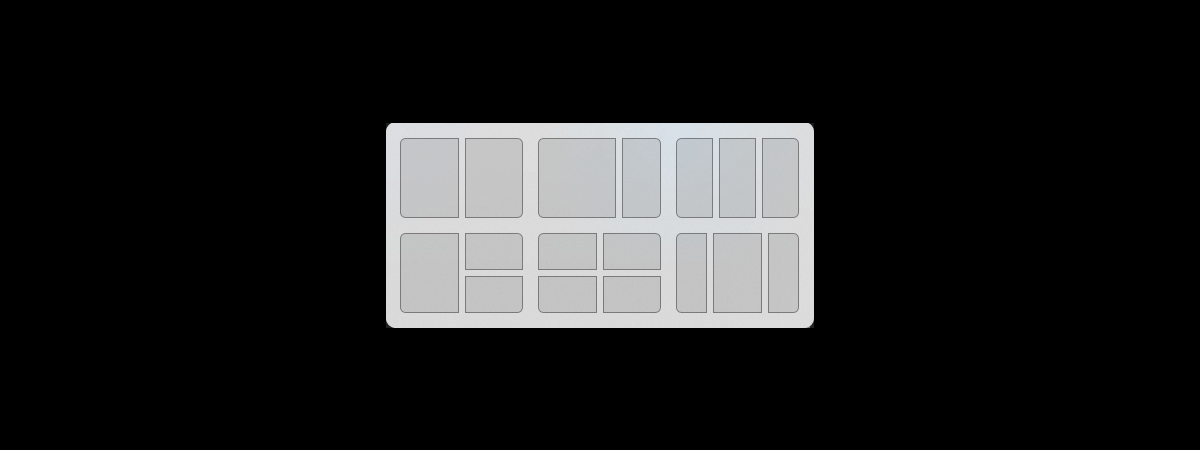
Do you want to know how to split the screen with two monitors in Windows 11? The Snap feature can enhance your productivity on all modern versions of Windows. Furthermore, Windows 11 lets you use Snap to split screen on dual monitors both with the mouse and the keyboard. Read this guide to find out how to snap app windows side by side on a setup with multiple displays in Windows 11:
NOTE: This guide highlights the differences between using Snap in Windows 11 with one monitor and multiple ones. To learn more about Snap and Snap layouts, read our tutorial on splitting the screen in Windows 11.
How to split screen with two monitors using the mouse in Windows 11
Snapping a window using the cursor with multiple displays is not much different from the regular way of splitting the screen in Windows 11. Click or tap on a window’s title bar, and then drag and drop it to either a corner or to the left or right edge of any display. A transparent overlay is displayed to indicate the window’s placement.
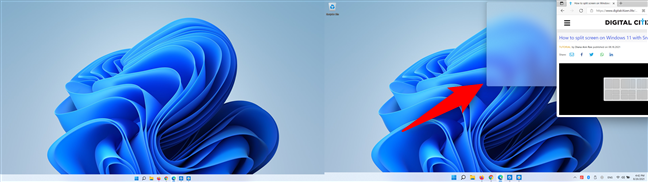
A transparent overlay appears over the section where you dragged the window
NOTE: Depending on your setup, you might have difficulties snapping a window to the edge or corner where you cross from one display to another. If that’s the case, try another method from this guide.
Alternatively, you can also use Snap Layouts in Windows 11. Hover your mouse pointer over the maximize button on the top-right corner of the screen to see the available Snap layouts. Click or tap on the exact position where you want your window shown in the chosen layout. Remember that, depending on your screen’s size, resolution, and scaling settings, you may see four or six Snap layouts.
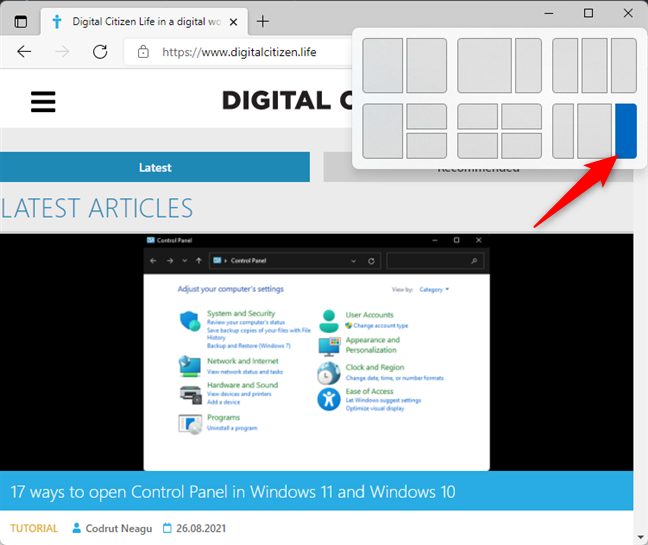
Click or tap on the desired position for your window in the layout you want
As soon as you decide on a section to place your window, Snap Assist should display the remaining apps in other available areas. Click or tap on the ones you want for each layout section.
How to split screen on dual monitors using the keyboard in Windows 11
Splitting the screen when using multiple monitors is easy once you get the basics of snapping apps with keyboard shortcuts. Depending on your setup, you can use Windows + Left arrow or Windows + Right arrow to move an app window across monitors. To explain, let’s start with a Microsoft Edge window open on our main screen, on the right. You can see the secondary display on the left.
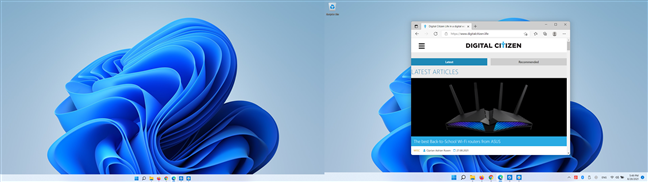
The window we want to snap is shown on the right monitor
If you press Windows + Left arrow, the window snaps to the left of the main display.
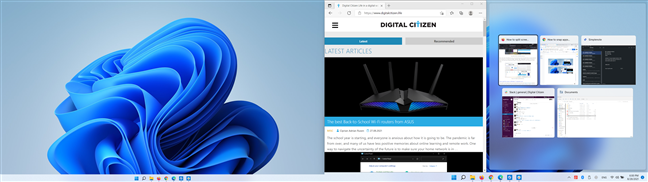
Snap the window to the left half of the main screen
To move the window on the other monitor, press Windows + Left arrow again. This makes the Edge window snap to the right half of the secondary display, as seen below.
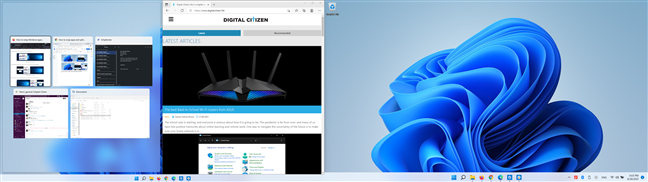
Snap the window to the right half of the secondary monitor
Pressing Windows + Left arrow again moves the app window to its original position, but on the secondary display.
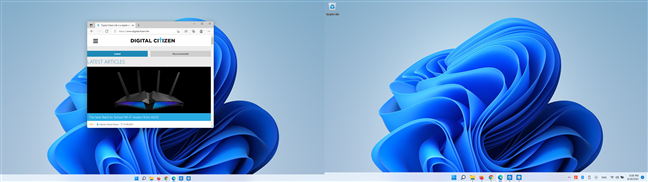
Move the window to its original position, but on the secondary screen
You can now use Windows + Left arrow once more to snap the window to the left half of the secondary monitor.
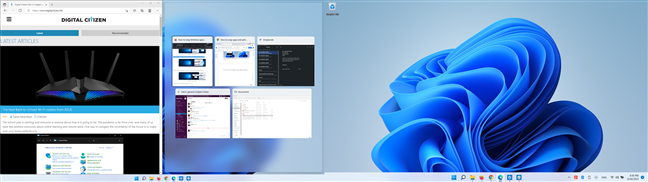
Snap the window to the left half of the secondary monitor in Windows 11
Don’t forget that you can also press Windows + Up arrow or Windows + Down arrow after snapping a window if you want to position it to the upper or lower corner of either screen.
How to quickly switch the position of the active app window between displays using a keyboard shortcut
An important keyboard shortcut when using a multi-monitor setup is Windows + Shift + Left/Right arrow. This makes Windows 11 keep the position of the active window while switching it between displays. Let’s start with our Microsoft Edge window opened on the right monitor.
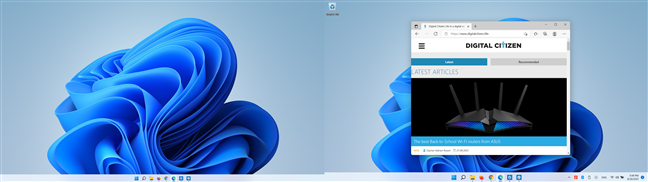
The Edge window is shown on the right monitor
Pressing Windows + Shift + Left arrow on your keyboard moves the window to the secondary display where it’s positioned in the same place.
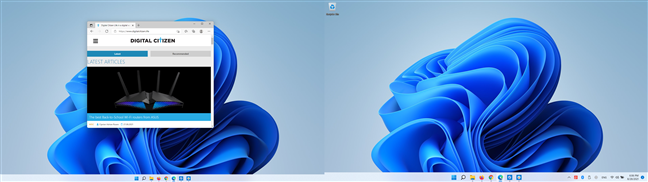
Move the window to the same position on the secondary monitor
Use Windows + Shift + Right arrow to move the window back to the other display. This works the same way if a window is already snapped, allowing you to skip some of the steps in the previous chapter.
How do you snap apps when using multiple monitors in Windows 11?
We prefer using the mouse to drag each window to its spot. However, the shortcut in the last chapter is invaluable if you want to quickly move a window between two or more monitors. What about you? How do you prefer to use the Windows 11 snap on multiple monitors? How many monitors are you using? Let us know your story in the comments below.