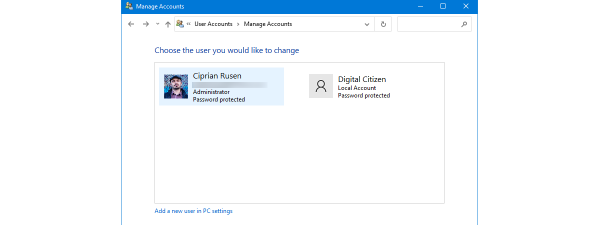
If you already gave the Microsoft experience a shot and you're not impressed, switching to a Windows 10 local account from a Microsoft one is a simple process. While logging in with Microsoft has the advantage of cross-device synchronization, some users choose the security and privacy of a Windows 10 local account instead. This tutorial illustrates how to convert your Microsoft account into a local offline (non-Microsoft) one that you can then use to sign in to Windows 10:
NOTE: The features presented are available in Windows 10 May 2020 Update or newer. If you are using an older version of Windows 10, you might not have access to all the features.
First things first: About switching to a Windows 10 local account
You probably have a Microsoft account already if you're using one of the many services the company has to offer. As we explained in our guide on the subject, the option to create an offline or local account is not even shown every time during the Windows 10 installation process, so you might have unwillingly signed up for a Microsoft account. If you want to know for sure what type of user account you're using to connect on your PC, you can easily check if your Windows 10 account is a Microsoft or a local one.
Before converting your Microsoft account into a Windows 10 local account, you should carefully consider both options. The main disadvantages are that you miss out on syncing your settings across multiple devices and you can't purchase apps from the Microsoft store. However, even if it's a bit trickier, you can still use the store without a Microsoft account to get free apps. We've already explored all the pros and cons in detail, so if you're still making up your mind, read: Should you use a local or a Microsoft account in Windows 10?.
Even if you switch to a Windows 10 local account, your Microsoft credentials continue to be available on your device to sign you in to the company's services, so, in the end, it all comes down to personal preference.
How to switch to a Windows 10 local account from a Microsoft one
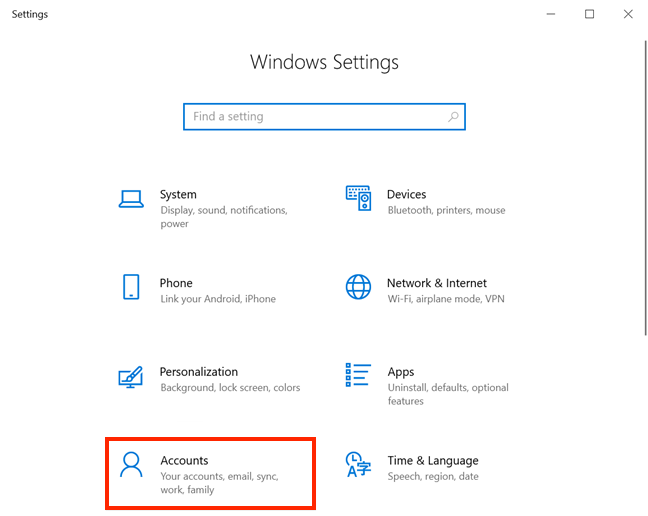
To convert your Microsoft account into a local one, you first need to open the Settings app. You can do that by pressing Win + I on your keyboard. Then, from the available options, click or tap on Accounts.
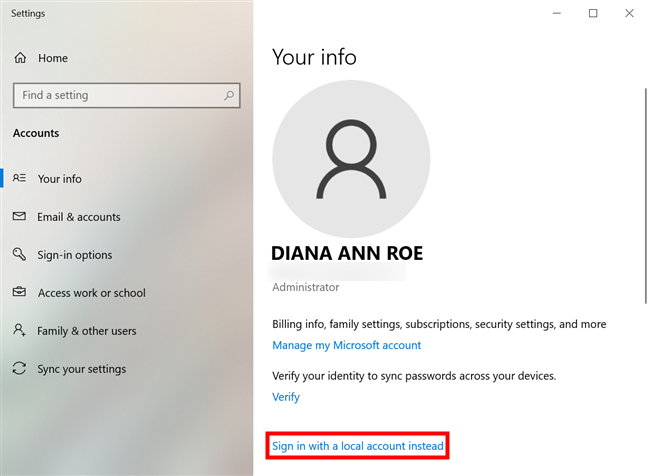
This takes you to the Your info tab of the Accounts settings. At the top, you can see the details of the Microsoft account you're using to sign in to Windows 10. Choose to "Sign in with a local account instead."
NOTE: If you enabled BitLocker, you might next get a screen asking you to back up your BitLocker recovery key. You can stop to do this or choose to "Skip this step" and continue converting your account into a local one.
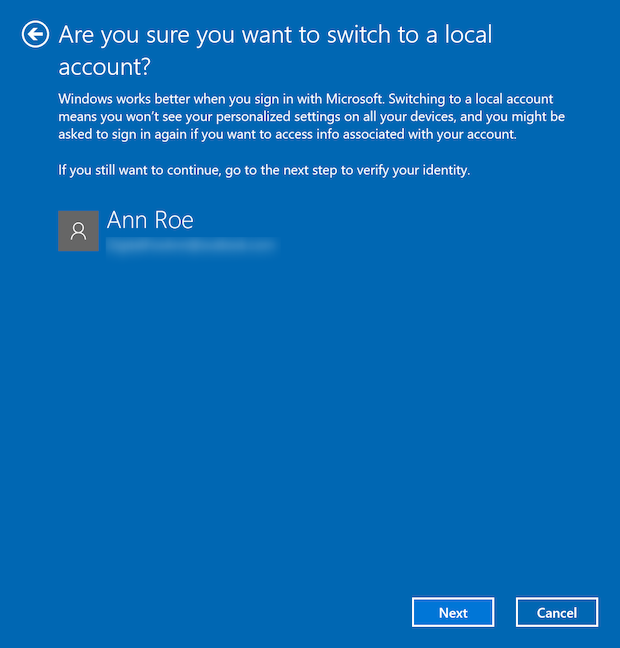
Microsoft tries to convince you about the benefits of a Microsoft account. Click or tap on Next to continue.
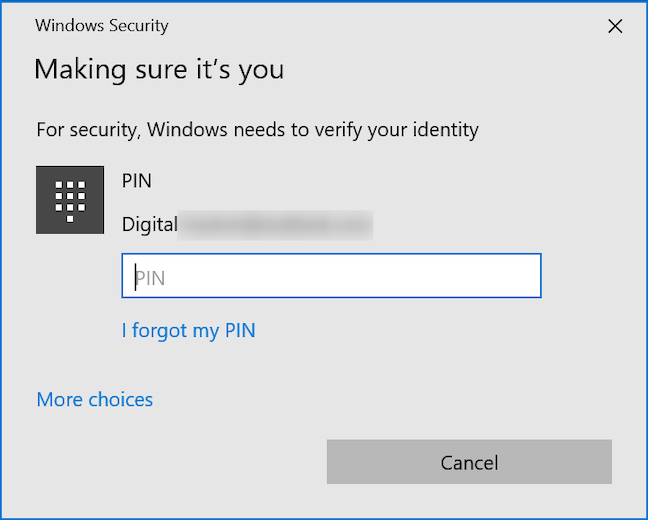
To continue, verify your identity by inserting the PIN or password for your account.
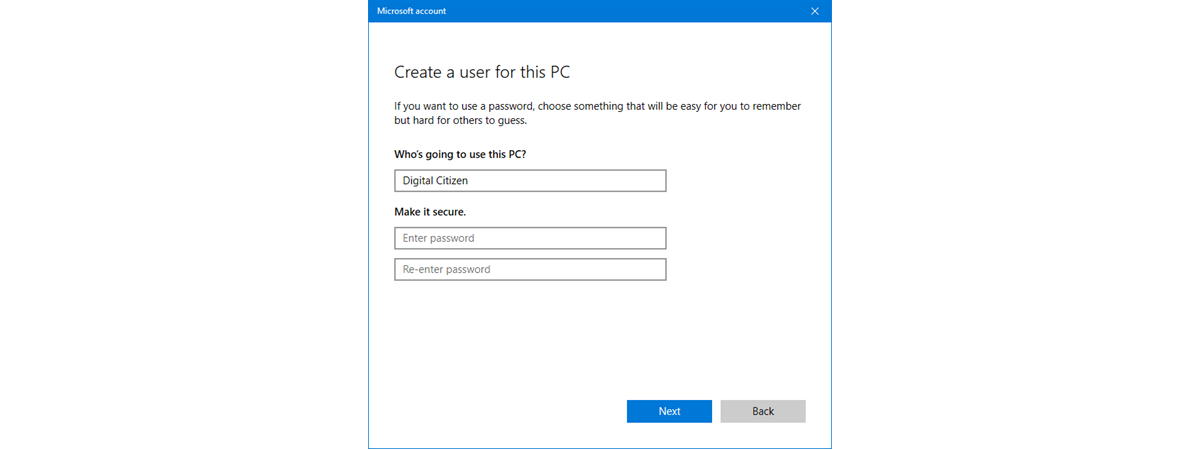
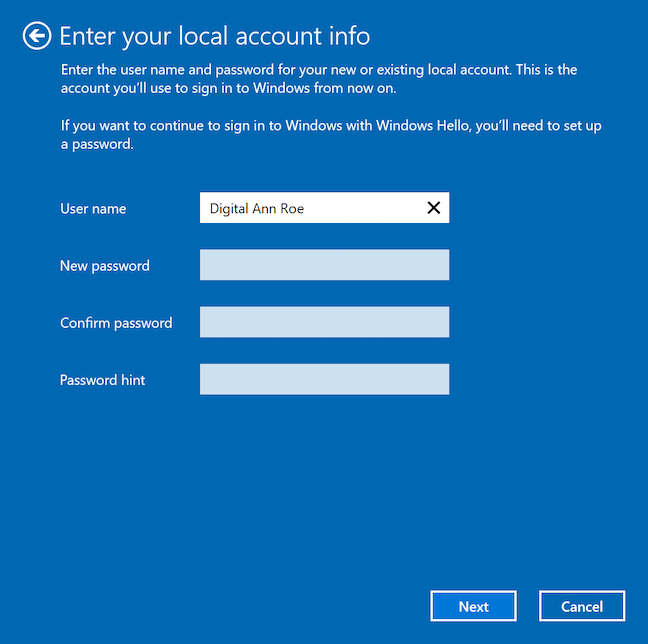
Choose a new User name, insert and confirm a password, and add a Password hint. The latter is used to help you remember your password. After entering all this information, press Next.
TIP: While we don't recommend it, you can leave all three password fields blank during this step. Do this, and you are no longer required to insert a password when you use your local account to connect to Windows 10.
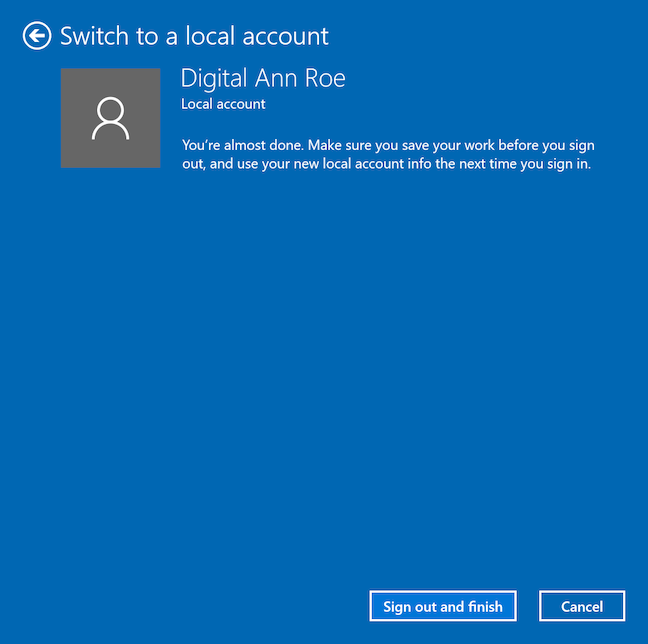
You're almost done. On the next screen, click or tap "Sign out and finish."
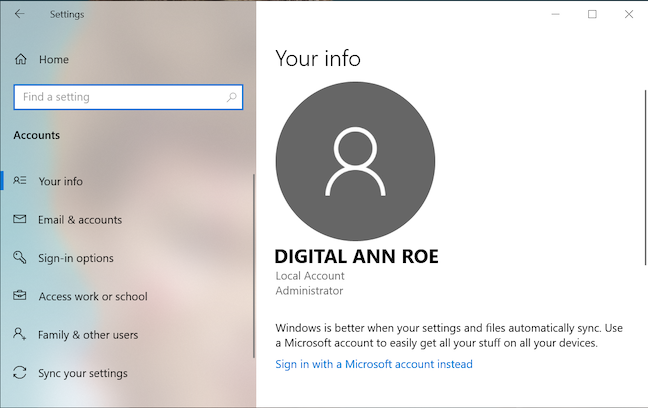
Sign in with the new credentials you provided. If you go to Your info, you can verify that you're connected with your new Windows 10 local account.
TIP: Keep in mind that converting a Microsoft account is just one of the several ways to add a local (non-Microsoft) user to Windows 10.
Why did you switch to a Windows 10 local account?
When you switch to a Windows 10 local account, all your account settings, including downloaded apps, remain untouched. You can still use your Microsoft account to access the company's apps and services. Before you close this tutorial, let us know why you switched to a Windows 10 local account. Do you have any privacy concerns? Or do you just feel uneasy about how hard Microsoft is pushing its accounts? Let us know in the comments.