As even the newest users to Windows 8.1 will quickly discover, Microsoft's newest operating system offers a choice of account types that you can use to log in. A local account works like a typical user account from any older version of Windows, while a Microsoft account offers a bunch of new and useful features that help you get more from Windows 8.1. Many users, not knowing the details of each account type, may simply opt for a local account because it's more familiar. Those users, after learning what they're missing out on, may want to upgrade to a Microsoft account. If you're one of those users and you want to switch from your local account to a Microsoft account, read on for step-by-step instructions to make this change happen.
NOTE: If you're more interested in learning about which account is best for you, please read this article: Introducing Windows 8.1: Should You Use a Local or a Microsoft Account?, which details the features of local and Microsoft accounts and can help you choose the best account type for your usage scenario.
Launch the Microsoft Account Wizard
First, log in with your local account. Then, open PC Settings using one of the methods described in this tutorial: Six Ways to Access PC Settings.
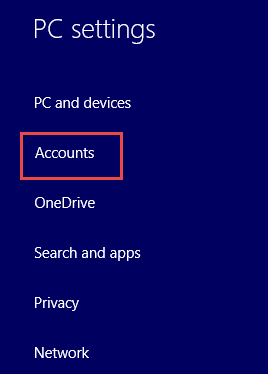
When the PC Settings window loads, select Accounts.
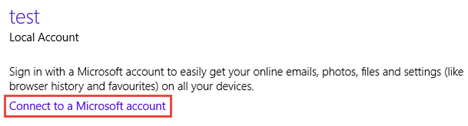
Under the Your account section, click or tap the button named "Connect to a Microsoft account".
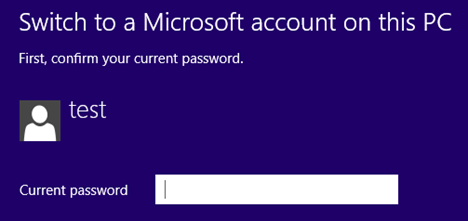
Enter your current password in the dedicated field and click or tap Next.
Use an Email Already Linked to a Microsoft Account
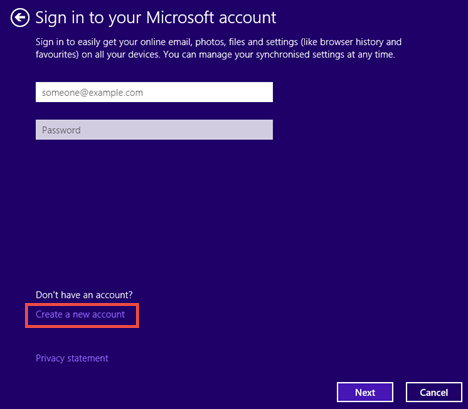
If you already have a Microsoft account, formerly known as a Windows Live ID, this process will take only a few moments. Simply enter the email address associated with your existing account and click or tap Next.
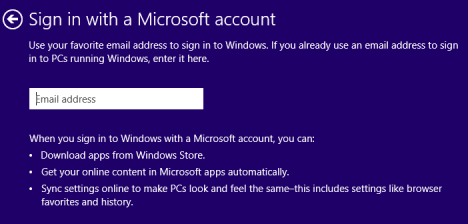
If you aren't sure whether or not you have an account, have a look at this article, for more information: Simple Questions: What is a Windows Live ID or a Microsoft account?.
Enter the password for your Microsoft account and press Next.
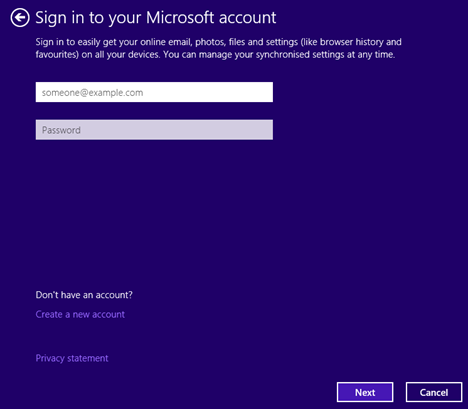
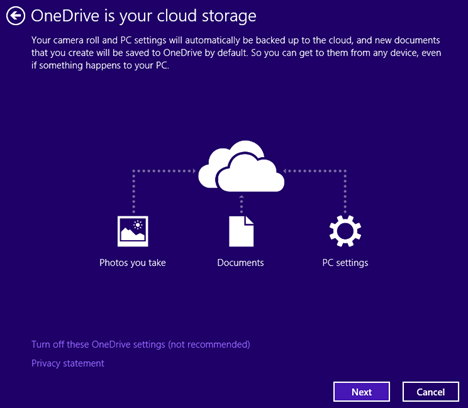
After that, you also have the option of enabling OneDrive on your account, if you want.
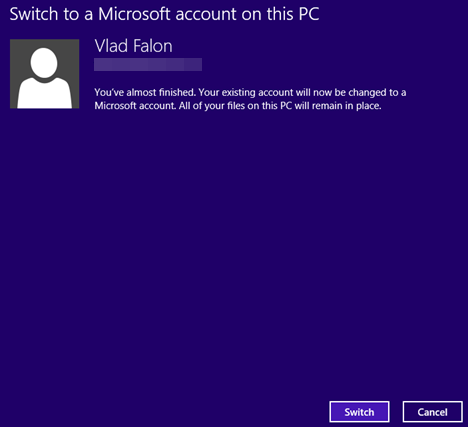
That's all there is to it. Click or tap Switch and, the next time you sign in, use your Microsoft account information instead of your local account.
Switch Without an Existing Microsoft Account
As you've already seen, switching is a breeze if you already have a Microsoft account. If you don't have a Microsoft account, you can quickly create one. It just takes a bit more effort. To start things off, click or tap the "Create a new account" link in the "Sign in to your Microsoft account" screen.
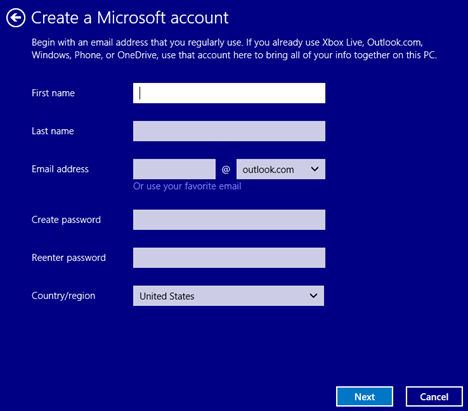
Next, type in the required information for the new Microsoft account and press Next.
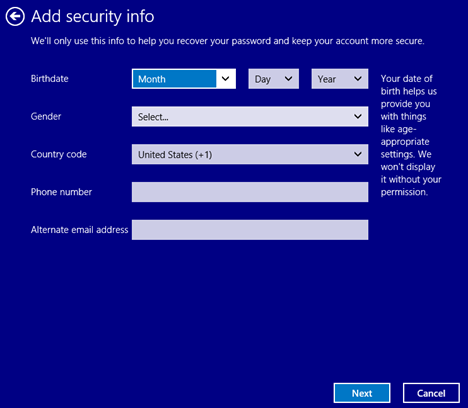
Now you are asked to enter security information that will be used to help you recover your password (when needed) and for two-factor authentication, if you choose to enable it later on. You can read more about that here: How to Set Up Two-Step Verification for Your Microsoft Account.
Fill in the security information and click or tap Next.
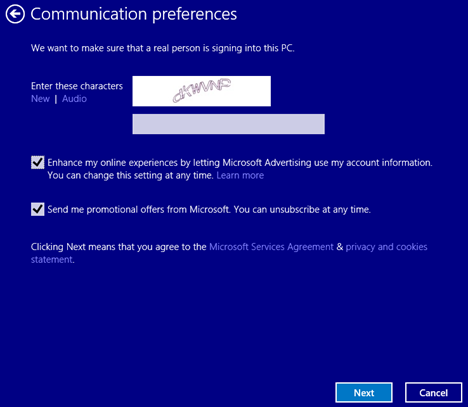
Next, validate that you are a real person by typing in the garbled characters. If you're unable to distinguish them, you can either click New to generate a new set of characters or Audio to hear them out loud.
You can also sign up for promotional offers from Microsoft if you want. Click or tap Next to continue.
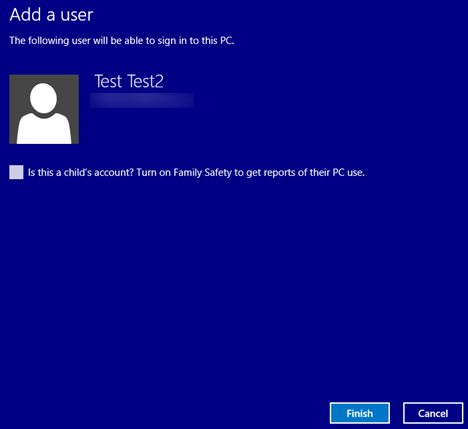
The Microsoft account has been created and added as a user on your Windows 8.1 device. If you've created this account for your children, now you also have the option to turn on the Family Safety feature by selecting the corresponding check box. Press Finish and you are back to PC Settings where you can see the newly added user account.
That's all there is to it. You can now log out and log back in using your new Microsoft account.
Conclusion
Now that you've switched to a Microsoft account you'll be able to enjoy many new features such as installing apps from the Windows Store and syncing account settings between computers. Also, the various apps that came packaged with Windows 8.1 including OneDrive, Music and others will become fully functional (if they are available in your country).
While using a Microsoft account has a lot of advantages over a local account, there are some concerns about the security of using an email address to log in. Mainly, what happens if someone hijacks your email account? Do you feel the added risk is worth it for the new features offered? Leave your opinions and questions below. Also, let us know if you had any problems upgrading to a Microsoft account.