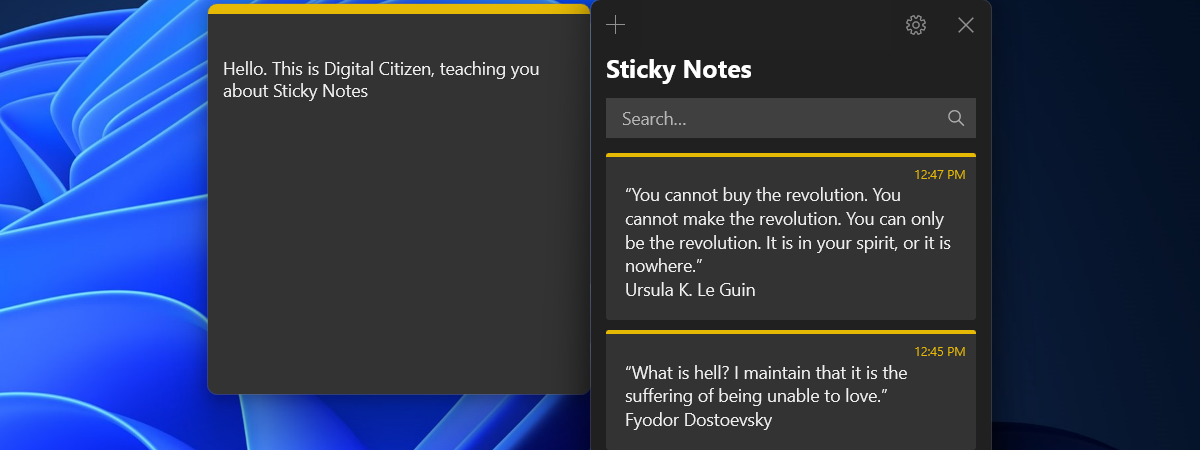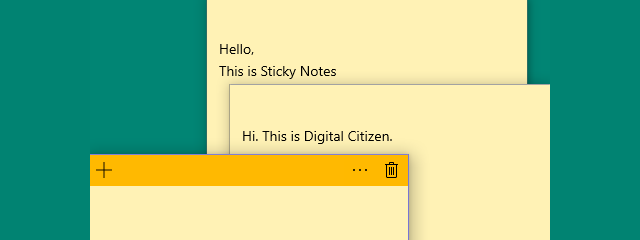
Sticky Notes is an application that has been present in Windows for a long time. It is a small tool that allows you to create quick notes and place them anywhere on your desktop. You can format text in your notes, you can resize, and you can even paint them in a variety of colors. In Windows 10, the Sticky Notes app has changed and is different from the old Sticky Notes that exists on Windows 7 and Windows 8.1. That is why we decided to make two different tutorials for it. In this one, we share everything there is to know about using Sticky Notes in Windows 7 and Windows 8.1.
How to open the Sticky Notes in Windows 7 and Windows 8.1
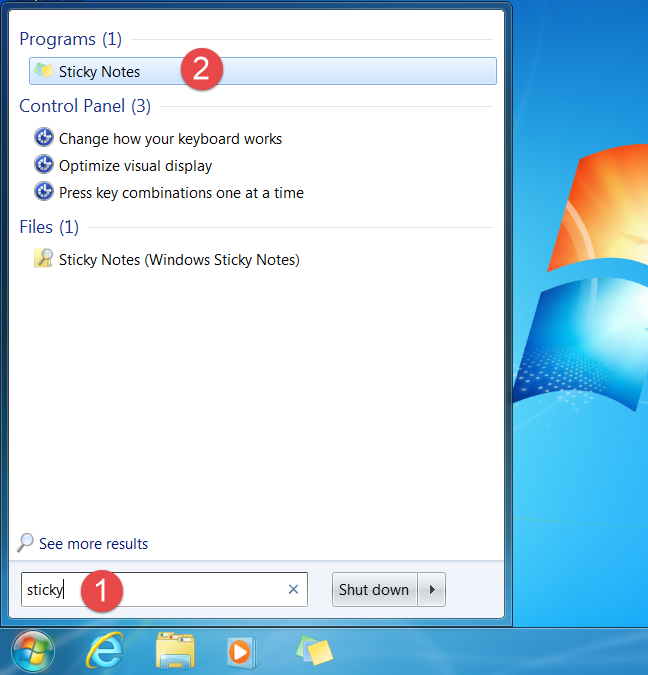
In Windows 7, one of the fastest ways to access Sticky Notes is to search for the word sticky in the search box from the Start Menu.
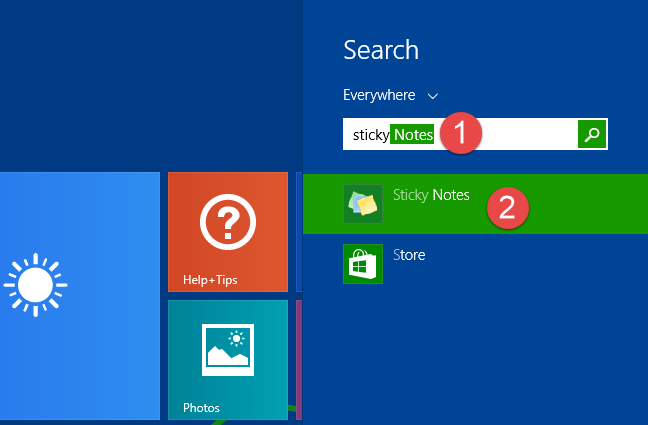
In Windows 8.1, switch to the Start screen and start typing sticky. When the search results are starting to appear, click or tap the Sticky Notes shortcut.
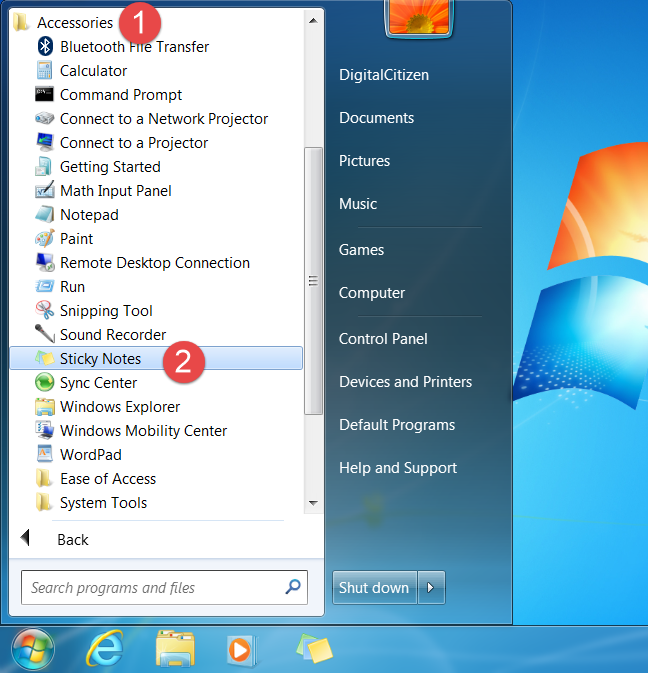
You can also find a shortcut for Sticky Notes in the Accessories section of Windows 7's Start Menu.
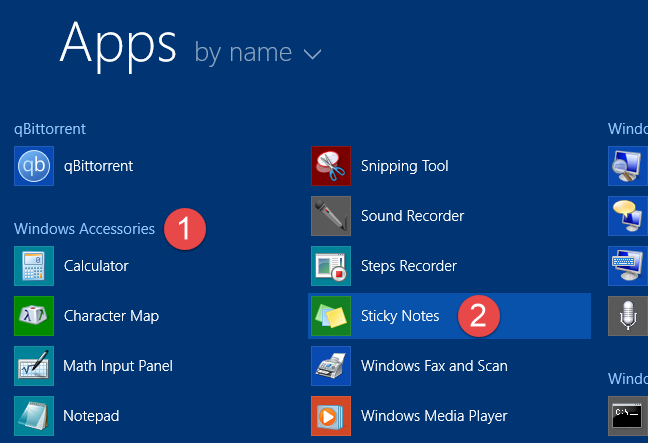
Similarly, in Windows 8.1, you can find a shortcut for the Sticky Notes app in the apps list from the Start screen.
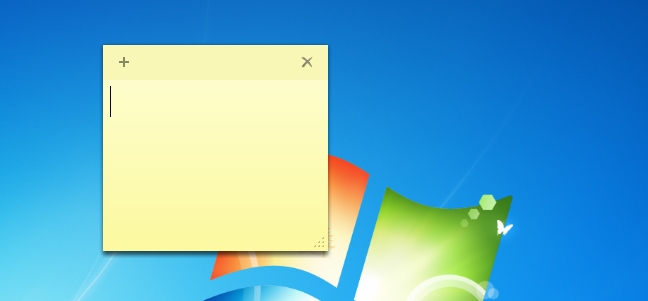
Regardless of your operating system, when you open Sticky Notes, the app loads a simple blank note like the one below.
How to create a note with Sticky Notes
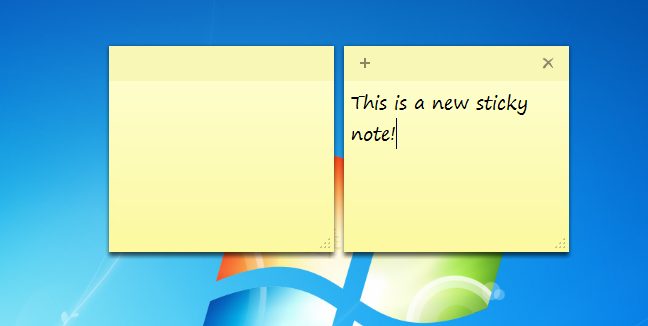
The user interface offered by the Sticky Notes is simple and easy to use. When you launch the app for the first time, you get a new note, in which you can start writing. If you want to create a new note, click or tap the "New Note" button from the top-left corner of a note, or use the keyboard shortcut Ctrl + N.
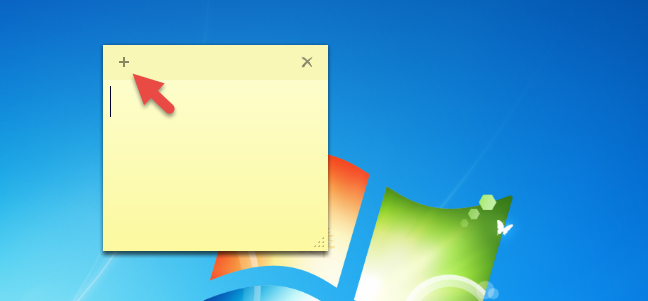
This action creates a new blank note, just like in the screenshot below.
What about deleting notes that you no longer need?
How to delete a note from Sticky Notes
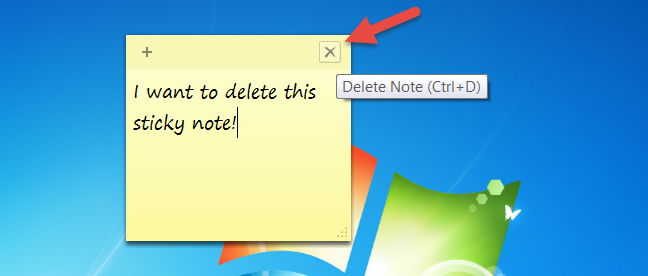
If you want to delete a note, click or tap the "Delete Note" button from its top-right corner, or use the keyboard shortcut Ctrl + D.
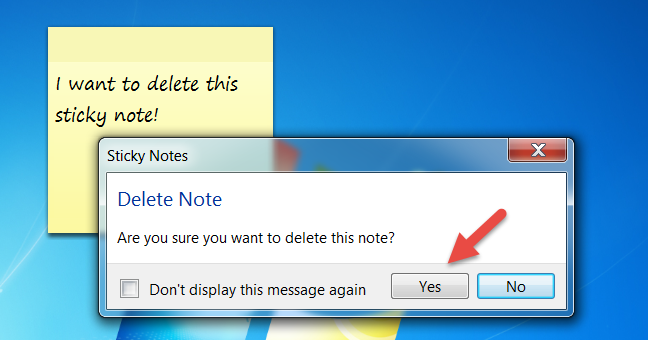
Then, you are asked to confirm your choice. Click or tap Yes, and that note is deleted.
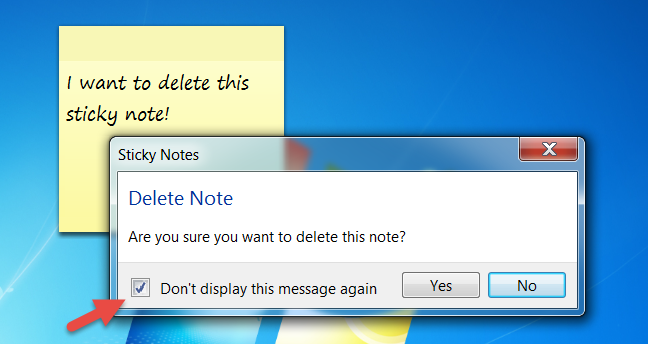
If you no longer want to be asked to confirm your choice each time you delete a note, you can check the box that says "Don't display this message again," before pressing Yes.
It is important to note that deleting notes is not the same thing as closing the Sticky Notes app. When you merely close Sticky Notes from the taskbar, the notes you have created are not deleted and get displayed the next time you open the application, precisely in the same place and form as they were when you closed the app.
How to move the notes created with Sticky Notes
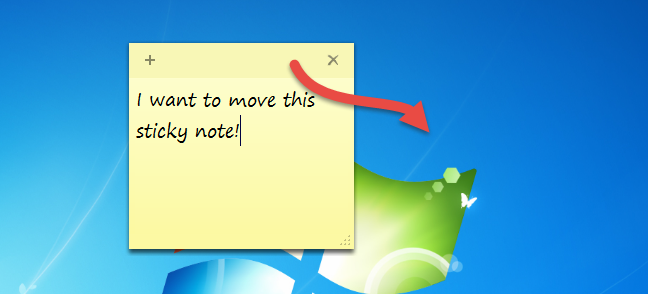
The Sticky Notes app also offers you the possibility to scatter the notes anywhere you want them on your desktop. To do that, click or tap on the notes' title bar (the slightly darker part of the note) and drag and drop the note where you want.
Sticky Notes also offers some customization options like resizing, changing the background color or formatting the text.
How to resize a note with Sticky Notes
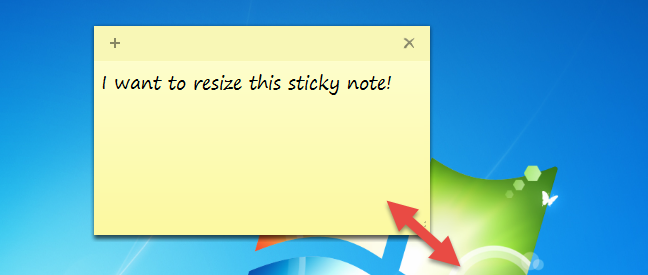
To change a note's size, drag it from its bottom right corner.
How to change the color of a note with Sticky Notes
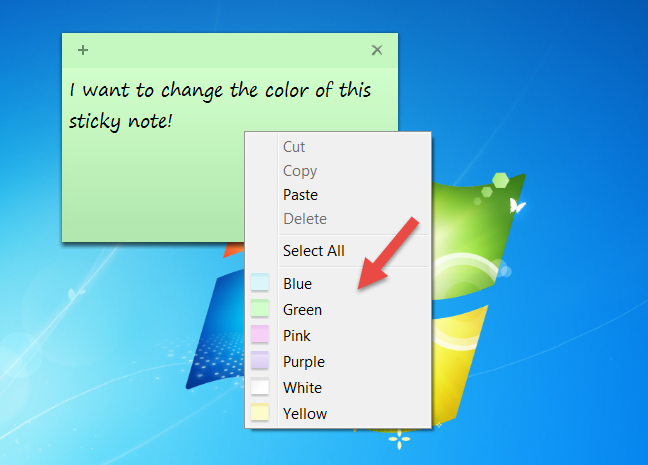
You can also change the color of the notes, to help you organize them a bit. The choices available are Blue, Green, Pink, Purple, White, or Yellow. To do this, you have to open the note's contextual menu. Right-click or press and hold the note and select the color you prefer.
How to format the text inside a note from Sticky Notes
Sticky Notes also lets you format the text from any note, with the help of a few different keyboard key shortcuts. Select the text you want to format and press one of the following keyboard shortcuts, to get the desired formatting:
- Bold: Ctrl + B
- Italic: Ctrl + I
- Underline: Ctrl + U
- Strikethrough: Ctrl + T
- Bullet list: Ctrl + Shift + L
- Increase font size: Ctrl + Shift + >
- Decrease font size: Ctrl + Shift +
- Capitalize (or otherwise) highlighted letters: Ctrl + Shift + A
- Right align: Ctrl + R
- Center align: Ctrl + E
- Left align: Ctrl + L
- Single line space: Ctrl + 1
- Double line space: Ctrl + 2
- 1.5 line space: Ctrl + 5
Do you use Sticky Notes in Windows 7 or Windows 8.1?
Sticky Notes is a friendly application that allows you to add notes to your desktop in just a few steps. They remain there as long as the application is running and each time you open it, your latest written notes are restored. Do you use this app? Alternatively, do you still prefer using traditional paper post-it notes? If you have any questions about this tool, do not hesitate to leave a comment below.