Windows 7 comes with a convenient way to help you review the state of your system and find solutions to security and maintenance issues. The feature which facilitates this is called Action Center and it is built upon the foundation set by the Windows Security Center, which was first introduced by Windows XP Service Pack 2 and then tweaked by Windows Vista. In this article, I will explain all the functionality of the Action Center and show how to configure it so that you receive only the notifications you desire.
Action Center Explained
Action Center is a Windows 7 feature which continuously monitors the state of your system's security. If it notices any kind of problem, like your antivirus being disabled, it immediately notifies you, so that you can take corrective action. It also monitors a series of maintenance related items: checks if you have scheduled any system backups, tries to find solutions to recent computer issues, checks for any maintenance problems, etc. When a problem is detected, the user is notified and guided on what he/she could do to fix it. Personally, I like this feature a lot as it involves the user in taking decisions about the security & maintenance of his/her own system.
Action Center Display Messages
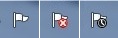
You might have noticed a little white flag icon in the notification area. That is the icon of the Action Center. If you don't know what is the notification area and how to manage it, you can read a previous article - How to Customize the Notification Area. When there are some messages for the user, it is overlaid by other icons: a red x and a black clock. The red overlay (the one with an 'x') means there is at least one important message, so you need to pay attention. The black clock overlay means there is a scheduled task running in the background (such a scheduled Windows Defender scan).
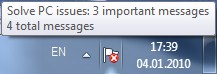
Hover the mouse cursor over the flag icon and you will see a tooltip like the one below, giving you some brief information about what is happening with your system.
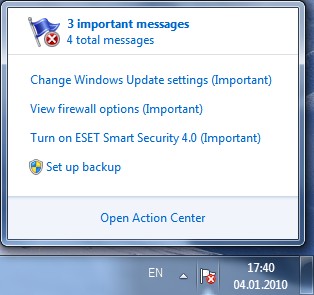
To see the list of messages you need to pay attention to, click the Action Center icon (the white flag).
How to Review the Action Center Messages
To open the Action Center and review the messages, click the 'Open Action Center' link.
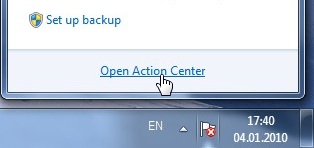
Another way is to search for the word 'action' in the Start Menu search box and click on the Action Center search result. The Action Center window shows you the current issues related to security and maintenance on your PC, each shown in its appropriate group. It will also show details about each issue and options for solving them. The image below shows three important messages in the Security group (see the red marks) and one regular message in the Maintenance group (the yellow mark).
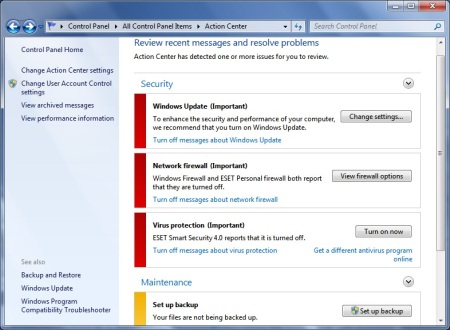
All messages will keep this colour coding: red means it is a very important message which you should not ignore, yellow means it is a recommendation which can be ignored if you do not consider it important.
Action Center Error Messages Explained
The Action Center will inform you when the following problems occur:
- Windows Update (Important) - warns you that Windows Update is set to never check for updates, leaving your computer exposed to all sorts of risks. The recommended setting is to automatically download and install updates. To review the available options click the 'Change settings...' button and then select the appropriate update option;
- Spyware and unwanted software protection (Important) - warns you that Windows Defender and/or your other installed antispyware solution is turned off. To see a list of available options, click 'View antispyware programs';
- Virus protection (Important) - occurs when your antivirus is not installed, disabled or has outdated definitions. It is strongly recommended to either install an antivirus, turn on your antivirus, if you already got one, or update your antivirus definitions;
- User Account Control (Important) - warns you that the User Account Control is disabled. In case you are not familiar with it, find out What is UAC & Why You Should Never Turn it Off;
- Network firewall (Important) - warns you that Windows Firewall and/or your other installed firewall (e.g. ESET, ZoneAlarm, Symantec etc.) is turned off. You should make sure you have a firewall always turned on. To see the available options, click 'View firewall options'. If you need a security solution, check out our Security for Everyone series for reviews of the best security solutions available for Windows 7;
- Internet security settings (Important) - occurs when certain Internet Explorer security settings are lower than their default level. You can easily reset them to the desired level by clicking the 'Restore settings...' button in the Action Center message about Internet security;
- Network Access Protection - refers to a security feature deployed in corporate environments to manage health information for client computers in a centralized manner. This setting depends on the Network Access Protection Agent service and further software settings and will not be an issue for home users;
- Set up backup - notifies you that you should set up a backup task. This is not as important as the security issues above, although if you have enough available storage space, you could set your system to do regular backups of your files and settings;
- Check for solutions to problem reports - notifies you about reported problems with your software and hardware and checks for solutions online;
- Check for updates - notifies you about non-critical software updates, either for Windows components or for other Microsoft products;
- Troubleshooting: System Maintenance - notifies about any maintenance routines that need to be carried on, in order to get your computer running more smoothly.
How to Turn Off Action Center Messages
All listed issues have a ''Turn off messages about' link which allows you to disable notifications about them.
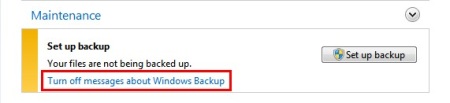
Turning off messages does not solve the issues, but only prevents the messages from nagging you. So, it wouldn't be a good idea to turn off messages about the network firewall or other security issues. If you want to turn Action Center messages on or off in a simpler manner, in the Action Center window click the 'Change Action Center settings' link from the left sidebar.
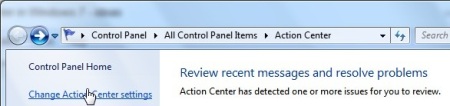
The resulting window shows the list of features monitored by the Action Center. If you want to disable messages for a certain feature or utility, you only have to uncheck it and then click OK.
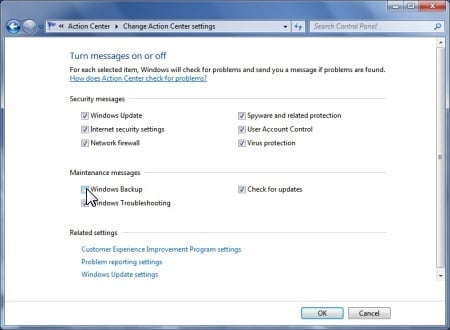
I strongly recommend you not to disable any message from the Security group, for obvious reasons: you'd miss important alerts about potential security trouble with your computer. The only type of message I'd usually turn off is the one related to Windows Backup, since I don't use that feature anyway. Also, if you are not into troubleshooting, you might turn off messages related to Windows Troubleshooting. Check for updates refers to recommended non-critical updates for Windows or various other Microsoft products (like Microsoft Office) and it would be good to keep it turned on.
Conclusion
In this tutorial, I have described how to access, use and configure the Windows 7 Action Center. Although you might find its notifications messages annoying, they are there to help you avoid or solve problems with your computer. As you can see, this feature is your automated guard, always monitoring the state of your system security and maintenance tasks. Keeping it enabled means you are always informed about any important updates which could negatively impact your system. If you have any questions about this feature or you just want to share your experience with it, don't hesitate to leave a comment.