
 15.01.2010
Desktop Gadgets are not something new to the Windows world. They were first introduced in Windows Vista, where they were fitted on the Windows Sidebar. Even if the idea itself was good, it didn't have the success it might have deserved. With Windows 7, Microsoft slightly redesigned this feature and now it is a bit more customizable than before. In this article I will explain what desktop gadgets are, where to find them and how to work with them.
How to Start the Desktop Gadget Gallery
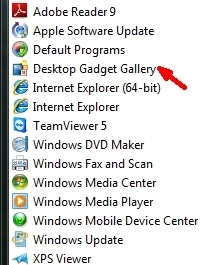
The first step in using Desktop Gadgets in Windows 7 is starting the Desktop Gadgets Gallery. This is your desktop gadget control panel, the place where you will do most of the configuration work. There are two ways to start it: the first is to go to Start -> All programs -> Desktop Gadgets Gallery.
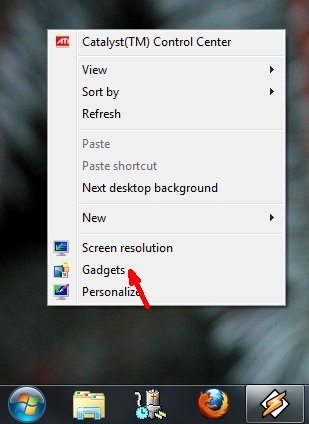
The second way is to simply right-click on your desktop and select Gadgets from the right-click menu.
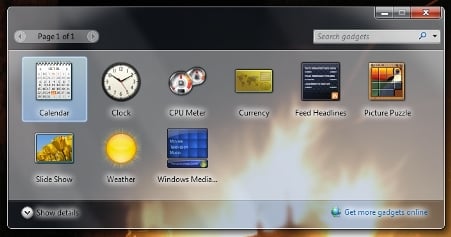
The Gadget Gallery will show you the list of currently installed gadgets. By default, Windows 7 comes with the following list of gadgets: Calendar, Clock, CPU Meter, Currency, Feed Headlines, Picture Puzzle, Slide Show, Weather and Windows Media.
How to Start or Close a Desktop Gadget
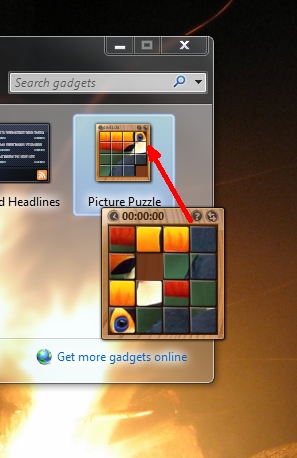
To start a certain gadget from the Gadget Gallery, double-click it and it will be on your desktop in a fraction of a second. You can also select and drag it onto your desktop in the desired location.
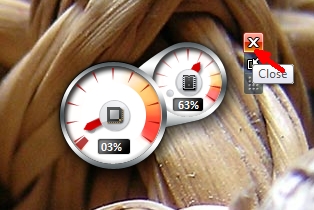
Closing a gadget is probably the easiest thing. All you have to do is click the Close (x) button in the top right corner of the gadget. This button appears when you place your mouse over the gadget. Otherwise it is hidden.
How to Customize & Navigate Through Desktop Gadgets
Desktop gadgets can be personalized and customized in many ways. In this chapter I will try to summarize all the elements which you can configure:
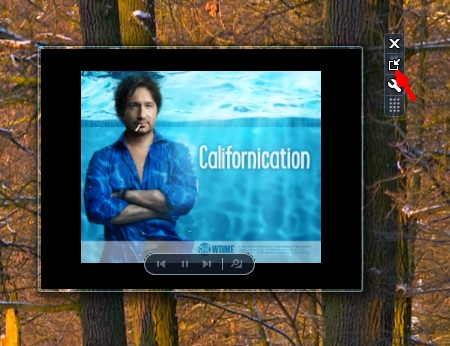
- Enlarge desktop gadgets - some gadgets allow you to enlarge them, so you can have a better look at the information shown. If this is possible, they will have a button in the shape of an upwards pointing arrow on their right side, as shown below. The gadget will be enlarged if you just click on it. If you want to make the gadget small again, you will have to click that same button (the arrow will now be pointing downwards).
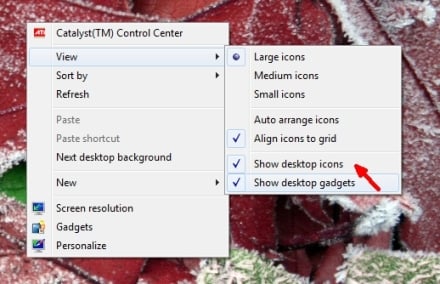
Desktop Gadgets - Hide or show all of the desktop gadgets - there is a way to get rid of all the gadgets on your desktop at once. All you have to do is right-click your desktop, click View and then 'Show desktop gadgets' to remove the check mark. All of the desktop gadgets you had on your desktop will disappear. To show them again you just reverse the process and all of your gadgets will be displayed again.
If you are worried that your gadgets might still be running in the background when they're not shown, don't be. The process called "sidebar.exe", that Windows 7 uses to display them, closes when you uncheck 'Show desktop gadgets'.
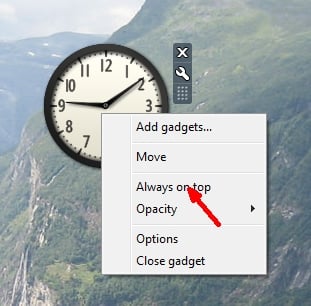
Desktop Gadgets - Keeping a gadget on top of other windows - some gadgets may show very useful information and you may want to keep them on top of all the other windows. For this, you just have to select the desktop gadget you want to keep on top and right-click on it. In the menu that appears, click 'Always on top'.
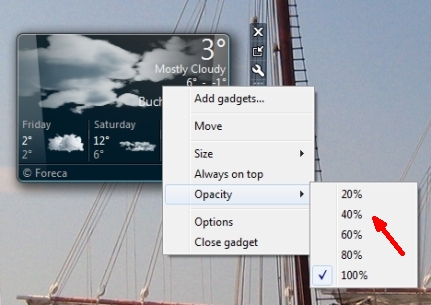
Desktop Gadgets - Gadget opacity - setting the opacity (in other words, how visible a gadget is when your mouse cursor isn't over it) is done by right-clicking the respective gadget, selecting Opacity and then the level you desire. The smaller the percentage, the more transparent the gadget will be.
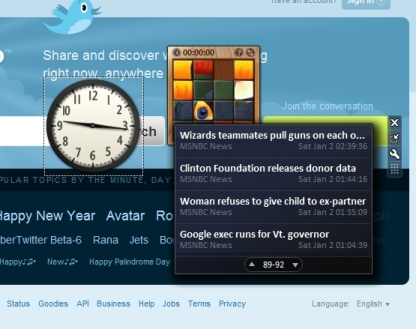
Desktop Gadgets - Switch between active gadgets - you can switch between them by clicking on the gadgets you want to see. You can also use your keyboard. Keep the Windows Logo key pressed, and then the G key. By doing this you will navigate through your active gadgets, one by one.
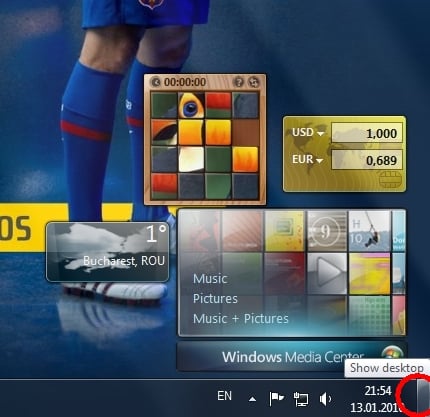
Desktop Gadgets Also, if you keep the mouse cursor on top of the Show desktop button from the right side of the taskbar, all of the active gadgets will be shown.
Desktop Gadgets
How to Uninstall a Gadget
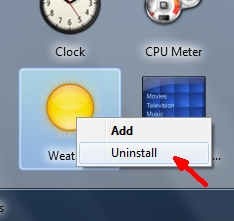
In case you want to uninstall a desktop gadget, there are a couple of very simple steps you have to follow are: open the Desktop Gadgets Gallery, right-click the gadget you want to uninstall, and select Uninstall.
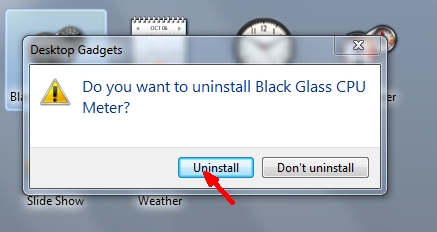
You will be asked to confirm the uninstall. After that, the gadget is completely removed from your system.
Conclusion
Desktop Gadgets in Windows 7 are a fun and easy way to bring the things you're interested to your desktop. Microsoft made a good decision to change the way gadgets are shown. Unlike Windows Vista, you are no longer dependent on the sidebar which had to be placed on the left or right side of your screen. You can move the gadgets around any way you desire and post them on your desktop so that they fit better to the way you work on your computer.
If you know some cool gadgets, feel free to leave the link in a comment. We will start testing the best gadgets for Windows 7 and we will definitely welcome your suggestions.