
Install & Change to a New Display Language in Windows 7 Home & Professional with Vistalizator

In a previous article, we covered how to Install and Change to a New Display Language in Windows 7 Home and Professional using the only method provided by Microsoft. Even if that solution works without problems, it is limited because it supports a small number of display languages and it is also a bit complicated to get things done. Fortunately there is an alternative which allows you to install any display language. However, it involves using a special tool to hack your Windows 7, called Vistalizator. This tutorial will show how to use this tool to install any display language you want.

Step 1: Download Vistalizator & Windows 7 MUI Language Packs

First, you need to download a free application called Vistalizator. The download page can be found here. The direct download link towards the latest version of the application is this (1MB download). In case it is no longer valid, simply go to the download page and search for the latest download link.

Second, you need to download the display language you want to use. All the download links can be found on these pages, depending on your version of Windows 7:
Download 32-bit Windows 7 RTM MUI Language Packs
Download 64-bit Windows 7 RTM MUI Language Packs
The language packs are quite large (between 29 and 149 MB). Therefore you might need to wait a bit until they get downloaded.

Step 2: Install the New Display Language

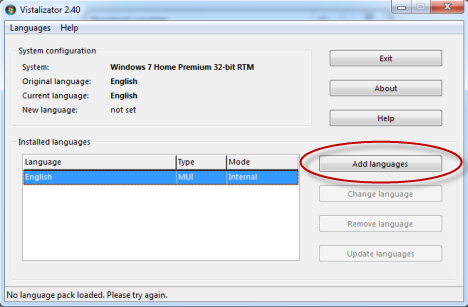
Double-click on the Vistalizator.exe file you just downloaded. The Vistalizator application window opens. Click on the 'Add languages' button.
Vistalizator

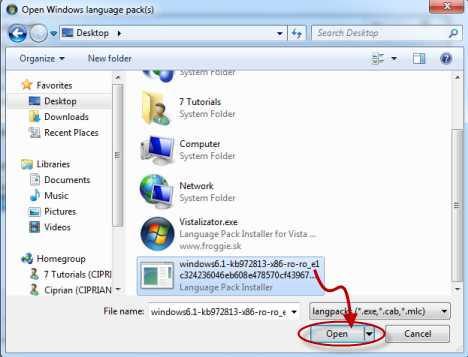
This opens an 'Open Windows language pack(s)' window. Browse to the location where you downloaded the new display language you want to use, select the display language file and click Open.
Vistalizator

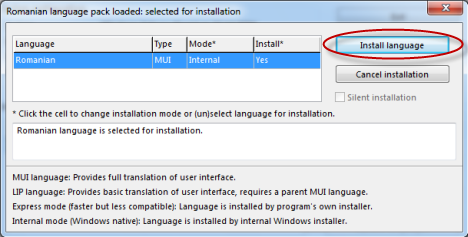
You are back to the Vistalizator application window, where the selected language pack is loaded. Click 'Install language'.
Vistalizator

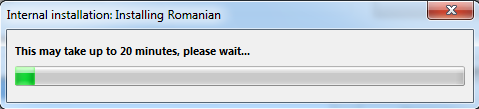
Vistalizator takes some time to make the conversions and install the new display language. This process takes a few minutes. On most modern computers it should be done in about 5 minutes. However, if your computer is older and works more slowly, it can take up to 15-20 minutes for the process to end.
Vistalizator

When done, the application asks if you want to make the language you just installed the new display language. Click Yes.
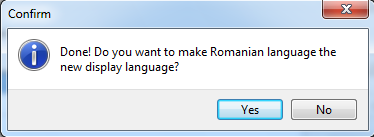
Vistalizator

You are informed that you need to exit the program to restart the system so that the changes take effect. Click OK.
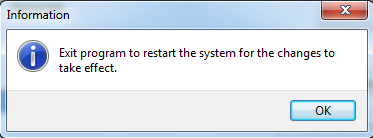
Vistalizator

You are back to the Vistalizator application window. The new display language is shown in the list of installed languages. Click Exit.
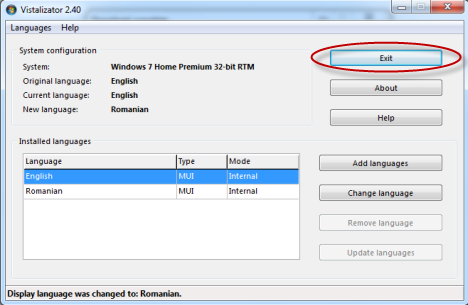
Vistalizator

You are asked to confirm that you want to restart the computer. Close any other running applications or open documents and click Yes.
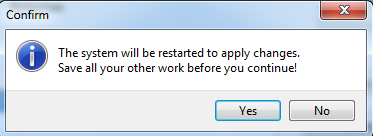
Vistalizator

The computer now reboots. Once you log in, the new display language is used by Windows 7.
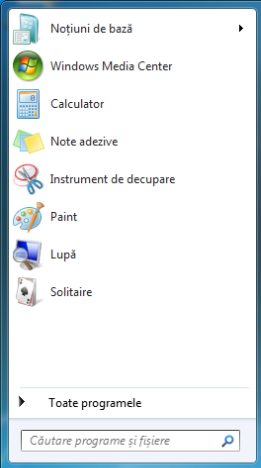
Vistalizator

In case of issues: Some people reported having problems with this hack. It can happen that, at some point after using this tool, you get error messages saying that "This copy of Windows is not genuine", even though you have a genuine copy of Windows 7. We tested this and we had no issues. However, if it happens to you, check out this discussion for how to fix the problem: Vistalizator, Multilingual users and Validation problems.

Conclusion

As you can see from this tutorial, using Vistalizator to change the display language is a simple process. Unfortunately, as with any other hack, it involves a degree of risk and failure. We did not encounter any issues but if you do, don't hesitate to check out the link we provided in the section above. For any questions or comments, use the form below.

Related articles

How to Uninstall a Display Language with Vistalizator
Install and Change to a New Display Language in Windows 7 Home and Professional
Install and Change to a New Display Language in Windows 7 Ultimate & Enterprise
Changing the Display Language Used for non-Unicode Programs
How to Change the Keyboard Input Language

Comments

I've found that problems with using Vistalizator and Windows Genuine error are related to an update from Microsoft for WGA.
Instructions for removing and blocking this update are here:
http://blog.yaronmaor.net/2010/04/kb971033-how-to-block-or-uninstall.html

Cheers,
YaronM

i guess it is the MUI language installation method Yaron you chose that ended up with a WGA error.

you should have chosen the 'INTERNAL' rather than the 'EXPRESS' method.

I've been looking for this for a long time. I got a academic license for 7 professional for a good price but the OS is in German. I wanted to add an English language pack but I couldn't ow this is perfect for me.

So i will be able to get updates via Windows updates after changing language? No errors when validating via web? For example downloading microsoft programs via web...

Thanks for answers:)

Hi. This should not impact in any way your ability to download Windows Updates or install software.

I have .mui errors on WIN 7 64 SP1 I did download vistalizator but it did not run as it saw SP1 BUT files have been altered and now I cannot get back to the original setting, ie FRENCH
Cant upgrade to ULTIMATE, AND it wont accept .iso in English or French to repair so am stuck! Yes it seems a microsoft update now triggers not valid licence screen and stops any updates. I cannot load vistilizator so cannot put it back to French Any ideas?

Tampered File: %systemroot%\system32\sppc.dll|sppc.dll.mui
Tampered File: %systemroot%\system32\sppcext.dll|sppcext.dll.mui
Tampered File: %systemroot%\system32\slc.dll|slc.dll.mui
Tampered File: %systemroot%\system32\slcext.dll|slcext.dll.mui
Tampered File: %systemroot%\system32\sppuinotify.dll|sppuinotify.dll.mui
Tampered File: %systemroot%\system32\slui.exe|slui.exe.mui|COM Registration
Tampered File: %systemroot%\system32\sppcomapi.dll|sppcomapi.dll.mui
Tampered File: %systemroot%\system32\sppcommdlg.dll|sppcommdlg.dll.mui
Tampered File: %systemroot%\system32\sppsvc.exe|sppsvc.exe.mui

File Mismatch: C:\Windows\system32\en-US\sppc.dll.mui[6.1.7600.16385], Hr = 0x800b0100
File Mismatch: C:\Windows\system32\en-US\sppcext.dll.mui[6.1.7600.16385], Hr = 0x800b0100
File Mismatch: C:\Windows\system32\en-US\slc.dll.mui[6.1.7600.16385], Hr = 0x800b0100
File Mismatch: C:\Windows\system32\en-US\slcext.dll.mui[6.1.7600.16385], Hr = 0x800b0100
File Mismatch: C:\Windows\system32\en-US\sppuinotify.dll.mui[6.1.7600.16385], Hr = 0x80092003
File Mismatch: C:\Windows\system32\en-US\slui.exe.mui[6.1.7600.16385], Hr = 0x80092003
File Mismatch: C:\Windows\system32\en-US\sppcomapi.dll.mui[6.1.7600.16385], Hr = 0x800b0100
File Mismatch: C:\Windows\system32\en-US\sppcommdlg.dll.mui[6.1.7600.16385], Hr = 0x800b0100
File Mismatch: C:\Windows\system32\en-US\sppsvc.exe.mui[6.1.7600.16385], Hr = 0x80092003
File Mismatch: C:\Windows\system32\en-US\user32.dll.mui[6.1.7600.16385], Hr = 0x800b0100

You problem description seems similar to the one described here: http://social.microsoft.com/Forums/en/genuinewindows7/thread/6f6b1cb8-e8...
You should try the solution proposed in this topic. It might help you!

Add new comment