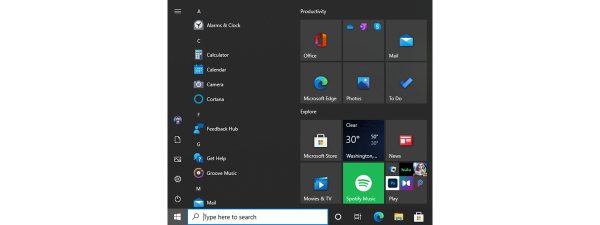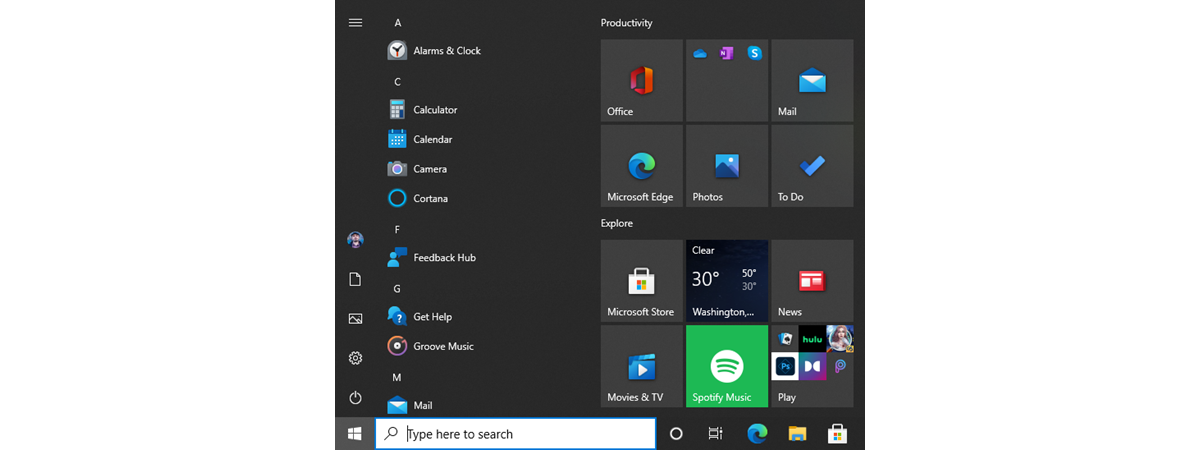
While the old and familiar desktop shortcuts continue to be reliable, the Windows 10 Start Menu includes a different way of launching and organizing things, using a concept called Windows tiles. Everyone has an opinion about Windows tiles. In spite of Windows 10 being one of the most customizable operating systems to date, the debate rages on between Team Tiles and Team Tiles Suck (also known as hardcore Windows 7 fans). Love them or hate them, tiles are here to stay in the Windows 10 Start Menu, so let's learn more about what Windows tiles are and what they can do for us:
A brief history of Windows tiles
The arrival of Windows 8 was the first time Microsoft inflicted the tiles feature on average, unsuspecting computer users. Considering that the Start Menu has always been a vital part of the Windows operating system, a vast majority of users were dismayed to see this pillar-feature of the operating system being replaced by tiles and by the Start screen in Windows 8 and Windows 8.1. There was a huge screen instead of a Start Menu, and it was filled with a concept that they weren't familiar with: tiles.
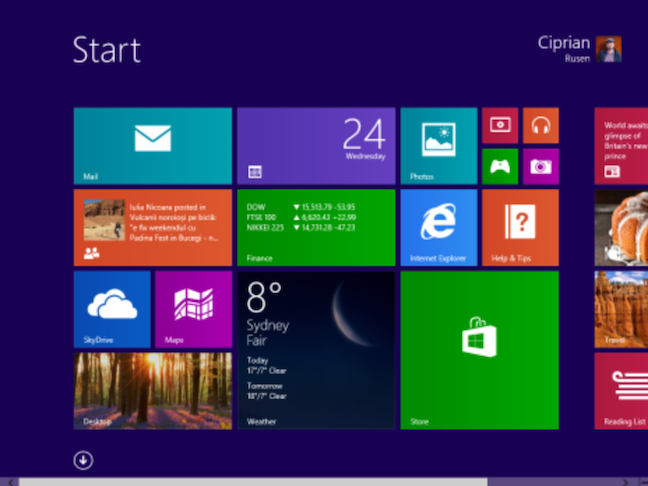
After the initial shock wore off and as tiles became more popular (also thanks to Windows Phones, the first devices introducing tiles), some users recognized the advantages they had to offer. In direct contrast with its predecessor, the Windows 10 Start Menu appears to have evolved as a compromise between the classic Windows 7 Start Menu and the informative tiles of Windows 8, resulting in something more useful to desktop and tablet users alike. The picture below shows this evolution.
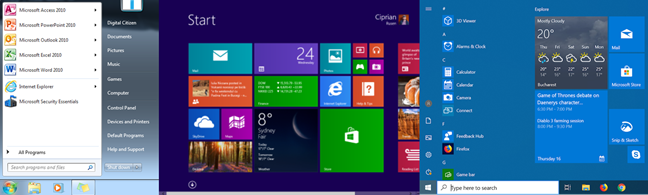
Still controversial, the tiles of Windows 10 are better received than they were in Windows 8, because more users are familiar with the concept, and recognize the improvement they bring to the Start Menu. For those of you who do not know what they are, and why they are an improvement over traditional shortcuts, read on.
What are tiles in Windows?
A tile is a type of shortcut you can only find in a grid, on the right side of your Windows 10 Start Menu. Colorful, sometimes animated, and larger than the regular sized icons used for desktop shortcuts, Windows tiles come in four different sizes. You can learn how to resize tiles in Windows 10 and manage groups of tiles, organizing the Start Menu according to your needs and preferences. Depending on their size, Windows tiles can display plenty of information from the apps they represent, or they can be as small as a simple medium-sized icon. In the screenshot below, you see all the sizes that tiles can have in Windows 10: large, wide, medium, and small.
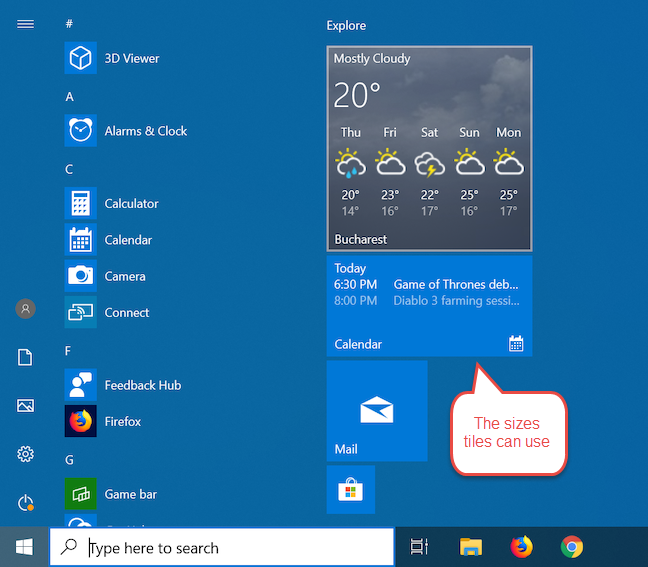
Simply put, Windows tiles are the next step in the evolution of the Start Menu shortcuts.
How to create a tile in Windows 10
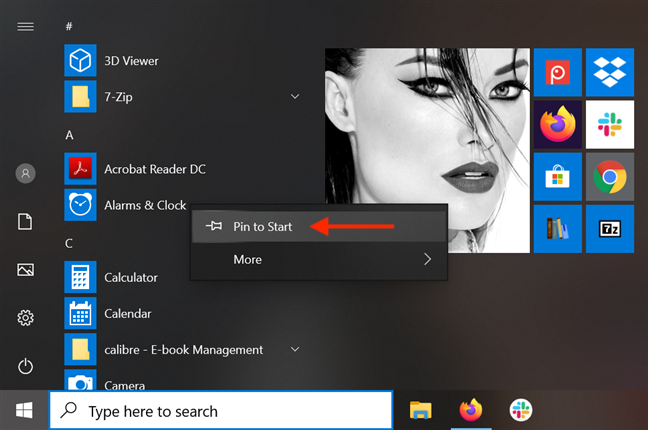
It's easy to create a tile in Windows 10. First, open the Start Menu either by pressing the Windows button on your keyboard or by clicking or tapping Start. By default, the Start Menu shows shortcuts for all the apps on your Windows 10 computer or device, displayed in alphabetical order. Scroll until you find the app you want to add as a Windows tile and right-click or press-and-hold on it - we are using the Alarms & Clock app. From the contextual menu, click or tap on "Pin to Start."
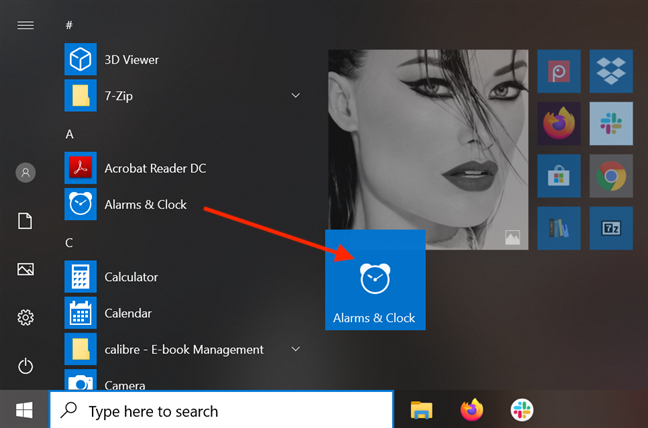
You can also click or tap on the Start Menu shortcut of an app to grab it, and then continue holding down the mouse button while dragging the app into the tile section. Drop the tile to a convenient position in the Start Menu grid.
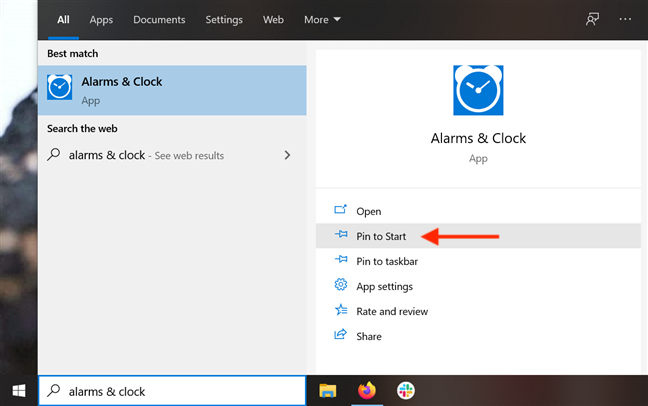
Another way to create a tile is by using your taskbar's search field. Type in the name of your app. Then, from the options on the right-hand side of the flyout, click or tap on "Pin to Start."
Your new tile is added. You can keep an eye on it to see your upcoming alarms in the Start Menu, or you can use it to access the Alarms & Clock app.
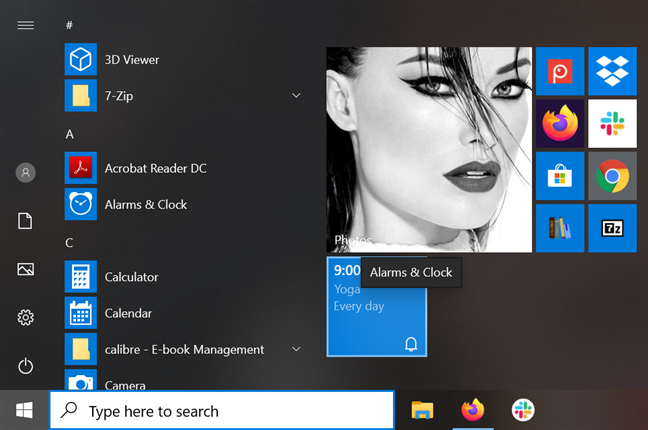
TIP: Alarms & Clock is one of our favorite built-in apps. You can use it to create alarms and set timers on your Windows 10 computer or device.
What do tiles do in Windows?
Tiles are shortcuts for Windows 10 apps available in the Microsoft Store. If you click or tap on a Windows tile, the respective app is launched. If you want to open the Weather app, for instance, all you have to do is click or tap on its tile, and you get a detailed weather forecast. Windows tiles can be designed to display information in real time, from the app they point to. This is what makes them different and more useful than traditional shortcuts, as they help users see relevant information and content without having to open the apps they point to. The Weather app and the Calendar app are perfect examples of this. One look at the Windows 10 Start Menu below and you can see the (disappointing) weather forecast and my (intricate and busy) schedule, without actually opening any app, just from the information displayed by their tiles.
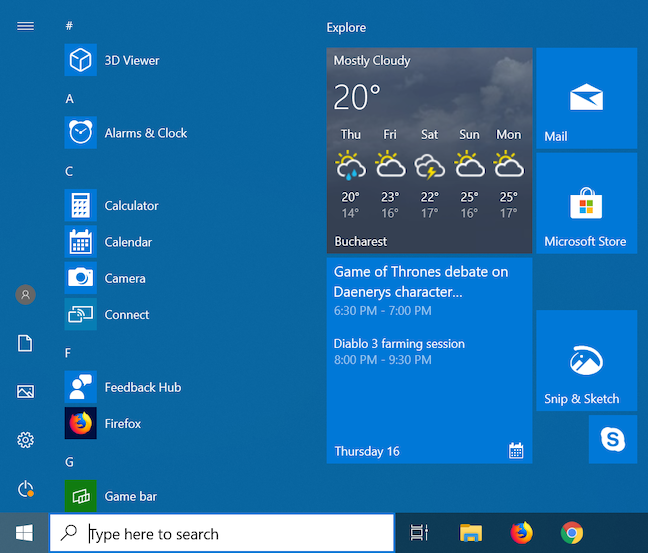
The information that tiles display can be presented in various forms, depending on how the Windows tile is designed, ranging from simple text to an image or even a set of images. The Mail app, for instance, sequentially displays your newest emails, and, in the bottom right corner, it shows the number of unread messages in your Inbox. Another example is the Sports app (highlighted below) that shows you the title of the latest sports news, and a picture relevant to each story shown on its Windows tile.
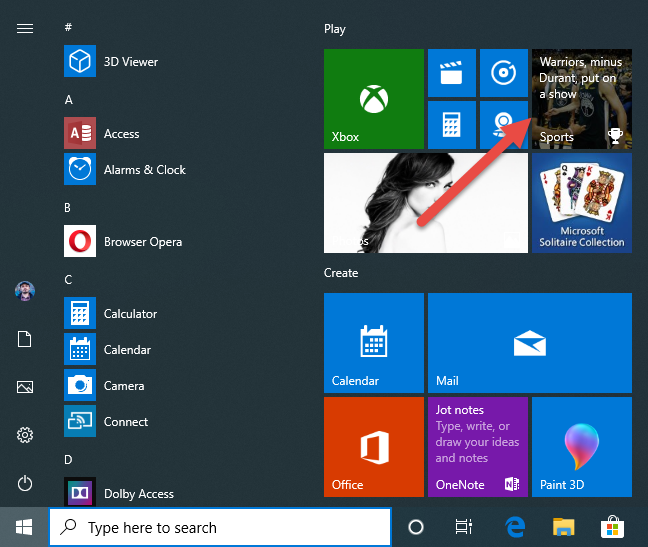
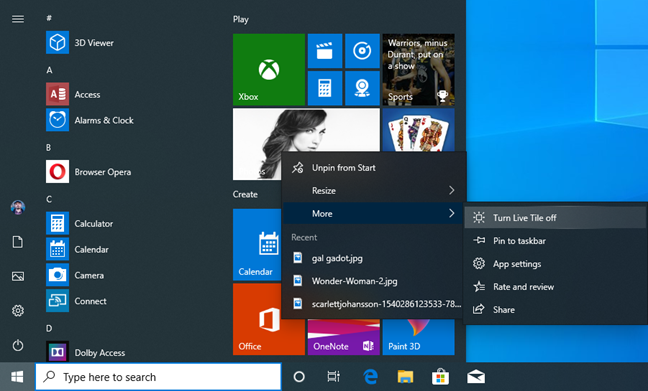
You decide which Windows tiles to use, if any, and the amount of information they display. Because live tiles can provide live updates to the user, in many cases, their ongoing notification state creates an animation effect that toggles between different sets of information, causing some users to find them too flashy and distracting. This explains why some desire a functional, simple Start Menu. Windows 10 allows you to turn live tiles off, converting them into static tiles, which only display the name and logo of the app.
On the other hand, if you can't get enough tiles in your Start Menu, consider looking into how to show more tiles on Start, in Windows 10.
Still confused? The differences between a tile and a shortcut
Although Windows tiles are a type of shortcuts, they should not be confused with regular Start Menu shortcuts for desktop apps like Firefox, Google Chrome, Adobe Reader, and others. Here are the differences between tiles in Windows 10, and traditional shortcuts:
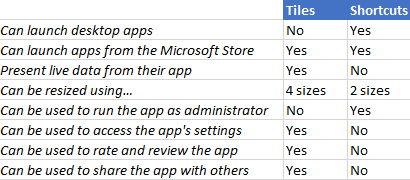
Let's discuss these differences in more detail:
- If an app is not distributed through the Microsoft Store, then a Windows tile for that app is not available, only a traditional shortcut. That's because only traditional desktop apps, like those from Windows 7, can be distributed outside of the Microsoft Store. Yes, you can pin shortcuts for desktop apps to your Start Menu, but it is essential to acknowledge that, although these shortcuts are shown inside squares that look just like Windows tiles, they are not tiles. To make things even more confusing, the Microsoft Store contains some desktop apps like iTunes, that do not use tiles, but traditional shortcuts. Therefore, tiles can only point to Windows 10 apps from the Microsoft Store, and not to desktop apps that also run on older Windows versions such as Windows 7.
- Tiles can display live data from their apps. However, not all Windows tiles are animated all the time. Users can turn off the display of live data if they want to.
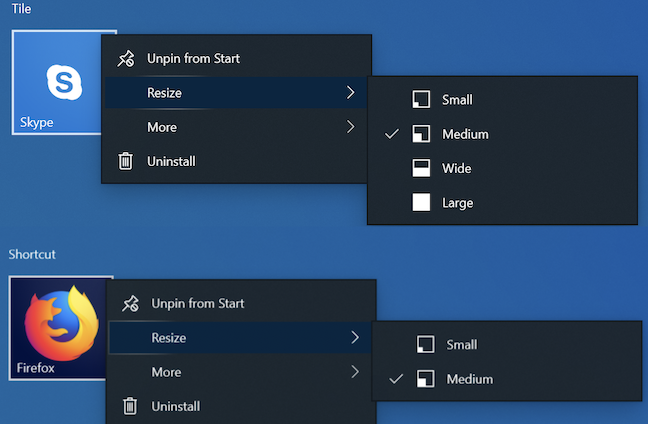
- Tiles can be a lot larger than shortcuts. You can resize them using the four available sizes, while traditional shortcuts only support two sizes.
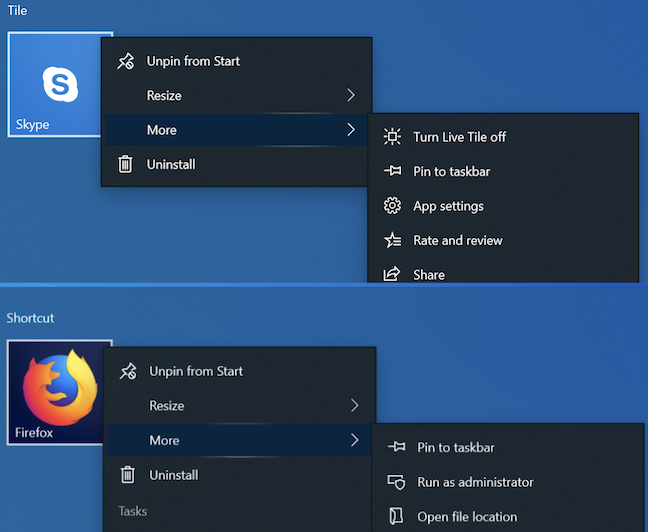
- When you right-click (or press and hold) a Windows tile, you get access to options that are not available for shortcuts: you can turn the live data display on or off, you can go directly to the app's settings, rate and review the app in the Microsoft Store, and share it with others. Shortcuts, unlike Windows tiles, offer you the option to run their apps as administrator. Tiles do not, because Windows apps that have tiles are limited by Microsoft, so running them with administrator permissions is not an option.
To illustrate, we have Mozilla Firefox "playing the part" of the shortcut and Skype in the role of the static tile. While the app tiles can usually be Small, Medium, Wide and Large, shortcuts only come in Small and Medium. To see the available sizes, right-click the tile, or tap and hold (if you have a touchscreen) and then access the Resize menu.
The More menu is also a reliable way to tell Windows tiles from shortcuts. Tiles usually offer the options to "Turn Live Tile off," "Rate and review," and Share, also allowing the user to access App settings. As you can see, Mozilla Firefox, being a desktop app with a traditional shortcut, does not offer these options. However, you do get the option to "Run as administrator," which is not available for Windows apps with tiles.
What do you see in the future of Windows tiles?
We hope this guide helps you get a better perspective of Windows tiles and how they can help you create a balanced and efficient Start Menu. We believe this is not the end of the road for Windows tiles and we are going to see more of them in the future. Maybe we will be able to drag them all around the screen and use them as live tiles on the desktop, or perhaps we will get to further customize the content they display. Before you close this article, let us know in a comment below how you would like the tiles to evolve in Windows 10. How would you make them better?