
Libraries are one of the most misunderstood and, at the same time, the most useful features in Windows. They can help users organize their files and folders efficiently. By using libraries, you can build a system so that you can always find what you want in seconds. Not only that, but you can also sort, tag or edit files and folders with just a few clicks (or taps). In this article we explain what libraries are, we show how they work and how to create new ones. We also show how to add new folders to a library, how to modify the properties of a library, and how to delete one. Let's get started:
What are Windows libraries? Which of the following best describes the use of libraries in Windows, and what are the benefits of using them?
You should think of a library as a virtual collection of folders on your system. It is virtual because it does not exist as a real folder. A library is a reference to one or more folders on your computer and the files found inside those folders. For example, you can have documents stored in multiple locations like your Documents folder, on the desktop and some other locations. You can have a Documents library which references all these places. When you open the library, you see all these folders and their contents as if they are sub-folders of the Documents library.
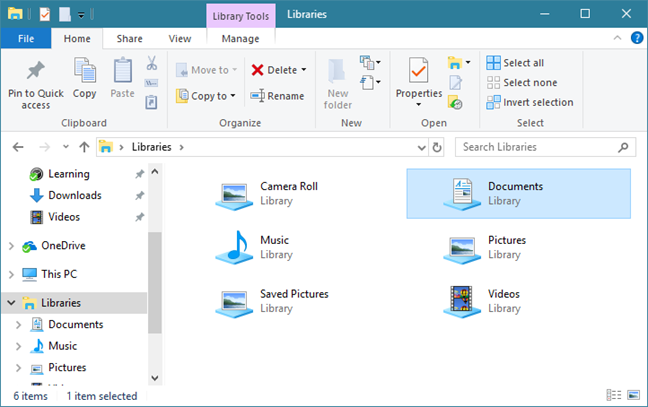
The libraries help you organize all your files together in one place regardless of where they are stored. In other words, when using a Windows PC, you can use a library to organize similar files that are located in different locations. This can aid in productivity when you work with lots of files split into many locations.
When opening a library, File Explorer (in Windows 10 and Windows 8.1) or Windows Explorer (in Windows 7) displays all the files and folders that are part of it, as if they are physically stored inside the library. Unfortunately, they are shown by default, only in Windows 7's Explorer. In Windows 10 and Windows 8.1, you have to configure File Explorer to display them manually. However, this problem can be fixed relatively easily. You only have to follow the steps mentioned in this tutorial: How to get back the libraries in Windows 10 and Windows 8.1.
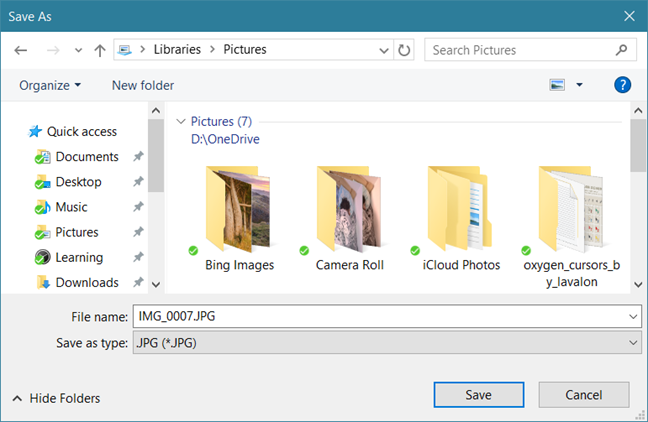
If libraries are enabled, a benefit you have is that they are also displayed in Save As dialogues, so that you can quickly save your work in the appropriate library.
Another significant benefit of using libraries is that Windows automatically indexes them. When you do a search, your libraries are part of the search index, and results are returned fast. Last but not least, libraries are used by some Windows features and apps. For example, in Windows 10 and Windows 8.1, File History automatically backs up your libraries, so that you never lose their content. Some apps from the Microsoft Store, also prioritize libraries as the default locations for storing and working with files.
To summarize, here is what you get for using libraries in Windows:
- An easier way to organize your files and folders, customized for the type of content stored inside (documents, pictures, music, videos).
- Quick access to libraries from most programs, dialogue boxes, and windows.
- Fast search, so that you can find what you are looking for in seconds instead of minutes.
- Some Windows apps and features are built to use libraries and work better with them than with standard folders. Therefore you will be more productive if you are using libraries.
Which are the default Windows 10 libraries and what is inside them?
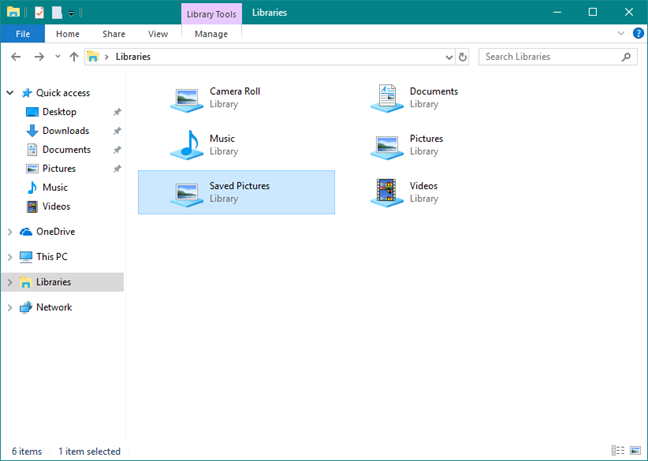
In Windows 10, there are six default libraries: Camera Roll, Documents, Music, Pictures, Saved Pictures, and Videos. They include only the user folders specific to each library. For instance, the Documents library includes just the user's Documents folder, the Pictures library contains only the user's Pictures folder, and so on. As you can see, some of the libraries are redundant: Camera Roll, Pictures, and Saved Pictures include the same user folder: Pictures.
Which are the default Windows 7 libraries and what is inside them?
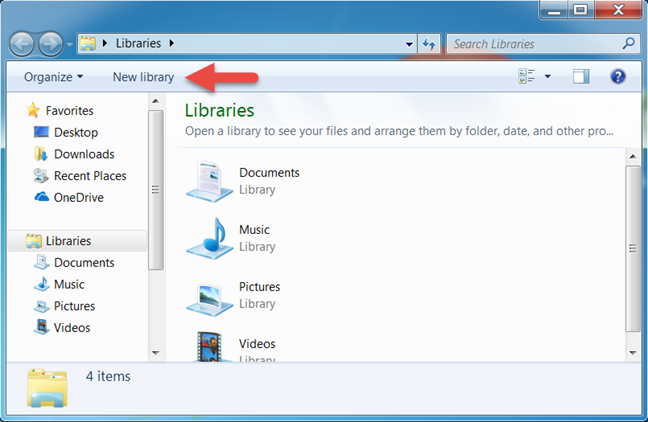
In Windows 7, there are four default libraries: Documents, Music, Pictures, and Videos.
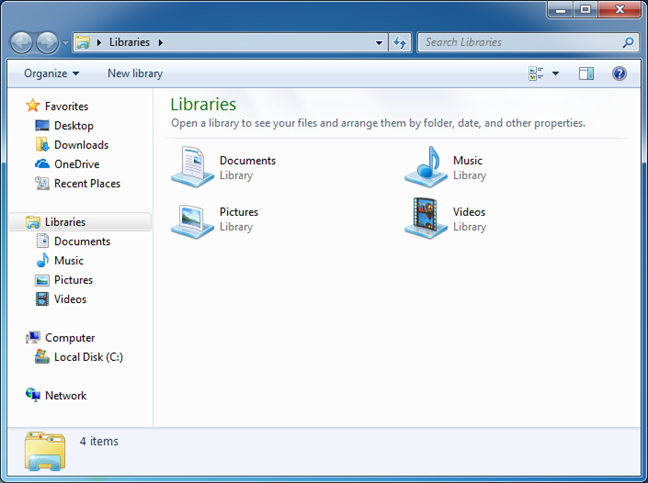
All the default libraries include two standard folders: the user folder specific to each library and the public folder specific to it. For example, the Documents library includes your user's Documents folder and the Public Documents folder; the Music library includes your user's Music folder and the Public Music folder and so on.
To learn more about public folders and their role in Windows, read this guide: What is the Public folder & How to use it?.
Which are the default Windows 8.1 libraries and what is inside them?
In Windows 8.1, there are also four default libraries, identical to those in Windows 7: Documents, Music, Pictures, and Videos.
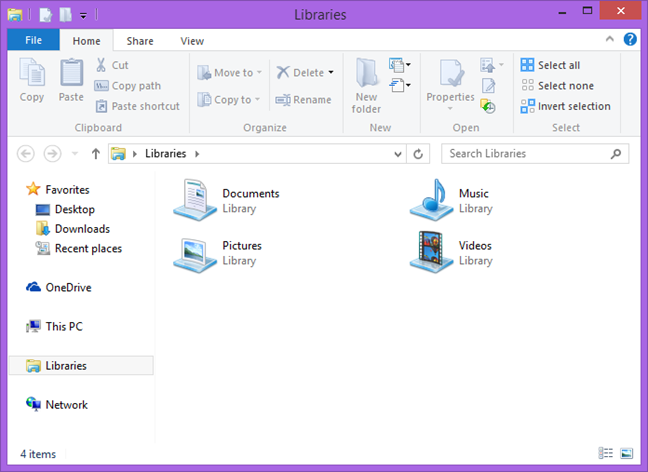
However, unlike in Windows 7, the default libraries from Windows 8.1 only include the specific user folders for each of them. They are no longer including the user's public folders. That means that the Documents library only includes the user's Documents folder, the Pictures library only has the user's Pictures folder and so on.
How to create a library in Windows
First, open Windows/File Explorer. Then, click or tap the Libraries section in the Navigation pane, on the left side of the window.
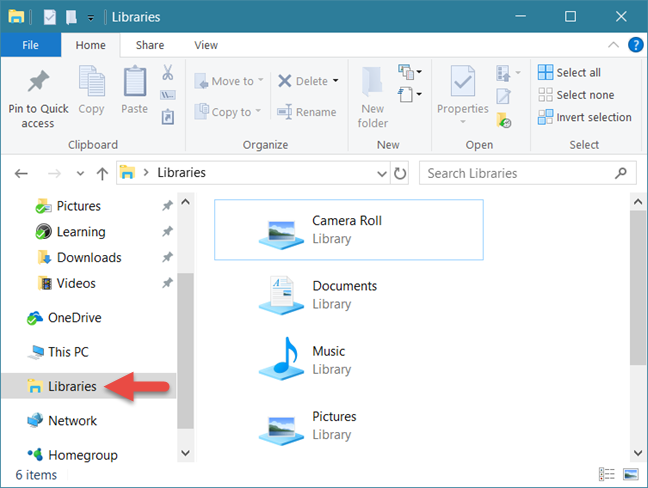
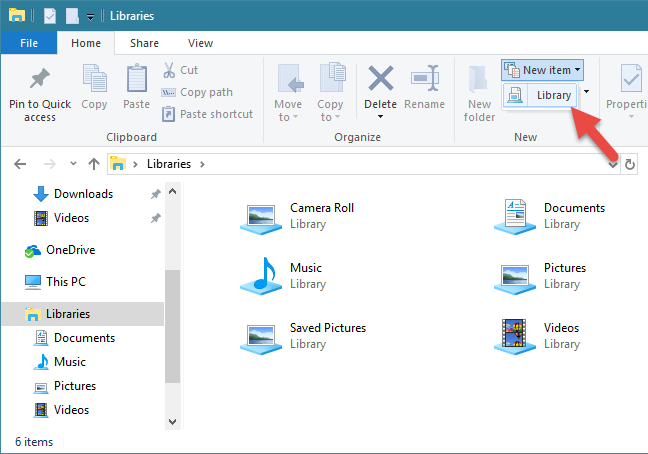
In Windows 10 or Windows 8.1, expand the Home tab on the ribbon and click or tap "New item," and then on Library, in the New section. Type the name of the new library.
In Windows 7, go to the bar on the top of the Windows Explorer window and click New Library. Then, type the name of the newly created library.
Another way works the same in all Windows versions, is to right-click on the Libraries section, go to New and then click or tap on Library.
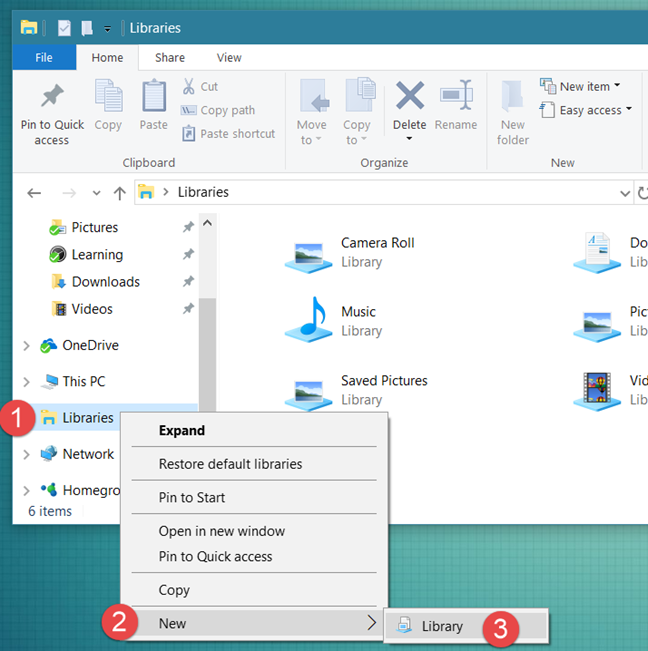
Then, type the name of the library that you want to create.
How to add folders to a library in Windows
You should now have a new but empty library. To add folders to it, open it. Then, click or tap "Include a folder."
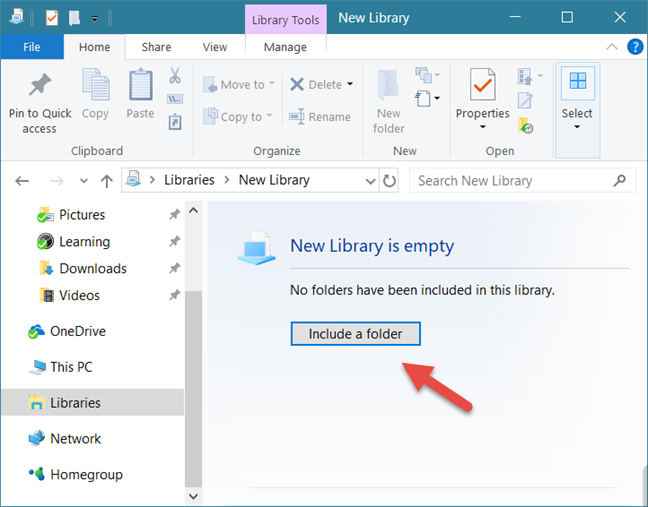
Browse your computer, select the folder that you want to include and click or tap "Include folder."
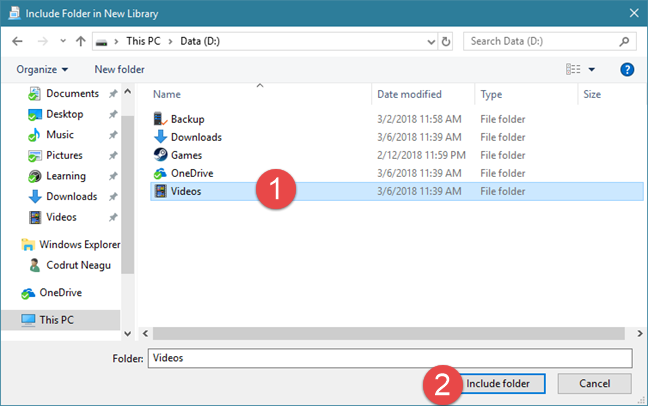
After you select the folder, Windows/File Explorer scans its contents and includes it in the library.
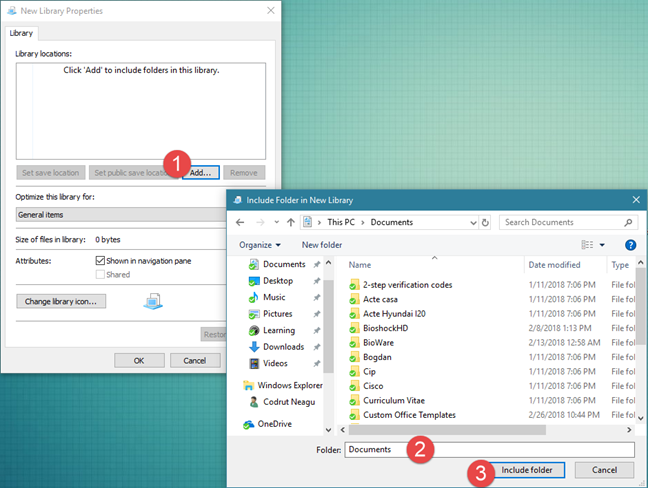
Another way is to right-click the library you want to add folders to and select Properties. Then, click "Include a folder" (in Windows 7) or Add (in Windows 10 and 8.1), browse your computer, select the folder you want to include, and then click or tap "Include folder".
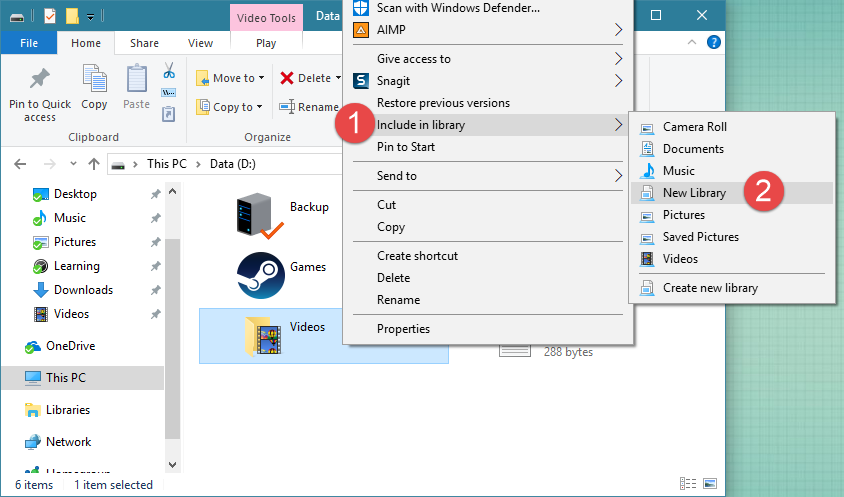
Another alternative is to open Windows/File Explorer and navigate to the folder that you want to include in a library. Right-click (or press and hold) on it. In the contextual menu that is displayed, select "Include in library" and then the library where you want it placed.
How to sort the contents of a library
In the Libraries space, every type of files has its own set of personalized characteristics, that are displayed as possible columns specific to each library type:
- Documents - files inside this library are described by the following characteristics: name, date modified, type, size, date created, folder path, authors, categories, tags, and title.
- Pictures - files inside this library are described by characteristics like name, date, tags, rating, type, and others;
- Music - files inside this library are described by characteristics like name, album, artist, title, genre, bit rate, rating and others;
- Videos - files inside this library are described by characteristics like name, folder, year, type, length, and others.
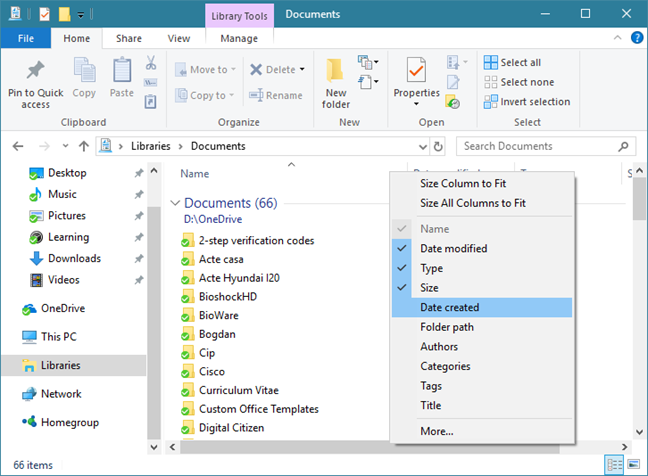
These tags/data columns can be used for quick sorting, grouping, etc. To learn more about how to filter and group files and folders, we recommend you to read this tutorial: How to filter, group and search files and folders in Windows/File Explorer.
How to edit the properties of a library in Windows
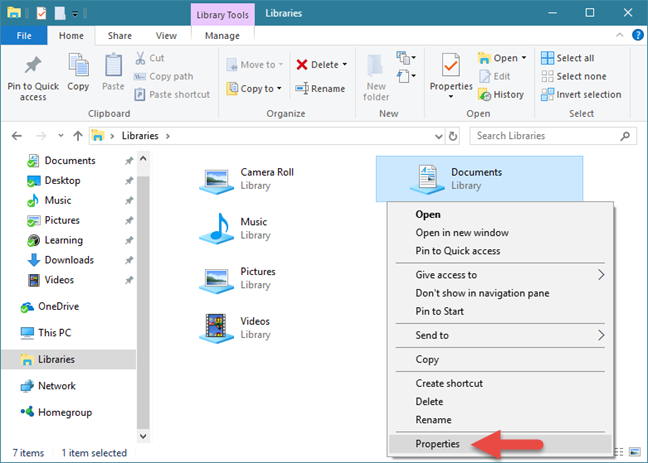
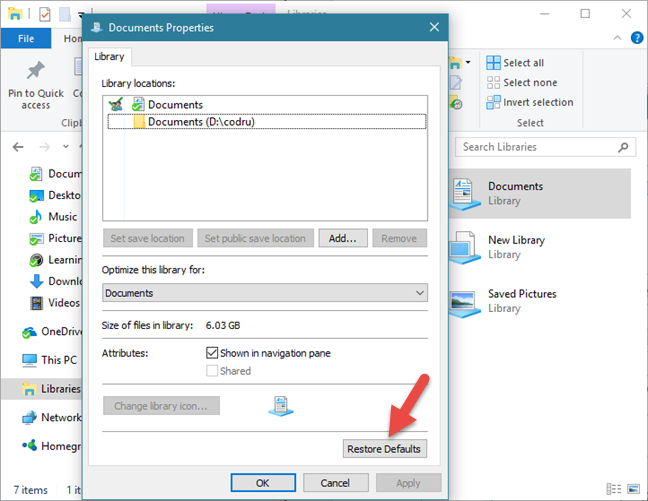
To open the properties of a library, right click (or press and hold) the desired library and select Properties.
The following properties are available for customization:
- "Set save location" - gives you the possibility to select a default save location for files and folders. When you add new files or folders to the library, Windows stores them in this folder of your library.
- "Set public save location" - this button is visible only in Windows 10 and Windows 8.1. It allows users to set a folder as the default save location for other users working with that library. Therefore, you can have two separate save locations - one for your user account and another for other user accounts.
- "Include a folder" (in Windows 7) or Add (in Windows 8.1) - allows you to include a new folder in the library.
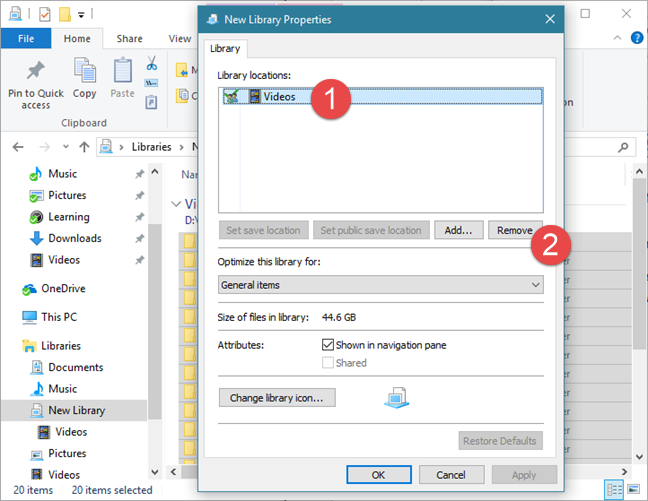
- Remove - excludes the selected folder from the library.
- "Optimize this library for" - displays a list of visualization templates that can be applied to the selected library. This makes Windows/File Explorer display relevant tags, columns and sorting fields, based on the content type you have chosen. Also, it changes the icon of the library, to be more suggestive of its content.
- "Shown in navigation pane" - is an attribute that allows the library to be displayed in the navigation pane, on the left side of the Windows/File Explorer window. When disabled, the library is not shown in the navigation pane.
- Shared - is an attribute that informs you whether the library is shared with the network or not.
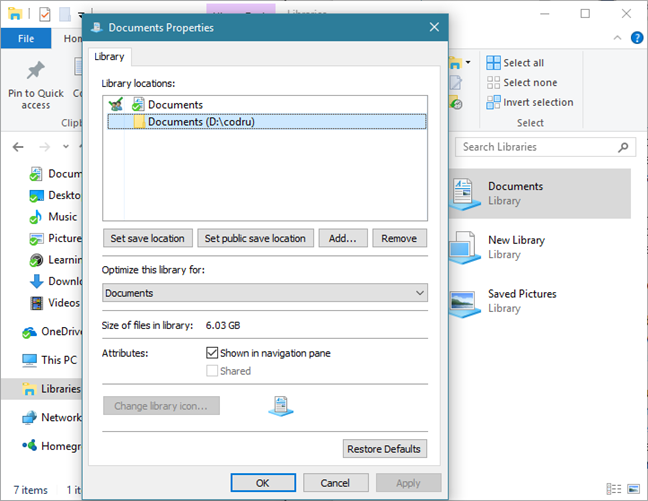
If you want to revert a library to its initial settings, click or tap "Restore Defaults."
How to remove a folder from a library in Windows
Deleting a folder that is part of a library is done the same way as when you want to remove any folder your computer. But what if you want to remove a folder from a library, without deleting it from your computer?
That is just as easy. Open the library's Properties, as we showed in the previous section of this guide, select the folder and then press Remove.
In Windows 7, you can also open the library and go to the folder you want to remove from it. Then, right-click (or press and hold) on it and, in the contextual menu, select "Remove location from library."
How to delete a library in Windows
Removing a file or folder from a library means eliminating it from your hard disk. Deleting the library itself removes the library but not the folders and files that were inside. Because libraries are virtual collections of files and folders, a library's files and folders continue to exist on your hard disk even after the library is deleted.
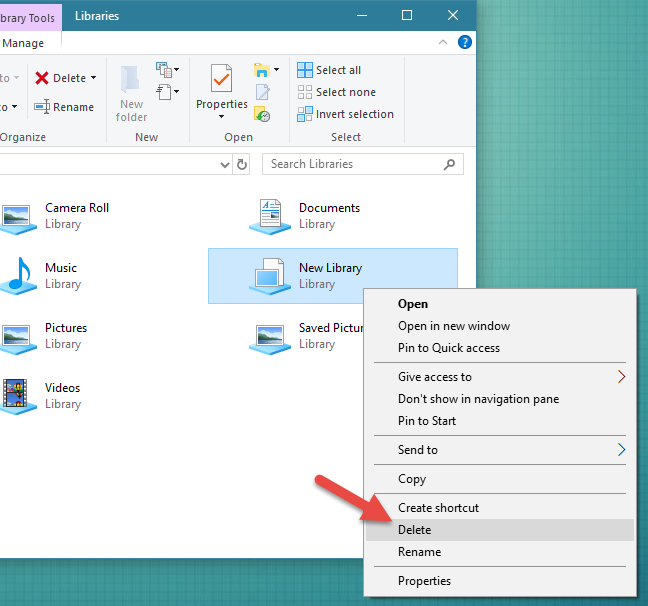
How do you delete a library? The procedure is simple: right-click (or press and hold) the library you want to delete. Then, in the contextual menu, click or tap on Delete.
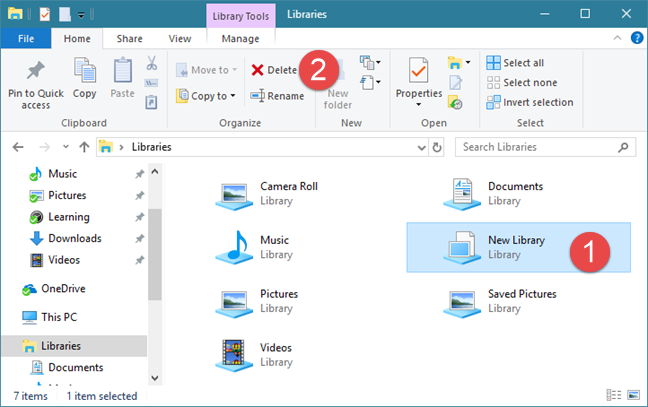
In Windows 10 and Windows 8.1, you can also use the ribbon. Select the library, expand the Home tab on the ribbon and click or tap Delete.
Conclusion
As you can see, libraries are a great feature of Windows. We use them heavily in Windows, and we consider that they offer a significant productivity improvement. But what about you? Are you using the Windows libraries? What is your way of organizing and managing files and folders? Use the comments below to share your perspective.