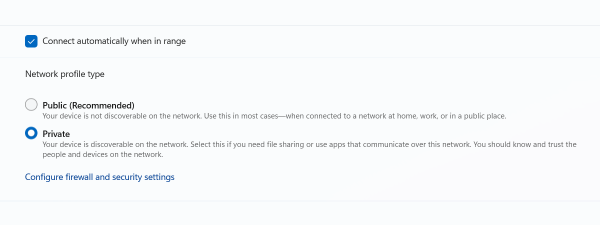
What are network locations? You’ve probably heard the term being used in networking guides or regular face-to-face discussions between tech people. Do you want to know what a network location is in Windows, its purpose, and why the network location you set matters? Read this article and we’ll answer these questions, explain, and give examples of network locations and guidance on how to find your network location and configure it properly. Let’s get started:
What is a network location?
Network locations were first introduced in Windows Vista. At that time, they felt half-baked and confusing to users. But they were improved significantly in Windows 7 and later on in Windows 10 and Windows 11. Now they have a simple implementation and represent a useful way to manage network connections and network sharing.
A network location is a profile that includes a collection of network and sharing settings applied to the network you are connected to. Based on the network location assigned to your active network connection, features such as file and printer sharing or network discovery might be enabled or disabled.
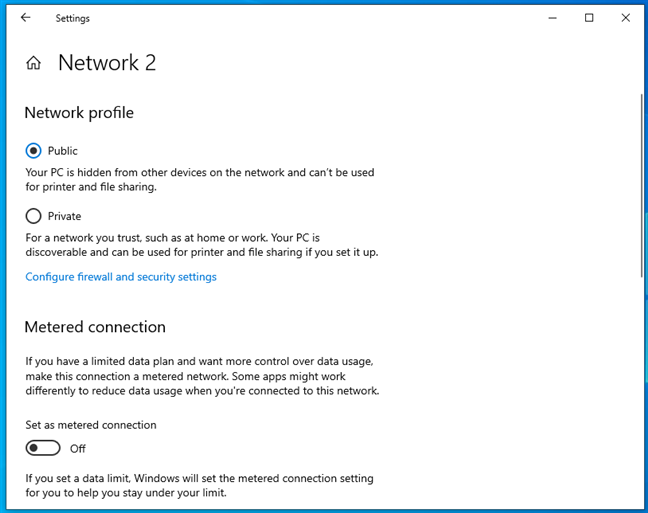
Network locations in Windows 10
Network locations (or profiles if you prefer) are useful to people who are very mobile and connect their Windows computers and devices to many networks. For example, you could use your work laptop to connect to your company network, then take it home at the end of the day, connect to your home network, and, during the weekend, travel and connect to free Wi-Fi networks in hotels, cafes, and airports.
Each time you connect to a new network, Windows assigns it a network profile. In newer operating systems, like Windows 10 or Windows 11, each new network is automatically set to use a Public location. On older ones, like Windows 7, you’re asked whether you want to make your computer discoverable on the network by choosing a network profile. Once configured, the network and sharing settings appropriate for your network connection help maintain your system’s security. Enabling network and sharing features should be an intentional choice you make only when they are useful to you. Here’s what network locations you get in Windows 10, Windows 11, and then in Windows 7:
Network locations in Windows 10 and Windows 11: Private and Public
Windows 10 and Windows 11 use two types of network locations: Private networks and Public networks. Here’s what they do:
- Private network - This profile should be applied to your home network or to the network from your workplace. When this profile is assigned to a network connection, network discovery is enabled, file and printer sharing are turned on, and LAN (local area network) connections are allowed.
- Public network - This profile is the more secure of the two because network discovery and file and printer sharing are turned off. You should set Windows 10 or Windows 11 to enable the Public network profile when connecting to public networks you don’t trust, like those found in airports, coffee shops, bars, hotels, etc.
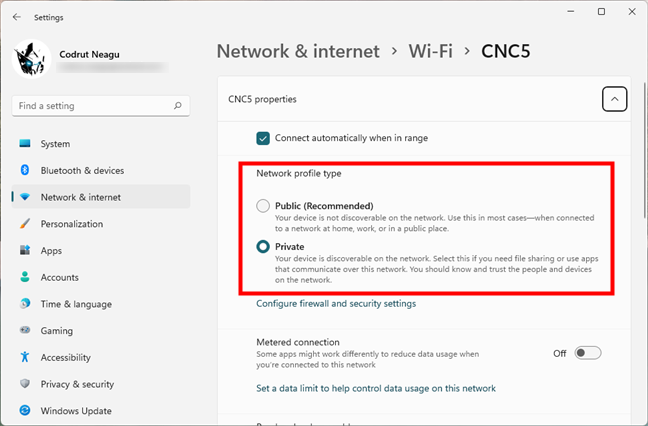
Network locations in Windows 11
Network locations in Windows 7: Home, Work, and Public
Windows 7 has a slightly more convoluted approach when it comes to network locations. It allows you to choose between three types of profiles/network locations:
- Home network - choose this location when you are connected to your home network or a network with people and devices you fully trust. By default, network discovery is turned on, you’re able to see other computers and devices on the network, and you can share files and folders with them. Also, this allows other computers from the network to access your computer. On home networks, you are also allowed to create or join a HomeGroup.
- Work network - this profile is the one you should use when connecting to your workplace network. It uses the same settings as the Home network, with an essential difference: it doesn’t allow you to create or join a HomeGroup.
- Public network - this profile is perfect when you are in a public place like an airport, hotel, or coffee shop. When this profile is used, network discovery and sharing are turned off. Other computers from the same network can’t “see” yours. This setting is also useful when your computer is directly connected to the internet (for example direct cable/modem connection, mobile internet, etc).
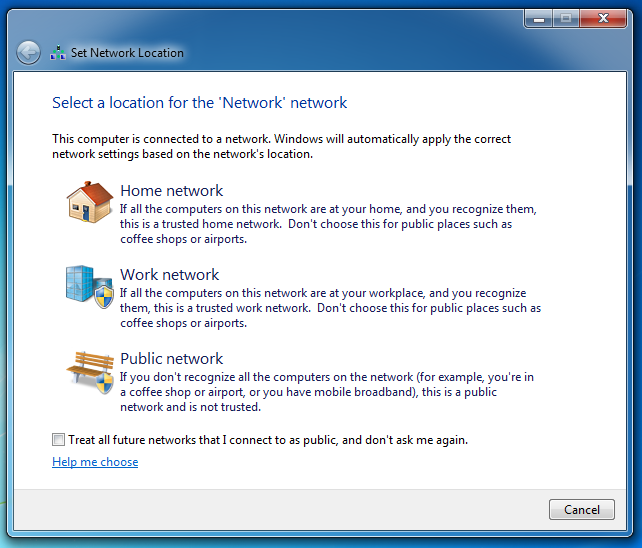
Network locations in Windows 7
NOTE: Windows operating systems also come with a third network location profile named Domain network. This one cannot be set by the normal user. It’s available for enterprise workplaces and set by the network administrator. The settings applied to this profile are those set by your company, and you cannot change them. Also, they vary from company to company.
How to see and change the network location in Windows
The network location is set the first time you connect to a new network. When you do that, depending on the version you’re using, Windows either sets it as a Public network by default, or asks you the network location you want to set, or whether you want to find devices and content on the network (make your PC discoverable). When you get such a question, remember that your answer does only one thing: it sets the network location for your network connection. However, after a while, you might ask yourself “How do I find my network location?”. Or you might change your mind and want to set another network location for your active network connection. Fortunately, all these are easy to do, as you can find out from these guides:
- How to change the Windows network profile to Private (or Public)
- View and change the Windows 7 network location (Home, Work, Public)
Do you have any other questions about network locations?
As you’ve learned from this guide, network locations are a useful feature of Windows. With only a few clicks or taps, you change the whole set of network sharing settings that are applied to your active network connection. If you have any more questions about how it works or if you encounter problems when dealing with this feature, don’t hesitate to let us know in a comment below.