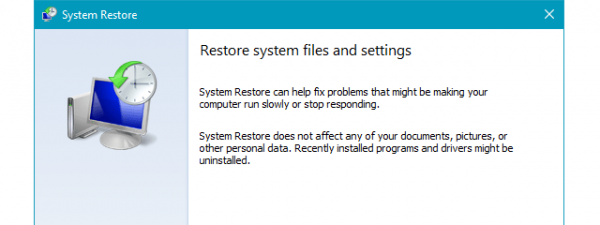
Sooner or later, everyone has problems with their operating system, no matter the version. When the going gets tough, some system recovery tools come in handy. Windows 7 has a few tools available which can help you when the system no longer behaves as it is supposed to. These tools can be used in the following scenarios: boot errors, upgrade failures or reboot loops.
In this article I will share with you the list of available tools, explain what they do and the scenarios when they are helpful.
System Recovery Options - What they Are & When to Use them
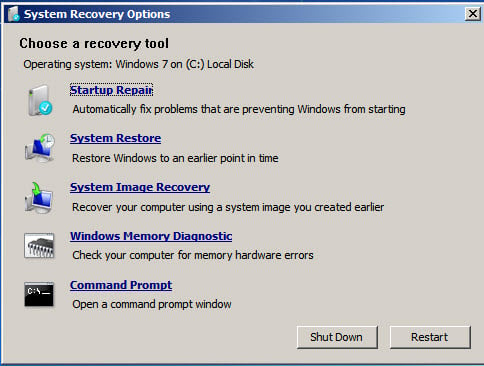
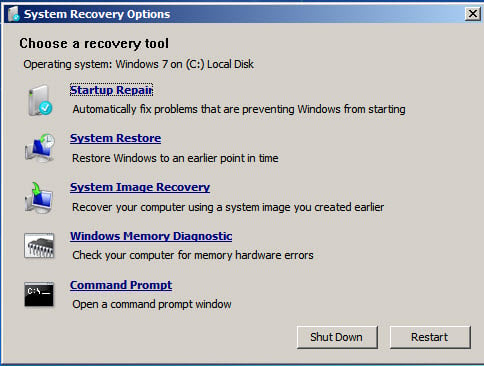
The 'System Recovery Options' are a set of 5 tools, listed below, which can be used to repair or recover a damaged operating system:
-
Startup Repair - can be used to scan your computer and fix missing or damaged system files that prevent Windows from starting correctly. You can use this tool if you have modified Windows system files or if you installed applications which have modified Windows system files in such a way that the operating system doesn't start anymore.
-
System Restore - can be used to restore Windows system files to the state of an earlier point in time, while leaving all your user files untouched. You can use System Restore when you want to revert to an earlier configuration which you know it worked properly. For example, if you installed multiple applications and you are suddenly experiencing random restarts, boot failures and Startup Repair failed to fix anything, the quickest way to solve the problem is to use System Restore.
NOTE: In order to use System Restore you must have at least one system restore point previously created. More info about this feature will be published in upcoming articles.
-
System Image Recovery - can be used to restore a system image. When everything else fails, this can be the solution to your problems. When Startup Repair and System Restore are not helping, try to use the System Image Recovery tool. The only drawback is that you will revert only to the files, folders and applications that were present at the time you created the system image.
NOTE: In order to use this tool you must have a previously created system image file. More info about this feature will be published in upcoming articles.
-
Windows Memory Diagnostic - scans your computer's memory for errors. If your computer randomly freezes after you upgraded or changed the RAM modules, it is a good idea to use the Windows Memory Diagnostic to check them for errors.
-
Command Prompt - can be used by advanced users to perform recovery-related operations. These operations should only be used by advanced users. If you are not sure on what you are doing, you can end-up with your Windows 7 in a state which is a lot worse than before.
There are two ways of accessing the 'System Recovery Options': from the Windows 7 installation DVD or directly from your hard-disk. I will start with the first scenario. As you will see, finding the 'System Recovery Options' is easy in both cases.
Access System Recovery Options From The Installation DVD
The first step is to insert the Windows 7 installation DVD into your drive and boot from it. Select the language you prefer and click on Next.

NOTE: In order to boot from a DVD, the DVD drive has to be the first device in the 'Boot Device Order' section of your BIOS. Depending on your motherboard manufacturer and BIOS model this option can have different names.
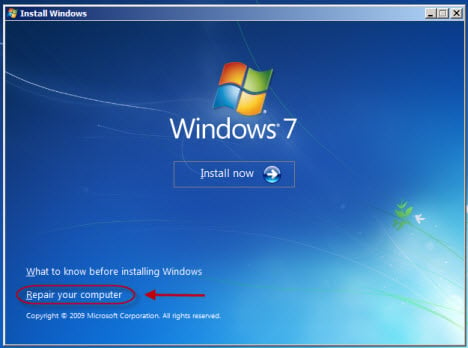
In the next window click on the 'Repair your computer' link.
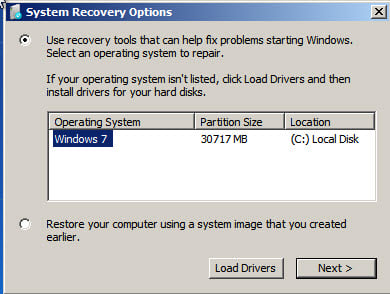
Then select the operating system that you want to repair. This step is important when you have multiple operating systems installed and only one is damaged. Click on Next to continue.
In the new window you will see all the 'System Recovery Options'.
Access System Recovery Options From Your Hard Disk
If you don't have a Windows 7 installation DVD, don't worry. You can still access the 'System Recovery Options' from a hidden 100MB recovery partition that Windows 7 automatically creates when you first installed the operating system.
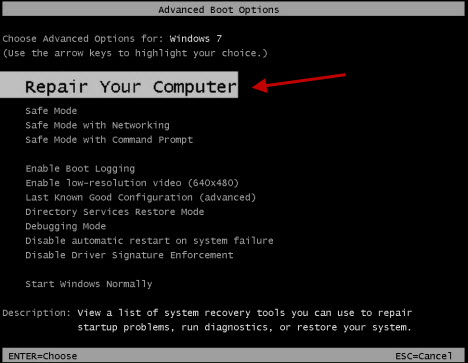
At the next computer restart, right after the BIOS info screen, press and hold the F8 key from your keyboard. Shortly you will see a list of 'Advanced Boot Options. From it, select the first option named 'Repair Your Computer' and press the Enter key.
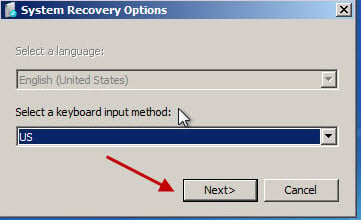
After a few seconds a 'System Security Options' window will show up. Select the keyboard input method that you prefer and click on Next.
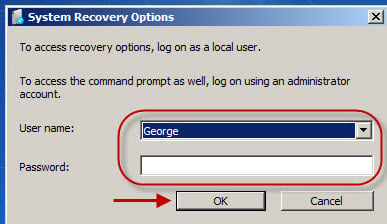
In the next window, select a user name to log on to Windows 7. Also, if you have a password for that user name type it in the Password text field. When done, click on OK.
In the new window you will see all the available 'System Recovery Options that you can use to repair Windows 7.
Conclusion
In this article I covered the basic information about the available 'System Recovery Options' in Windows 7, as well as when to use each of them. In future articles I will talk about each of these tools, one by one. So, stay tuned for future articles.
Until then, don't hesitate to share with us your questions & scenarios when these tools proved to be useful to you.