Did you know that both Windows 10 and Windows 11 allow you to change shortcuts by adding command-line parameters to them? Or that you can also make new shortcuts with arguments, having them open their target applications with some of their features turned on or off automatically? If you want to learn how to add launch options to executables using their shortcuts, read on:
What is a shortcut parameter, also known as a shortcut argument?
Before we show you how to create shortcuts with parameters and how to add arguments to Windows shortcuts that are already available, you should first know what a shortcut parameter is. Shortcut parameters are special commands that can alter how apps run when you launch them using their shortcuts. Thus, a shortcut with launch arguments can enable or disable certain features of the app it opens.
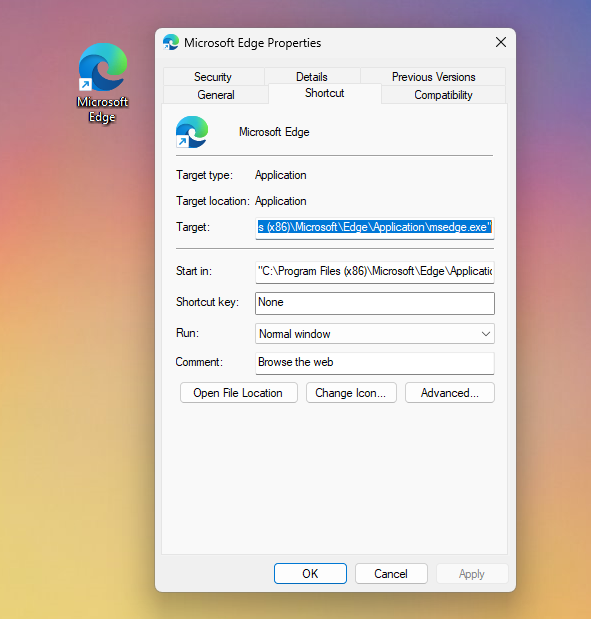
A shortcut with command-line arguments
For example, by adding a special parameter to a browser’s shortcut, you can make it automatically launch in its incognito mode. Similarly, some games allow you to use shortcut arguments to automatically enable cheats, configure their graphics settings, and others.
How to add launch options to executables using shortcut parameters in Windows
First, find the shortcut to which you want to add launch options or create a shortcut pointing to the executable file of the program you intend to open using command-line arguments. If you need help making a shortcut, you can find all the information here: How to create shortcuts for files, folders, apps, and web pages in Windows.
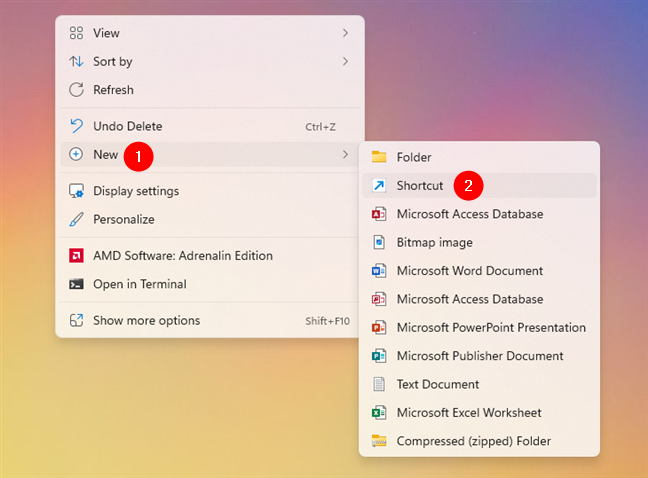
Creating a new shortcut
Then, you have to open the shortcut’s Properties window. To do that, right-click or press and hold the shortcut and select Properties in the contextual menu. Alternatively, you can select the shortcut and simultaneously press the Alt + Enter keys.
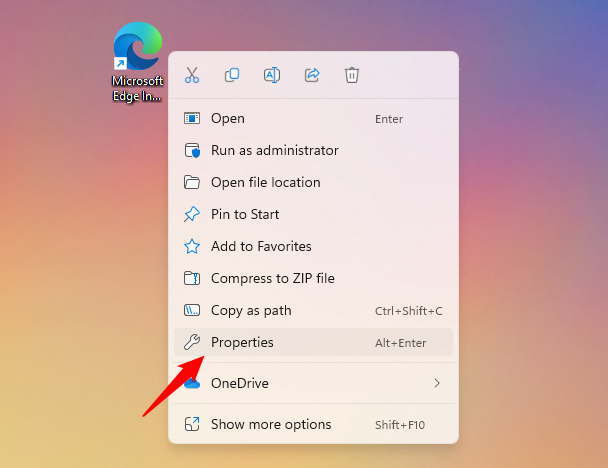
Opening the Properties of a shortcut
The shortcut’s Properties window is where you can add arguments for that application. Select the Shortcut tab and look for the Target field.
The Target instructs the shortcut of what app (executable) it should launch. In the example below, you can see that I chose to create and use a shortcut pointing to Microsoft Edge.
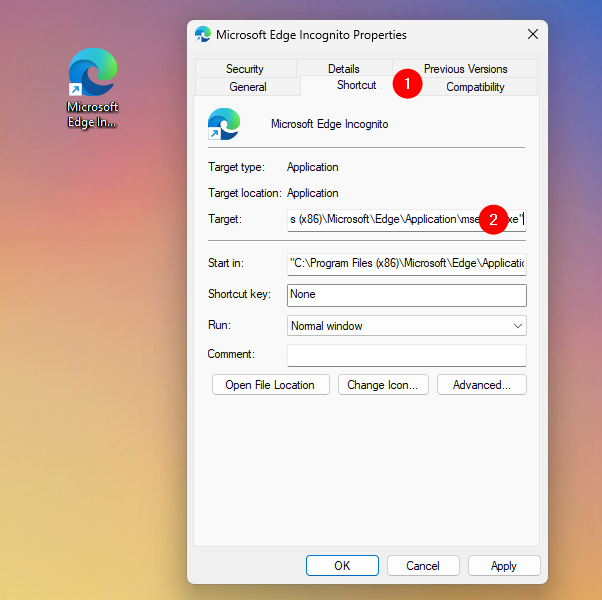
The Target of a shortcut tells it what app to launch
To add launch parameters to the shortcut, click or tap inside the Target text field, and type all the arguments you want to add to it at the end of the line. Each of the additional launch parameters must be preceded by a blank space and a hyphen (-) or a double-hyphen (--).
In my case, because I wanted to make a Windows shortcut that opens Microsoft Edge in its private mode, I had to add the “-inprivate” argument. So, for my Microsoft Edge Incognito shortcut, I ended up with the following Target:
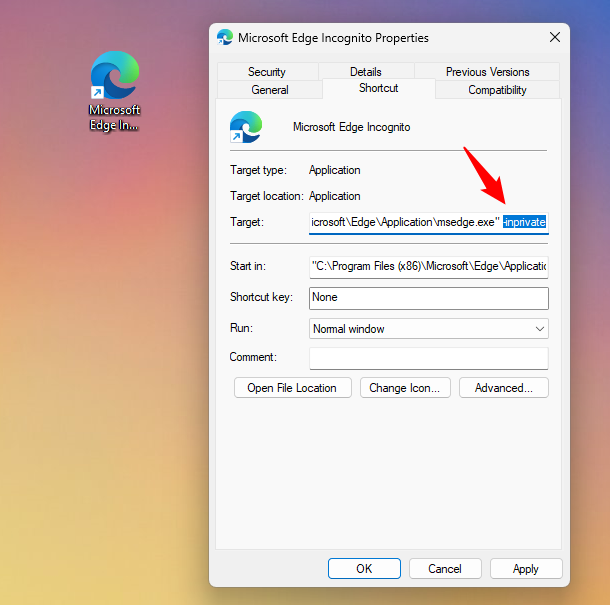
To create a Windows shortcut with parameters, you have to add the arguments to its target
IMPORTANT: When writing the parameters, make sure you search for the list of command-line parameters supported by the application for which you create the custom shortcut. Using unsupported parameters can cause problems when you start the application. Unfortunately, there’s no standard way of getting the list of supported parameters for executable files. Developers can choose whether they implement such arguments in their executables or not, and the best way to find out the supported parameters is to read the app’s documentation or search the internet.
When you are done editing the shortcut, click or tap Apply or OK to save the changes you’ve made.
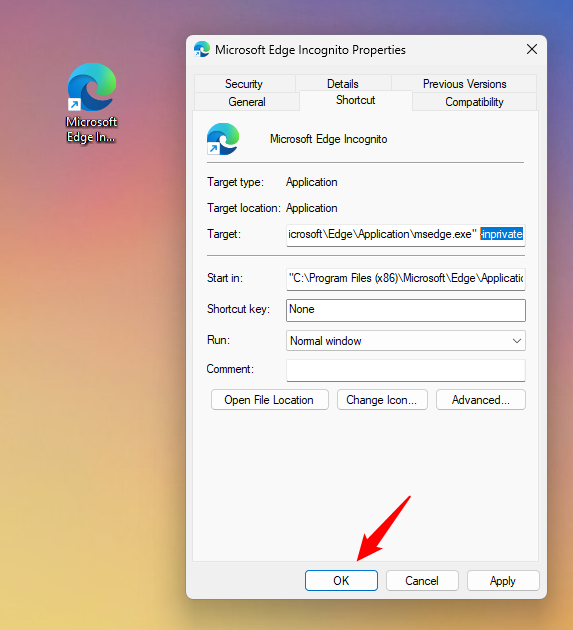
Saving a shortcut with parameters
From now on, whenever you’re double-clicking or double-tapping the shortcut, it launches its target app using the command-line parameters you’ve added to it.
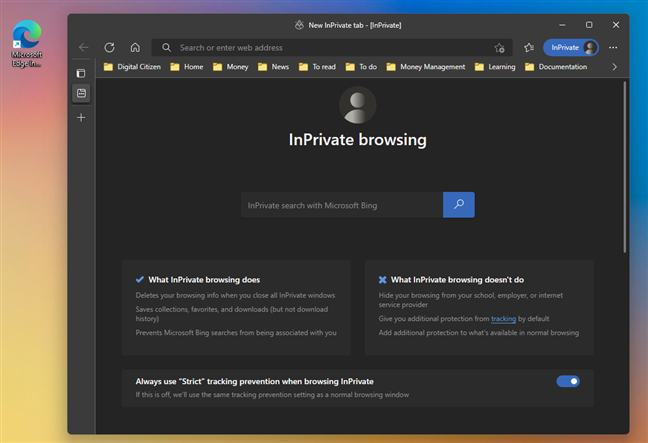
A browser shortcut with a parameter for launching it in incognito mode
TIP: Although you can leave your modified shortcut where it was or where you’ve created it, you might also want to pin your shortcut with parameters to another location, anywhere you wish (desktop, taskbar, Start Menu). If you need help, here’s how to pin a shortcut to the Windows 11 taskbar or Start Menu, and here’s how to add a shortcut to the Windows 10 taskbar or Start Menu.
What shortcuts did you add launch parameters to?
As you can see, adding command-line parameters to shortcuts is easy regardless of whether you’re using Windows 10 or Windows 11, and it doesn’t require much work. What shortcuts with arguments did you create? Did you want to customize some of your existing shortcuts by adding command-line parameters? Why did you want to know how to create shortcuts with parameters in Windows? Let us know in the comments below.