There are a number of indirect ways that you can trick Windows 7 and Windows 8 into printing from a shared printer attached to a Mac, but the best way to do it is through Bonjour. That's because with every version change - either between Windows or OS X - the process gets muddled and a new solution has to be devised. But Bonjour has been fairly reliable even as both operating systems have evolved. In this tutorial, you'll learn how to set up OS X so that its shared printers are available to Windows computers and devices.
NOTE: This guide has been updated for Mac OS X Mountain Lion (version 10.8).
How to Enable Print Sharing in Mac OS X
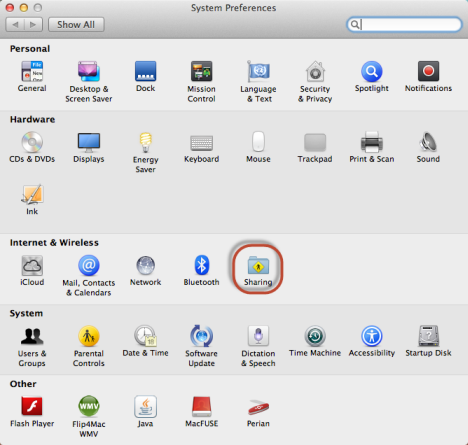
In Mac OS X, first open System Preferences. In the Internet & Wireless section, look for the Sharing button. Click on it.
The Sharing window opens. Enable the checkbox near Printer Sharing. OS X then lists the printers installed on your Mac.
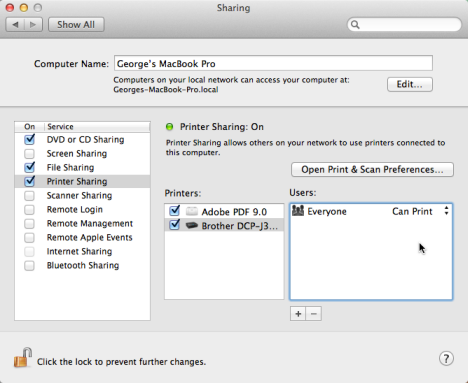
You can go ahead and share them from here. Check the box near the printer you want to share. Then, in the Users section, configure the sharing permissions. Select the users you allow to print and the permissions level assigned.
When done, close the Sharing window, and the System Preferences window.
How to Share a Printer Connected to a Mac OS X
Even though enabling printer sharing provides the options required to share a printer, there's another way to share printers. First, printer sharing needs to be turned on.
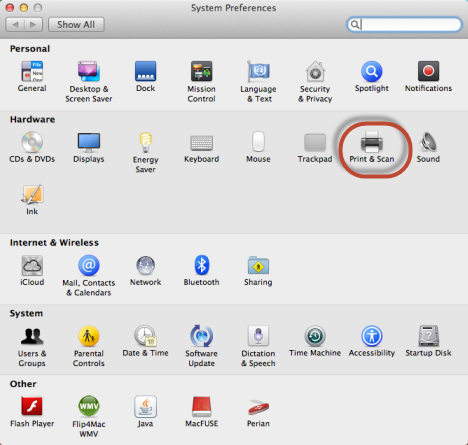
Open System Preferences. In the Hardware section, look for the Print & Scan button and click on it.
The Print & Scan window opens. Here, you see the printers installed on your Mac. Select the printer you want to share. Then, check the box that says "Share this printer on the network".
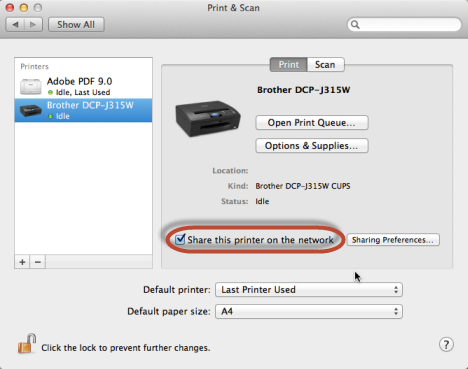
If you want to customize how the printer is shared, click the Sharing Preferences button.
How to Add a Mac OS X Shared Printer to Windows 7 or Windows 8
Download Bonjour Print Services for Windows from the Apple Support website. As of this writing, the current version is Bonjour 2.0.2, which supports Windows XP Service Pack 2 or later. It also works in Windows 8. Installation is straightforward: run the setup file, agree to the terms (read them, if you'd like) and keep clicking Next until it's finished.
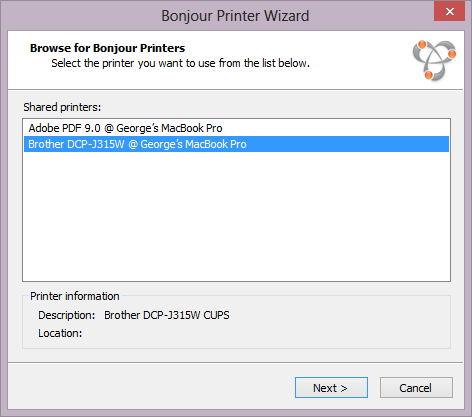
Now, run the "Bonjour Printer Wizard". Make sure your Mac is up and running, connected to the network and the printer is connected and turned on. If all is well, Bonjour will automatically detect the shared printers. They'll be listed as "PRINTER NAME @ COMPUTER NAME". Choose the printer you'd like to install and click Next.
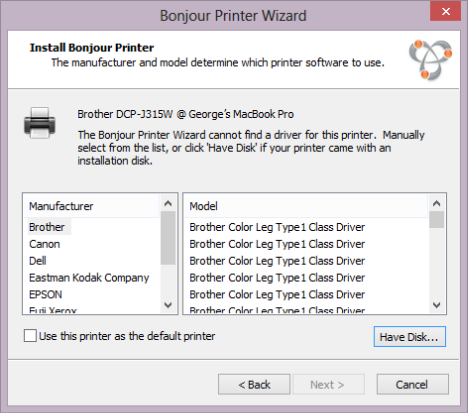
If prompted, install the printer drivers. If you have the printer drivers installed on your computer already, you can choose them from the list. If not, you'll have to locate them manually by clicking Have Disk. Make sure that you install the proper drivers for your specific printer model, otherwise you may have limited or no printer function.
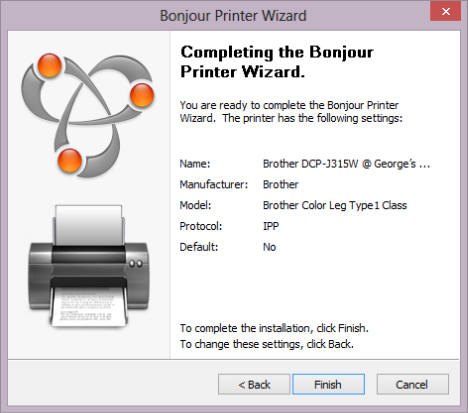
After choosing the drivers, you'll have an opportunity to verify the settings before finishing the printer setup. Click Finish if all looks good.
Now, the OS X shared printer will be available in the Devices and Printers panel of Windows. You can print to your Mac OS X shared printer as you would on a local printer, from the Print dialogue of the program you are using.
Conclusion
Printing to a shared Macintosh printer is fairly hassle-free with Bonjour. You may have difficulties if your firewall blocks port 5353 by manually configuring your firewall. See How to Manage Windows Firewall Communication Rules for more information. Also, check out some of these related articles for more tips on sharing files and printers.